How To Download An App With A QR Code

On this page
- Understanding App QR Codes
- How To Download An App With A QR Code
- Security Measures While Scanning QR Codes to Download Apps
- Downloading Apps with QR Codes on iPhone (Step-by-Step)
- Downloading Apps with QR Codes on Android (Step-by-Step)
- How App Download QR Codes Work
- App QR Codes with Deep Linking
- What Information the App Store QR Code Can Display
- Dynamic App Store QR Codes
- Why You Should Use QR Codes for App Downloads
- How to Create a QR Code for App Downloads
- How to Use QR Codes for Promoting Your Mobile App
- How Different Industries Use QR Codes for App Downloads
- Tips for Effective QR Code Marketing for Apps
- Troubleshooting: When the QR Code Won't Download the App
- The Bottom Line on QR Code App Downloads
- Frequently Asked Questions
- Can I use a QR code to download apps on any smartphone?
- How will the QR code take me to the right app?
- Are QR codes safe for app downloads?
To download an app with a QR code, open your phone's camera, point it at the code, and tap the notification. On iPhone (iOS 11+), the Camera app handles this natively. On Android, Google Lens, the Play Store, or the default camera work the same way. Verify the destination is an HTTPS App Store or Play Store URL before installing.
Understanding App QR Codes
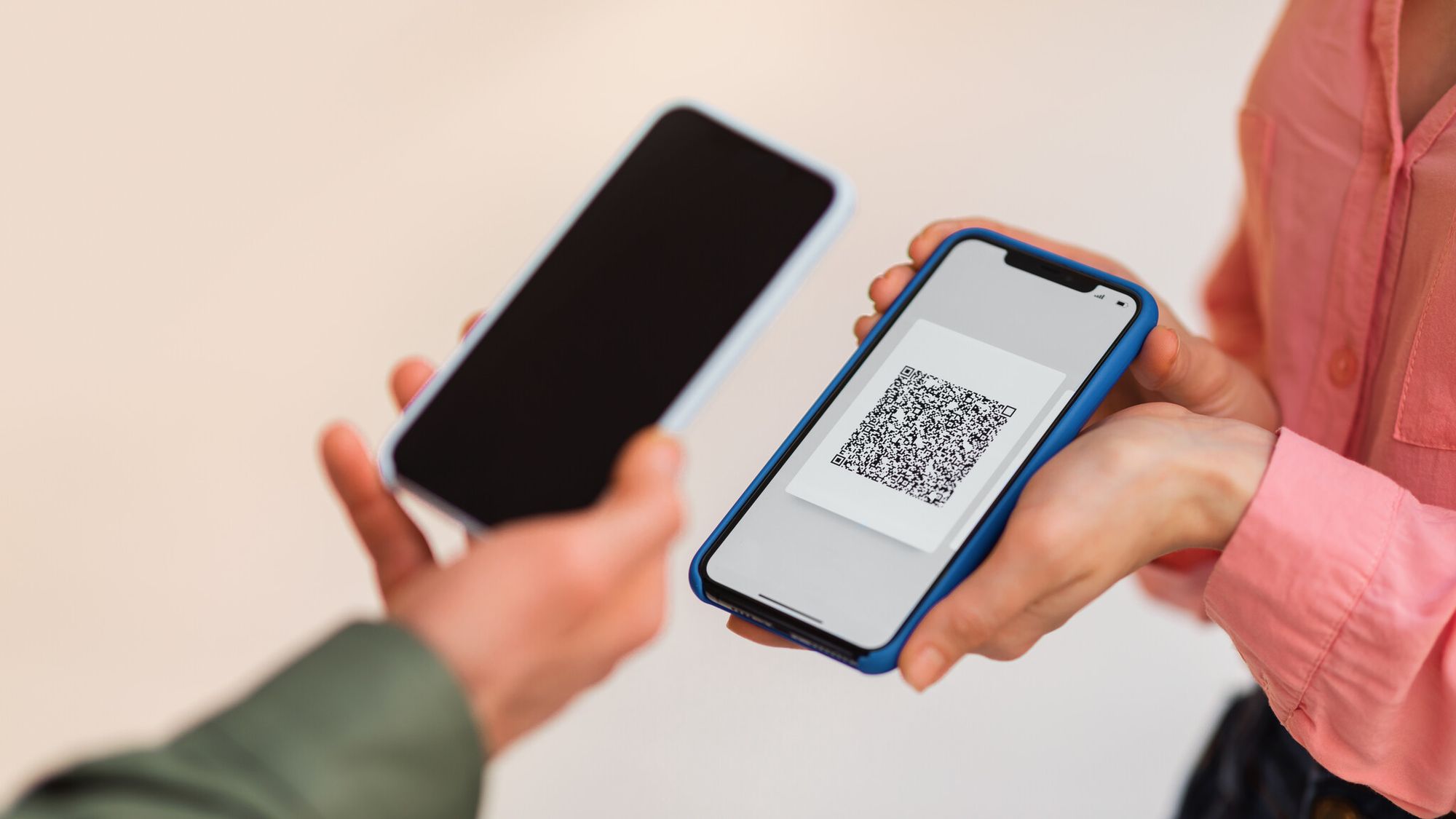
An App Store QR code is a specific type of QR code that, when scanned, sends the phone directly to an install page on Google Play, Apple App Store, or an alternative storefront. It encodes a deep link — no typing or manual store navigation required.
According to Supercode's industry data, 47% of consumers now scan QR codes specifically to download mobile apps. That's why product teams treat app QR codes as a primary install channel.
Three things make app QR codes useful:
- Direct access — one scan resolves to the exact listing, skipping search and duplicate-name confusion.
- Cross-platform routing — a smart app code detects iOS or Android and routes to the correct store.
- Shareable asset — the image works on a flyer, a TV screen, a social post, or a receipt.
How To Download An App With A QR Code
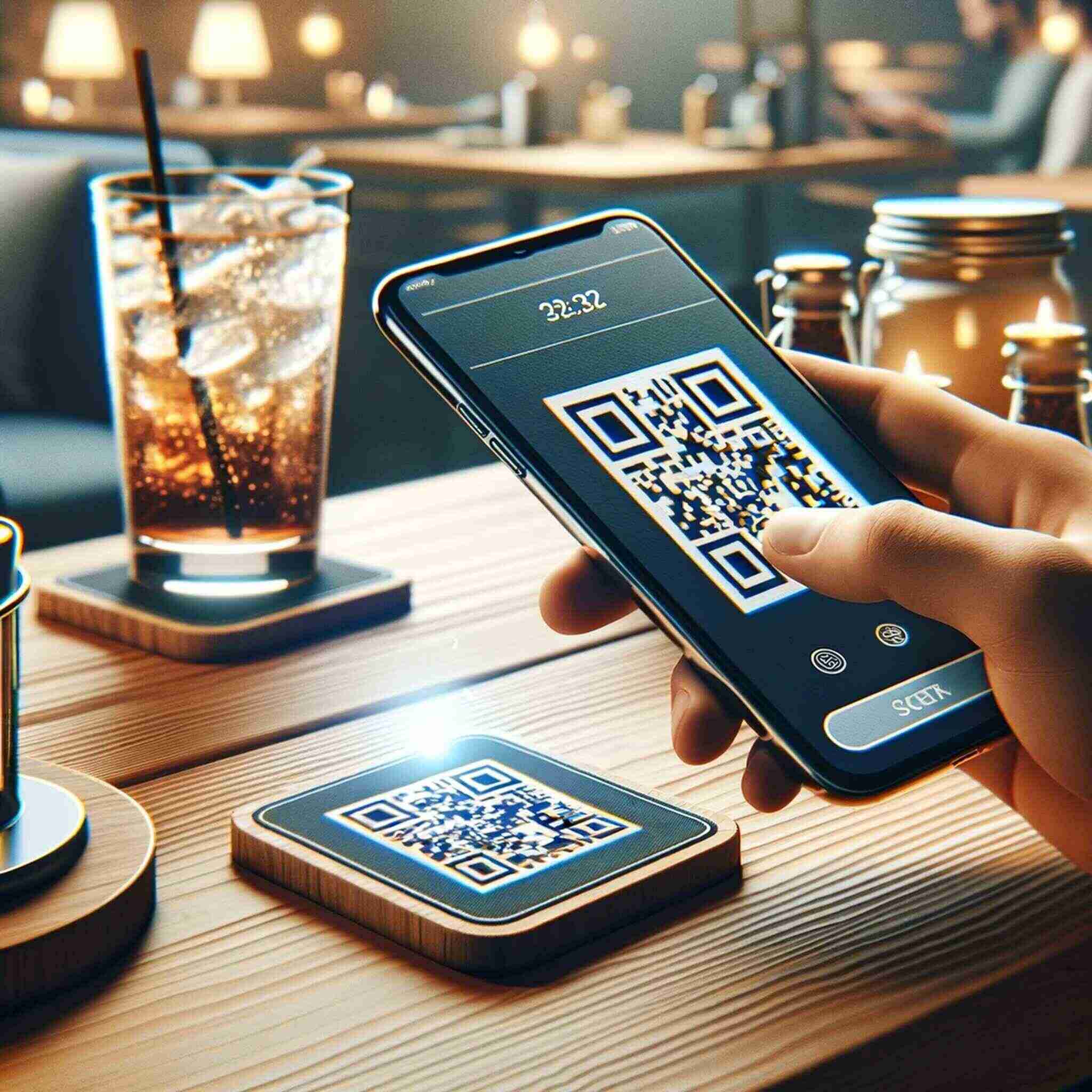
Downloading an app through a QR code is a short, repeatable flow — modern phones do most of the work.
- Locate the QR code — on a flyer, in an email, on a website, or on a screen at a trade show.
- Open the camera or a scanner. iPhone: Camera app. Android: default camera, Google Lens, or the Play Store's scan icon.
- Frame the code roughly 15-30 cm away for codes under 5 cm wide. No shutter button needed.
- Tap the notification — a yellow banner (iOS) or link chip (Android) appears within 1-2 seconds.
- Land on the store page. The tap opens App Store on iOS or Google Play on Android, already navigated to the right app.
- Install. Tap Get (iOS) or Install (Android) and confirm with biometrics if prompted.
Quick pre-scan checks: clean the camera lens (a smudge is the most common cause of failed reads); confirm QR scanning is enabled (iOS: Settings > Camera > Scan QR Codes); if still nothing, use a dedicated QR code scanner tool.
Security Measures While Scanning QR Codes to Download Apps
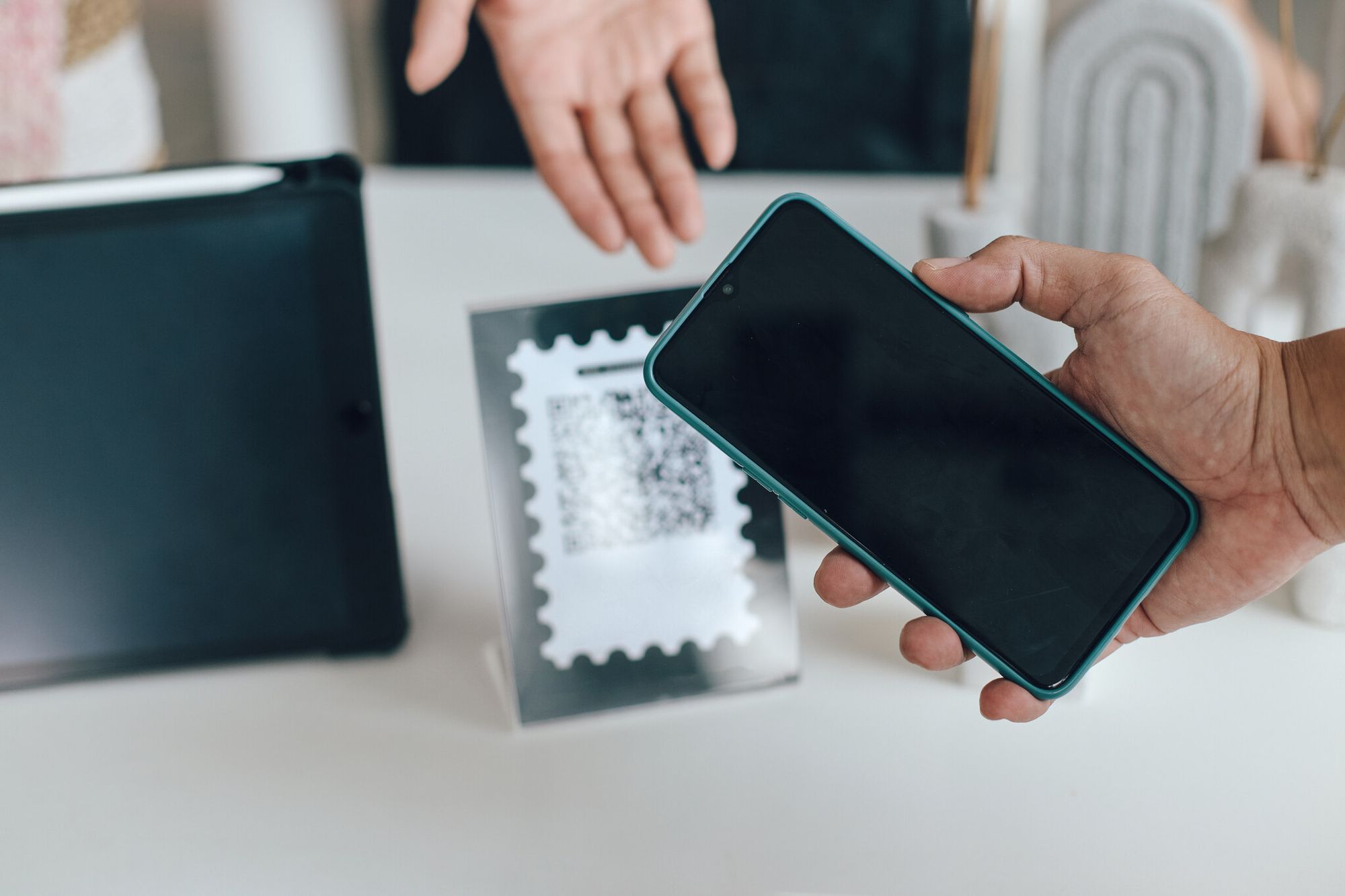
Scanning a QR code is functionally identical to clicking a link from a stranger. The top threat is quishing (QR phishing) — malicious codes pasted over legitimate ones, redirecting to fake app pages or credential-harvesting sites.
Six checks that stop almost every quishing attempt:
- Preview the URL before tapping. If it isn't
apps.apple.com,play.google.com, or a domain you recognize, stop. - Reject non-HTTPS links. A legitimate store URL is always HTTPS.
http://is hostile by default. - Check for sticker overlays. On physical codes, look for a sticker pasted over the original — a lifting corner is a quishing overlay.
- Confirm the publisher on the store page. Fake apps copy icons and names but ship under misspelled developer accounts.
- Avoid codes in unsolicited emails or SMS. If you didn't ask for it, don't scan.
- Keep your OS patched. iOS and Android releases regularly fix deep-link bugs that quishing targets.
QR codes are generally safe, but only if the reader stays on an official app store. If the link resolves anywhere else, cancel and report the code.
Downloading Apps with QR Codes on iPhone (Step-by-Step)
Apple added native QR scanning to the Camera app with iOS 11 in 2017. On iOS 17 and iOS 18, the Camera recognizes a code the moment it's in frame and holds the notification at the top until dismissed.
The exact iPhone flow on iOS 17+:
- Open Camera in Photo mode (Portrait and Cinematic don't trigger QR recognition).
- Point at the code. A yellow banner appears showing the URL (e.g.,
apps.apple.com/app/id<APP_ID>). - Tap the notification. App Store opens to the exact app page — not Safari.
- Install. Tap Get and approve with Face ID, Touch ID, or Apple ID password.
If the notification doesn't appear, open Settings > Camera and toggle Scan QR Codes on. The Camera also handles itms-apps:// deep links, bypassing the web redirect and opening directly in App Store — which is why marketers test codes on iPhones first, since iOS currently drives the majority of global QR scans.
Downloading Apps with QR Codes on Android (Step-by-Step)
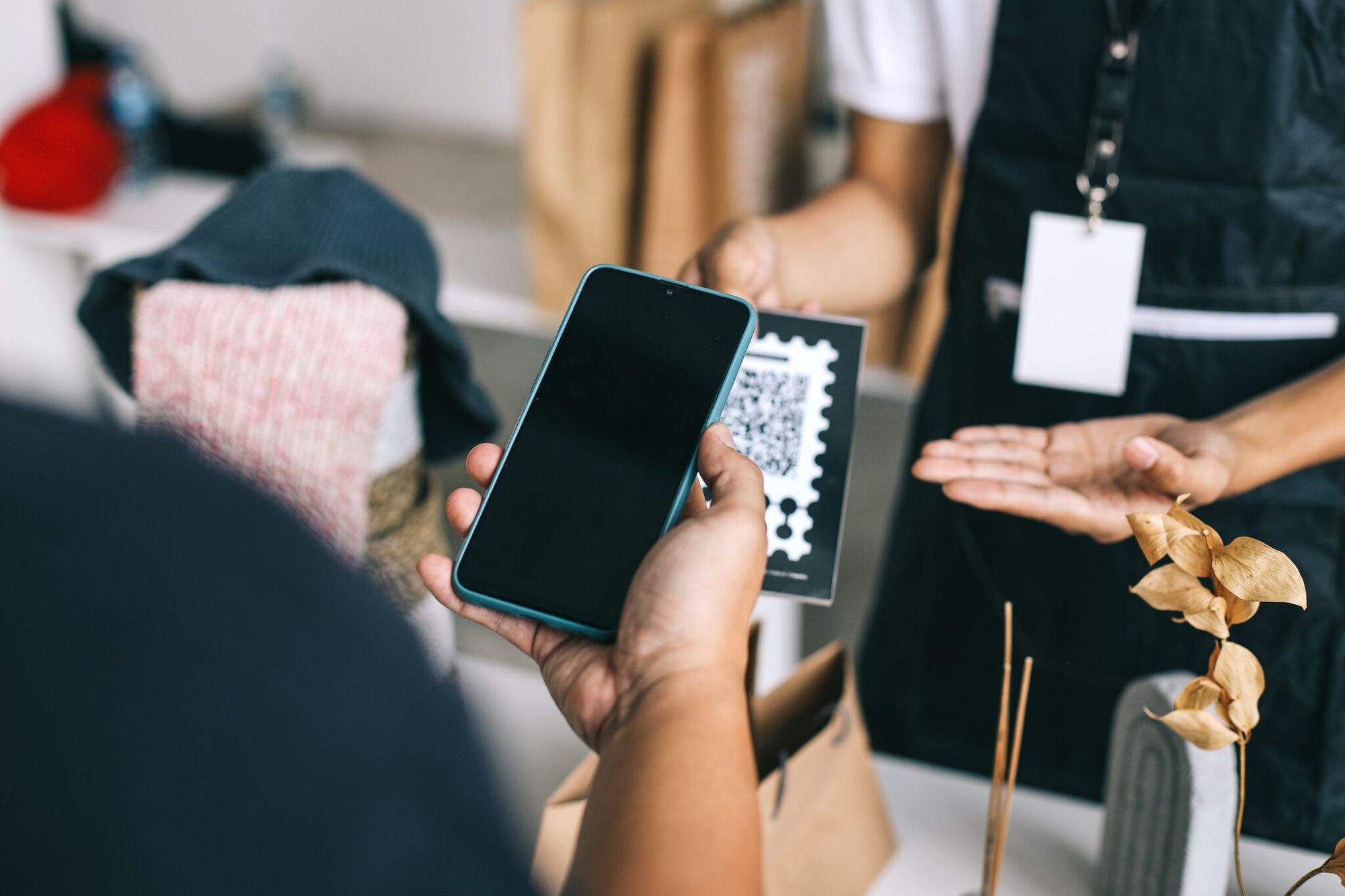
Android doesn't have a single universal scanner — capability depends on the OEM and Android version. On any Android 12+ device (most phones sold since 2021), at least one of three built-in scanners works. Android accounts for roughly 44% of global QR scan volume.
Option 1 — Native camera (Pixel, Samsung, OnePlus, Xiaomi, Oppo, Motorola): Open the Camera app, point at the code in Photo mode, and tap the floating link chip. On Samsung Galaxy, swipe right on the viewfinder to enable Bixby Vision if the chip doesn't appear.
Option 2 — Google Lens (every Android phone): Long-press the home button, or open the Google app and tap the Lens icon. Point at the code and tap the detected link. Lens routes Play Store URLs directly to the Play Store app.
Option 3 — Play Store's built-in scanner: Open the Play Store app, tap the search bar, then tap the small scan icon. If the code resolves to a Play Store deep link, install proceeds without leaving the Store.
If nothing recognizes the code, update to Android 12+, install a reputable scanner from Play Store (not from an APK link), and clean the lens.
How App Download QR Codes Work
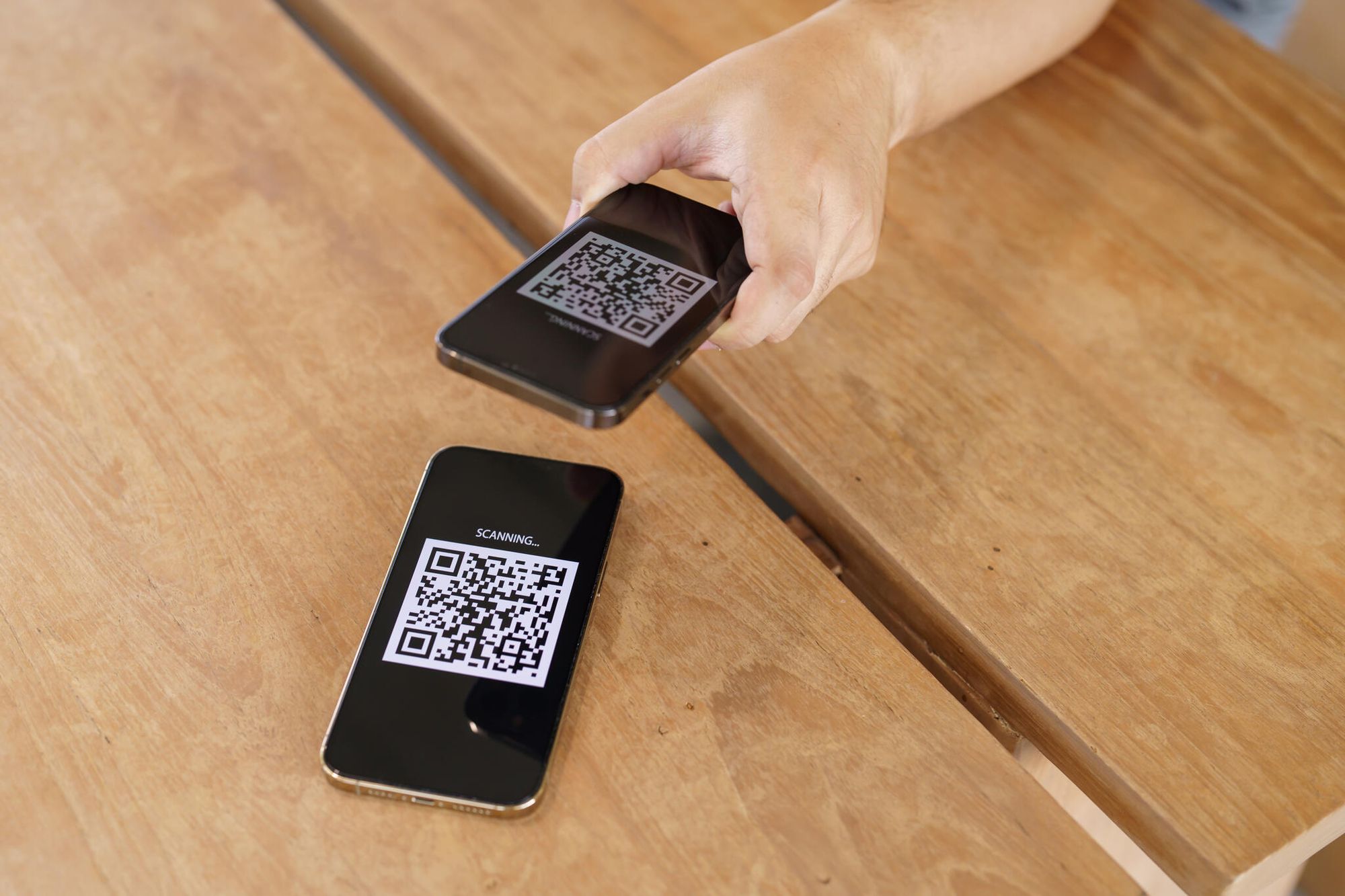
Underneath, a QR code is an encoded URL. The scanner decodes the grid, reads the string (usually an HTTPS link to App Store or Play Store), and hands it to the OS, which picks the app to open it. Generate, distribute, scan, redirect, download.
App QR Codes with Deep Linking
Deep linking separates an app QR code from a generic website QR code. Instead of routing through a web page, a deep-linked code opens the store app directly — or, if the app is already installed, opens a specific screen inside it.
The URL formats you'll see:
- App Store web URL:
https://apps.apple.com/app/id<APP_ID>— works everywhere. - App Store deep link:
itms-apps://apps.apple.com/app/id<APP_ID>— iOS-only, opens instantly in App Store. - Play Store web URL:
https://play.google.com/store/apps/details?id=<PACKAGE_NAME>— cross-platform. - Play Store deep link:
market://details?id=<PACKAGE_NAME>— Android-only. - Smart link: A single HTTPS URL that detects the device and routes iOS to App Store and Android to Play Store.
For a concrete example, see our walkthrough on building a QR code that opens AliExpress on iOS and Android.
What Information the App Store QR Code Can Display
The code carries only the URL — rich content lives on the store page. After a scan, the user sees the app name and icon, a two-line description, screenshots, ratings and reviews, file size, permissions, and the install button (Get on iOS, Install on Android). Over 98% of QR scans happen on smartphones according to IMQRScan's device breakdown — iOS at roughly 54%, Android at 44%, with 2% across tablets and desktops. That's why store listings need to look right on a vertical mobile viewport first.
Dynamic App Store QR Codes
A static code bakes the destination URL into the pattern — permanent, non-editable. A dynamic code encodes a short redirect URL that points to a server-side rule, which can be edited any time. Editability alone is the reason most teams use dynamic; scan analytics (count, location, time, device) are a side effect. A Market.us QR codes report projects the global market growing from $18.6 billion in 2025 to around $89 billion by 2034 at a 19% CAGR, with dynamic tracking driving most of that growth.
Why You Should Use QR Codes for App Downloads
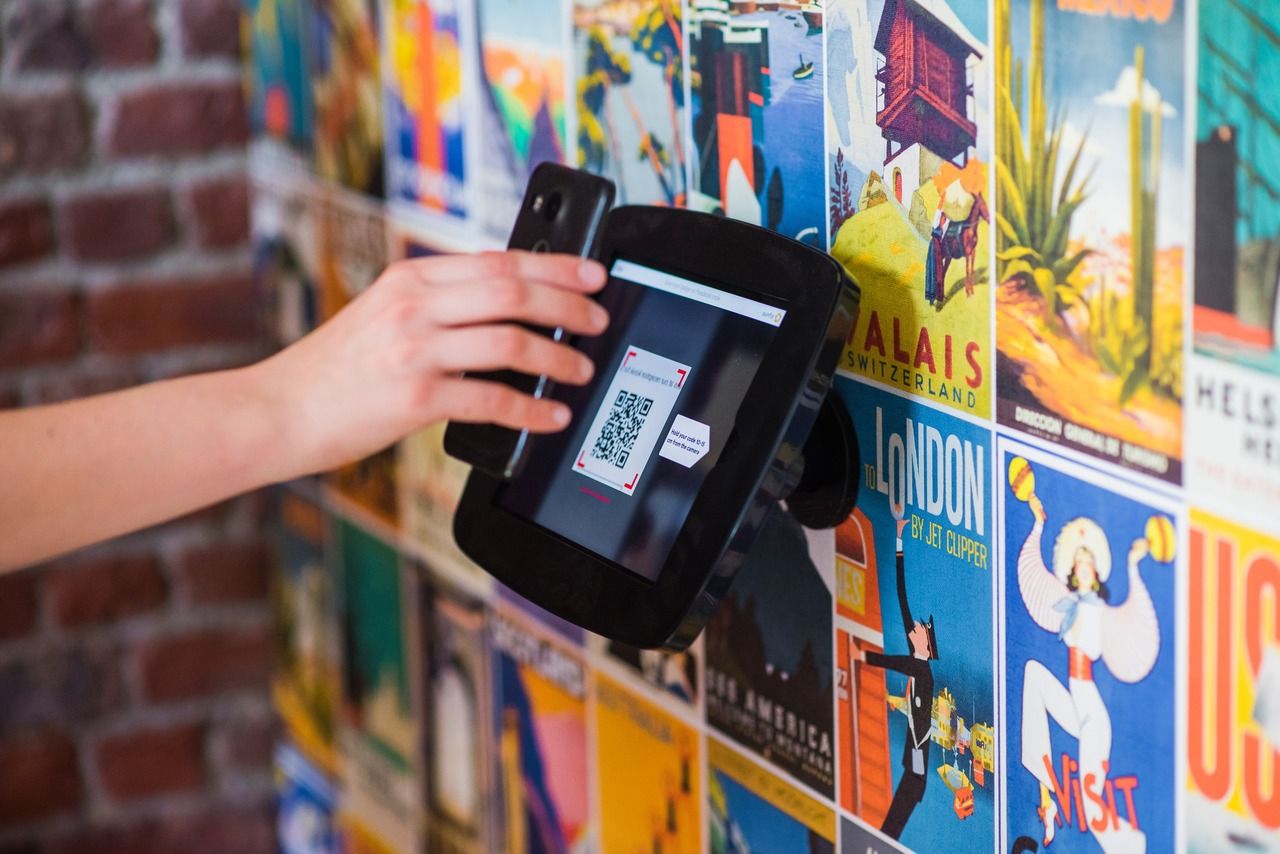
The pitch is about friction. Every tap, search, and typo between seeing an app and installing it costs intended installs. A QR code collapses "see it, want it, install it" to one scan. The global mobile application market is projected to reach $378 billion in 2026, and most of that revenue is gated on users reaching the store page.
What QR codes unlock for app campaigns:
- Direct linking — the code points at the exact app, with no search or name collisions.
- Unified iOS + Android path — one smart-link QR replaces two separate CTAs on print creatives.
- Analog-to-digital bridge — billboards, packaging, and event badges become install surfaces.
- First-party attribution — dynamic QR services log every scan without store SDKs.
- Shareable flow — users pass the image to a friend and close a second install.
How to Create a QR Code for App Downloads
Creating an app-download QR code with QR Code Dynamic takes about two minutes. The platform generates a smart link by default — one code routes iOS to App Store and Android to Play Store.
- Pick a generator that supports dynamic codes. Static generators lock you into one URL forever — they fail the moment your app changes name, listing, or platform.
- Choose the URL (or App Store) option. Select App Store for device-based routing, or URL if you already have a single store link.
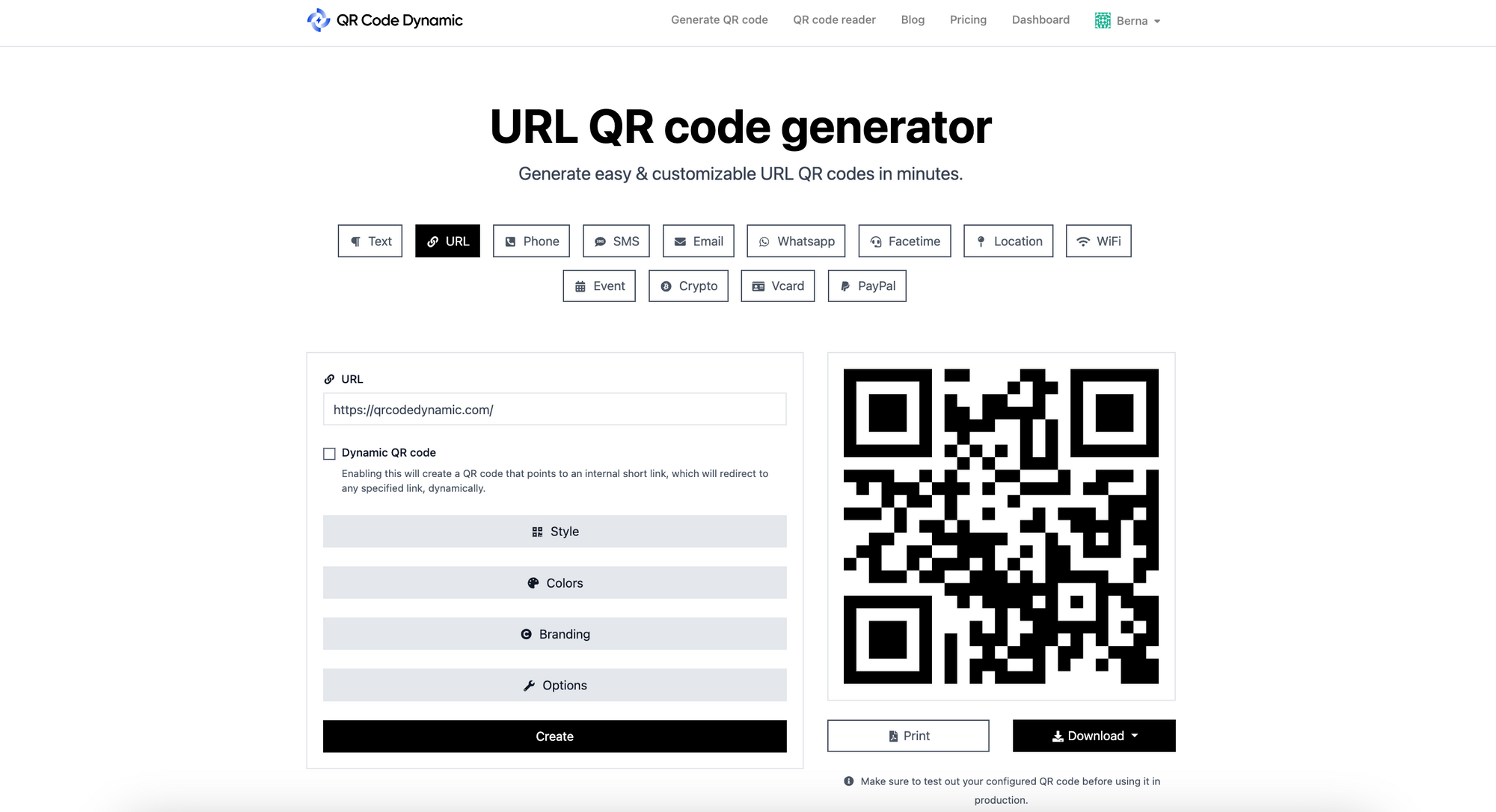
- Enter the store URLs. iOS:
https://apps.apple.com/app/id<APP_ID>. Android:https://play.google.com/store/apps/details?id=<PACKAGE_NAME>. Preferhttps://overitms-apps://andmarket://— web URLs open cleanly on desktop scanners and link previews, while native-only formats fail silently outside the target OS. - Customize the code. Add your logo, apply brand colors, and keep a contrast ratio of at least 4:1. More ideas in our QR code design ideas guide.
- Test on real devices. Scan with one iPhone and one Android before shipping, and again 24 hours later — dynamic codes occasionally have first-scan CDN cache quirks.
- Download and deploy. Export SVG for print and PNG for web. Avoid JPG — compression artifacts degrade small codes.
How to Use QR Codes for Promoting Your Mobile App
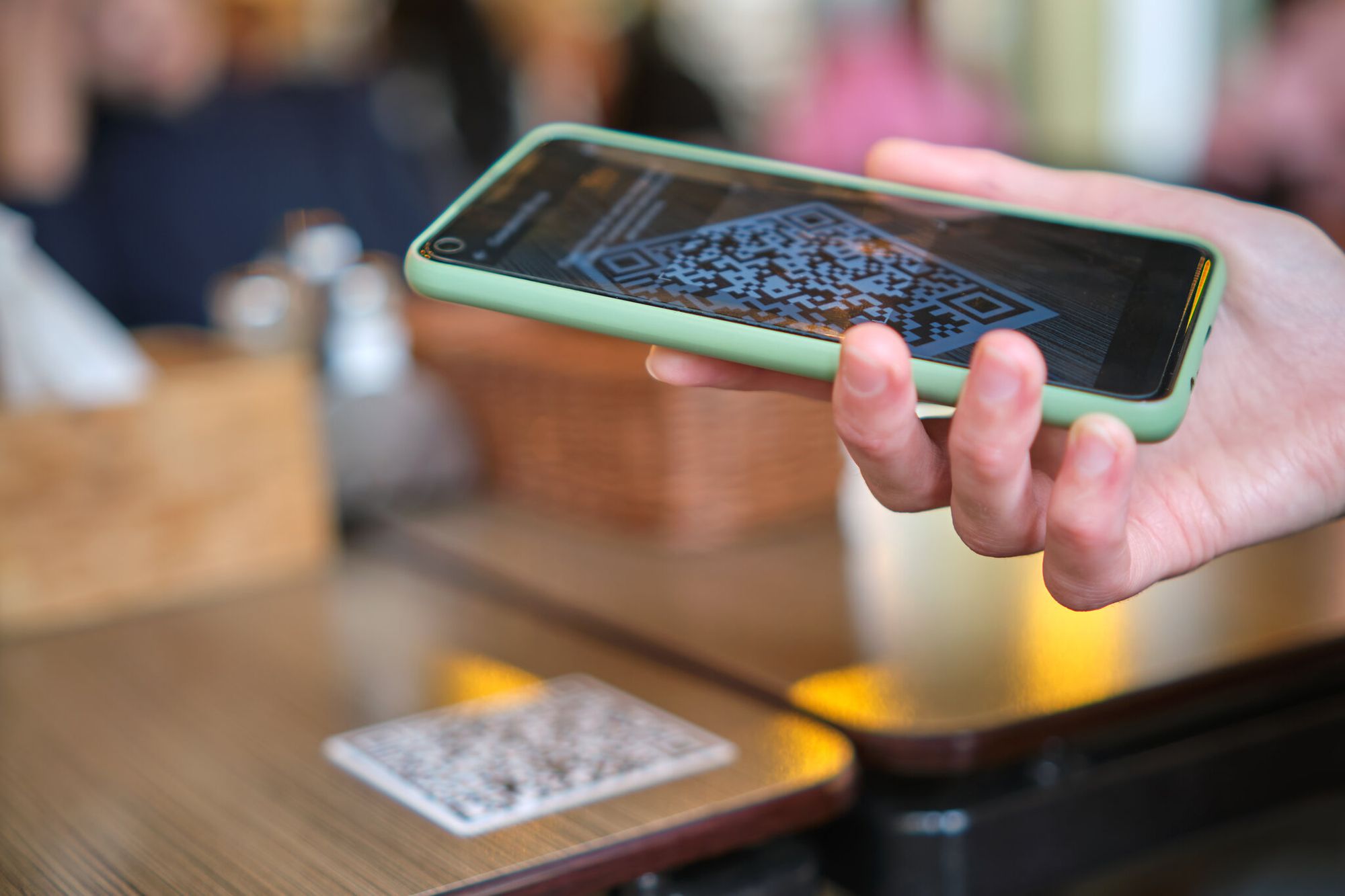
A QR code alone isn't a campaign — context and placement drive installs. The strongest placements appear where the audience is already paused, thinking about the problem the app solves, and holding a phone. QR code campaigns achieve an average 37% click-through rate — up to four times higher than standard display ads.
- Placement versatility — billboards, packaging, direct mail, social graphics, or TV lower-thirds all work.
- Interactive feel — scanning is a deliberate action, improving recall-to-install versus passive media.
- Granular analytics — scan counts, location, device split, and time-of-day from a single dynamic code.
- One creative, every device — smart links remove the need for separate "iOS only" and "Android only" variants.
Our QR code advertising guide covers placements that lift scan rates across retail, OOH, and print.
How Different Industries Use QR Codes for App Downloads
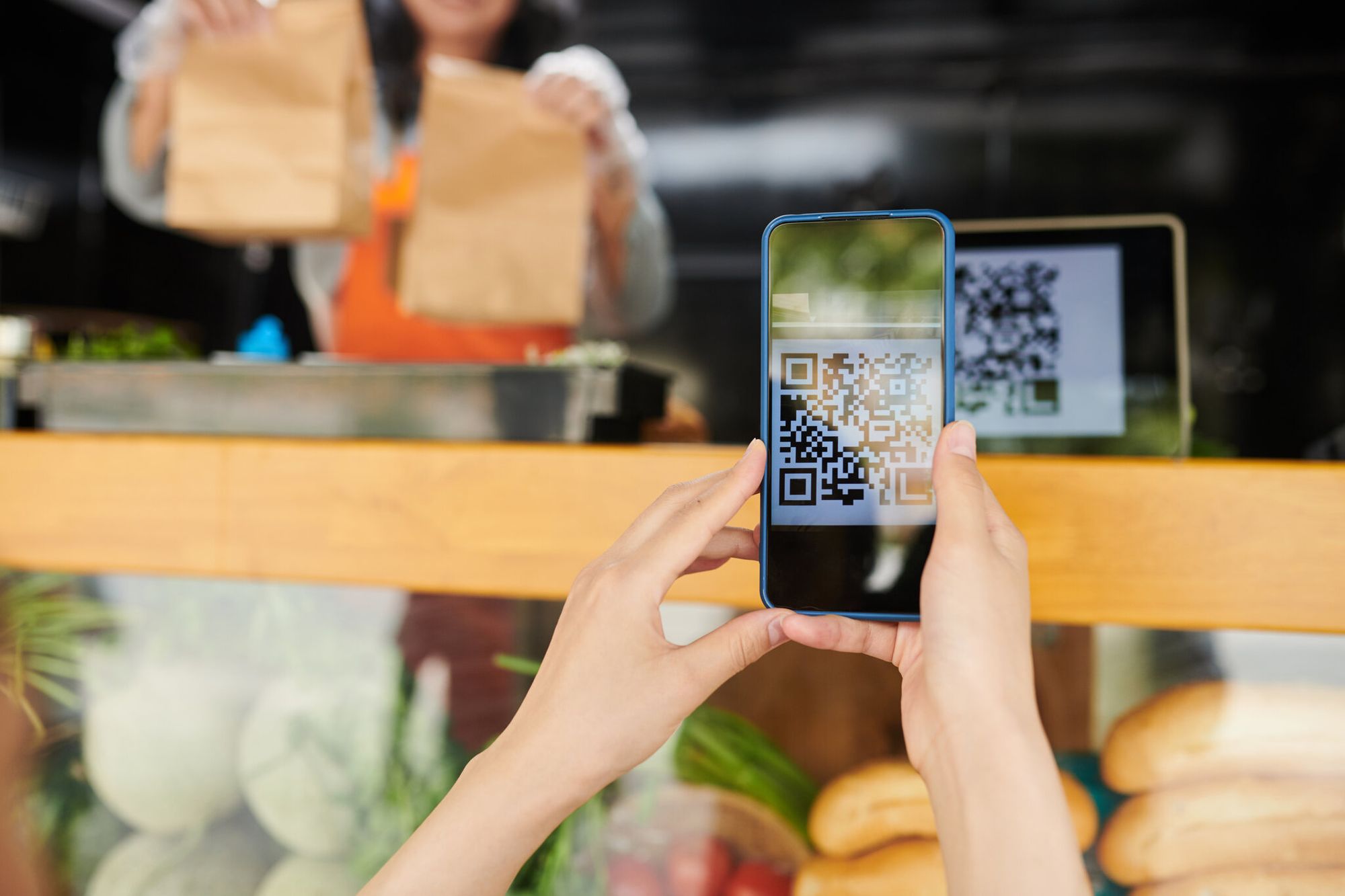
Different industries anchor QR codes at different moments. The common thread: place the code where the install payoff is immediate.
- Retail: Receipts, price tags, and fitting-room mirrors routing to the loyalty app with a first-scan discount attached.
- Healthcare: Post-visit paperwork and waiting-room brochures linking to patient-portal apps or symptom checkers.
- Restaurants and hospitality: Table tents and menu inserts routing to ordering, reservation, or points-balance apps.
- Education: Classroom posters and parent newsletters pointing to learning apps, gradebooks, or campus-safety apps.
- Real estate: Yard signs and window decals sending buyers to listing apps for virtual tours and agent contact.
- Events: Registration badges and stage backdrops pushing the event app for schedule and networking.
Put the QR code where the customer has a phone in their hand and a reason to care. Every other placement is hope.
Tips for Effective QR Code Marketing for Apps
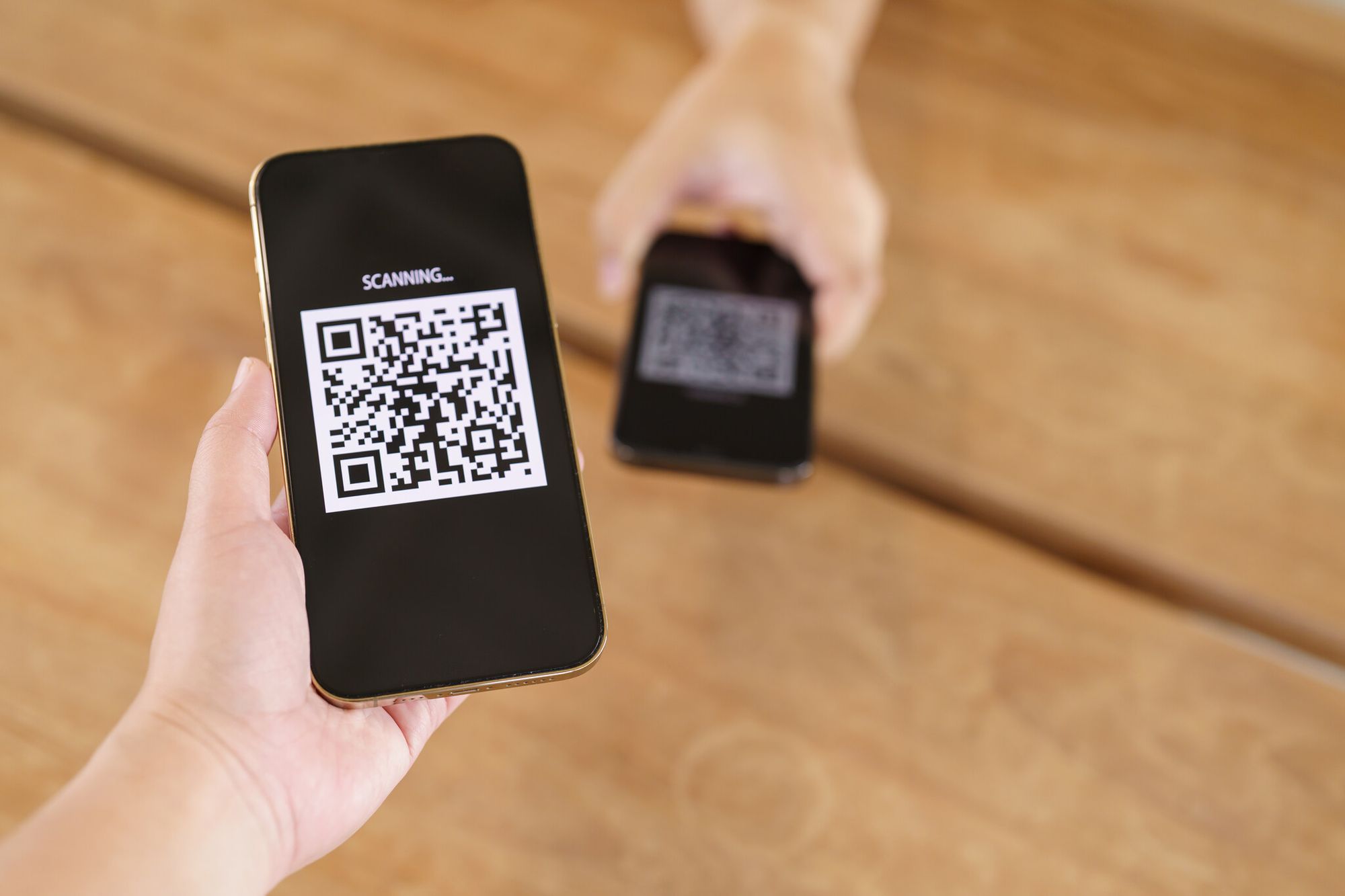
Ship the code, measure, iterate. Tactics from campaigns that moved install numbers:
- Visibility over cleverness. Place the code at eye level, at least 2 cm wide at typical scan distance. A beautiful but unscannable code is a zero.
- Offer something on the other side. A discount, trial extension, or exclusive feature raises install conversion 2-3x.
- Tell users what to do. Put "Scan to install our app" right next to the code. Scan literacy is high but not universal.
- Optimize the destination. The store listing is the real landing page. Update screenshots, the description's first line, and the icon before running a scan campaign.
- Track and iterate. Use a dynamic QR so you can watch scans and swap the destination if install rates are flat after week one.
- Experiment with placement. Our QR code display ideas roundup covers signage and event patterns that outperformed standard OOH.
Troubleshooting: When the QR Code Won't Download the App
Most "QR code won't work" complaints trace to five common causes. Work through these in order — the fix is usually in the first two.
1. The camera doesn't recognize the code. Clean the lens. On iPhone, confirm Settings > Camera > Scan QR Codes is on. On Android, update to Android 12+ or use Google Lens. Hold 15-30 cm away — too close won't focus, too far is too small.
2. The notification appears but the store won't open. Check connectivity, confirm you're signed in to App Store or Play Store, and force-restart the store app if it has been offline.
3. "App not available in your region." The app is geo-restricted by the developer. VPN workarounds violate store terms. Check whether the developer has a different regional listing.
4. The code is physically damaged. QR codes have error correction, but once 30%+ of the pattern is damaged, recognition fails. Try a different angle. For dynamic codes you own, check scan logs — if attempts register but fail, the problem is downstream (expired URL, broken redirect).
5. The destination URL is broken. Scan with a URL-preview scanner. Paste the URL into a browser — if it 404s, regenerate the dynamic link. If it goes to an unexpected domain, that's the quishing case.
Global QR scan volume is on track to exceed 2 billion scans per day in 2026, so even a 0.1% failure rate means millions of failed scans daily. Run the checklist before blaming the scanner.
The Bottom Line on QR Code App Downloads
QR codes for app downloads work because they collapse the install flow to one deliberate action — open camera, point, tap, install. On iPhone, the Camera app handles it natively since iOS 11. On Android, the camera, Google Lens, or Play Store all work on any modern device. The URL formats (apps.apple.com/app/id... and play.google.com/store/apps/details?id=...) are simple enough to generate manually, but a dynamic smart-link generator is worth the two minutes. For 2026 install campaigns, the winning combination is a dynamic QR, smart cross-platform routing, a high-intent placement, and one line of instruction.
Frequently Asked Questions
Can I use a QR code to download apps on any smartphone?
Yes. Every iPhone on iOS 11+ (released 2017) has native QR scanning in the Camera app. Every Android phone on Android 12+ has at least one built-in scanner — the camera, Google Lens, or the Play Store's scan icon. Older Android devices can scan with a free QR reader from Play Store. Cross-platform smart links route iPhones to App Store and Android phones to Play Store from the same code.
How will the QR code take me to the right app?
The code encodes a URL that points directly to the app's listing on App Store or Play Store. Both iOS and Android show the destination URL as a preview before you tap. If the preview shows apps.apple.com or play.google.com, the code will route to the correct store page.
Are QR codes safe for app downloads?
A QR code is as safe as the URL it encodes. A code that resolves to apps.apple.com or play.google.com is safe — both stores vet apps before listing. A code that resolves elsewhere (an alt store, a developer website, an unknown domain) requires independent verification. Quishing — malicious codes pasted over legitimate ones — is a real threat in public places. Preview the URL before tapping, and be skeptical of codes in unsolicited messages.
Visit these blog posts before you go:

I work as a Growth Marketer at Popupsmart, using my 3+ years of SaaS experience to create clear, useful marketing content that helps brands grow, reach the right audiences, and improve their results.