How to Make a Barcode in Google Sheets: 2026 Guide

On this page
- What is a Barcode in Google Sheets?
- Quick overview
- The Importance of Barcodes in Google Sheets
- Inventory Tracking and Accuracy
- Speed and Real-Time Updates
- Cost, Audit Trail, and Scalability
- How to Make a Barcode in Google Sheets
- Step 0: Install the Libre Barcode Fonts
- Step 1: Create a Spreadsheet and Lay Out Your Columns
- Step 2: Apply the Code 39 Wildcard Formula
- Step 3: Apply the Libre Barcode Font
- Step 4 (Alternative): Use IMAGE() for Portable Barcodes
- Barcode Types and When to Use Each
- How to Create Barcodes in Excel
- The Best Solution: Create Barcodes with QR Code Dynamic Barcode Generator
- Step 1: Create an Account
- Step 2: Generate a Barcode
- Step 3: Customize and Download
- Bulk Barcode Generation with Add-ons and Apps Script
- Option A: Google Workspace Add-ons
- Option B: Google Apps Script
- Tips for Creating and Using Barcodes in Google Sheets
- Troubleshooting Barcode Creation in Google Sheets
- Barcode Font Renders as Plain Text
- Barcode Won't Scan
- Leading Zeros, Scientific Notation, Formula Errors
- Print Issues and Mobile Differences
- How to Use Barcodes in Business Operations for Google Sheets
- Inventory, Sales, and Order Fulfillment
- Asset Management
- Employees, Loyalty, Documents, and Events
- Quality Control
- Scanning Barcodes Back Into Google Sheets
- 1. Phone Camera + Google Forms (Free)
- 2. USB or Bluetooth Hardware Scanners ($20–$50)
- 3. Dedicated Scanner-to-Sheets Apps
- The Bottom Line on Barcodes in Google Sheets
- Frequently Asked Questions
- How do I create a scannable barcode?
- How to integrate barcodes with Google Sheets inventory systems?
- How to scan barcodes directly into Google Sheets?
To make a barcode in Google Sheets, install a Libre Barcode font (Libre Barcode 39, 128, or EAN13) via Format → Font → More fonts, then wrap your data with ="*"&A2&"*" and apply the font to that column. For scannable images that work everywhere, use the IMAGE() function with a barcode API URL instead. Both methods take under 5 minutes.
What is a Barcode in Google Sheets?
What you'll need:
- A Google account with access to Sheets (free tier is fine)
- A short list of product IDs or SKUs to encode
- A barcode scanner app on your phone, or a USB scanner, for testing
- Time: 5–15 minutes; add 30 if you write Apps Script
- Skill level: Beginner — no coding required for the font method
Barcodes are visual representations of data that machines can scan and interpret. In Google Sheets, they encode product IDs, inventory numbers, shipping references, or other alphanumeric data right next to the rows that describe each value.
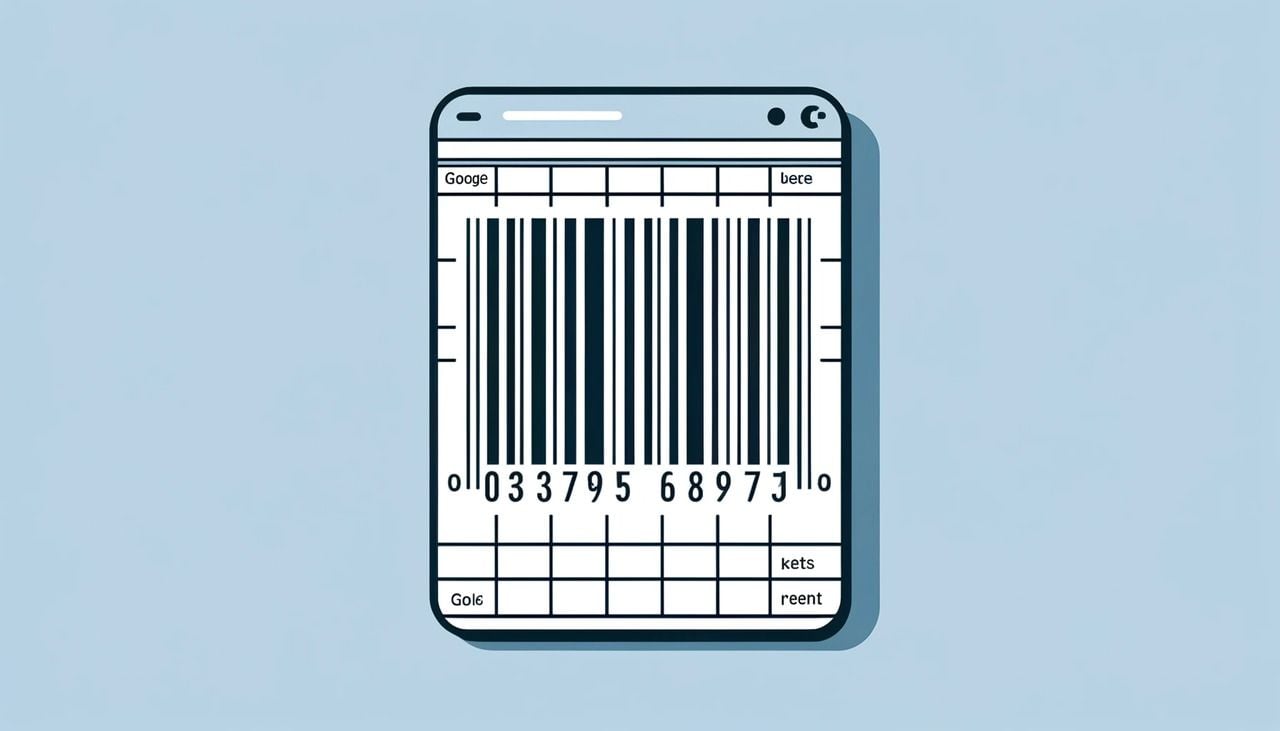
Two methods: the font method swaps text for a Libre Barcode typeface (39, 128, or EAN13) so the cell renders as a scannable barcode on screen. The image method calls a barcode API through IMAGE(), which embeds a PNG — useful when you copy, export, or print the sheet. We cover both, plus bulk generation via Apps Script. For background, see how barcodes work.
Quick overview
- Install the Libre Barcode fonts via Format → Font → More fonts.
- Lay out columns: Product Name, Product ID, Barcode.
- Wrap with
="*"&A2&"*"for Code 39 (or use the raw value for 128 / EAN13). - Apply the barcode font and increase row height.
- Test with a phone scanner before printing.
The Importance of Barcodes in Google Sheets
Spreadsheets remain the default ledger for small operations. Per an ElectroIQ Google Sheets report, 85% of U.S. startups and 61% of small businesses consider Google Sheets their primary spreadsheet tool. When the sheet you already maintain can print scannable codes, you skip a layer of dedicated software.
Inventory Tracking and Accuracy
Manual entry produces a 1–3% error rate in most warehouses; barcodes drop that under 0.01%. Scan in to receive, scan out to ship, and the stock column updates without typing. This is the entry point for a full barcode inventory system.
Speed and Real-Time Updates
Scanning is 6–8x faster than typing a SKU — 4 minutes instead of 30 over a 200-line picking session. Sheets is collaborative by default, so multiple scanners write live inventory numbers without a separate sync.
Cost, Audit Trail, and Scalability
Sheets is free, the Libre Barcode fonts are free, and a phone camera works as a scanner. The same formula handles 50 SKUs or 50,000. Every scan writes a timestamped row with the user's identity — an audit trail you don't have to engineer.
How to Make a Barcode in Google Sheets
The font method is faster and stays inside Sheets. The IMAGE() method produces a real picture you can copy into Docs, Slides, or a printed label without losing fidelity.
Step 0: Install the Libre Barcode Fonts
Most tutorials skip this. Without the right font, the formulas below render as plain text instead of scannable bars.
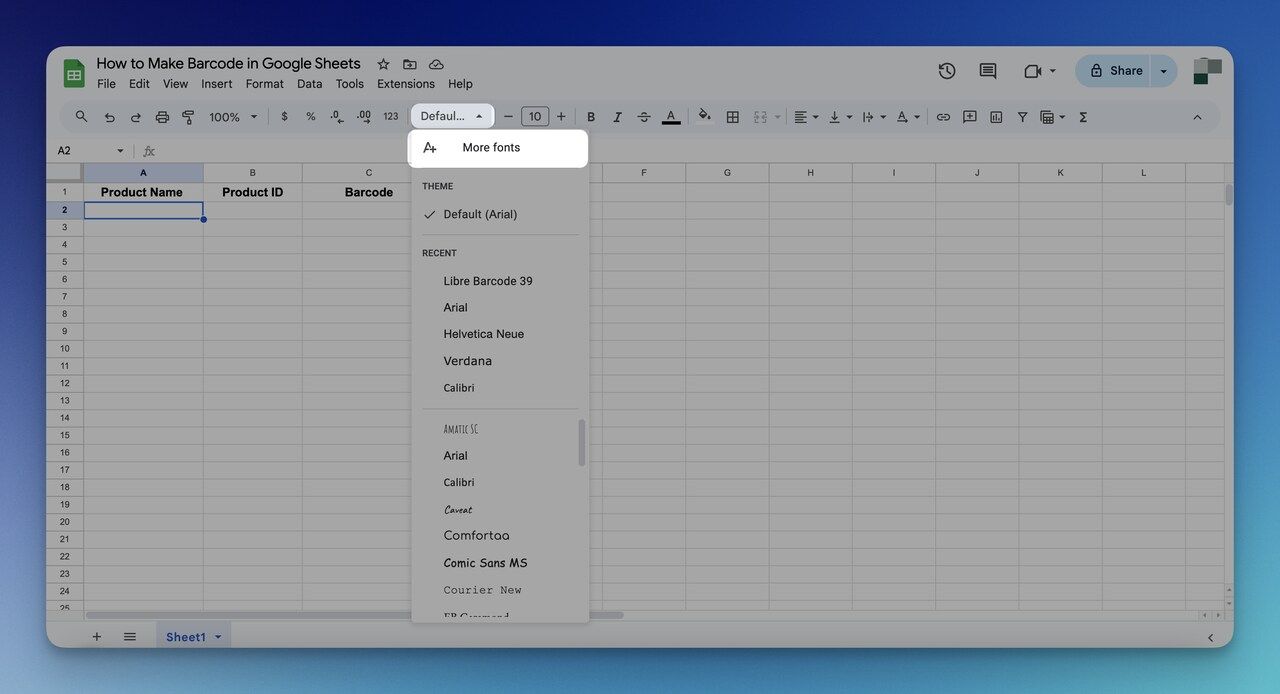
- Open any Google Sheet and click the Font dropdown in the toolbar.
- Scroll down and click More fonts.
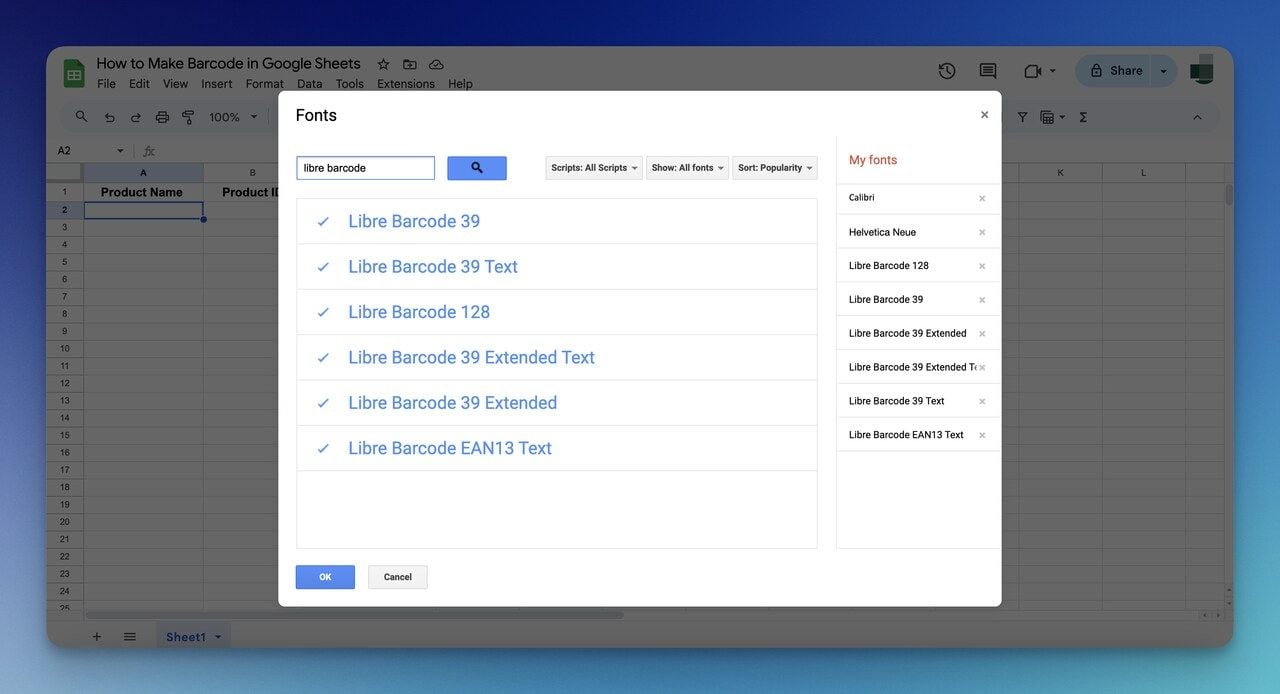
- Search for Libre Barcode.
- Add all six variants: Libre Barcode 39, 39 Extended, 39 Text, 39 Extended Text, 128, and EAN13.
- Click OK. They now appear at the top of your dropdown, attached to your Google account.
Per Ben Collins's Libre Barcode tutorial, Libre Barcode 39 is commonly used for industrial labels including name badges, inventory tags, and equipment IDs — the safest default for internal use.
Step 1: Create a Spreadsheet and Lay Out Your Columns
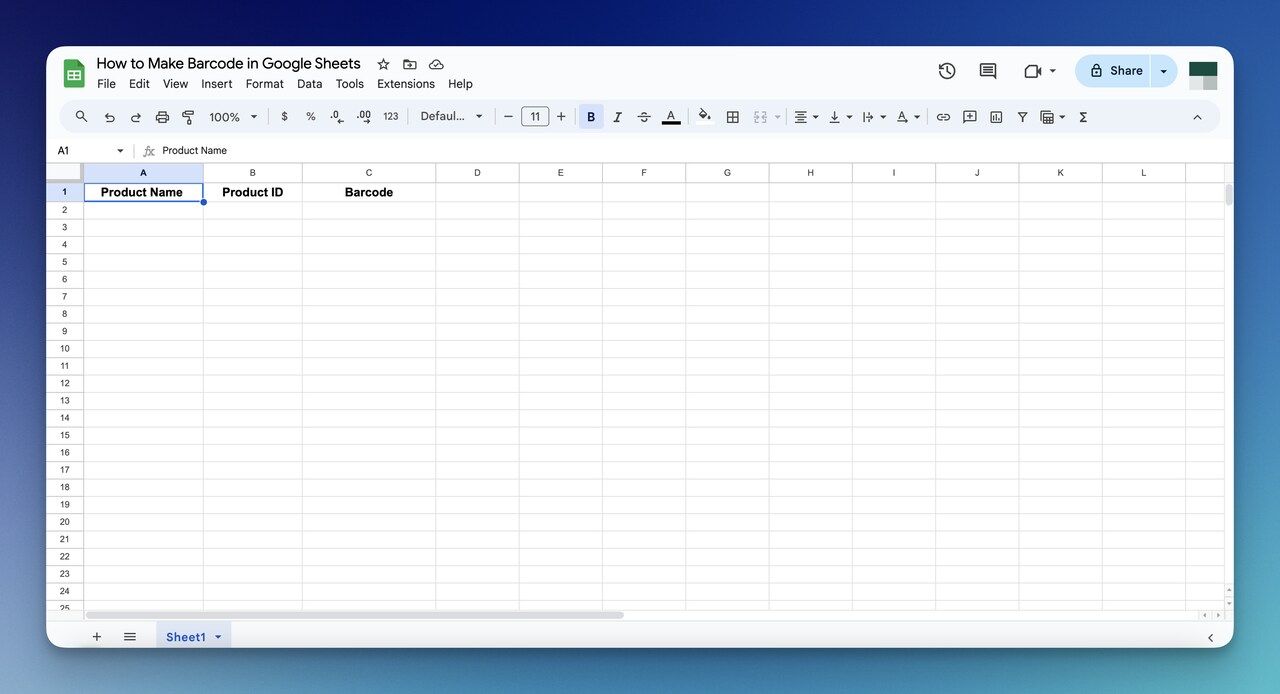
Open Google Sheets and start a blank spreadsheet. Set up three columns: Product Name (A), Product ID / SKU (B), and Barcode (C). Before typing IDs, select column B and choose Format → Number → Plain text — this preserves leading zeros and prevents scientific notation, the single most common reason barcodes fail later.
Step 2: Apply the Code 39 Wildcard Formula
Code 39 needs a leading and trailing asterisk to be recognized. The formula wraps your value automatically. In cell C2:
="*"&A2&"*"
Drag the fill handle down column C. If your IDs are in column B, change A2 to B2. The asterisks are non-negotiable for Code 39.
Watch out for:
- Smart quotes: pasted formulas from styled docs sometimes import curly quotes that throw a parse error. Re-type quotes manually.
- Lowercase letters: Code 39 only supports uppercase. Wrap with
UPPER()for mixed-case data:="*"&UPPER(A2)&"*".
Step 3: Apply the Libre Barcode Font
Select the Barcode column header, open the Font dropdown, pick Libre Barcode 39. Plain-text values flip to scannable bars instantly.
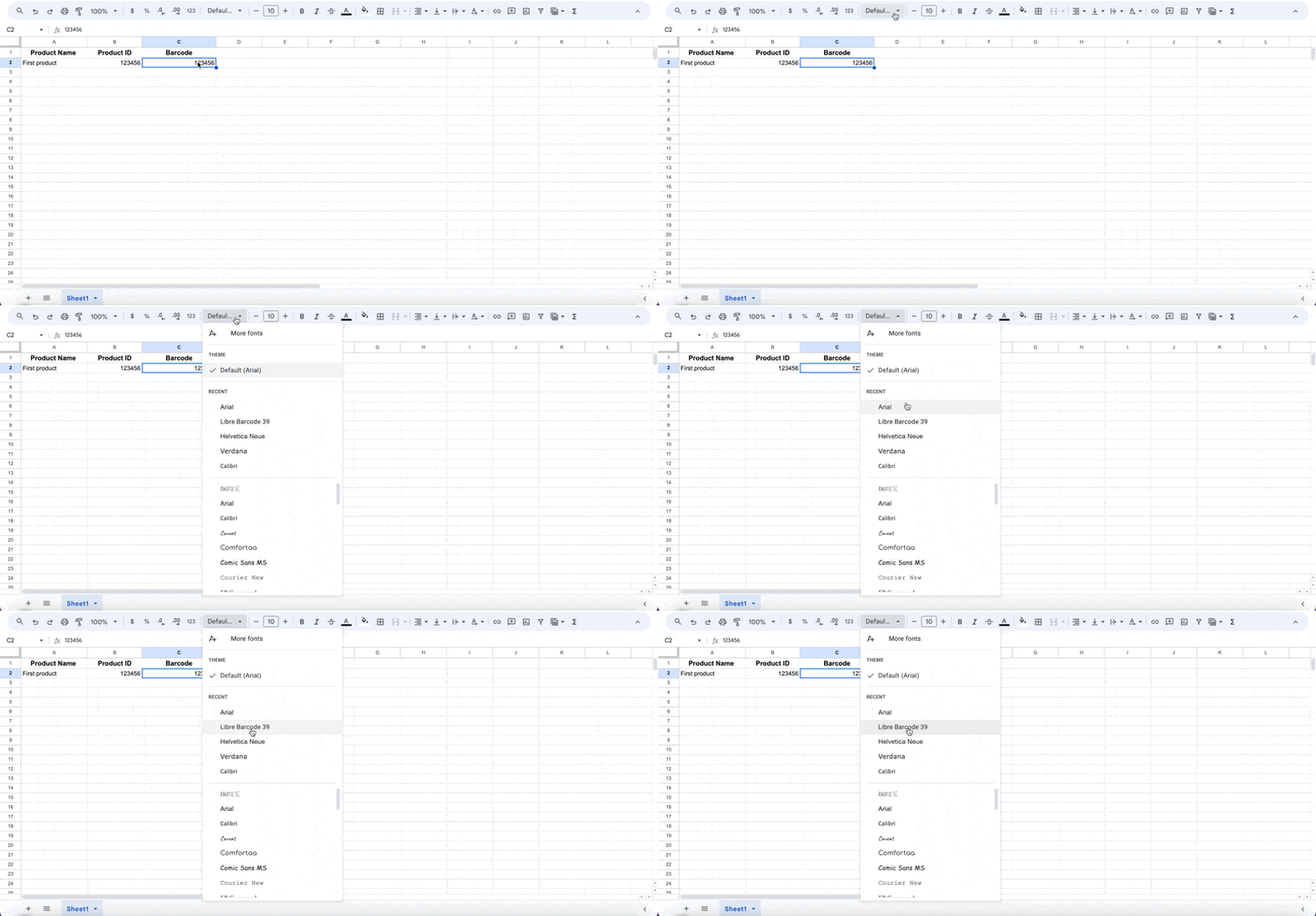
Increase font size to 30–36 pt and row height to ~50 px. Smaller and most phone cameras struggle to lock on, especially under fluorescent warehouse lighting. You'll know it's working when a phone scanner reads the cell and returns the original ID without the asterisks — most scanners strip start/stop characters automatically.
Step 4 (Alternative): Use IMAGE() for Portable Barcodes
The font approach only renders correctly on machines with Libre Barcode installed. For barcodes you'll export to PDF, paste into Google Docs, or send to print, use IMAGE() with a public barcode API:
=IMAGE("https://barcode.orcascan.com/?type=code128&data=" & ENCODEURL(B2))
The cell holds an actual PNG — copyable, exportable, printable. Orca Scan's barcode reference notes its image API supports 12 different barcode types, so swap type=code128 for type=ean13, type=qr, or type=upc as needed.
Pro tip: I keep both methods in one sheet — the font column for on-screen scanning during inventory counts, the IMAGE() column for printed labels we actually ship.
Barcode Types and When to Use Each
Picking the wrong symbology is the silent reason barcodes fail at scale. A retailer who picks Code 39 cannot list products on Amazon; a warehouse using EAN13 for internal tags wastes the country-code prefix on data that doesn't need it. Use this matrix to choose once and avoid migration later. Our guide to barcode types covers 2D variants too.
| Type | Best Use Case | Length / Capacity | Scanner Compatibility | Free Font Available? |
|---|---|---|---|---|
| Code 39 | Industrial labels, name badges, asset tags | Up to ~43 chars, alphanumeric uppercase | Universal — reads on any 1D scanner | Yes (Libre Barcode 39) |
| Code 128 | Shipping, logistics, dense SKUs | Up to ~80 chars, full ASCII | Universal — reads on any 1D scanner | Yes (Libre Barcode 128) |
| EAN13 | Retail products, marketplace listings | Exactly 13 digits | Universal — required at retail POS | Yes (Libre Barcode EAN13) |
| UPC-A | North American retail | Exactly 12 digits | Universal at U.S./Canada POS | Via IMAGE() API only |
| QR Code (2D) | URLs, vCards, multi-line text, marketing | Up to ~4,000 chars | Any smartphone camera | Via IMAGE() API only |
Rule of thumb:
- Internal-only labels → Code 39 (simplest, most forgiving).
- Shipping cartons or dense alphanumeric IDs → Code 128.
- Anything sold at retail → EAN13 (or UPC-A in North America).
- Anything that should open a URL or hold more than 80 characters → QR code.
If your project is closer to QR than barcode, the workflow is similar — we cover the QR equivalent in Excel and Google Sheets step-by-step in a sister tutorial.
How to Create Barcodes in Excel
The Excel workflow is close to Sheets but uses a desktop font install rather than the web-based Google Fonts modal. Install a barcode font on your operating system first (commonly "3 of 9 Barcode" or "Free 3 of 9"). Then:
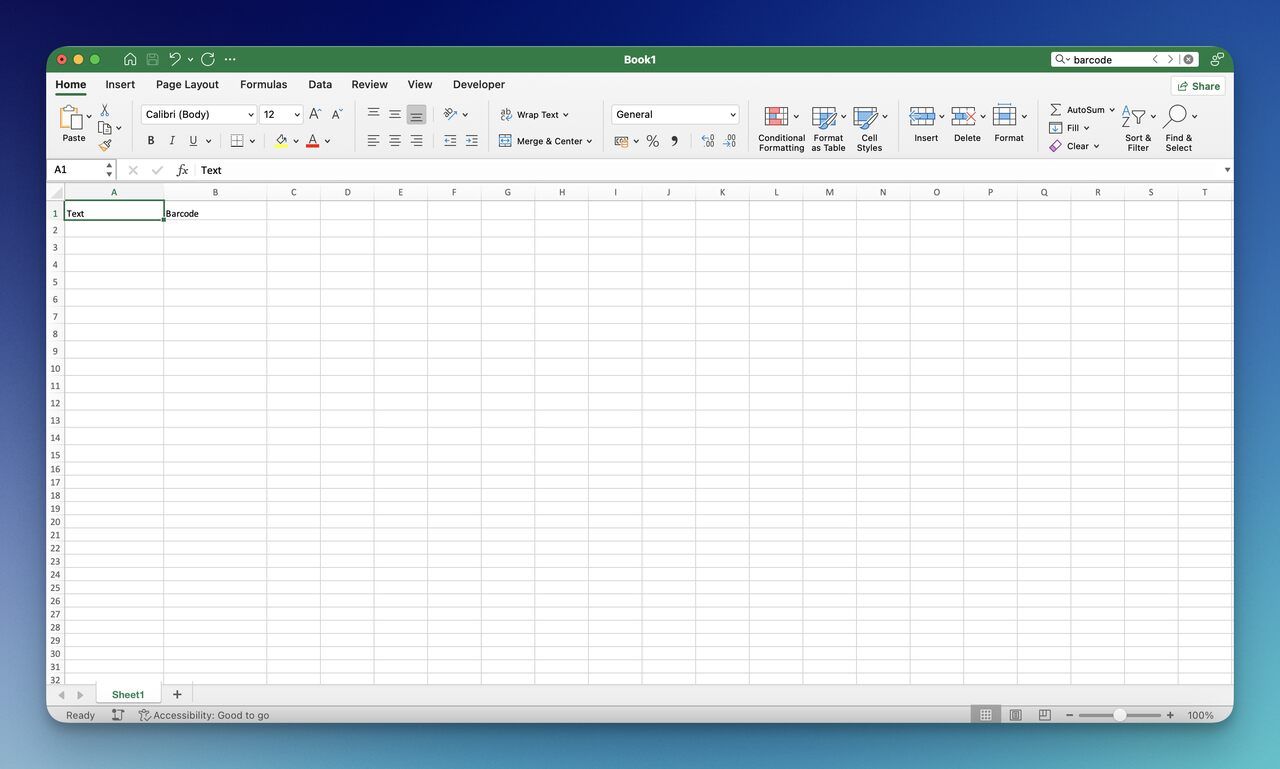
- Set up: create a blank workbook, label columns "Text" and "Barcode."
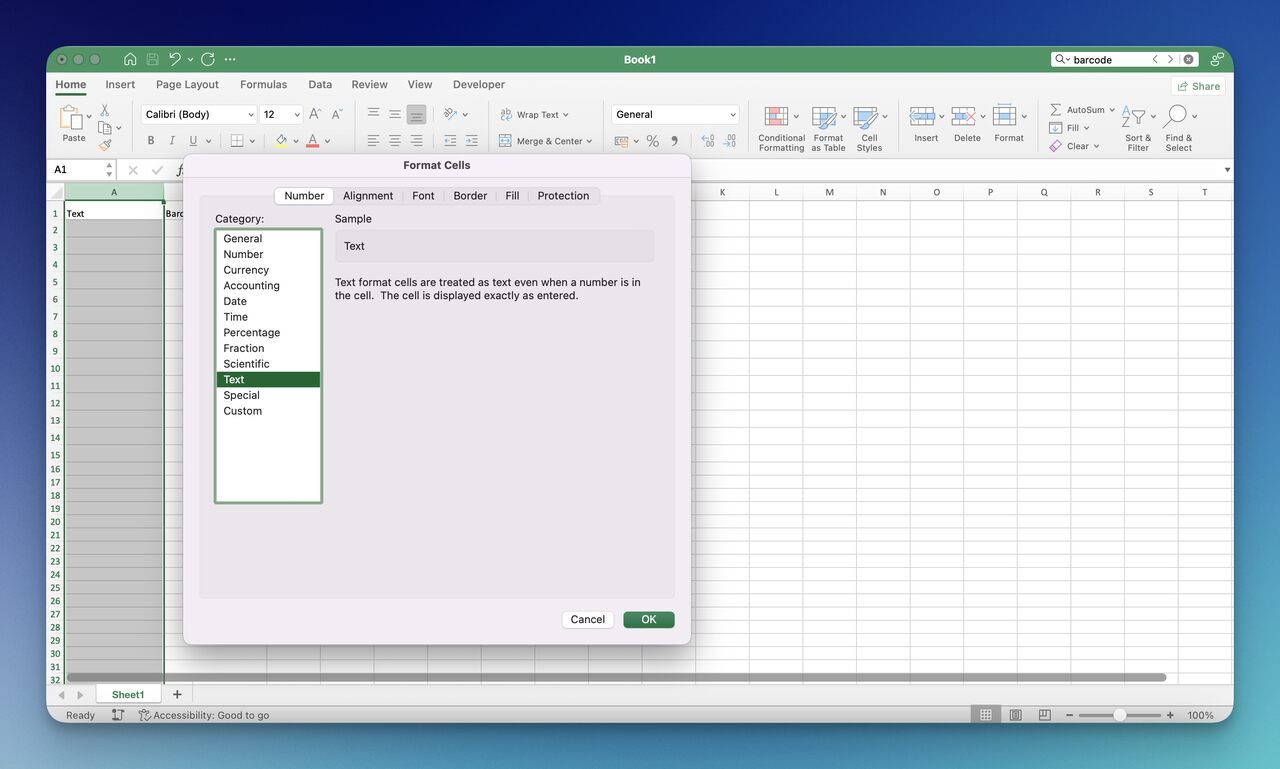
- Format the Text column: right-click → Format Cells → Number → Text. Prevents scientific notation and preserves leading zeros.
- Enter the formula in B2:
="*"&A2&"*" - Fill down, select the Barcode column, apply your installed barcode font.
- Test with a scanner before printing.
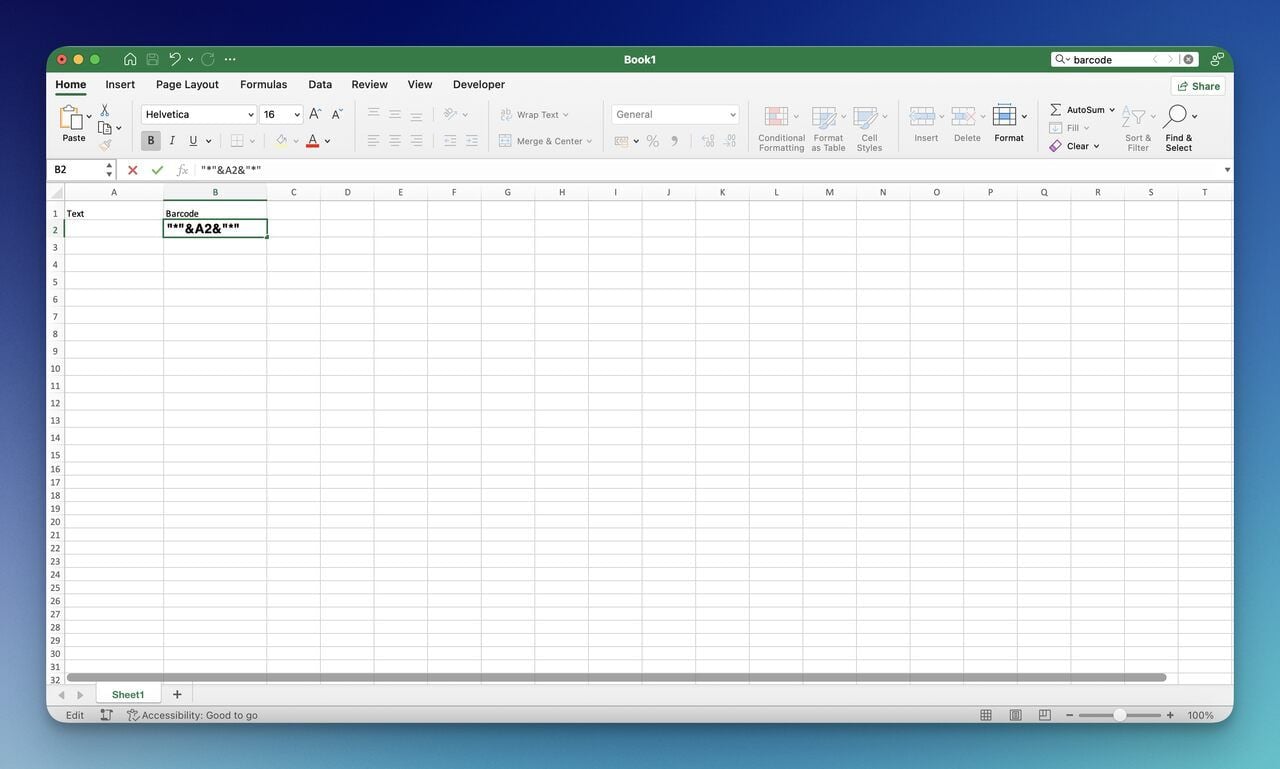
Note: Code 39 supports 0–9, uppercase A–Z, hyphen, dollar, percent, period, slash, plus, space, and asterisks as start/stop characters. Mixed case will not encode.
The Best Solution: Create Barcodes with QR Code Dynamic Barcode Generator
If you need barcodes styled to match your branding or exported as PNG/SVG for print, a dedicated generator beats the formula approach. QR Code Dynamic handles every type in the table above and stores them in a dashboard you can revisit.
Step 1: Create an Account
Create an account on QR Code Dynamic. The free tier covers the most common formats; specialized symbologies are on paid plans.
Step 2: Generate a Barcode
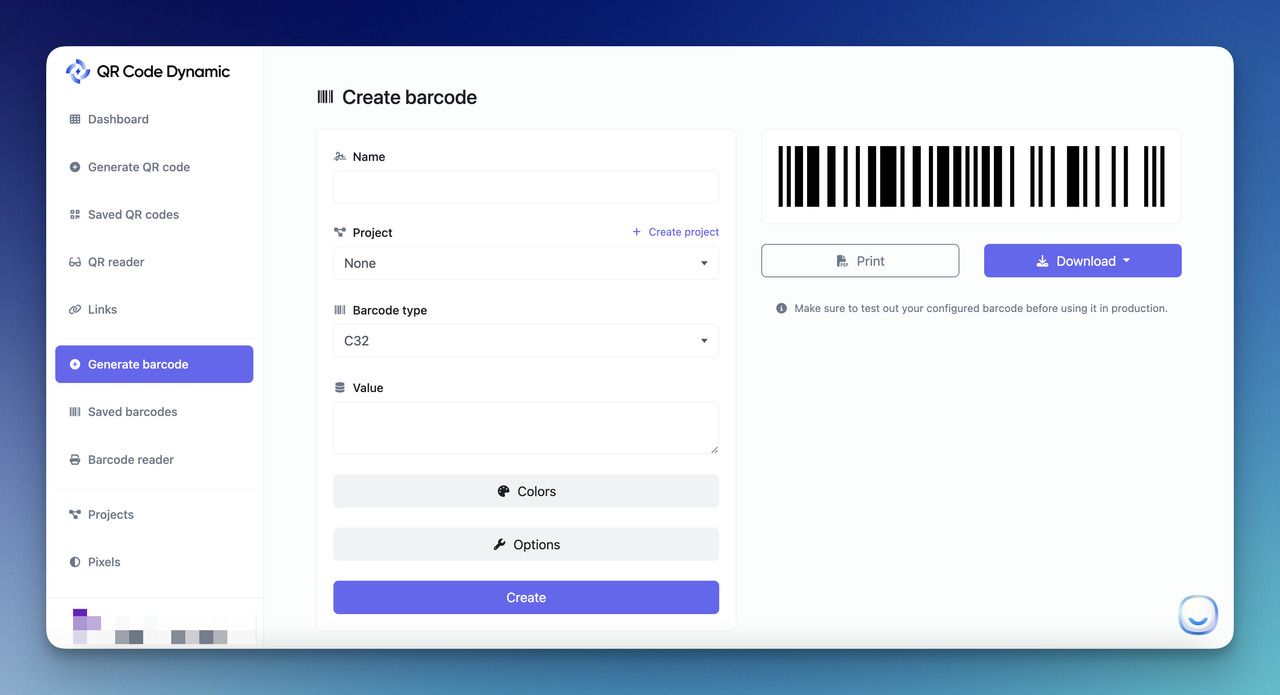
From the dashboard sidebar, click Generate a barcode. Name the asset, choose the type (Code 39, Code 128, EAN13), and enter the value to encode.
Step 3: Customize and Download
Adjust colors, dimensions, and the optional human-readable text. Defaults work for internal use; brand colors matter for customer-facing labels.
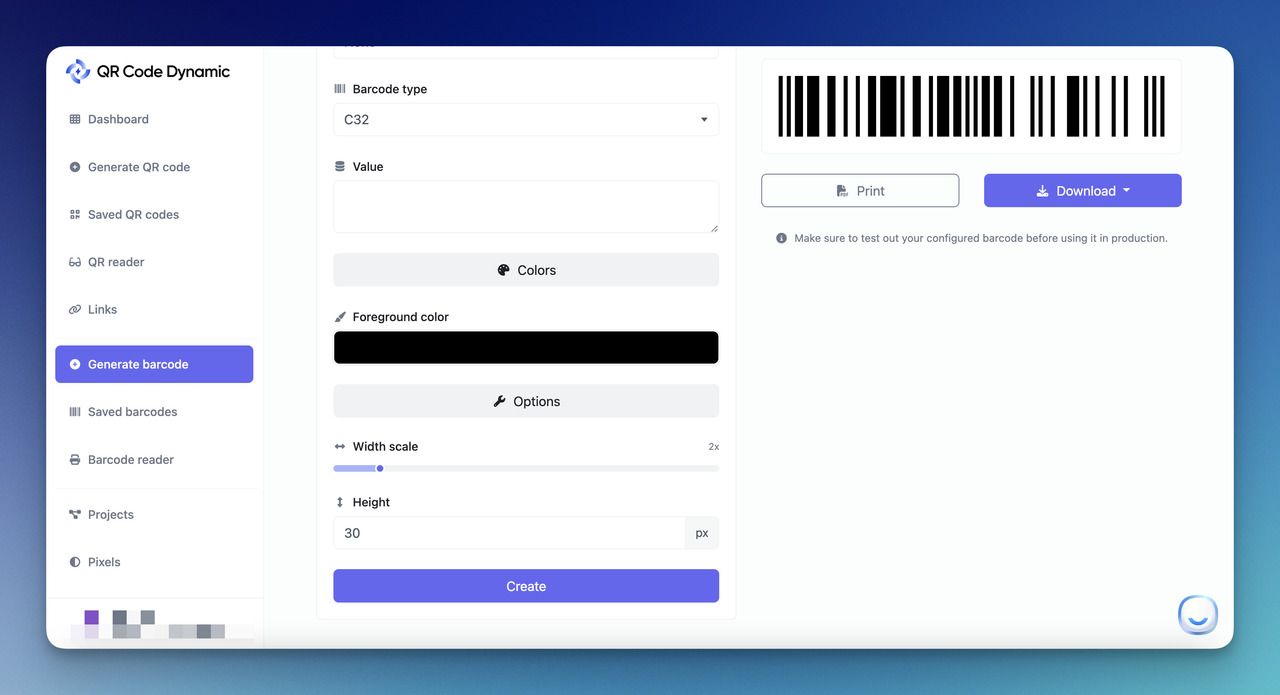
Save, download as PNG or SVG, then upload to Google Sheets via Insert → Image → Image in cell. The image lives in the cell and travels with the row.
Bulk Barcode Generation with Add-ons and Apps Script
The font method works fine for 50 rows. At 5,000 rows you want automation. Two paths: a Workspace add-on (faster setup, third-party lock-in) or Apps Script (15 minutes to write, free forever).
Option A: Google Workspace Add-ons
Open Extensions → Add-ons → Get add-ons and search "barcode generator" in the Marketplace. Most accept a column range, choose a type, and write PNG images into an adjacent column. Free tiers usually cap at 50–100 codes per run. Stick with add-ons that have a published privacy policy and don't request scopes beyond spreadsheets.currentonly.
Option B: Google Apps Script
Open Extensions → Apps Script and paste the snippet below. It writes an =IMAGE() formula into the adjacent column for each row.
function generateBarcodes() {
  const sheet = SpreadsheetApp.getActiveSheet();
  const lastRow = sheet.getLastRow();
  const dataRange = sheet.getRange(2, 2, lastRow - 1, 1); // column B, skip header
  const values = dataRange.getValues();

  const formulas = values.map(function(row) {
    const id = row[0];
    if (!id) return [""];
    const url = "https://barcode.orcascan.com/?type=code128&data=" + encodeURIComponent(id);
    return ['=IMAGE("' + url + '")'];
  });

  sheet.getRange(2, 3, formulas.length, 1).setFormulas(formulas);
}
Save, click Run, and approve the OAuth consent on first execution. Apps Script runs on the V8 runtime, so modern JS works without flags. Wire the function to a custom menu via onOpen() for non-developers.
Pro tip: I've used this exact pattern across three SaaS workflows in the last two years — 5 minutes to write, hours saved every quarter when SKU lists refresh. Add a quota guard past 1,000 rows: Apps Script caps execution at 6 minutes per run.
Tips for Creating and Using Barcodes in Google Sheets
- Libre Barcode 39, 128, or EAN13 cover 95% of cases.
- Keep source and barcode in separate columns — never overwrite the source value.
- Format the input column as Plain text before entering data, especially zeros-leading IDs.
- Use the formula
="*"&A2&"*"rather than pasted strings — one edit reformats the column. - Apply the font last: type values, run the formula, then change the font.
- Test every new format with two different scanners before printing 1,000 labels.
- Avoid mixing case, padding lengths, or prefixes within the same SKU set.
- Pair with a Google Form for phone scanners that write back to the sheet.
Troubleshooting Barcode Creation in Google Sheets
Barcode Font Renders as Plain Text
- Font not added to your account — repeat the More fonts step (fonts attach to your account, not the sheet).
- Font applied to the wrong column — it goes on the Barcode column, not the source ID column.
- Mobile app doesn't always render Libre Barcode — view on desktop or switch to IMAGE().
Barcode Won't Scan
- Width too narrow — bump font to 30–36 pt, row height to ~50 px (scanners need ~0.3 mm bar width).
- Missing asterisks (Code 39) — confirm
="*"&A2&"*"is in place. - Symbology mismatch — a POS scanner expecting EAN13 won't read Code 39.
- Try Libre Barcode 128 — denser bars often scan better on small printed labels.
Leading Zeros, Scientific Notation, Formula Errors
- Set the input column to Plain text and re-enter data — same fix for scientific notation.
- Prefix a single cell with an apostrophe (
'00123) to force text mode without reformatting the column. - Formula shows as literal text — cell is formatted as Text. Switch back to Automatic.
- Smart quotes — re-type quotes manually if you pasted from a styled source.
Print Issues and Mobile Differences
- Cut-off barcodes — adjust column width and row height, use Print → Custom page break.
- Low DPI printers (under 300) struggle with thin Code 39 bars — use Code 128 or IMAGE().
- Mobile teams should use IMAGE() so a PNG renders regardless of font availability.
How to Use Barcodes in Business Operations for Google Sheets
Per Gartner's inventory management report, the top five buyer segments for inventory management software spend between $124 and $182 per user, per month, with an average of $146. A Sheets-and-barcodes setup runs $0 in software for the same workflow at small scale — useful runway while you scope a paid tool.
Inventory, Sales, and Order Fulfillment
Scan to update stock levels in real time. During picking, a scan verifies the SKU exactly — no transposed digits. At point of sale, each scan timestamps a sale that Sheets turns into daily summaries with one pivot table.
Asset Management
Print a Code 39 label for every laptop, tool, or piece of equipment, then scan an asset to open its row and update service history. QR-based asset tracking is a stronger fit if you also want hyperlinks to maintenance docs.
Employees, Loyalty, Documents, and Events
Issue Code 39 badges for clock-in/out, run loyalty programs (one barcode per customer), tag physical files, and ticket events with Code 128. Each scan writes a timestamped row — one workflow, multiple use cases.
Quality Control
Scan a unit to open its inspection row and log pass/fail. Match raw materials to finished goods through linked rows for traceability. Time-stamped scans meet most ISO traceability requirements.
Scanning Barcodes Back Into Google Sheets
Generating a barcode is half the job. The other half is reading it back so records update automatically.
1. Phone Camera + Google Forms (Free)
Build a Google Form with a "Barcode" short-answer field and an "Action" field. Link responses via Form → Responses → Link to Sheets. On a phone, tap the field and use the keyboard's barcode-scan button (Gboard on Android, several iOS keyboards offer the same). Each scan submits a timestamped row.
2. USB or Bluetooth Hardware Scanners ($20–$50)
A keyboard-emulation scanner lands the scan as typed text plus Enter. Pair Bluetooth scanners with a phone or tablet running Sheets in a browser. Add =IF(A2="","",IF(B2="",NOW(),B2)) to timestamp each scan.
3. Dedicated Scanner-to-Sheets Apps
For offline scanning, multi-user sync, or audit trails, a dedicated app pushes to Sheets via OAuth and adds duplicate detection and inventory thresholds.
Across all three, set the input column to Plain text and add =COUNTIF(A:A,A2) to flag double-scans. See how to read a barcode for what scanners do under the hood.
The Bottom Line on Barcodes in Google Sheets
Making a barcode in Google Sheets is a 5-minute exercise once you know the two methods: Libre Barcode fonts for fast on-screen rendering, and IMAGE() for portable, printable barcodes. Pick Code 39 for internal tags, Code 128 for shipping, and EAN13 for retail. Scale up with Apps Script past a few thousand rows, and connect a phone scanner or Google Form to close the loop on inventory updates.
If your operation leans toward QR over 1D barcodes — or you want printable assets without writing formulas — QR Code Dynamic covers both in a single dashboard.
Frequently Asked Questions
How do I create a scannable barcode?
Wrap your value with ="*"&A2&"*", apply Libre Barcode 39, and increase row height to ~50 px. Test with a phone scanner before printing. For cross-device consistency, use =IMAGE("https://barcode.orcascan.com/?type=code128&data=" & ENCODEURL(B2)) instead.
How to integrate barcodes with Google Sheets inventory systems?
Plug in a keyboard-emulation scanner, set column A to capture scans, column B to timestamp via =IF(A2="","",NOW()), and column C to decrement stock. For multi-user setups, route scans through a Google Form. The full pattern is in our QR codes for inventory guide and barcode inventory system article.
How to scan barcodes directly into Google Sheets?
Three options, by cost. Free: Gboard's barcode-scan keyboard button on Android (or an iOS equivalent) submitting to a Google Form linked to the sheet. $20–$50: a USB or Bluetooth keyboard-emulation scanner that auto-types value + Enter. Paid app: a dedicated barcode-to-Sheets tool for offline use, multi-user sync, and audit logs — worth it past a few hundred scans per day.
Visit our other blogs:

I work as a Growth Marketer at Popupsmart, using my 3+ years of SaaS experience to create clear, useful marketing content that helps brands grow, reach the right audiences, and improve their results.