Feedback QR Code: How to Create One in 2026 (Step-by-Step)


On this page
- What is a feedback QR code?
- Why feedback QR codes outperform other survey channels in 2026
- How to create a feedback QR code: a 6-step walkthrough
- Step 1: Pick the survey tool
- Step 2: Build the survey (3-5 questions, mobile-first)
- Step 3: Generate a dynamic QR code from the form URL
- Step 4: Customize the QR design
- Step 5: Place it where the experience happens
- Step 6: Test, deploy, and iterate
- How to make a Google Forms feedback QR code
- How to make a Microsoft Forms feedback QR code
- Feedback QR code use cases by industry
- Restaurants and cafes
- Retail
- Hotels and hospitality
- Healthcare
- Events and conferences
- Education
- SaaS and software
- Real estate
- Best practices for maximum response rates
- Common mistakes to avoid
- Measuring success: what to track
- Frequently asked questions
- How do I make a QR code for reviews?
- How do I generate a free feedback QR code?
- What is the best feedback QR code generator for restaurants?
- How do I create a Google Forms feedback QR code?
- Can I make a Microsoft Forms QR code for surveys?
- How do I use a feedback QR code on receipts or packaging?
- Ship Your First Feedback QR This Week
- Related reading
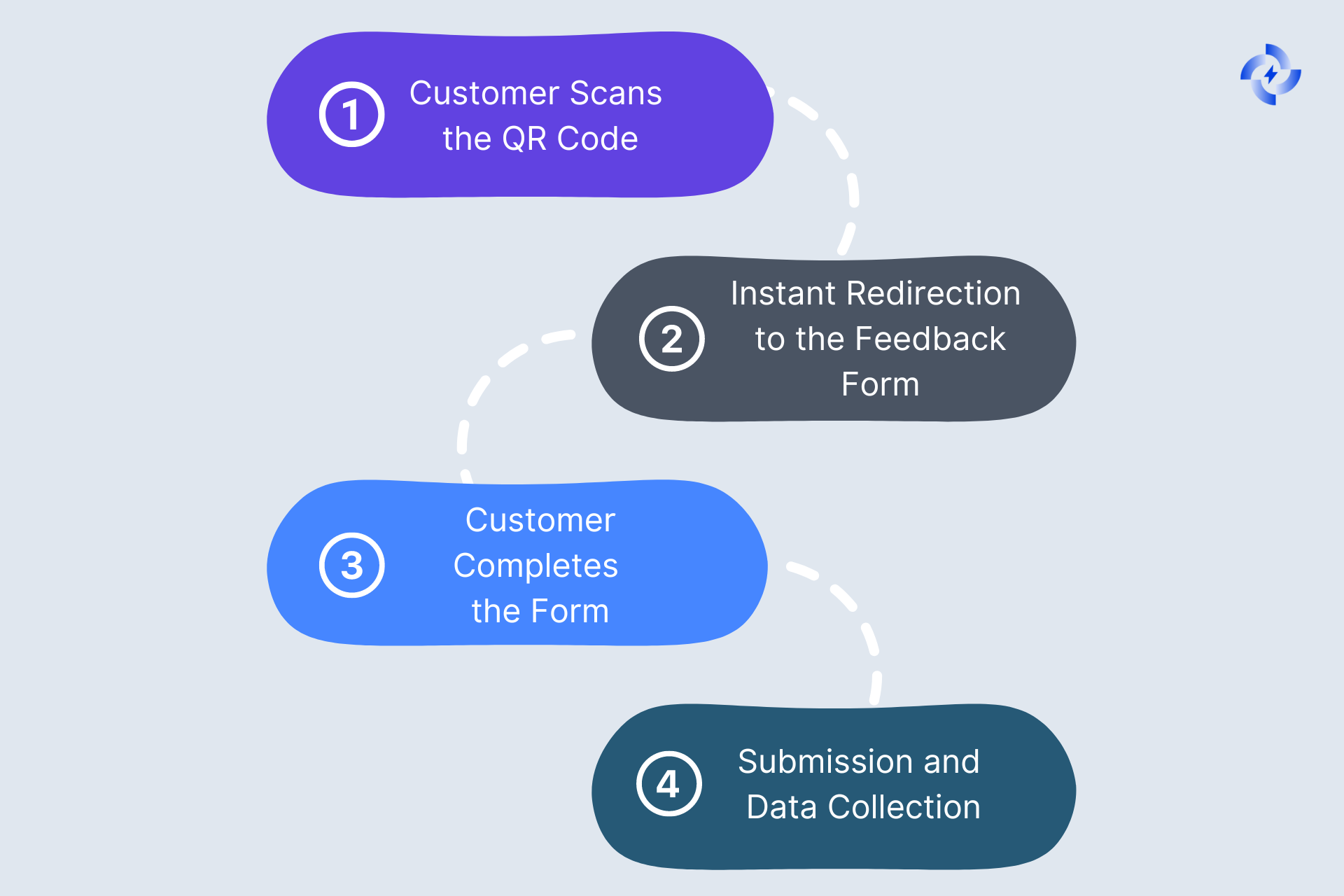
A feedback QR code opens a short survey on the customer's phone. To build one in 2026, host the form on Google Forms, Microsoft Forms, or SurveyMonkey, paste the form URL into a dynamic QR generator like QR Code Dynamic, brand the design, then print it where the experience happens. Total time: under ten minutes.
What is a feedback QR code?
A feedback QR code is a QR code whose destination is a customer feedback form, survey, or review link. The customer scans, the phone opens the form, and they submit answers without typing a URL or hunting for an app.
It earns its own name because of context. The code lives at the moment of the experience: on the receipt, the table tent, the hotel room, the discharge sheet. You're catching the customer while the steak is still warm — not two days later in a Promotions tab.
Two flavors exist. A static feedback QR code encodes the form URL directly. Cheap, but if you rename your form or switch tools, every printed code becomes dead weight. A dynamic feedback QR code points at a redirect URL you control, so you can swap the survey behind it without reprinting. For anything that touches print, dynamic is the only sane choice.
Why feedback QR codes outperform other survey channels in 2026
Survey response rates are getting worse, not better. According to Koji, the average survey completion rate now sits at a dismal 13%. That's the baseline most teams quietly accept, then complain about a "biased sample" when their NPS swings month over month.
The reason isn't that customers don't care. The channel is wrong. SurveyStance reports that more than 50% of customers won't spend more than 3 minutes on a feedback form. Long forms get abandoned. Late emails get ignored.
The channel data echoes this. FeedbackRobot's benchmarks show email at 25%, SMS at 45%, and in-app at 13%. Koji's 2026 data tells the same story from another angle: in-app and SMS surveys land in the 25-40% range versus 15-20% for email links. Feedback QR codes sit closer to SMS — they fire at the moment of the experience, not 48 hours later.
QR codes inherit the timing advantage of in-product surveys while working in physical contexts where in-product is impossible. No app to install at a restaurant table. No email loop after a hotel checkout. The QR code is the in-product survey for offline life.
For the official benchmark definition, see SurveyMonkey's response rate guide.
A note from three years in QR marketing: the biggest mistake teams make isn't picking the wrong tool — it's picking the wrong moment. A feedback QR on a flyer the customer takes home underperforms one at the checkout counter by a wide margin. Proximity is the lever.
How to create a feedback QR code: a 6-step walkthrough
The full workflow takes under ten minutes once you've done it once. Here's the version I run for clients across restaurants, retail, and SaaS onboarding.
Step 1: Pick the survey tool
The form is the substance of your feedback program. The QR code is just the door. Pick the form tool first.
Five options cover roughly 90% of use cases:
- Google Forms — free, no learning curve, results land in a Google Sheet. Best for small businesses that don't need conditional logic.
- Microsoft Forms — free with any Microsoft 365 account, integrates with Excel and Power BI. Best for organizations already on the Microsoft stack.
- SurveyMonkey — strong logic, NPS templates built in, branded themes. Paid tiers start cheap and scale.
- Typeform — one-question-at-a-time UX, very high completion rate on mobile, but the free plan is restrictive.
- Custom landing page — for advanced teams who want to track scans, completions, and downstream actions in one analytics stack.
Some all-in-one feedback QR builders bundle the form with the code. Convenient, but you lose flexibility — your data lives in their dashboard, question types are limited, and you can't pipe it into Power BI later. Keep the form and the code as separate, swappable parts.
Step 2: Build the survey (3-5 questions, mobile-first)
Survey length is the variable that moves response rate the most. Given the SurveyStance 3-minute ceiling, design for a 60-90 second completion time. That works out to three to five questions, depending on type.
A workable feedback survey skeleton:
- One rating question. Five-star, NPS 0-10, or thumbs up/down. Make this the only required field.
- One driver question. "What's the main reason for your score?" — multiple choice with an "Other" field.
- One open comment. "Anything we should know?" — optional.
- One contact opt-in. Optional email field for follow-up. Never required.
Three things to avoid: required fields beyond the rating, demographic questions (age, gender, income — they tank completion and rarely add value), and matrix grids that don't render on a phone. Preview every form on a phone before you ship the code.
Step 3: Generate a dynamic QR code from the form URL
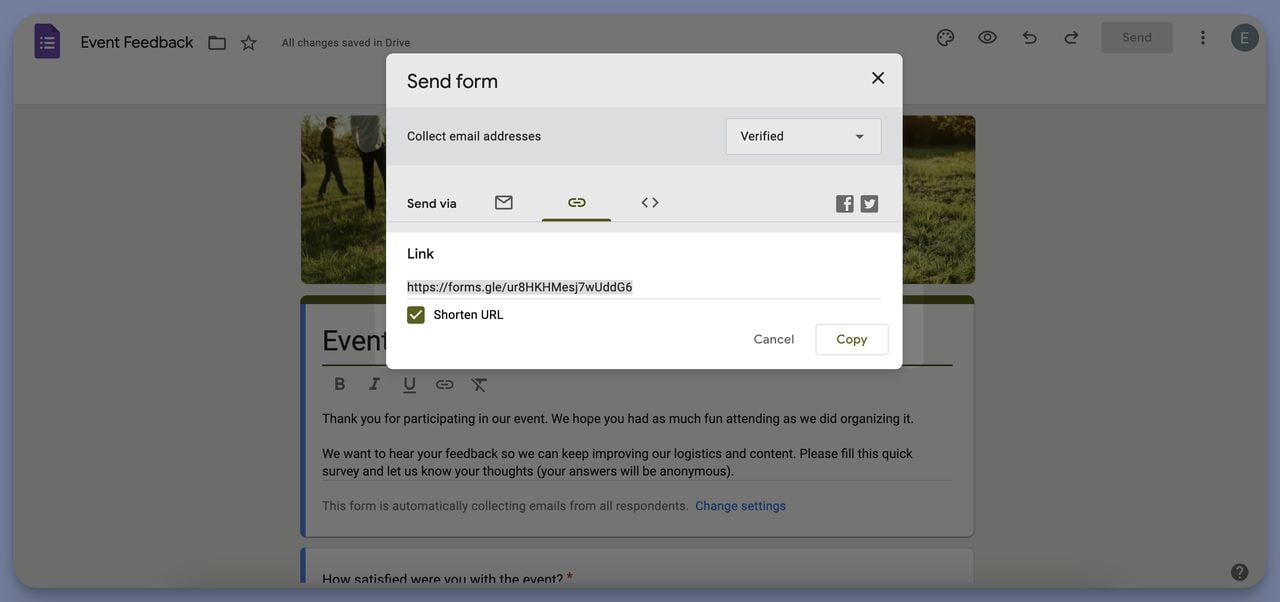
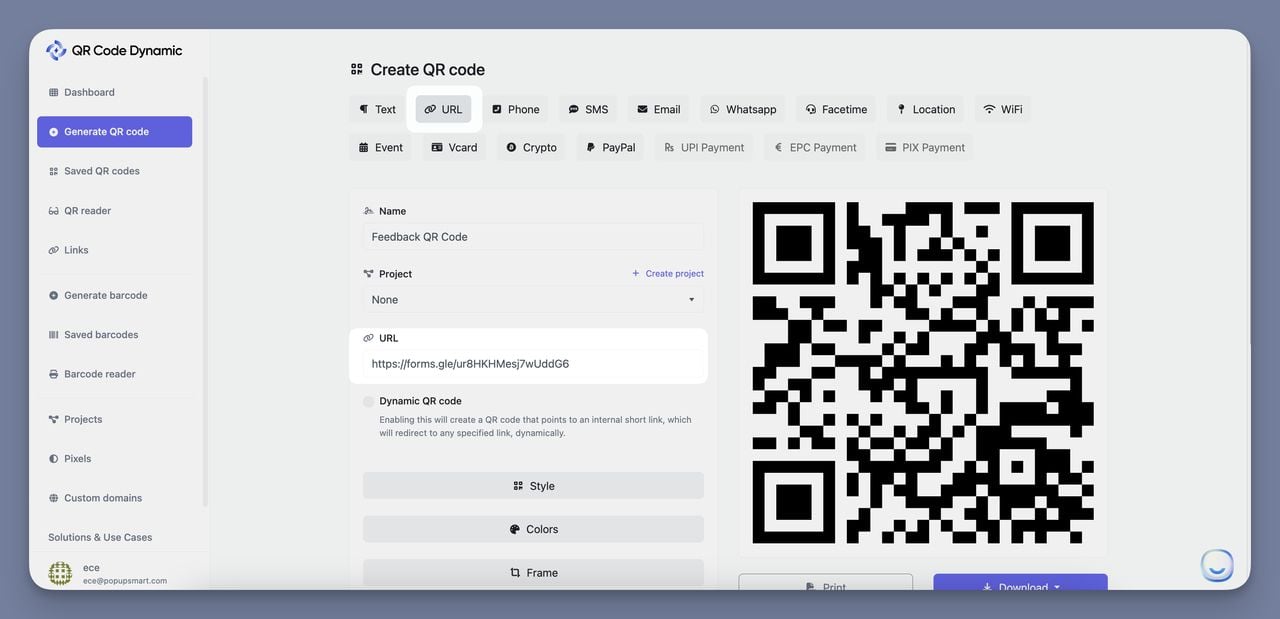
Copy your form's public URL (Google Forms: "Send", link icon, "Shorten URL"; Microsoft Forms: "Collect responses", "Copy link"). Then head to a dynamic QR generator.
Dynamic matters from day one because the destination will change. You'll tweak wording, swap form tools, run a holiday variant. With a static code, every change means a reprint. With a dynamic code from QR Code Dynamic, you edit the destination URL inside the dashboard and the printed code keeps working.
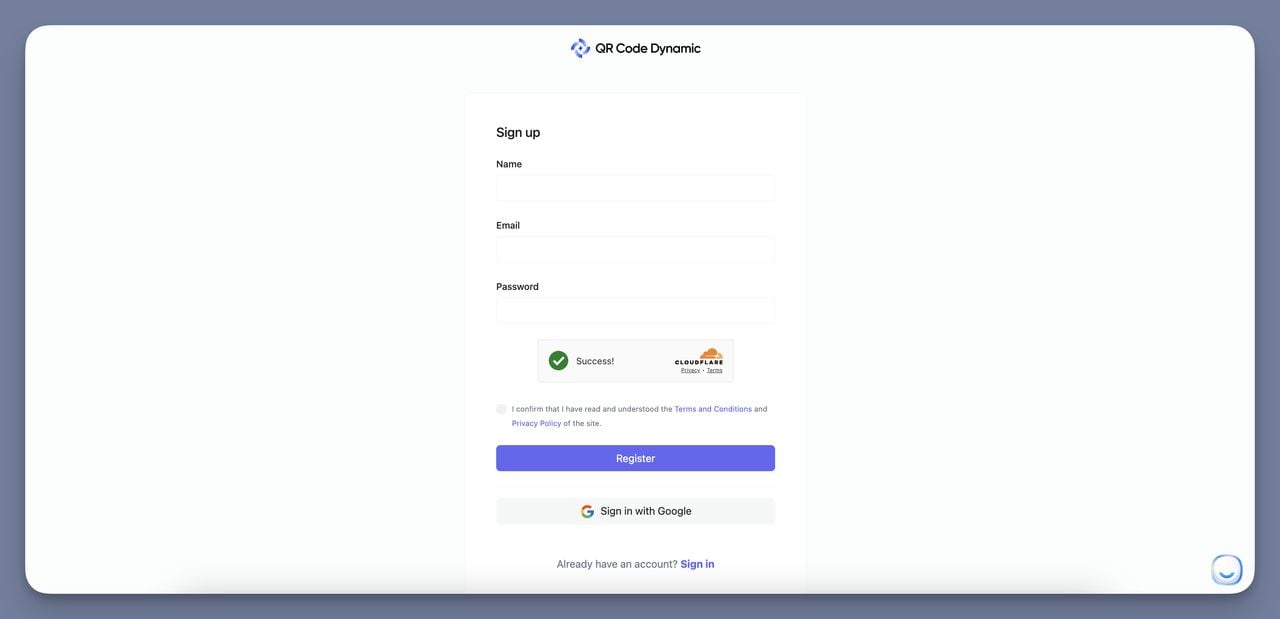
Paste the form URL, confirm the "Dynamic" toggle is on, and save.
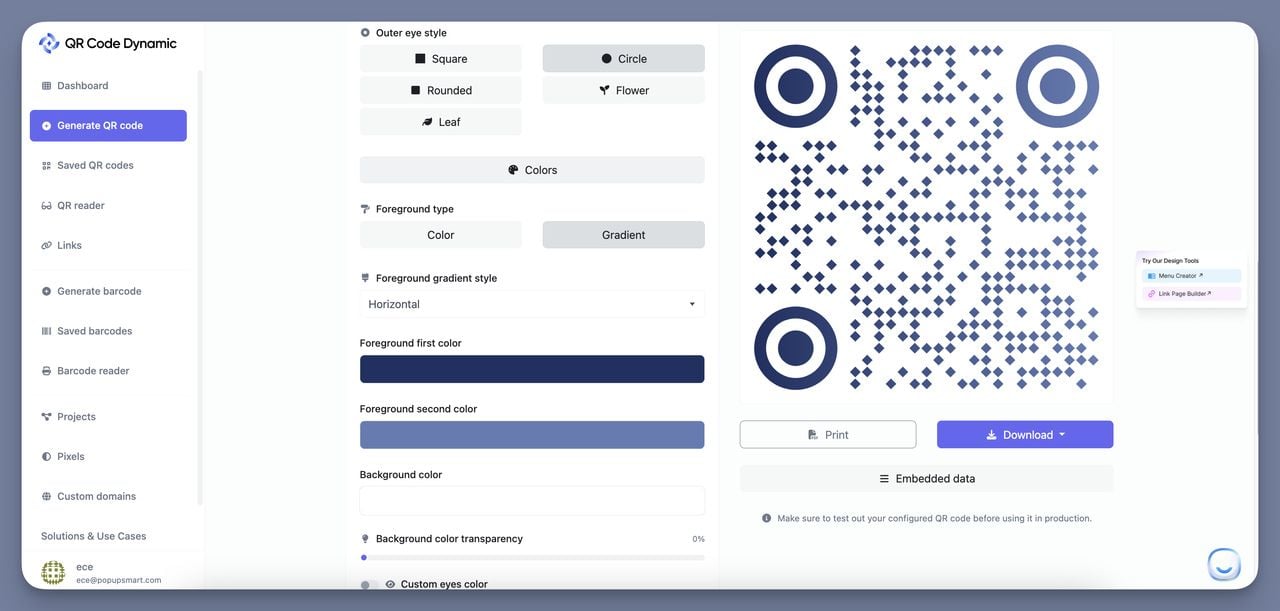
Step 4: Customize the QR design
Customization isn't a vanity step. A bare QR code reads as ambient signage — or worse, spam. A branded code with a logo and a "Rate us in 30 seconds" frame reads as an invitation.
What to set:
- Foreground color — keep contrast ratio above 4:1 against the background. Dark on light scans most reliably. Avoid red on green and other low-contrast pairs.
- Logo in the center — keep it under 30% of the code area so the error correction can still read it.
- Frame with a CTA — short verb phrase: "Rate your visit", "Tell us how we did", "Leave a review".
- Shape — square dots are the safest default. Rounded dots look modern but reduce scanability slightly at smaller sizes.
Step 5: Place it where the experience happens
Placement is the second biggest response-rate lever after form length. The rule I follow: put the QR code within physical arm's reach of the moment you want feedback on, and put it there before the customer leaves.
Strong placements:
- Table tents and check holders in restaurants — the customer is already sitting, already has their phone out for the bill.
- Receipts — printed on the customer copy, anchored to a specific transaction. See our QR codes on receipts guide for sizing.
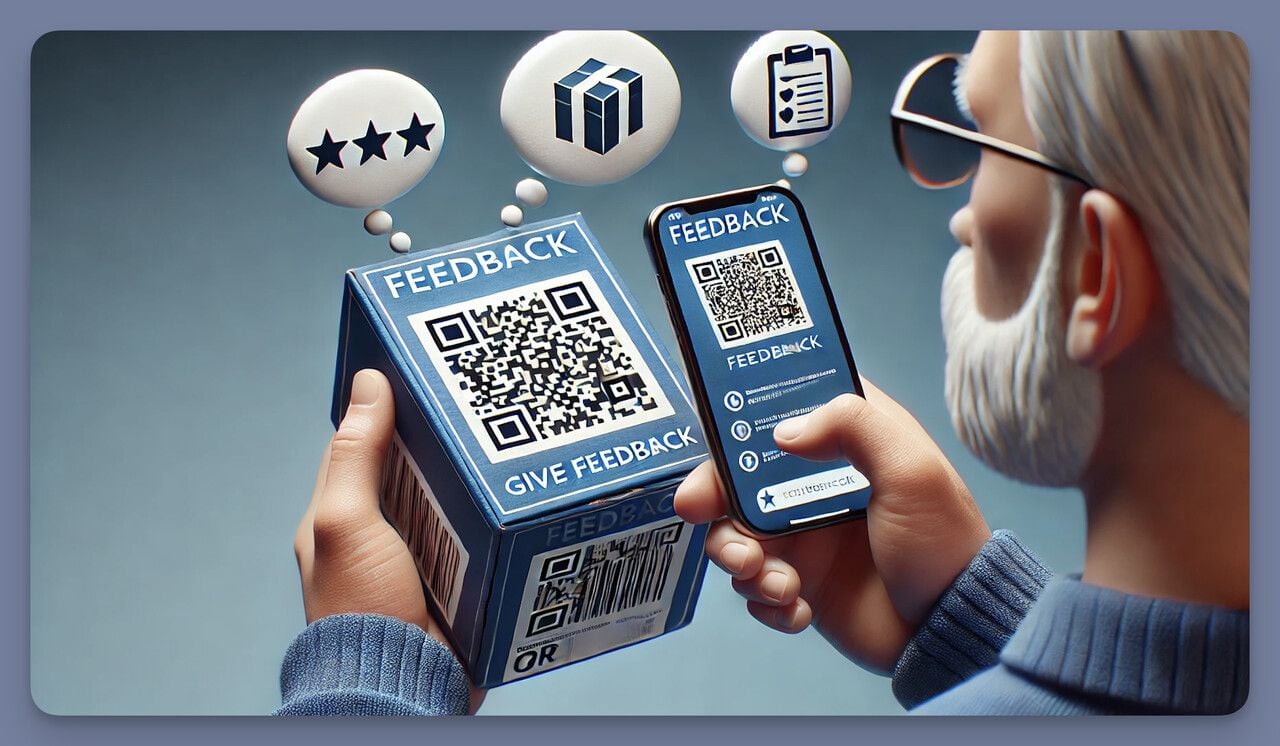
- Product packaging — inside the box flap, not the outside. Captures the unboxing moment.
- Door signage at checkout, hotel rooms, fitting rooms, and event exits.
- Last slide of a presentation at conferences, classes, and webinars — see QR codes for Google Slides for layout tips.
Weak placements: anything the customer takes home (the survey will be cold by then), anywhere the customer has to actively look for it, and anywhere with poor lighting. Test the lighting and angle on the actual surface before you print 500 copies.
Step 6: Test, deploy, and iterate
Before any print run, scan the code from three phones: an iPhone, an Android, and the oldest phone you can find in the office. Confirm the form opens, loads under three seconds on mobile data, and scrolls cleanly. If any of those fail, fix the form before you print.
After deployment, watch two numbers for the first two weeks:
- Scan-to-completion rate. Scans divided by completed responses. If scans are high but completions are low, the form is the problem (too long, broken on a device, or required fields scaring people off).
- Scans by time of day. Tells you when the placement is actually getting attention. Lunch crowd vs. dinner crowd often behave very differently.
Use the dynamic editor to iterate. Shorten questions that get high drop-off. Swap rating scales if you're seeing a U-shape in responses (people only marking 1s and 5s usually means the scale doesn't fit the question).
How to make a Google Forms feedback QR code
Google Forms is the quickest path if you don't already have a survey tool.
- Open forms.google.com and create a new blank form.
- Add your rating question, one driver question, and an optional comment. Mark only the rating as required.
- Click Send in the top right, then the link icon, then Copy. (Tick "Shorten URL" if you want a cleaner link, though it doesn't affect the QR code.)
- Paste the URL into your dynamic QR generator's URL field.
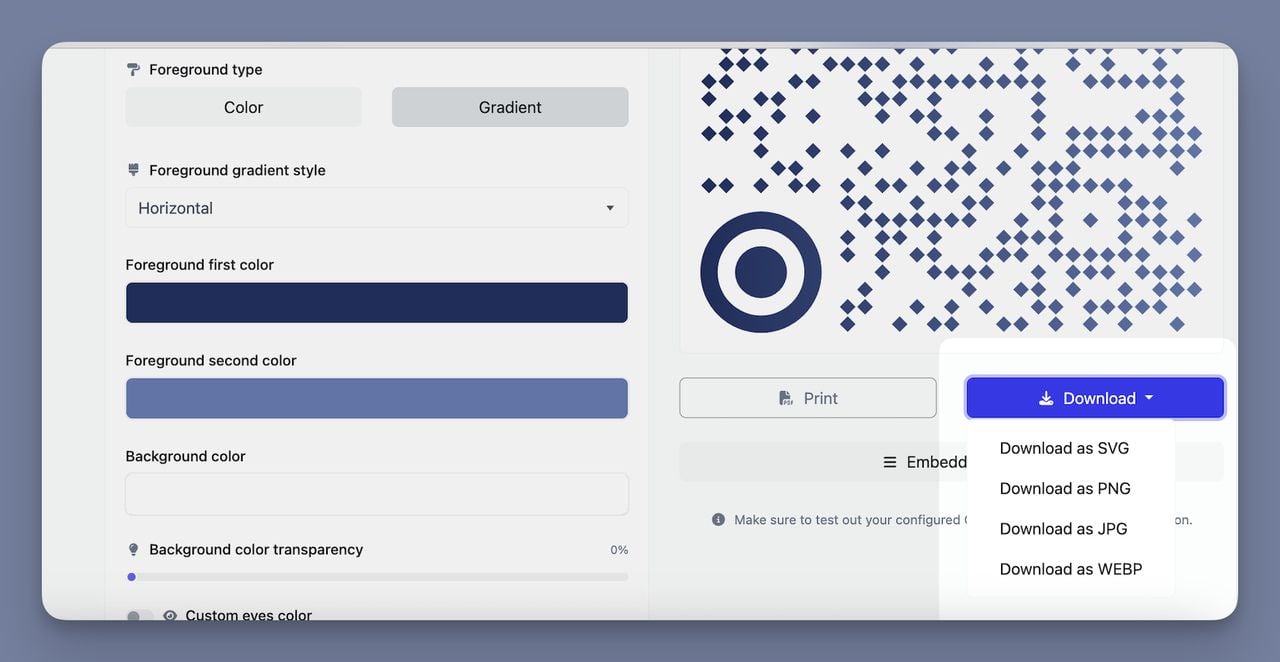
- Toggle Dynamic on, customize the design, and download as PNG (digital) or SVG (print).
Google Forms responses flow to a Google Sheet automatically — open the Responses tab inside the form, click the green Sheets icon, and you have a live dashboard. For the full integration walkthrough, see our Google Form QR code guide.
How to make a Microsoft Forms feedback QR code
Microsoft Forms is the right choice if your company runs on Microsoft 365 and you want responses to live in Excel or Power BI without an export step.
- Open forms.microsoft.com and click New Form.
- Build the same 3-5 question structure. Microsoft's "Star rating" and "Net Promoter Score" question types are built in.
- Click Collect responses at the top, then copy the link. Choose "Anyone can respond" unless you want to restrict to your tenant.
- Paste the link into your dynamic QR generator, generate the code, and download.
A note specific to Microsoft Forms: the default link is long and ugly, but it works fine inside a QR code (the customer never sees it). For deeper integration steps, see our Microsoft Forms QR code walkthrough.
Feedback QR code use cases by industry
Different industries need different placement, question structure, and incentive logic. Here are the eight patterns I see working most often.
Restaurants and cafes
The classic placement: table tent or check presenter. The customer is already seated with their phone in hand. Keep the survey to a 1-5 rating plus an open comment — anything longer breaks the flow before the bill arrives. Restaurants pushing positive reviews to Google or TripAdvisor can route 4-5 star responses to a review link and 1-3 star responses to an internal complaint form. See our TripAdvisor QR code guide for the routing setup. For chains, generate a separate dynamic QR per location so you can compare store-level scores.
Retail
Two placements work best: on the receipt at checkout, and on the bag the customer leaves with. Receipt placement captures the transaction emotion; bag placement captures the post-unboxing impression. The question to ask is rarely "How was your experience?" — too vague. Ask the thing you can act on: "Was it easy to find what you came for?" or "How was the checkout speed?" Our retail QR code guide covers placement variants in more depth.
Hotels and hospitality
The strongest placement is the in-room compendium or the door of the room, captured during the stay rather than after checkout. Post-checkout email surveys go to spam at brutal rates; an in-room QR catches the customer while they're still in the bathrobe. Pair it with a small incentive — a free drink at the bar, a late-checkout voucher — and scan rates climb. Two codes per room can work: one in the bathroom (cleanliness), one at the desk (overall stay).
Healthcare
Placement options: the discharge sheet, the appointment reminder card, the waiting room TV. Question structure matters more here than anywhere — patients won't answer 12-question surveys and won't tolerate jargon. Stick to wait time, staff communication, and a single open comment. HIPAA note: don't collect identifying information through a feedback QR unless your form tool is BAA-covered. Anonymous works; named creates compliance surface area.
Events and conferences
Display the QR code on the closing slide of every session and on signage near the exit. Session-level codes give you per-talk feedback; event-wide codes give you overall NPS. The dynamic redirect lets you reuse one code across multi-day events by swapping the destination form each day. Incentivize with prize draws rather than discounts — prize draws don't dilute event positioning.
Education
Course feedback at the end of each class, semester-end module reviews, or classroom polls during a lecture. A QR on the closing slide of the lecture deck is near-zero-effort capture and works the same in PowerPoint, Keynote, and Google Slides. Anonymous responses dramatically improve honesty here — set the form to "Don't collect email addresses" or students will sanitize their answers.
SaaS and software
SaaS already has in-app survey infrastructure, so the QR code play is for the offline moments: printed onboarding cards in welcome boxes, conference booth giveaways, partner enablement, sales deal closings. A QR on an onboarding postcard linking to "What confused you in your first week?" catches signals that in-product NPS misses. For sales teams, a feedback QR on the back of a business card routes to a post-meeting form — low volume, high signal.
Real estate
Post-tour feedback at open houses, post-showing follow-ups, post-closing satisfaction. The closing-folder placement catches a feedback window that's otherwise lost — the week after closing, when the buyer is forming their lasting impression. A three-question survey there feeds testimonials and referral flagging.
Best practices for maximum response rates
Across the placement experiments I've watched run, the same handful of variables explain most of the spread between top and bottom performers.
- Size. Follow the 10:1 distance-to-size ratio. If customers will scan from six feet away, the code should be at least seven inches wide. From one foot, one inch is plenty.
- Contrast. Dark code on light background, contrast ratio 4:1 or higher. Avoid colored backgrounds that match the foreground tone.
- Frame and CTA. A short verb-led CTA ("Scan to rate your visit") lifts scan rates significantly over a bare code.
- Form length. Three to five questions, one screen, one required field. The 3-minute ceiling is real — design under it.
- Incentive. Optional, but a small reward (10% off, free coffee, prize draw entry) typically doubles response rate. Test before assuming you need one.
- Placement context. The QR code should be visible at the moment the customer is forming their opinion, not hours later.
- Mobile-only design. Every scan happens on a phone. Test the form on iOS Safari, Android Chrome, and an old budget Android. Fix anything that doesn't render.
Common mistakes to avoid
Five mistakes account for most of the underperforming feedback QR codes I audit.
- Survey too long. Anything over five questions or two minutes will hemorrhage completions. Cut it before you print.
- No CTA on the code. A bare QR code reads as ambient signage. A code with "Rate us in 30 seconds" reads as an invitation. The verb does the work.
- Code too small for the placement. A 1-inch code on a hotel room door someone scans from three feet away will fail to scan on older phones. Apply the 10:1 ratio.
- Static code that can't be rotated. If your form changes, your printed code goes dead. Use dynamic from day one.
- No scan analytics. Without scan data, you can't tell whether low completions are a placement problem or a form problem. The generator's analytics dashboard isn't optional — it's how you debug.
Measuring success: what to track
Four numbers tell you almost everything about a feedback QR code program.
Scan count. Raw scans by day, week, and location. The baseline metric for placement effectiveness. If scans are low, the code isn't being seen — fix size, contrast, or placement before you touch the form.
Completion rate. Completed responses divided by scans. The baseline metric for form effectiveness. Industry benchmark: 30-60% completion from scan, depending on form length. Below 30% and the form is too long or too clunky.
Response time. Median time from scan to submit. Should land between 45 and 120 seconds for a well-designed form. Over three minutes and people are abandoning halfway.
Sentiment / score distribution. The actual feedback content — NPS, CSAT, rating distribution. The point of the exercise. Watch for a bimodal pattern (only 1s and 5s) as a sign your scale doesn't match the question.
QR Code Dynamic surfaces scan count, location, device, and time-of-day in the dashboard. Completion and sentiment live in the survey tool. Pull them into one weekly view and the program runs itself.
Frequently asked questions
How do I make a QR code for reviews?
Create the QR code from your business's review URL — a Google Business Profile "Write a review" link, a TripAdvisor review page, or a Yelp page. Paste that URL into a dynamic QR generator, brand the code, and place it at the moment you want the review asked for: the receipt, the table card, or the follow-up email. For Google reviews specifically, see our Google reviews QR code guide.
How do I generate a free feedback QR code?
Free is possible if you pair a free form tool (Google Forms, Microsoft Forms) with a free static QR generator. The catch is that static codes can't be edited after printing — change the form and the code dies. For anything that touches print, dynamic codes are worth the small monthly cost. Free static is fine for digital-only placements (email signatures, social posts, slide decks).
What is the best feedback QR code generator for restaurants?
The best choice for restaurants is a dynamic QR generator with location-level analytics, so multi-store operators can compare stores. QR Code Dynamic, plus a feedback form in Google Forms or SurveyMonkey, covers the common cases. The "best" tool is whichever lets you generate one code per location, edit destinations without reprinting, and pull scan data per store.
How do I create a Google Forms feedback QR code?
Build the form on forms.google.com, click Send, copy the link, paste it into a dynamic QR generator, toggle dynamic on, and download. The full walkthrough lives in the Step 1 / Step 2 sections above. Responses flow to a connected Google Sheet automatically.
Can I make a Microsoft Forms QR code for surveys?
Yes. Build the form on forms.microsoft.com, click Collect responses, copy the link, and paste it into a dynamic QR generator. Microsoft Forms is the strongest pick for organizations already running Microsoft 365 since responses land in Excel and Power BI without extra setup.
How do I use a feedback QR code on receipts or packaging?
For receipts: print at 0.5-1 inch wide on the customer copy, ideally near the total. Pair with a one-line CTA. For packaging: place inside the box (under the lid or on the unboxing-side flap), not on the outside where it gets damaged in transit. Use dynamic codes either way — receipt and packaging changes are common, and reprinting static codes for every form tweak is wasteful.
Ship Your First Feedback QR This Week
If you ship one thing this week, ship a single dynamic feedback QR code at your highest-traffic touchpoint. Form: three questions, one required, mobile-checked. Code: branded, framed with a verb-led CTA, sized for the placement. Measure scans and completions for two weeks, then iterate the question wording.
The pattern compounds. The first code teaches you what your customers actually want to tell you. The second uses what you learned. By the third or fourth iteration, you're collecting better feedback than your email survey program — at higher response rates, in the moment the experience happened.
Build your first one in QR Code Dynamic, route it to a Google Form or Microsoft Form, and put it where the customer already has their phone out. That's the whole game.
Related reading

I work as a Growth Marketer at Popupsmart, using my 3+ years of SaaS experience to create clear, useful marketing content that helps brands grow, reach the right audiences, and improve their results.