How to Add QR Code to Apple Wallet in 2026


On this page
- Quick Summary by QR Code Dynamic
- Why QR Codes and Apple Wallet Are a Perfect Match
- Benefits of Integration
- What QR Code Types Apple Wallet Actually Supports
- How to Add a QR Code to Apple Wallet
- Preparation
- Step-by-Step Guide for Supported QR Codes
- Using Pass2U Wallet for Unsupported QR Codes
- Troubleshooting QR Code Issues
- Tips to Boost Scanning Accuracy
- Advanced Features in iOS 26 and What's Coming in iOS 27
- Best Third-Party Apps for Adding QR Codes to Apple Wallet
- Pass2U Wallet
- Walletpasses
- PassWallet
- Managing and Organizing Your Apple Wallet Passes
- Rearranging or Deleting Passes
- Viewing and Customizing Passes
- Sharing Passes via AirDrop
- Sharing Passes via Messages or Email
- Global Wallet Settings
- Copying a QR Code for Apple Wallet
- Step 1: Capture a Clear QR Code Image
- Step 2: Edit and Optimize the Image
- Step 3: Add the QR Code to Apple Wallet
- Step 4: Verify QR Code Compatibility
- Real-World Use Cases for Apple Wallet QR Codes
- Security Best Practices for QR Codes
- The Future of QR Codes in Apple Wallet
- The Bottom Line on Apple Wallet QR Codes
- Frequently Asked Questions
- Can you put a QR code in your Wallet?
- How do I add a QR code to Apple Wallet from a photo?
- What types of QR codes can be added to Apple Wallet?
- Why won't my QR code add to Apple Wallet?
- How do I organize the passes in my Apple Wallet?
Apple Wallet doesn't natively accept any QR code. It only stores .pkpass files — boarding passes, event tickets, store cards, loyalty cards, transit cards. To add a generic QR code, use Pass2U Wallet or a similar third-party app to convert the QR image into a .pkpass file, then add that pass to Apple Wallet via the share button.
Quick Summary by QR Code Dynamic
This guide covers everything you need to know about adding QR codes to Apple Wallet in 2026, from supported and unsupported QR code types to step-by-step instructions, troubleshooting, and pass management. We close with iOS 27's "Create a Pass" feature — Apple's native answer for converting any QR code into a Wallet pass, no developer required.
Why QR Codes and Apple Wallet Are a Perfect Match
Boarding a flight or grabbing a coffee with just a tap — no paper tickets, no email scrolling. QR codes bridge physical and digital, and Apple Wallet turns them into encrypted, scannable passes. With Apple Pay holding a 92% market share among U.S. mobile payment users, the Wallet ecosystem is where most iPhone owners already live.
Benefits of Integration
- Simplicity: Adding a Wallet-ready pass is a two-tap process once the .pkpass file is in hand.
- Convenience: Every pass — from boarding passes to gym memberships — sits in one app.
- Security: Pass payloads are encrypted on-device, with sensitive cards gated behind Face ID or Touch ID.
- Context awareness: Passes surface on the lock screen when you're near the venue, gate, or store.
Pro Tip: Turn on Face ID for Wallet under Settings > Wallet & Apple Pay > Require Face ID — worth the extra friction for transit and stored payment cards.
What QR Code Types Apple Wallet Actually Supports
Here's the part most guides skip: Apple Wallet does not store raw QR images. It stores .pkpass files — a structured Apple format that includes a barcode (often a QR or Aztec code), pass metadata, expiration logic, and styling. Scan a generic URL or Wi-Fi QR with your camera and iOS will offer to open the link, but it won't file it inside Wallet.
The pass categories PassKit officially supports:
- Boarding passes — airlines, trains, ferries (Delta, United, Amtrak)
- Event tickets — concerts, sports, theater (Ticketmaster, AXS, Eventbrite)
- Store cards — gift cards and prepaid balances (Starbucks, Target)
- Loyalty cards — point and rewards programs (Sephora, Best Buy)
- Coupons — time-limited offers tied to a merchant
- Generic passes — gym memberships, library cards, employee badges
- Transit cards — TfL Oyster, NYC OMNY, Suica, Clipper
- Apple Pay credit/debit cards — NFC payment cards, not scannable QR codes
If your QR code is none of those — Wi-Fi network code, vCard, calendar invite, plain URL — Wallet won't accept it directly. You'll need a third-party converter app or, in iOS 27, Apple's own Create a Pass feature.
Quick clarification: Tap to Pay (NFC) isn't a QR code. Double-clicking the side button sends a tokenized card number over NFC — no scannable barcode involved. Wallet QR codes only appear when a merchant scanner reads your screen, like at a coffee shop loyalty terminal or an airport gate.
How to Add a QR Code to Apple Wallet
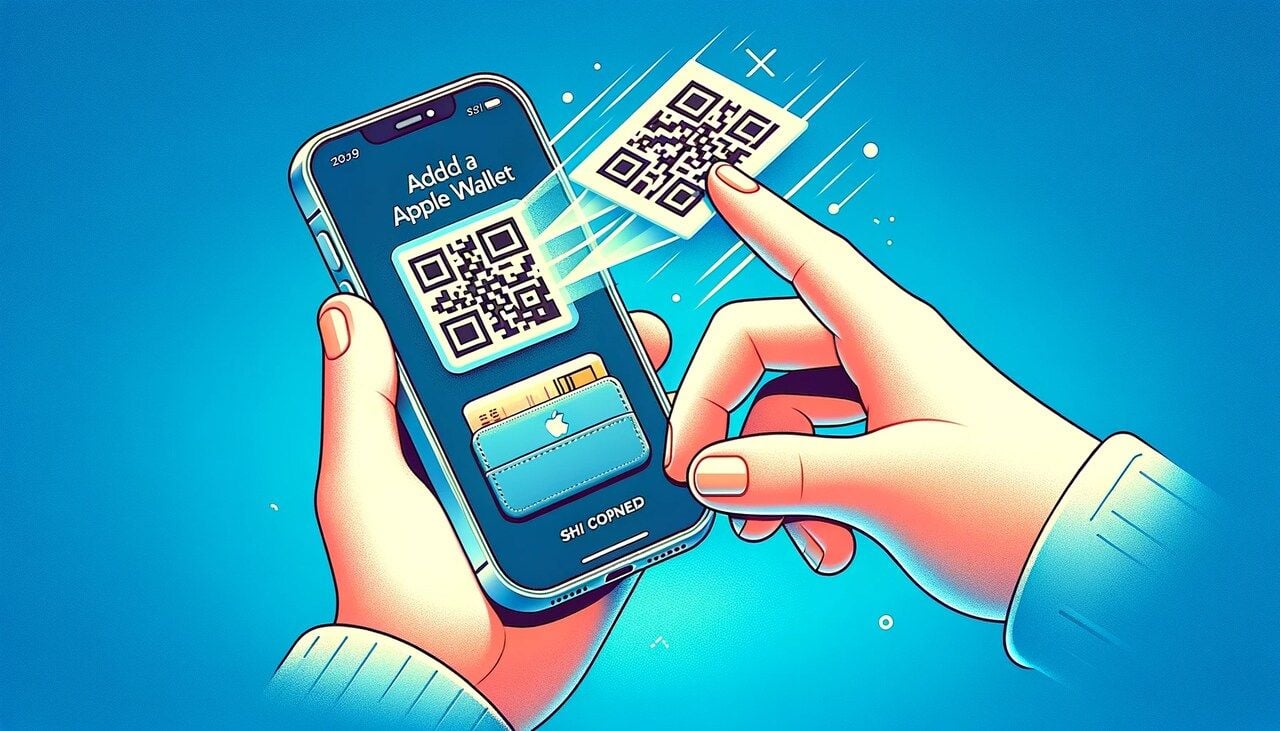
Here's the full process — including what to do when the QR code isn't natively supported, plus the new tools in iOS 26 and iOS 27.
Preparation
- Update iOS: Settings > General > Software Update. Pull the latest iOS release. iOS 26 brings a refreshed scanner; iOS 27 (developer beta) adds Create a Pass.
- Verify compatibility: Look for an "Add to Apple Wallet" badge on the source. Airlines, ticketing platforms, and major retailers ship .pkpass files; small businesses usually don't.
- Stable internet: Some passes verify with the issuer on first add.
- Camera access: Settings > Privacy & Security > Camera > Wallet should be on.
Step-by-Step Guide for Supported QR Codes
For codes designed for Apple Wallet (airline boarding passes, Ticketmaster events, retail loyalty):
- Locate the QR code in the issuer's email, app, or printed ticket.
- Open the Wallet app on your iPhone.
- Tap the plus icon in the top-right corner (iOS 16+). On older builds, scroll down and tap "Edit Passes" > "Scan Code."
- Choose Scan QR Code and point your camera at the code from about 6 inches away.
- Confirm: Tap "Add" in the top-right of the preview. The pass lands in Wallet and is ready to use.
Warning: A faded, glare-hit, or partially cropped code will fail silently. Capture a fresh image or ask the issuer to resend the .pkpass attachment.
Using Pass2U Wallet for Unsupported QR Codes
Most QR codes — small business loyalty, gym memberships, generic links — aren't natively compatible. Pass2U Wallet wraps them in a .pkpass file:
- Download Pass2U Wallet from the App Store.
- Tap the menu icon, select "All Passes," then "+".
- Choose your input: scan the barcode, enter the value manually, or import from Photos.
- Pick "Generic" if you're unsure of the type, then set logo, colors, and label fields.
- Tap "Done," then "Add to Apple Wallet" on the preview.
Troubleshooting QR Code Issues
- Code not recognized: Better light, hold the phone 4–8 inches away, wipe the camera lens.
- No "Add to Wallet" notification: Check your internet connection — some passes need an online handshake.
- Pass won't add: The code likely isn't in PassKit format. Convert with Pass2U Wallet or ask the issuer for a .pkpass attachment.
- Pass added but won't scan at the venue: Max out screen brightness and disable auto-brightness before you reach the gate. Glossy screen protectors scatter scanner light.
Tips to Boost Scanning Accuracy
- Scan in bright, even light to kill shadows on the code.
- Brace your elbows or rest the phone flat.
- When the camera struggles, try the QR code reader from QR Code Dynamic.
- A blurry print won't scan reliably — request a fresh copy.
- Print at 2x2 cm minimum for phone cameras at arm's length.
Advanced Features in iOS 26 and What's Coming in iOS 27
- Faster QR scanning in iOS 26's refreshed camera pipeline — better low-light lock-on.
- Dynamic pass updates: Real-time gate changes, seat upgrades, and event updates push to the lock screen.
- Unified sharing: AirDrop, Messages, and Mail share flows merge into one sheet across pass types.
- Create a Pass (iOS 27): The headline feature. Apple is finally letting users build custom passes from any QR code, no developer required. As The Next Web reports, after fourteen years of waiting for developers to adopt PassKit, Apple is conceding most small businesses never will, and is letting users bridge the gap themselves.
Best Third-Party Apps for Adding QR Codes to Apple Wallet
Until iOS 27 ships broadly, third-party converters do most of the heavy lifting for unsupported QR codes. The three apps worth knowing:
Pass2U Wallet
The most-used PassKit converter on iOS. Pass2U builds a .pkpass file from a QR scan, manual entry, or photo and pushes it into Apple Wallet. Free tier covers basic generic passes; Pro ($1.99/month) unlocks custom logos and unlimited templates. Best for everyday users who want a polished pass without touching code.
Walletpasses
Originally an Android pass viewer with an iOS companion. Walletpasses imports .pkpass files from email, Files, or a URL but doesn't generate passes from a QR scan — you need an existing .pkpass file. Useful when an indie ticketing platform emails a pass that won't auto-open in Wallet.
PassWallet
A lightweight option focused on batch importing and reordering passes by category. PassWallet supports manual entry, photo-to-pass conversion, and exporting passes back to .pkpass for archiving — handy for power users juggling 30+ loyalty cards.
Which to pick: Pass2U Wallet for everyday use, Walletpasses for emailed files, PassWallet for export and archiving. iOS 27's native Create a Pass feature will reduce reliance on all three for casual use cases.
Managing and Organizing Your Apple Wallet Passes
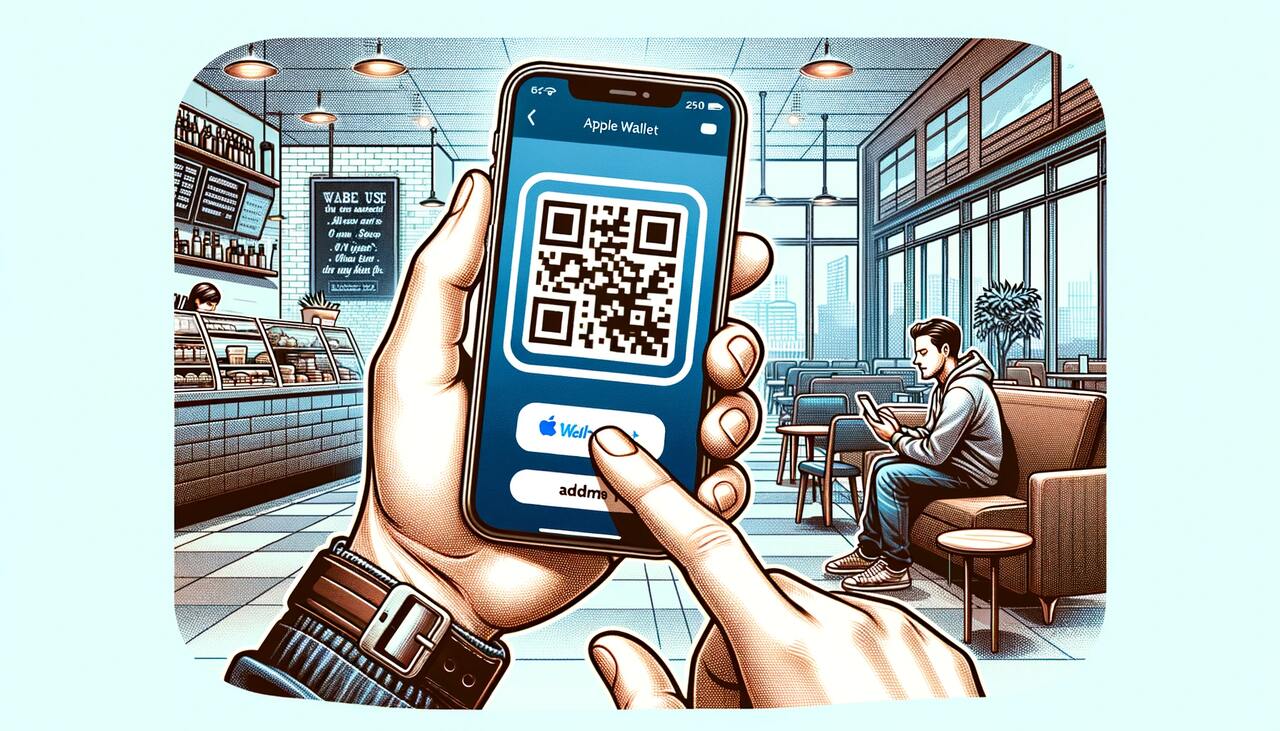
A cluttered Wallet slows you down at the gate or checkout. A few minutes of housekeeping keeps the right pass on top when you need it.
Rearranging or Deleting Passes
- Audit monthly for expired flights, used coupons, and dormant loyalty cards.
- Tap and hold a pass, then drag it up or down to reorder. Wallet remembers the new order.
- Open the pass, tap "..." and choose "Remove Pass" to delete.
Viewing and Customizing Passes
- Tap any pass to open it full-screen.
- Tap "..." in the top-right for issuer info, terms, and barcode size.
- Toggle "Allow Notifications" for gate changes, seat updates, or expiration alerts.
Sharing Passes via AirDrop
- Select the pass in Wallet.
- Tap "..." then "Share Pass."
- Choose AirDrop and pick the recipient's device.
- The pass adds to their Wallet once they accept.
Sharing Passes via Messages or Email
- Open the pass and tap "..." then "Share Pass."
- Pick Messages or Mail and enter the contact.
- The recipient gets a link or .pkpass attachment to add the pass on their end.
Global Wallet Settings
- Settings > Wallet & Apple Pay for the master controls.
- Enable automatic updates so passes refresh without manual intervention.
- Turn on Settings > Privacy & Security > Location Services > Wallet — that's what surfaces your boarding pass on the lock screen at the airport.
Copying a QR Code for Apple Wallet
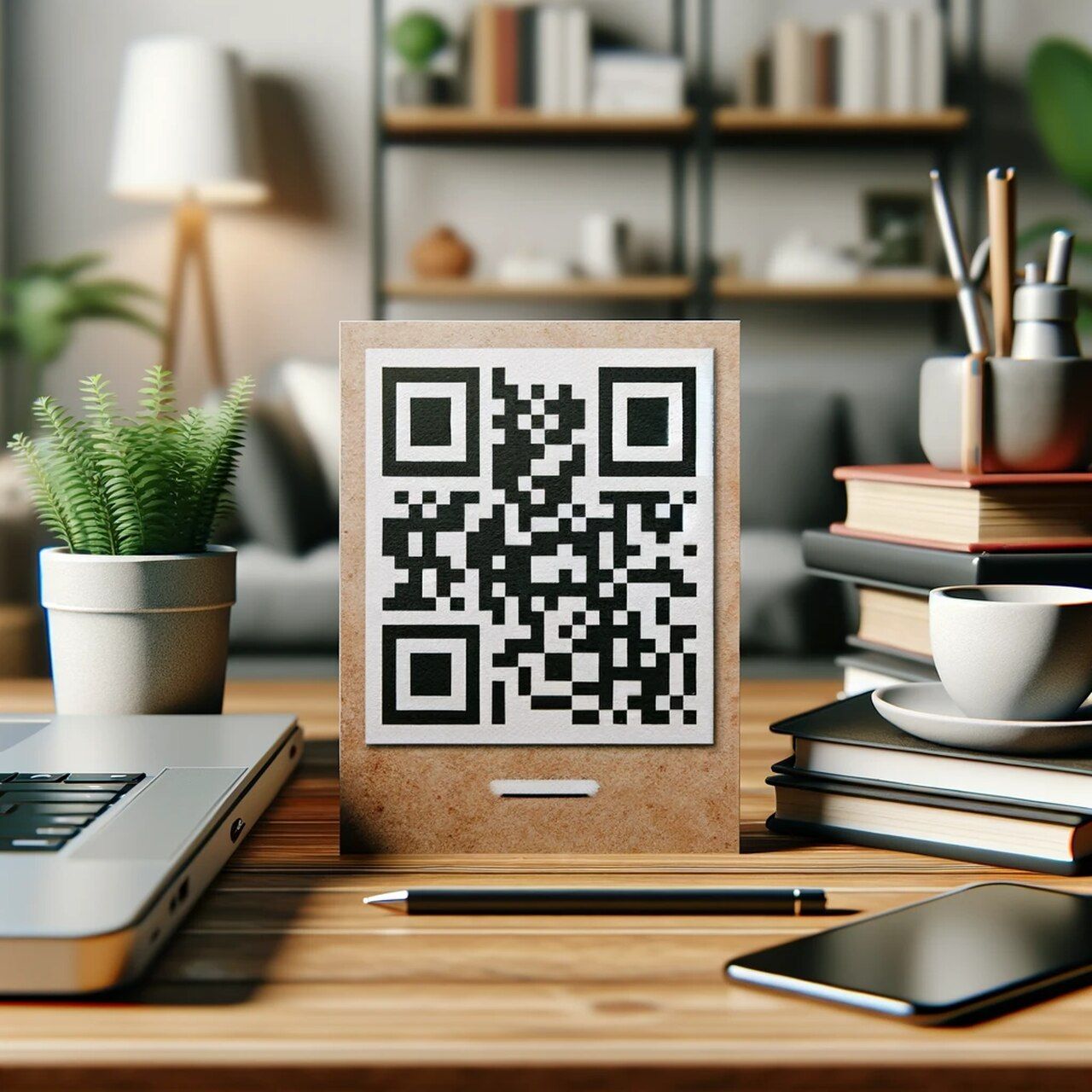
Copying a QR code image is the fix when you can't scan the source directly — paper tickets, posters, or codes on someone else's screen.
Step 1: Capture a Clear QR Code Image
- Stabilize the phone with both hands or a flat surface.
- Avoid harsh shadows or direct glare on the code.
- Fill the frame without cropping the quiet zone (the white border around the QR).
- Take a few shots from different angles as backup.
Step 2: Edit and Optimize the Image
- Crop tight in the Photos app to focus on the QR code.
- Push contrast up to sharpen the black-and-white blocks.
- Zoom in: the corner squares and dot pattern should be crisp.
Step 3: Add the QR Code to Apple Wallet
- Open the image in Photos.
- Long-press the code — iOS detects QR codes inside photos. If it's a Wallet-compatible pass, "Add to Apple Wallet" appears in the popover.
- Otherwise import to Pass2U and tap "Convert to Pass."
- Confirm the pass appears under the right category.
Step 4: Verify QR Code Compatibility
- Check the issuer's site for "Add to Apple Wallet" buttons or .pkpass downloads.
- If unsure, ask if they support PassKit. Many small merchants don't yet — exactly the gap iOS 27's Create a Pass closes.
Warning: Don't save sensitive QR images (event tickets, transit passes) in unprotected cloud folders or shared albums — anyone with the image can scan and use the pass.
Real-World Use Cases for Apple Wallet QR Codes
Wallet's QR-backed passes show up everywhere:
- Travel: Store boarding passes for fast airport check-ins. Delta has reported that around 40% of its U.S. domestic passengers use a digital boarding pass instead of a paper one.
- Retail: Save loyalty cards for instant discounts. With 785 million people worldwide using Apple Pay, the install base for Wallet-based retail loyalty is enormous.
- Events: Concert, theater, and sports tickets that update in real time when seats or times change.
- Transit: QR-based transit passes for entry on systems like NYC's OMNY, London's TfL, and Tokyo's Suica.
- Workplace: Employee badges, conference lanyards, and client meeting check-ins on a single screen.
Because flight times, offers, and event details change, link your "Add to Apple Wallet" button or landing page behind a dynamic QR code from QR Code Dynamic so you can swap the destination or pass template later — no reprinting signs, emails, or packaging.
Security Best Practices for QR Codes
QR codes carry real risk if mishandled:
- Verify the source: Only scan codes from trusted issuers. "Quishing" — phishing via QR codes — has surged on parking meters, restaurant tables, and shipping labels.
- Secure storage: If you save QR images, keep them in iCloud Photos with two-factor authentication on, not in shared albums or unencrypted cloud folders.
- Monitor pass activity: Check Wallet for unexpected updates or new passes you didn't add. Issuer push notifications should match the pass.
- Use Pass2U safely: Download only from the official App Store listing, never from third-party stores or sideloaded sources.
- Lock with biometrics: Require Face ID or Touch ID for Wallet under Settings > Wallet & Apple Pay.
Warning: Never scan QR codes from unsolicited emails, unexpected SMS messages, or stickers slapped over existing public codes — they often redirect to credential-harvesting pages.
The Future of QR Codes in Apple Wallet
The biggest 2026 story for Apple Wallet is also the simplest: Apple is making the gap between "QR code" and "Wallet pass" disappear.
iOS 27 introduces a Create a Pass feature that lets users build custom digital passes from any QR code, with three templates — Standard (default orange), Membership (default blue), and Event — plus tools for styles, images, colors, and text. AppleInsider's reporting on the developer beta confirms the same three-template structure with Standard defaulting to orange and Membership to blue.
The bigger picture, as The Next Web puts it: after fourteen years of waiting for developers to adopt PassKit, Apple is conceding most small businesses never will, and is letting users bridge the gap themselves. That flips Wallet's growth model from developer-dependent to user-driven — and it's why every small merchant that hands out a paper QR coupon should expect their customers to file it inside Wallet by default starting in 2026.
Other features on the roadmap:
- Digital IDs: Mobile driver's licenses and passports continue rolling out to U.S. states and select international regions.
- Live event passes: Real-time seat changes, gate updates, and merchandise upsells inside the pass itself.
- Wider small-business adoption: Once Create a Pass ships, expect a surge of QR-based loyalty programs built around Wallet by default rather than as an afterthought.
The Bottom Line on Apple Wallet QR Codes
Apple Wallet doesn't accept arbitrary QR codes — it accepts .pkpass files. For airline boarding passes, major event tickets, and big-retailer loyalty cards, that's automatic. For small-business or generic QR codes, you'll need Pass2U Wallet, Walletpasses, or PassWallet to wrap them in a pass file. Starting with iOS 27, Apple's native Create a Pass feature closes that gap and turns any QR code into a customizable Wallet pass in seconds. Until then, the workflow above keeps your boarding pass, loyalty card, or event ticket exactly one tap away.
Frequently Asked Questions
Can you put a QR code in your Wallet?
Only if it's packaged as a .pkpass file by an issuer that supports PassKit — airlines, ticketing platforms, transit agencies, and major retailers. Generic QR codes (Wi-Fi, vCards, plain URLs) can't be added directly, but Pass2U Wallet converts them. iOS 27's Create a Pass will close the gap natively.
How do I add a QR code to Apple Wallet from a photo?
Open the photo and long-press the code. iOS detects QR codes inside images — if it's Wallet-compatible, you'll see "Add to Apple Wallet." If not, import the photo into Pass2U Wallet, tap "Convert to Pass," and push the resulting .pkpass into Wallet.
What types of QR codes can be added to Apple Wallet?
Wallet supports boarding passes, event tickets, store cards, loyalty cards, coupons, generic passes (gym memberships, employee badges), and transit cards. Apple Pay cards live there too as NFC, not QR. Anything else needs a converter or iOS 27's Create a Pass.
Why won't my QR code add to Apple Wallet?
Most often the code isn't in PassKit format — Wallet only accepts .pkpass files. Check for an "Add to Apple Wallet" badge. If it's there and still failing, verify internet, retry in better light, and confirm camera permission under Settings > Privacy & Security > Camera.
How do I organize the passes in my Apple Wallet?
Tap and hold any pass, drag it to a new position. Wallet remembers the order. Review monthly and remove expired flights, used coupons, and dormant loyalty cards via the "..." menu > "Remove Pass."
Craving more? Check out these posts too!:

I work as a Growth Marketer at Popupsmart, using my 3+ years of SaaS experience to create clear, useful marketing content that helps brands grow, reach the right audiences, and improve their results.