How to Create QR Codes in Excel and Google Sheets: A Guide


On this page
- What You'll Need to Create QR Codes in Excel & Google Sheets
- Method 1: Use IMAGE() in Excel 365 or Excel 2021+
- Step-by-step: One QR code in a single cell
- Method 2: Use IMAGE() in Google Sheets
- Step-by-step: QR code in Google Sheets
- Method 3: Generate QR Codes with a VBA Macro
- Step-by-step: Add a QR macro to Excel
- Method 4: Use an Office Add-in (No Formulas Required)
- Step-by-step: Install and use an add-in
- Method 5: Use an External Generator and Paste Into Your Sheet
- Step-by-step: External generator workflow
- Bulk QR Generation: Fill an Entire Column
- Step-by-step: Build a bulk QR column
- Generate QR Codes That Link to Local Excel Files
- OneDrive or SharePoint link
- file:// URI on a known network share
- Internal redirect service
- Troubleshooting: Why Your QR Formula Isn't Working
- #NAME? error when typing =IMAGE
- #VALUE! error with a URL that contains query strings
- Code renders but won't scan
- Formula shows #BLOCKED! or stays empty
- Where Can You Use Excel QR Codes?
- Marketing and customer engagement
- Operations and logistics
- Education and training
- Reports and presentations
- Customer service and support
- Networking and information sharing
- When to Use QR Code Dynamic Instead of Excel
- Bottom Line
- Frequently Asked Questions
- How do I create a QR code based on a cell value in Excel?
- How do I generate a QR code in Excel without add-ins?
- What's the best way to create multiple QR codes in Excel?
- How do I customize QR codes in Excel for marketing?
- Can I create QR codes in Excel offline?
- How do I integrate QR codes with Excel data formulas?
The fastest way to create a QR code in Excel is with the IMAGE() function: =IMAGE("https://quickchart.io/qr?text=" & ENCODEURL(A2)). In Google Sheets, the same formula works. Five methods exist — the IMAGE formula, Office add-ins, VBA macros, third-party generators, and bulk API workflows — pick one based on whether you need a single code or a column of them.
What You'll Need to Create QR Codes in Excel & Google Sheets

Before you start:
- Excel 365, 2021, or Excel for the web for the IMAGE function (2019/2016 don't support it)
- A Google account for Google Sheets instead
- Internet access — IMAGE calls an external API on every recalc
- Permission to enable macros for the VBA route
- Time: 5 minutes for one code, 15-20 for a tagged bulk column
If any are missing, the other four methods still work — VBA for older Excel, external generators for offline environments, add-ins for the middle.
Quick overview of the five methods:
- IMAGE() in Excel (365 / 2021+) — one-line formula, live recalculation, best for most users
- IMAGE() in Google Sheets — same formula, no version restrictions
- VBA macro — for Excel 2019 and earlier, or when IT blocks external-image formulas
- Office add-ins (QR4Office, QR Code Generator for Sheets) — GUI-driven, no formula writing
- External generator + paste — for one-off codes with heavy design customization
The table below compares them at a glance.
| Method | Excel version needed | Best for | Bulk-capable | Main limitation |
|---|---|---|---|---|
| IMAGE() formula | Excel 365, Excel 2021+, Excel for the web | Dynamic codes tied to cell values | Yes (copy down) | Needs internet on every recalc |
| IMAGE() in Google Sheets | Any Google account | Collaborative sheets, mobile editing | Yes (copy down) | Sheets throttles image calls on huge files |
| VBA macro | Excel 2016, 2019, 2021 (Windows) | Offline-capable QR codes, older Office | Yes (loop in code) | Macros blocked by default on downloaded files |
| Office add-in | Any modern Excel or Sheets | Non-formula users, one code at a time | Usually no | Free tiers often watermark or cap codes |
| External generator | Any version (paste as image) | Custom design, logos, color | Depends on tool | Static codes — can't update after printing |
Method 1: Use IMAGE() in Excel 365 or Excel 2021+
IMAGE pulls any web-hosted image into a cell and sizes it to fit. Pair it with a QR API like QuickChart and you get a live QR code that updates whenever the source cell changes — the cleanest approach on a current Microsoft 365 subscription. The official IMAGE function documentation covers the full parameter list.
Step-by-step: One QR code in a single cell
- Open your workbook in Excel 365, Excel 2021, or Excel for the web
- Type the URL in cell A2 — for example,
https://yoursite.com/lp/spring-promo - Click B2 and paste:
=IMAGE("https://quickchart.io/qr?text=" & ENCODEURL(A2)) - Press Enter. The QR code renders in B2
- Widen column B and raise row 2 to about 80 pixels so the code scans reliably
Why ENCODEURL matters: if your URL has query strings, spaces, ampersands, or emoji, Excel breaks the request without it. A raw ?utm_source=email&utm_campaign=spring confuses the endpoint because the second ampersand reads as a new Excel argument. ENCODEURL percent-encodes those characters so the whole URL stays inside the QR payload.
For fixed-size output, add &size=300 to the URL. For higher error correction (small print or textured materials), add &ecLevel=H.
You'll know it's working when: a sharp black-and-white QR pattern appears in B2 within 1-2 seconds of pressing Enter. Scanning it with a phone camera should land you on the URL stored in A2.
Watch out for these failures:
- #VALUE! error: your URL has special characters and you skipped ENCODEURL. Wrap the cell reference in ENCODEURL and rerun
- #BLOCKED! error: your tenant disabled external image calls through Group Policy. Switch to VBA or ask IT to allowlist
quickchart.io - Blank cell, no error: IMAGE isn't in your version. Check File > Account — you need a subscription build, not a perpetual 2016/2019 license
- Pixelated code: raise row height and add
&size=400to the URL
Pro tip: After three years of building QR code campaigns, here's the shortcut — name your formula with LAMBDA. Press Formulas > Name Manager > New, name it QR, and set it to =LAMBDA(url, IMAGE("https://quickchart.io/qr?text=" & ENCODEURL(url))). Now any cell can call =QR(A2). I use this to keep 200-row campaign sheets readable instead of nesting ENCODEURL in every row.
Method 2: Use IMAGE() in Google Sheets
Google Sheets has supported IMAGE since 2010, so there's no version gate — any account works, and the formula is identical to Excel. Sheets adds cleaner image-fitting modes (1 through 4) for stretching, preserving aspect ratio, or pixel-exact sizing.
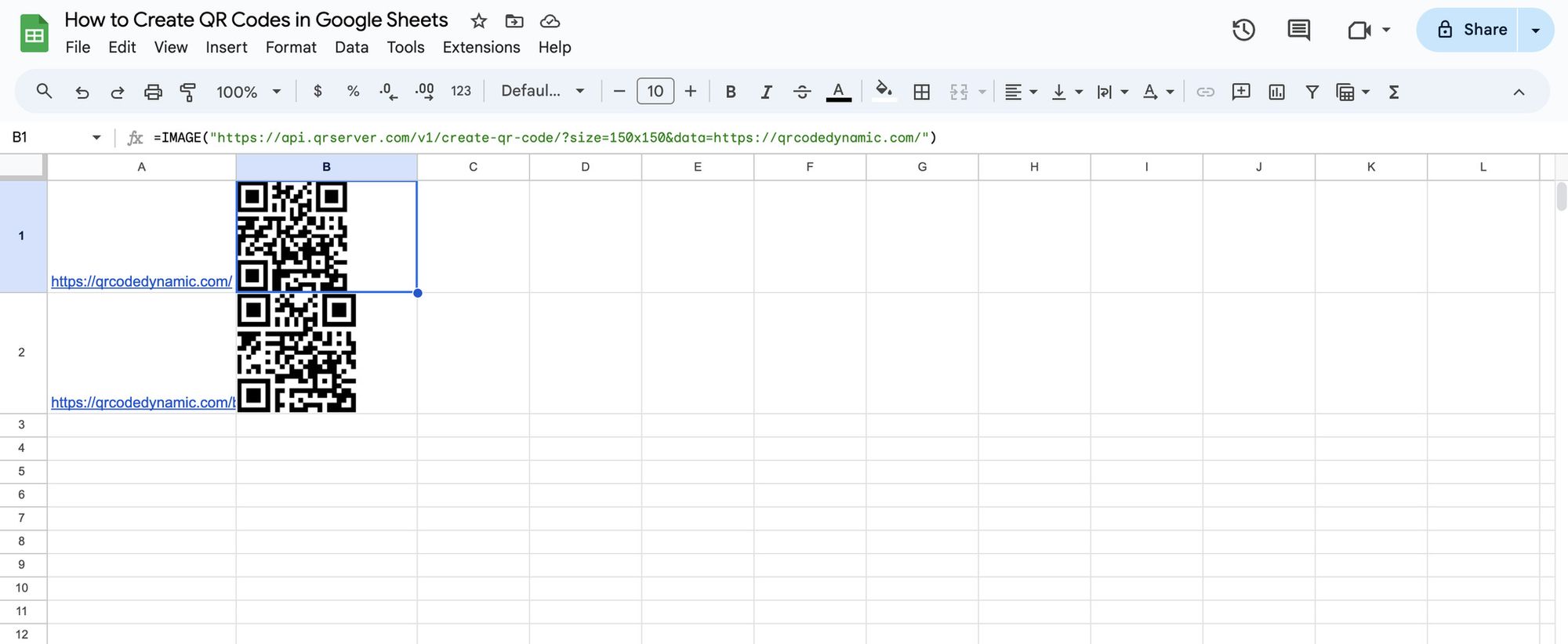
Step-by-step: QR code in Google Sheets
- Open sheets.google.com and create or open a sheet
- Put your target URL in A2
- In B2, enter:
=IMAGE("https://quickchart.io/qr?text=" & ENCODEURL(A2), 1) - The second argument (
1) fits the image to the cell while preserving aspect ratio. Use4with width/height arguments for pixel-exact sizing - Resize row 2 to ~100 pixels tall and drag column B wide enough that the code is square
Google's IMAGE function help page covers the four modes. Mode 4 looks like =IMAGE("...url...", 4, 300, 300) for a 300 x 300 render.
You'll know it's working when: the code appears within ~2 seconds. Sheets caches image calls, so if you change A2 and the code doesn't update, click another cell and press F5 to force recalc.
Watch out for these failures:
- "Loading..." stays forever: external URL isn't reachable. Paste the generated URL in a browser to confirm QuickChart responds. Corporate proxies often block it
- Code renders but can't be scanned: row height is too small — scale row 2 to at least 80 pixels
- #N/A error: stale cache. Delete the formula, Ctrl + Z, retype to force a fresh call
Pro tip: On shared sheets where collaborators keep breaking the formula, protect column B through Data > Protect sheets and ranges and give only yourself edit access. I learned this after a teammate pasted over 300 QR formulas with a static screenshot in one click.
Method 3: Generate QR Codes with a VBA Macro
If you're stuck on Excel 2016 or 2019, or your organization blocks external-image formulas, VBA is the fallback. A small macro calls a QR API, downloads the image, and drops it into the active cell — or loops through a range. Saved as .xlsm, it also runs against internal QR services offline.
Step-by-step: Add a QR macro to Excel
- Press Alt + F11 to open the VBA editor
- In the Project pane, right-click your workbook and select Insert > Module
- Paste the code below into the empty module
- Save as Excel Macro-Enabled Workbook (.xlsm)
- Back in your sheet, select a cell with a URL and run Developer > Macros > InsertQR > Run
Here's a minimal working macro that inserts a QR code into the cell immediately to the right of the selected cell:
Sub InsertQR()
    Dim targetCell As Range
    Dim qrURL As String
    Dim destCell As Range
    Dim pic As Picture

    Set targetCell = ActiveCell
    If targetCell.Value = "" Then Exit Sub

    qrURL = "https://quickchart.io/qr?size=300&text=" & _
            Application.WorksheetFunction.EncodeURL(CStr(targetCell.Value))

    Set destCell = targetCell.Offset(0, 1)
    Set pic = ActiveSheet.Pictures.Insert(qrURL)

    With pic
        .Left = destCell.Left
        .Top = destCell.Top
        .Width = 120
        .Height = 120
    End With
End Sub
For a whole column, replace Set targetCell = ActiveCell with For Each cell In Selection, select the URL column, then run.
You'll know it's working when: a QR image appears next to your selected cell within seconds. Scanning returns the source cell's text.
Watch out for these failures:
- "Macros have been disabled" banner: Excel blocks macros on internet-downloaded files. Close Excel, right-click the .xlsm, Properties > Unblock > OK, reopen. This is Microsoft's Mark of the Web, explained in the macros-blocked-by-default docs
- Compile error on EncodeURL: you're on Excel 2013 or earlier where
WorksheetFunction.EncodeURLdoesn't exist. Write a custom URL-encoder or upgrade - Picture inserts at the wrong position: you ran the macro without selecting a URL cell first
Pro tip: Once the macro is stable, add it to the Quick Access Toolbar for one-click runs. Right-click the toolbar, choose Customize Quick Access Toolbar, pick Macros, drag InsertQR across. I've shipped this to teams generating 500+ codes a month — per-code time drops from 30 seconds to about 3.
Method 4: Use an Office Add-in (No Formulas Required)
Add-ins give you a dialog interface inside Excel or Sheets — type data, click, the code lands as a static image. Good for anyone who finds formulas intimidating or needs to onboard non-technical teammates. Tradeoff: free tiers usually cap codes per day, and images are static so you can't edit them later.
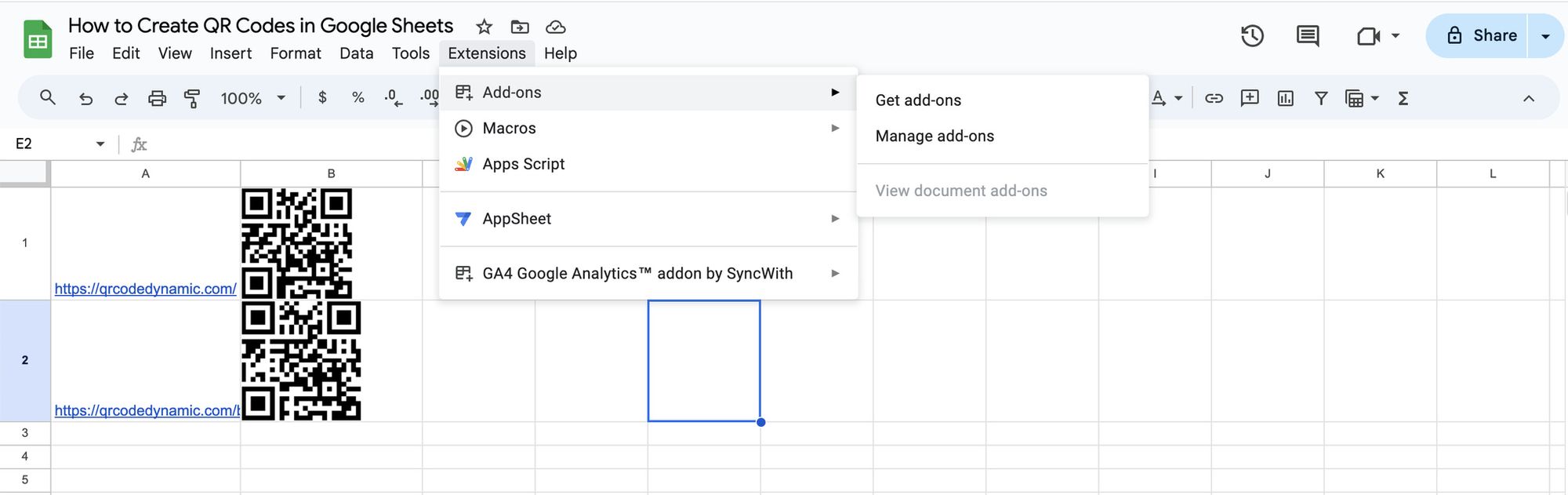
Step-by-step: Install and use an add-in
In Excel:
- Click Insert > Get Add-ins (or Home > Add-ins on newer builds)
- Search for QR4Office — the most-downloaded free option, independent of any paid QR tool
- Click Add and accept the permission prompt
- Open from the ribbon, pick type (URL, email, text), paste data, choose color and size, click Insert
In Google Sheets:
- Go to Extensions > Add-ons > Get add-ons
- Search the Workspace Marketplace for a QR code generator
- Install one with 4+ stars and recent reviews — listings churn, so pick a maintained option
- Run it from Extensions > [add-on name] > Generate
You'll know it's working when: the QR appears as a floating shape anchored near your cursor. Drag it into position like any picture.
Watch out for these failures:
- Watermark or logo on the code: free tier with branded output. Upgrade or switch to Method 1's formula (no watermark)
- Add-in vanishes from ribbon: Office sometimes disables add-ins after crashes. Re-enable through File > Options > Add-ins > COM Add-ins > Go
- Permission request asks for full drive access: red flag for a QR tool. Pick another — a generator should only need active-cell read and image insert
Pro tip: Before installing an add-in, scan its reviews for "stopped working." Add-ins tied to external APIs sometimes die overnight when the vendor changes endpoints.
Method 5: Use an External Generator and Paste Into Your Sheet
Sometimes leaving Excel is the right answer — generate the code on a dedicated tool, paste the image back. This wins when you need heavy visual customization (branded colors, center logo, gradient fills, custom frames) that formula methods can't match.
Step-by-step: External generator workflow
- Open a QR generator in your browser (QR Code Dynamic for minimalist, branded designs)
- Paste your URL, set color and size, add a logo if
- Download as PNG or SVG — SVG is sharper for print
- In Excel or Sheets, Insert > Picture, select the file, resize and position
You'll know it's working when: the code sits as a picture in your sheet. It won't auto-update if the URL changes — that's the price of going static.
Watch out for these failures:
- Code prints blurry: export at 600+ pixels, or SVG for print
- Logo breaks scanning: keep logos under 30% of the code's area, test-scan before printing
- Need to change the URL later: you can't without regenerating — pick a dynamic QR tool if the destination isn't final
Bulk QR Generation: Fill an Entire Column
The question most marketers actually want answered isn't "how do I make one code?" — it's "how do I make 200 codes in one afternoon, each with a different UTM tag?" Here's the pattern that scales without touching VBA.
Step-by-step: Build a bulk QR column
- In column A, list your base URLs starting in A2
- In column B, build the tagged URL:
=A2 & "?utm_source=print&utm_medium=flyer&utm_campaign=" & C2with campaign slugs in C - In column D, add the QR formula:
=IMAGE("https://quickchart.io/qr?text=" & ENCODEURL(B2)) - Select D2 and drag the fill handle down to the last row
- Widen column D and raise every row to ~80 pixels so each code scans
Every row now has a unique QR code encoding the full tagged URL from column B. Update any UTM value and its code regenerates.
You'll know it's working when: each row in column D shows a different QR pattern (identical patterns mean duplicate URLs in B). Scan a few to confirm they resolve to the tagged landing page.
Watch out for these failures:
- File takes 20+ seconds to open: every row recalcs. For 300+ rows, copy column D and Paste Special > Values (as picture) to freeze codes into images
- Some codes show #BLOCKED!: Excel is rate-limiting external image calls. Split into tabs of 200 rows
- UTM parameters stripped: you forgot ENCODEURL — the UTM ampersands break the API request
For 500+ codes or per-code scan analytics, a formula sheet isn't the right tool. Our bulk QR generation guide covers the API workflow for thousands of codes with tracking, and the QR code API guide shows how to call a generator from your own app.
Generate QR Codes That Link to Local Excel Files
A common internal request: generate a QR code that opens a specific Excel file on a shared drive, without publishing the file publicly. You have three viable paths, and only one works reliably in 2026.
OneDrive or SharePoint link
Save the file to OneDrive or SharePoint, right-click it, and choose Share > Copy link. Encode that link in the QR code. Anyone in your organization who scans it opens the file in their browser or desktop Excel — authentication happens through their existing Microsoft account. No file-path guessing, no broken shortcuts when someone's drive letter differs.
file:// URI on a known network share
If your team has a standardized share like \\fileserver\team\reports\Q2.xlsx, you can encode a file://fileserver/team/reports/Q2.xlsx URI. Two catches: most phone QR scanners refuse file:// links on principle, and Windows has tightened file-URI security since Office 2021. Use this only for kiosks on controlled software.
Internal redirect service
For larger teams, host a tiny redirect on an internal web server (a 10-line Flask or ASP.NET script is enough) and encode the redirect URL. The server handles file-path conversion behind the scenes. This is where most enterprise IT teams end up once they outgrow OneDrive sharing.
Security caveat: anyone with line-of-sight to a printed sheet can capture the underlying URL. For sensitive files, the encoded link should require login — never encode a direct download URL that doesn't check credentials.
Troubleshooting: Why Your QR Formula Isn't Working
Most QR formula problems trace to four root causes.
#NAME? error when typing =IMAGE
IMAGE doesn't exist in your Excel version. Confirmed-working: Excel 365, Excel 2021, Excel for the web, and Excel for Mac 2021+. Not supported: Excel 2016, 2019, or any perpetual license sold before late 2021. Fallback: the VBA method (Method 3) or Google Sheets (Method 2).
#VALUE! error with a URL that contains query strings
You skipped ENCODEURL. Special characters — ?, &, =, spaces — break the API URL when passed raw. Change "...text=" & A2 to "...text=" & ENCODEURL(A2).
Code renders but won't scan
Three usual suspects. The code is too small (raise row height to 80+ pixels and add &size=400 to the URL). The print contrast is poor (a colored background can wash out on cheap printers — always test-print). Or the payload is too dense (shorten the URL with a branded short link, or raise error correction to H with &ecLevel=H).
Formula shows #BLOCKED! or stays empty
Your Office tenant blocks external image calls through Group Policy — common in banking, healthcare, and government. Either ask IT to allowlist the QR API domain, or switch to the VBA method, which can be code-signed and run locally.
Where Can You Use Excel QR Codes?

QR codes built straight from a spreadsheet work best when each row already holds the URL or data you want a reader to reach. That's true in more places than most teams realise.
Marketing and customer engagement
- Product catalogues. Generate a code next to every SKU in your catalogue sheet so printed copies link to current product pages, video demos, or size charts without a reprint when inventory shifts.
- Event flyers and invitations. Build an event planning sheet where each row encodes an RSVP link or a "add to calendar" URL — one formula column creates the artwork-ready codes. See our QR codes for events guide for the tracking side.
- Business cards. Keep a sheet of staff details (name, role, LinkedIn, portfolio), then drop the generated code into a card template for per-person vCard links.
Operations and logistics
- Inventory management. Each code links to a per-item page — stock level, supplier, last count date. A stock-taker scans, updates the numbers, and the sheet stays in sync. Our deeper walkthrough on QR codes for inventory management covers the dashboard side.
- Asset tracking. Assign a code to every laptop, projector, or tool, with each URL pointing to usage rules, checkout history, and maintenance schedule.
- Project management. In a project tracker, one code per row can open a live Kanban card, a contact list, or a status dashboard for that task.
Education and training
- Classroom and workshop resources. Link a printed syllabus row to a supplementary video, a pre-class reading, or an interactive quiz.
- Attendance tracking. Generate a code for each session that maps to a Google Form or sign-in sheet. Participants scan on arrival — no paper roster, no manual data entry.
Reports and presentations
- Annual reports. A row-level code next to each figure opens the underlying spreadsheet, data download, or an interactive chart, so readers can verify claims without chasing links in the PDF.
- Research papers. Link to raw data sets, survey instruments, or appendix tables. Reviewers get the primary source without the paper bloating.
Customer service and support
- Warranty and service docs. Each SKU's row holds a code that opens a service request form with the model and serial pre-filled — fewer support tickets miss the device ID.
- Feedback and surveys. A code on every customer record opens a tailored survey link, so you can segment CSAT responses by account or region without adding a login step.
Networking and information sharing
- Conferences and events. Attendee sheets can generate one code per name card for LinkedIn handoff, speaker bio pages, or session feedback forms. Combine with our QR code sign-in sheet pattern for check-in automation.
- Information kiosks. Public display spreadsheets map each code to menus, timetables, or booking pages — the Excel file is the source of truth, the printed codes are the delivery layer.
When to Use QR Code Dynamic Instead of Excel

Excel's IMAGE formula is great for one-off codes and small bulk jobs where destinations never change. It falls short after printing: you can't edit a code once it's on a billboard, you get zero scan data, and you can't A/B test destinations per city or campaign.
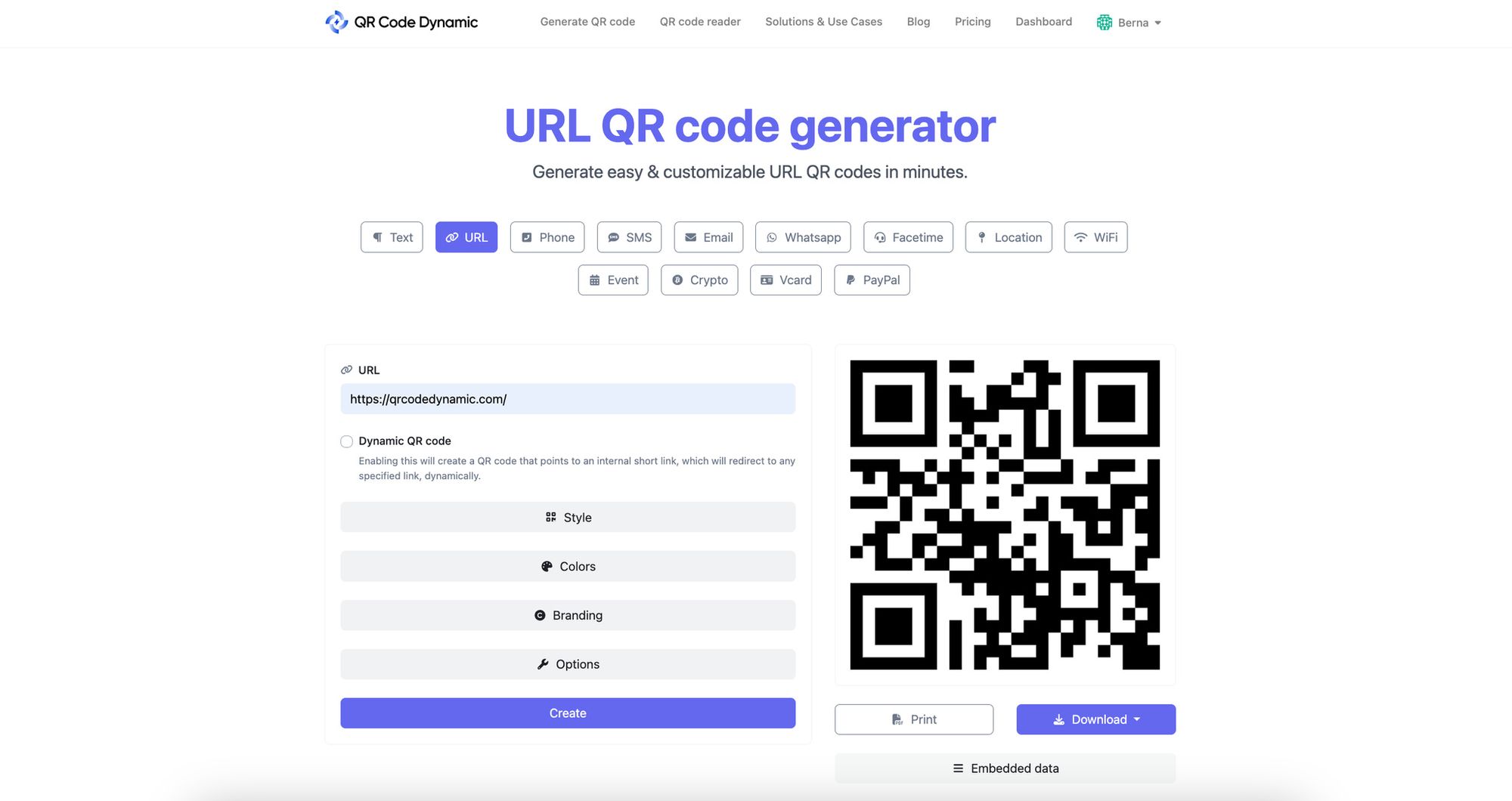
For printed campaigns, event collateral, or any workflow where you'll want analytics or the ability to repoint a code after it ships, a dedicated platform like QR Code Dynamic is the honest answer. The same code stays scannable, but the destination becomes editable and every scan feeds a dashboard. A common pattern: use Excel for the internal "which rows need codes?" stage, then create campaign-tracked codes on a dynamic platform once the list is locked.
Bottom Line
The right method depends on how many codes you need, how often they'll change, and whether you want scan data. For a single static code, any of the five methods works. For a column of codes, the IMAGE + ENCODEURL formula (Method 1 or 2) wins on speed. For anything you'll print and want to track, pair the formula with a dynamic QR platform so you're not locked into whatever URL you encoded on day one.
Start with Method 1 on Excel 365. Drop to VBA on older versions. Reach for an external generator only for heavy visual customization, and graduate to a dedicated platform once analytics start to matter.
Frequently Asked Questions
How do I create a QR code based on a cell value in Excel?
Use IMAGE with ENCODEURL: =IMAGE("https://quickchart.io/qr?text=" & ENCODEURL(A2)). Replace A2 with whichever cell holds your source URL. The code updates whenever A2 changes. Requires Excel 365, Excel 2021, or Excel for the web — older versions don't have IMAGE.
How do I generate a QR code in Excel without add-ins?
Two paths. On Excel 365 or 2021, the IMAGE formula needs no add-ins. On older versions, open the VBA editor with Alt + F11, paste a macro that calls a QR API, save as .xlsm, and run the macro on any cell. Both stay inside Excel with no third-party tools.
What's the best way to create multiple QR codes in Excel?
Up to a few hundred codes: put URLs in column A, use =IMAGE("https://quickchart.io/qr?text=" & ENCODEURL(A2)) in column B, drag the formula down.
How do I customize QR codes in Excel for marketing?
IMAGE supports sizing and error-correction through URL parameters but can't do logos, colors, or branded frames. For campaigns where the code sits next to your logo, generate in an external tool, download as PNG or SVG, and paste into the sheet. Keep any center logo under 30% of the code's area so scanners still read it.
Can I create QR codes in Excel offline?
Not with IMAGE — it calls an external API on every recalculation. For offline generation, adapt the VBA approach to use a local QR library, or pre-generate images while online and paste-as-picture to freeze them into the file.
How do I integrate QR codes with Excel data formulas?
Build the source value in one cell, reference it from IMAGE. For example, B2 holds =A2 & "?utm_campaign=" & C2, and D2 holds =IMAGE("https://quickchart.io/qr?text=" & ENCODEURL(B2)). Changes to A2 or C2 cascade into B2, which updates D2's code in real time.
Discover our latest blog posts as well:

I work as a Growth Marketer at Popupsmart, using my 3+ years of SaaS experience to create clear, useful marketing content that helps brands grow, reach the right audiences, and improve their results.