eSIM QR Code: How to Create, Scan, and Activate Your Profile


On this page
- What Is an eSIM QR Code?
- How eSIM QR Codes Work
- 1. Scan the QR code
- 2. Contact the SM-DP+ server
- 3. Download and install the profile
- 4. Activate and attach to the network
- How to Get an eSIM QR Code from Your Carrier
- T-Mobile
- Verizon
- AT&T
- Travel eSIM providers (Saily, Airalo, Nomad, Holafly)
- UK and EU carriers (EE, Vodafone, O2)
- Implementing eSIM QR Codes: A Step-by-Step Guide with QR Code Dynamic
- 1. Gather your eSIM data from the carrier
- 2. Sign in to QR Code Dynamic (or continue as guest)
- 3. Choose the right QR code type
- 4. Enter your eSIM details
- 5. Customise colours and style
- 6. Add branding (optional)
- 7. Adjust size, margin, and error correction
- 8. Generate and download your eSIM QR code
- 9. Test on multiple devices and networks
- 10. Integrate into your marketing campaign
- 11. Maintain and update (dynamic codes only)
- Scanning and Activating an eSIM QR Code (iPhone and Samsung)
- iPhone (iPhone XS, 2018, and later)
- Samsung (Galaxy S20+ and later, plus Fold and Flip)
- Older devices and compatibility cutoffs
- eSIM QR Code Security and Common Pitfalls
- Counterfeit QR codes on travel forums and social media
- Wi-Fi dependency during activation
- Activation codes are single-use
- How to spot a legitimate carrier QR
- Advantages of eSIM QR Codes in Marketing
- Instant activation at the point of purchase
- Lower distribution cost than physical SIM
- Built-in analytics for dynamic codes
- Positioning as a forward-looking brand
- The Honest Take: When eSIM QR Codes Are Not the Right Tool
- Final Thoughts
- Frequently Asked Questions
- How do I convert XR to eSIM?
- How to activate eSIM QR code on iPhone?
- What is an eSIM QR code for T-Mobile?
- How to generate a free eSIM QR code?
- Can I scan eSIM QR code on Samsung devices?
- How to switch carriers using eSIM QR code?
An eSIM QR code encodes an LPA (Local Profile Assistant) activation string in the format LPA:1$<SM-DP+ server>$<activation code>. When a phone's camera scans it via Settings > Cellular > Add Cellular Plan, the device downloads the carrier profile from the SM-DP+ server and provisions an embedded SIM without swapping physical hardware.
What Is an eSIM QR Code?
An eSIM QR code is a machine-readable image that carries the activation details for an embedded SIM profile. It's a QR-encoded text string that follows the GSMA's RSP (Remote SIM Provisioning) standard. Your phone reads the string, connects to the carrier's provisioning server, and pulls down what the modem needs to log onto the network: IMSI, authentication keys, operator profile, and APN settings.
Decoded, the string usually looks like this:
LPA:1$rsp.truphone.com$QRF-8PVX8H-HCN3XR-JK4R8Q
Three parts separated by $:
- LPA:1: the scheme prefix telling the phone this is a Local Profile Assistant instruction, not a URL.
- rsp.truphone.com: the SM-DP+ server (Subscription Manager Data Preparation) hosting your profile.
- QRF-8PVX8H-HCN3XR-JK4R8Q: the activation code, usually single-use. Once a profile is installed on one device, the code is spent.
Unlike a physical SIM card, an eSIM lives inside the phone's hardware. You can store multiple profiles on it (eight on most iPhones, up to seven on recent Samsung Galaxy devices) and switch between them in software. The QR code is the delivery mechanism.
Over 80% of smartphones shipped globally now include eSIM support, according to eSIM Matrix's 2026 adoption data, which is why carriers default to QR-based activation for new plans.
How eSIM QR Codes Work
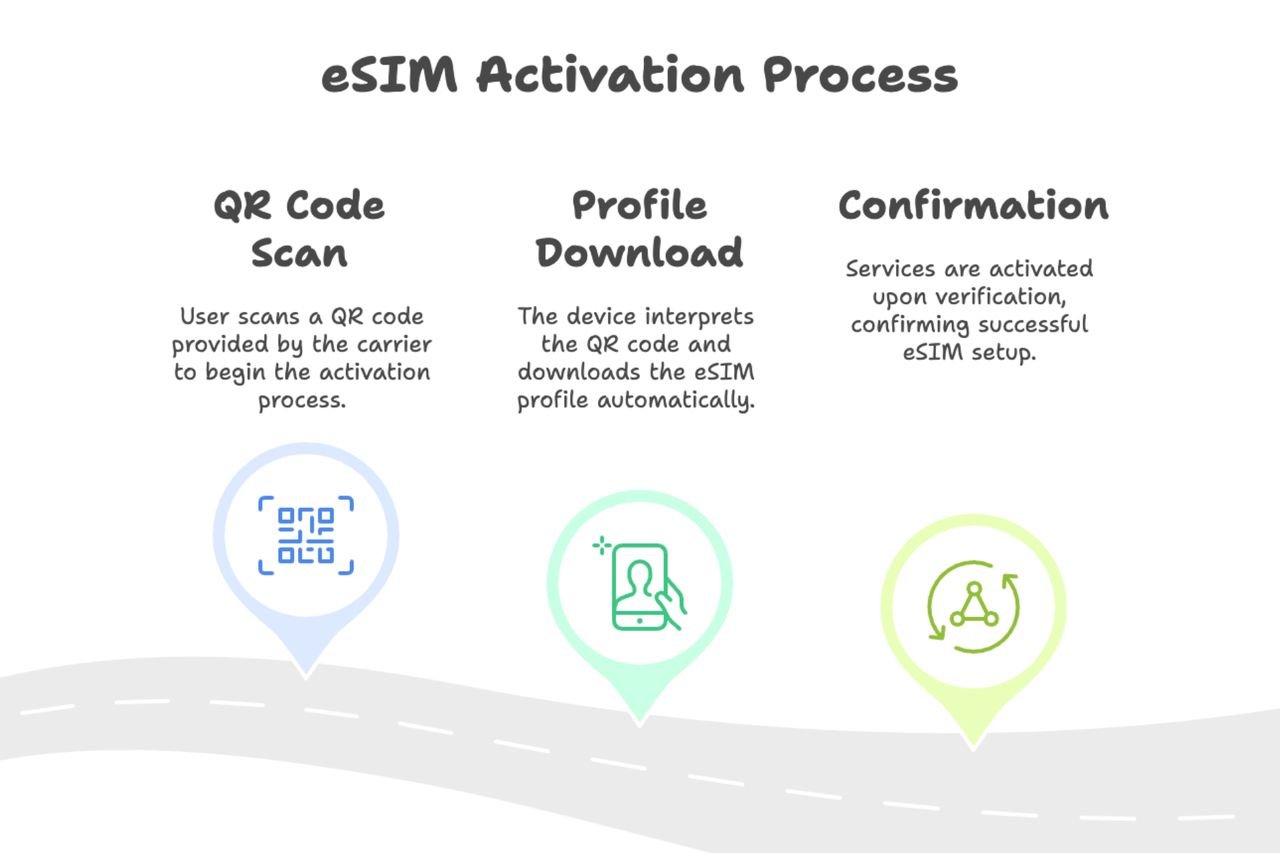
The process breaks down into four stages. None of them require a physical card, a SIM tray, or a trip to a carrier store.
1. Scan the QR code
Point your phone's camera at the code, either directly from the camera app or through Settings > Cellular > Add Cellular Plan. The phone decodes the LPA string and recognises it as an eSIM activation payload.
2. Contact the SM-DP+ server
The phone calls the server address in the LPA string over HTTPS with mutual TLS. The phone authenticates the server, and the server verifies the phone's eUICC (embedded Universal Integrated Circuit Card) certificate. If either side fails validation, activation stops cold.
3. Download and install the profile
Once the handshake succeeds, the server sends an encrypted profile package. The phone's eUICC writes it to a dedicated slot in secure memory. Installation takes 15-60 seconds on decent Wi-Fi. The package includes your IMSI, authentication keys, operator policy rules, and APN data.
4. Activate and attach to the network
You label the profile ("Work," "Travel Japan," "Primary") and pick which number handles calls, texts, and data. The phone registers with a tower, and within a minute or two you're online.
Juniper Research reports the number of devices using eSIMs will grow 30% in 2026, rising from 1.2 billion in 2025. That's why most handsets released in the last three years ship eSIM-ready.
How to Get an eSIM QR Code from Your Carrier
Where you actually get the QR code depends on your carrier and whether you're buying a new line, swapping from physical SIM, or picking up a short-term travel plan. Here are the paths that cover roughly 90% of readers.
T-Mobile
T-Mobile pushes eSIM setup through its app by default, but the QR option is still alive for desktop or older accounts:
- Sign in at t-mobile.com/my-account and go to Line Settings > SIM > Change SIM.
- Pick Set up eSIM, choose the line, and T-Mobile emails a QR code to the address on file.
- Scan the QR from a second screen — you can't scan your own phone's screen.
Verizon
Verizon's web flow routes through My Verizon > Devices > Manage Device > Activate on eSIM. Verizon prefers in-app QR-less activation on iPhone ("Transfer from nearby iPhone"), but the QR path still ships to email for Android and dual-SIM scenarios. Verizon's codes are single-use; if you wipe and restore your phone, you'll need a fresh one.
AT&T
AT&T's flow: myAT&T app > Device & add-ons > Manage my device > Set up eSIM. The app generates an on-screen QR you scan from a second device, or you can trigger in-app activation that skips QR entirely. AT&T doesn't email QR codes by default, so travellers without the app hit friction.
Travel eSIM providers (Saily, Airalo, Nomad, Holafly)
Travel eSIMs are where the QR workflow dominates — you usually buy the plan before you leave home and don't have the carrier's regional app. The pattern is the same across providers:
- Buy a country or regional plan from the provider's app or website.
- Receive the QR code and backup LPA text string via email within minutes.
- Scan the QR before you leave, but don't activate until you land — most travel plans count validity from activation, not purchase.
Travel-eSIM package revenues are on track for $1.8 billion in 2025, up roughly 85% year over year, according to IoT For All's reporting on Juniper Research data. That's why airline lounges and airport kiosks now lean hard on QR posters.
UK and EU carriers (EE, Vodafone, O2)
EE lets you generate an eSIM QR inside the EE App > My Plan > eSIM. Vodafone emails the QR after a chat-support request or in-store visit. O2 requires a call to customer services for first-time eSIM activation, slower than US carriers but usually a QR within 30 minutes.
Implementing eSIM QR Codes: A Step-by-Step Guide with QR Code Dynamic
If you're on the carrier or marketing side — bundling eSIMs for a retail store, building a travel-eSIM pack for an event, or embedding activation links inside product packaging — you need to encode the carrier data into a QR code yourself. QR Code Dynamic handles both formats carriers commonly provide: direct activation URLs and base64 or plain-text LPA strings.
1. Gather your eSIM data from the carrier
Confirm what format your carrier provides:
- Activation URL: a web link (e.g.
https://example-carrier.com/activate/QRF-8PVX8H). When scanned, the phone opens an in-browser eSIM install flow. - LPA text string: most global MNOs give you
LPA:1$smdp.carrier.com$activation-code, or a base64-encoded blob that decodes to the same pattern.
If you don't know which applies, ask your carrier's technical support for "the eSIM activation format — URL or LPA string." Strip hidden whitespace or line breaks before encoding. A single stray space produces a valid-looking QR that fails silently.
2. Sign in to QR Code Dynamic (or continue as guest)
- Go to QR Code Dynamic.
- Click Sign In for dynamic codes with analytics and later-edit ability, or Continue as Guest for one-off static codes.
- On the dashboard, pick Generate QR Codes.
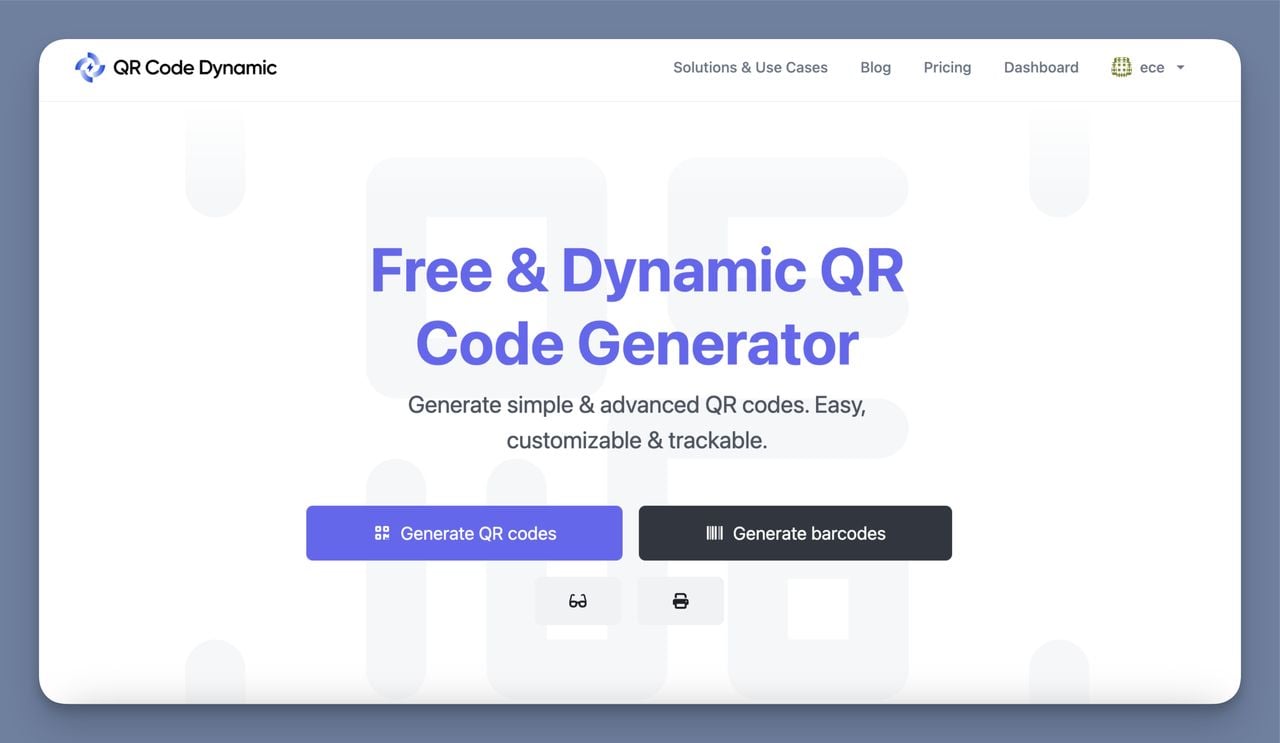
Pro tip: a free account unlocks dynamic codes, which let you change the underlying URL or text after printing. For campaigns where activation endpoints might update, that's the difference between reprinting 50,000 posters and one edit click.
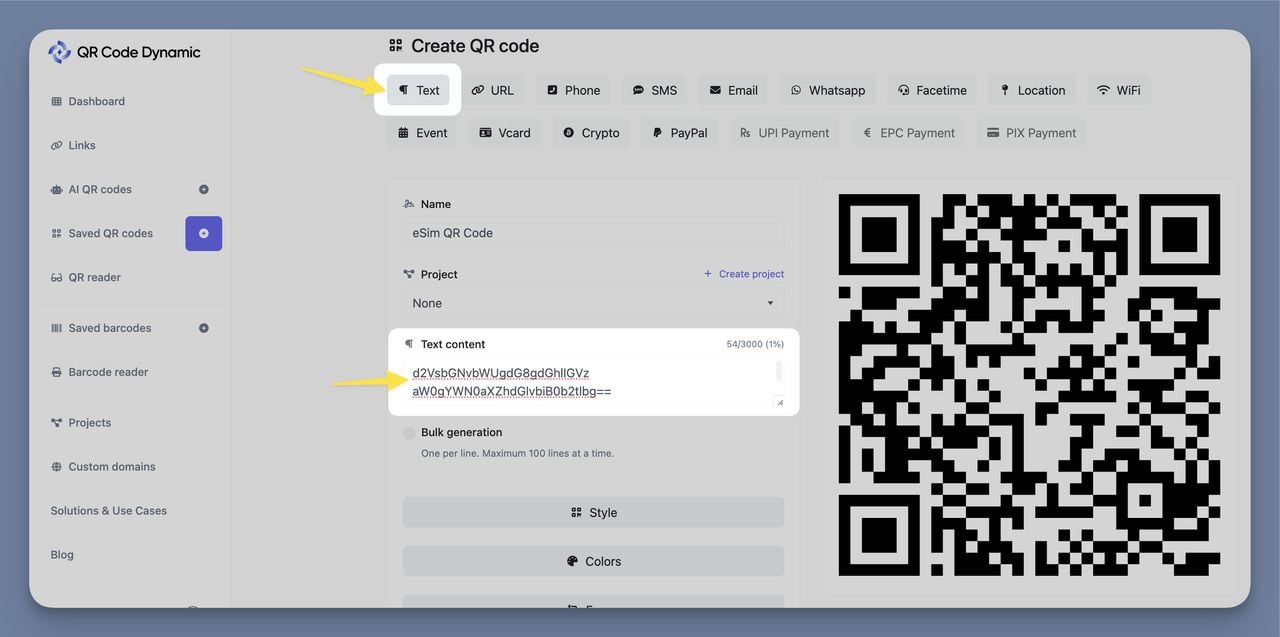
3. Choose the right QR code type
Match the code type to what the carrier gave you:
- Activation URL: select URL and paste the full link with the
https://prefix. - LPA string or base64 text: select Text and paste the entire string exactly as provided.
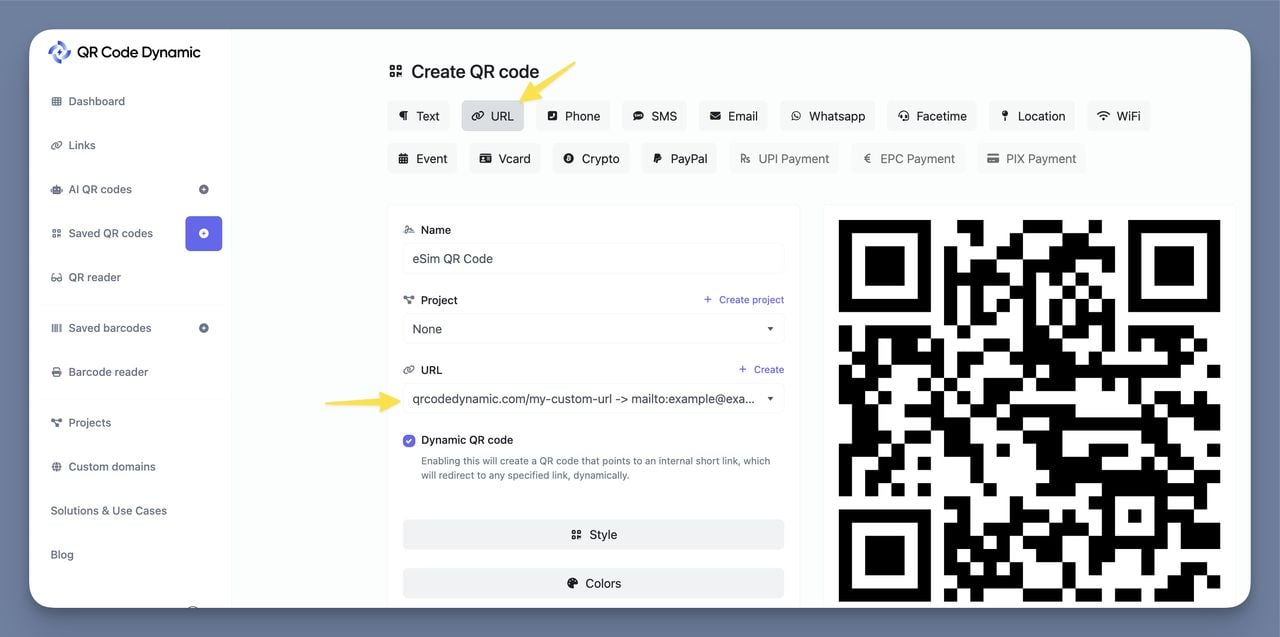
4. Enter your eSIM details
Paste the string or URL into the matching field. Two checks:
- Compare character-by-character against the source. Capital O vs zero, capital I vs lowercase L — activation codes are case-sensitive.
- If copied from an email, confirm no tracking redirect was appended. Some email clients wrap links through a redirect domain, which breaks activation.
5. Customise colours and style
- Pick a module shape: square (most compatible), dots, or rounded.
- Set foreground and background. Keep contrast ratio above 4:1 or older cameras will struggle in low light.
- Colour the "eyes" (the three corner squares) in your brand tone if you want, but keep them clearly darker than the background.
Default black-on-white is almost always the safest choice for activation codes — business travellers on 2-year-old devices in dim hotel lobbies aren't forgiving.
6. Add branding (optional)
- Click Branding and upload a high-resolution PNG with a transparent background.
- Resize so the logo covers no more than 20% of the code's centre area.
- Test-scan from arm's length, two feet away, and four feet away. If any fails, scale the logo down.
7. Adjust size, margin, and error correction
- Size: at least 800 × 800 pixels for print posters, 400 × 400 for packaging inserts.
- Margin: leave a quiet zone of at least four modules around the edge.
- Error correction: H (~30%) for packaging that might get scuffed, M (~15%) for digital use.
Long LPA strings with high error correction produce codes dense enough that budget Android phones from 2020 or earlier can't parse them. If those users matter, keep error correction at M and test on an old handset.
8. Generate and download your eSIM QR code
- Click Create.
- Scan with your own phone — confirm the camera app opens the activation URL or shows the LPA string exactly.
- Download: SVG for print, PNG for web, WEBP for mobile apps.
9. Test on multiple devices and networks
One iPhone and one Android scan isn't enough for commercial deployment:
- iOS 17+ and iOS 16 (older versions handle LPA strings differently).
- Samsung One UI, Google Pixel stock Android, and at least one budget Android OEM (Xiaomi, Oppo, Motorola).
- Bright sun, fluorescent office light, dim bar — the actual conditions people scan in.
10. Integrate into your marketing campaign
Place the code where users arrive at the moment of need:
- Airport retail and airline lounges: prime window for travel eSIM purchases.
- Product packaging inserts: for MVNOs shipping direct to consumers.
- In-store activation stations: where staff can walk customers through the scan.
- Email and SMS: for users who already bought the plan online.
11. Maintain and update (dynamic codes only)
If your carrier updates the SM-DP+ endpoint or you swap a promotional offer, open the dashboard, edit the URL or text, and save. Already-printed codes work against the new destination. The dashboard also shows scan counts, geography, and device type — data that lands harder than "the campaign went well" when you're reporting back to a carrier partner.
Scanning and Activating an eSIM QR Code (iPhone and Samsung)
Activation is a short tap sequence once you have the code. The path differs between iOS and Android.
iPhone (iPhone XS, 2018, and later)
- Connect to Wi-Fi. Most carriers block activation over cellular.
- Open Settings > Cellular (UK: Settings > Mobile Service) and tap Add Cellular Plan.
- Point the camera at the QR code. The phone detects the LPA string automatically.
- Tap Continue, label the plan, and pick the default line for calls, messages, and data.
- Wait 30-60 seconds while the profile installs.
Apple's iPhone eSIM setup guide covers eSIM transfer from an older iPhone and dual-SIM configs. iPhone stores up to eight eSIM profiles, but only two can be active at once.
Samsung (Galaxy S20+ and later, plus Fold and Flip)
- Connect to Wi-Fi.
- Open Settings > Connections > SIM Manager.
- Tap Add eSIM, then Scan QR code from service provider.
- Point the camera at the code. Newer Galaxy devices also accept a manually typed LPA string if the camera scan fails.
- Confirm, name the plan, and choose which number handles what.
Galaxy Z Fold and Flip follow the same flow with a slightly different menu layout.
Older devices and compatibility cutoffs
eSIM support starts at iPhone XS (2018). Older iPhones — and XR in some regions — don't have the embedded chip. On Android, the cutoff is roughly Google Pixel 3 (2018) and Samsung Galaxy S20+ (2020). No software fix exists for older hardware.
eSIM QR Code Security and Common Pitfalls
eSIM activation is safer than physical SIM swapping in most ways, but the QR delivery layer has its own problem class.
Counterfeit QR codes on travel forums and social media
Travel-eSIM scams have been growing noise on Reddit's travel subreddits and Facebook groups since late 2024. The pattern: scammer posts "free Japan eSIM" with a QR image, the victim scans it, and the code either installs a throwaway profile or redirects to a phishing page that harvests Apple ID or Google credentials during the "activation" step.
Rule of thumb: only scan codes from the carrier's own app, its official website (check the domain), an email from the purchase domain, or physical retail with signed carrier branding.
Wi-Fi dependency during activation
Most SM-DP+ servers require Wi-Fi during the initial profile pull. Land in a new country, try to scan your travel-eSIM QR before connecting to airport Wi-Fi, and it'll hang. Airport terminals now post scan-here-after-Wi-Fi reminders next to the eSIM vending machines.
Activation codes are single-use
The activation code in the LPA string is consumed the moment a phone installs the profile. Wipe your device or restore from an old backup and the original QR no longer works. T-Mobile, Verizon, and AT&T all have "Replace eSIM" flows for this.
How to spot a legitimate carrier QR
- The LPA string decodes to a known carrier's SM-DP+ domain.
- The delivery channel matches the carrier: app, official email domain, or printed carrier material.
- The activation prompt shows the carrier's real name, not a generic "Unknown Operator" label.
When in doubt, don't tap Continue. Installing an eSIM profile is consensual; if the source looks iffy, cancel and contact the carrier directly.
Advantages of eSIM QR Codes in Marketing
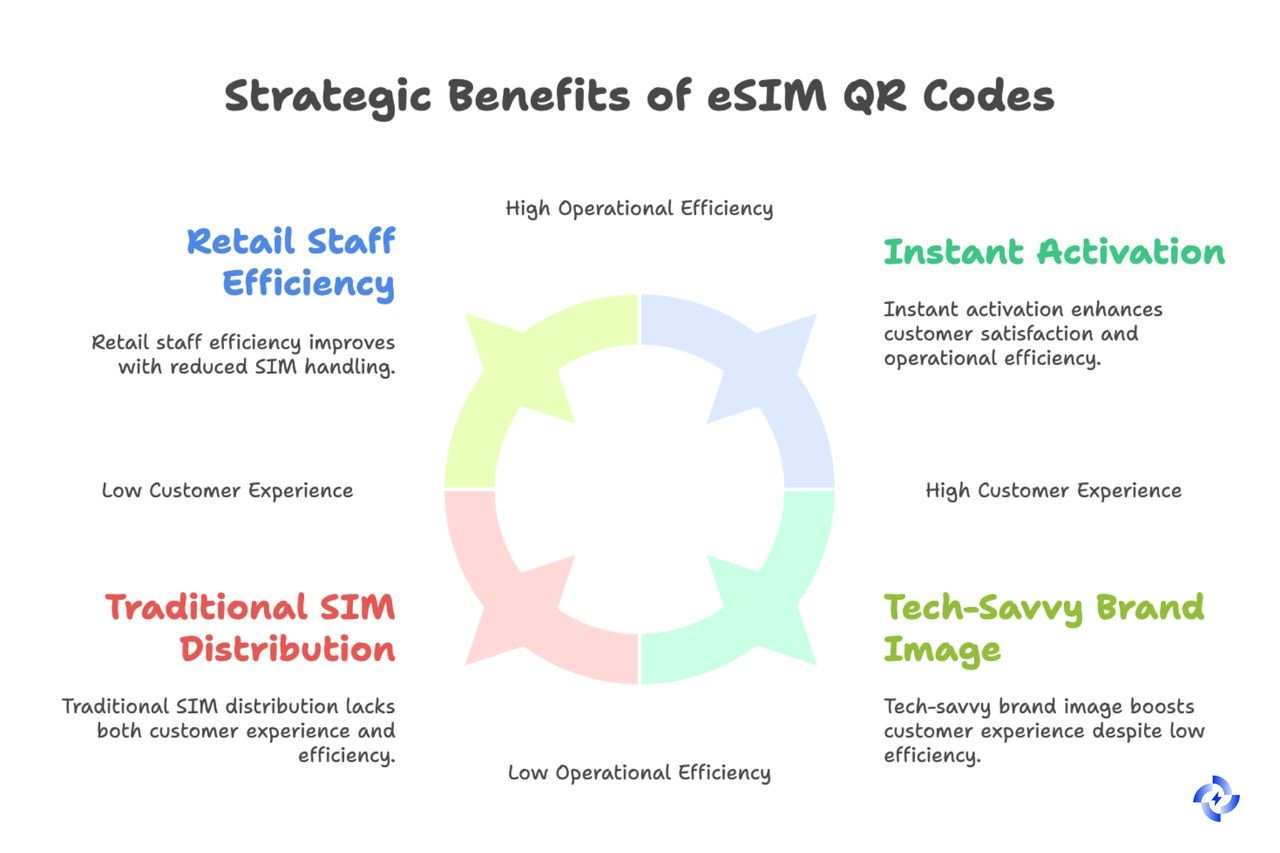
eSIM QR codes are one of the cleanest demand-capture tools available to carriers and travel brands right now.
Instant activation at the point of purchase
A customer scans a code at an airport kiosk and goes from "thinking about buying data" to "connected" in under three minutes. That collapsed funnel is why airport retail, duty-free, and airline in-seat advertising have all shifted toward eSIM QR placements. Air Apps' 2026 QR data shows 102.6 million US smartphone users will scan QR codes this year, up from 99.5 million in 2025 — roughly one in three Americans. The behaviour is baseline.
Lower distribution cost than physical SIM
No plastic. No shipping. No in-store inventory. A single code replaces the physical supply chain for a SIM card — a chunk of cost-per-acquisition savings that compounds across thousands of activations.
Built-in analytics for dynamic codes
Dynamic QR codes track scans by location, device, and time. For promotions, that data replaces guesswork with real funnel metrics. Static codes can't offer any of it.
Positioning as a forward-looking brand
For challenger carriers and MVNOs, the message is "you can be online in 90 seconds" — and the QR code is the proof. It's one of the few marketing tools where the demonstration is also the conversion.
The Honest Take: When eSIM QR Codes Are Not the Right Tool
QR codes aren't the future of eSIM activation so much as the current universal fallback. Worth being honest about where they shine and where they're being replaced.
Counterpoint Research and operator platforms like Emnify note the same shift: major carriers are pushing users toward in-app eSIM activation that skips QR scanning entirely. On iPhone, "Transfer from nearby iPhone" and direct carrier-app activation are faster than QR and harder to phish. For users who already have the carrier's app, QR is an extra step.
QR codes still win when:
- The user doesn't have the carrier's app installed (true for nearly all travel-eSIM purchases).
- Mass distribution matters: airport posters, packaging inserts, printed tickets. No app-based equivalent exists for a billboard.
- Delivery happens via email. Email plus QR plus scan is still the cleanest async channel.
- The user is switching carriers, not upgrading within one. The new carrier's app isn't installed yet.
QR codes lose when:
- The user already has the carrier's app. In-app activation cuts a step and sidesteps scam risk.
- Enterprise MDM scenarios where IT teams provision eSIMs remotely via carrier APIs.
- iPhone-to-iPhone eSIM transfer during phone upgrade. Apple's Quick Transfer is genuinely faster.
For an eSIM campaign in 2026, the right mental model: QR is the universal fallback, app-based flows are the preferred path when available. A good strategy offers both.
Final Thoughts
eSIM QR codes sit at an interesting spot. The underlying tech is mature, the delivery is universal, and GSMA Intelligence projects consumer eSIM penetration will double in 2026 and double again in 2027. At the same time, app-based activation is quietly cannibalising the QR workflow for users already inside their carrier's app. QR is still the right default whenever you can't guarantee the user has that app — which is most cases.
If you're a carrier or travel brand generating codes, three things matter: get the LPA string right the first time, test across the devices your users actually carry, and use a dynamic code so you can fix mistakes without reprinting. If you're a user scanning a code, only scan from sources you trust: your carrier's email, its app, or its physical storefront.
The point of eSIM is that switching networks should feel unremarkable. Done properly, it does.
Frequently Asked Questions
How do I convert XR to eSIM?
iPhone XR supports eSIM in most regions (US models carry eSIM from iOS 12.1 onward; Chinese mainland models are dual physical SIM only). To convert, contact your carrier and request an eSIM profile for your existing line. Most carriers issue a QR code by email or in their app. Scan it via Settings > Cellular > Add Cellular Plan, then remove your physical SIM once the eSIM line registers. The whole switch takes about 10 minutes including the carrier call.
How to activate eSIM QR code on iPhone?
Connect to Wi-Fi, open Settings > Cellular > Add Cellular Plan, and point the camera at the QR code. When the phone detects the LPA string, tap Continue, label the plan, and choose which line handles calls, texts, and data. Installation takes under a minute on most carriers. If the camera doesn't pick up the code, you can tap Enter Details Manually and type the LPA string directly. Apple's official setup guide covers edge cases like dual-SIM and eSIM transfer.
What is an eSIM QR code for T-Mobile?
A T-Mobile eSIM QR code is the activation payload T-Mobile emails or displays in its app when you start or transfer a line. It contains the LPA string pointing to T-Mobile's SM-DP+ server plus your unique activation code. To get one, sign in at t-mobile.com and go to Line Settings > SIM > Change SIM > Set up eSIM, or use the T-Mobile app. Each code is single-use — if you wipe your phone, request a new one through the same flow.
How to generate a free eSIM QR code?
You can't generate a functional eSIM QR code without carrier-issued activation data. The LPA string has to come from your carrier's provisioning system. What you can do for free: take the LPA string or activation URL your carrier provided and encode it into a QR image using QR Code Dynamic. That's useful if the carrier gave you text but no ready-made QR image, or if you want to print at a specific size.
Can I scan eSIM QR code on Samsung devices?
Yes, on Galaxy S20+ (2020) and later, plus Galaxy Z Fold and Flip models. Open Settings > Connections > SIM Manager > Add eSIM > Scan QR code from service provider, then point the camera at the code. Samsung also lets you type the LPA string manually if the scan fails. Older Galaxy models (S10 and earlier) don't have eSIM hardware, so no amount of scanning will work.
How to switch carriers using eSIM QR code?
Buy a plan from the new carrier and get its QR code via app, website, or email. Scan it to install the new profile alongside your existing one. Go to Settings > Cellular (iPhone) or SIM Manager (Samsung) and set the new plan as your default for data, calls, and texts. You don't need to remove the old plan immediately. Keeping both active as dual eSIM lets you port your number or test coverage before committing. When you're ready, cancel the old plan and delete its profile.

I work as a Growth Marketer at Popupsmart, using my 3+ years of SaaS experience to create clear, useful marketing content that helps brands grow, reach the right audiences, and improve their results.