Microsoft Forms QR Code: How to Create One Easily


On this page
- What Is Microsoft Forms QR Code?
- Why Use a QR Code for Microsoft Forms?
- How to Create a QR Code for Microsoft Forms
- Step 1: Create Your Form in Microsoft Forms
- Step 2: Copy the Microsoft Forms Share Link
- Step 3: Open a QR Code Generator
- Step 4: Paste Your Microsoft Forms URL
- Step 5: Customize the QR Code Design
- Step 6: Download Your QR Code
- Before You Publish: Test Everything
- Static vs Dynamic QR Codes for Microsoft Forms
- What Is a Static QR Code?
- What Is a Dynamic QR Code?
- Which One Should You Use?
- Best Use Cases for Microsoft Forms QR Codes
- Event Registrations
- Customer Feedback Forms
- Classroom Quizzes and Attendance 📚
- Employee Surveys and Internal Forms
- Contactless Check-Ins and Registrations
- Product Packaging and Retail Experiences
- Common Problems and Troubleshooting Tips
- Problem 1: The QR Code Does Not Scan
- Problem 2: The Microsoft Form Does Not Open
- Problem 3: The QR Code Opens the Wrong Form
- Problem 4: Users Ignore the QR Code
- Problem 5: The QR Code Works Digitally but Fails in Print
- Final Thoughts
- Frequently Asked Questions
A Microsoft Forms QR code allows users to access your form simply by scanning a QR code with their smartphone camera. Instead of sharing long URLs, you can create a QR code for Microsoft Forms and make surveys, registrations, feedback forms, quizzes, and check-ins much easier to access.
What Is Microsoft Forms QR Code?
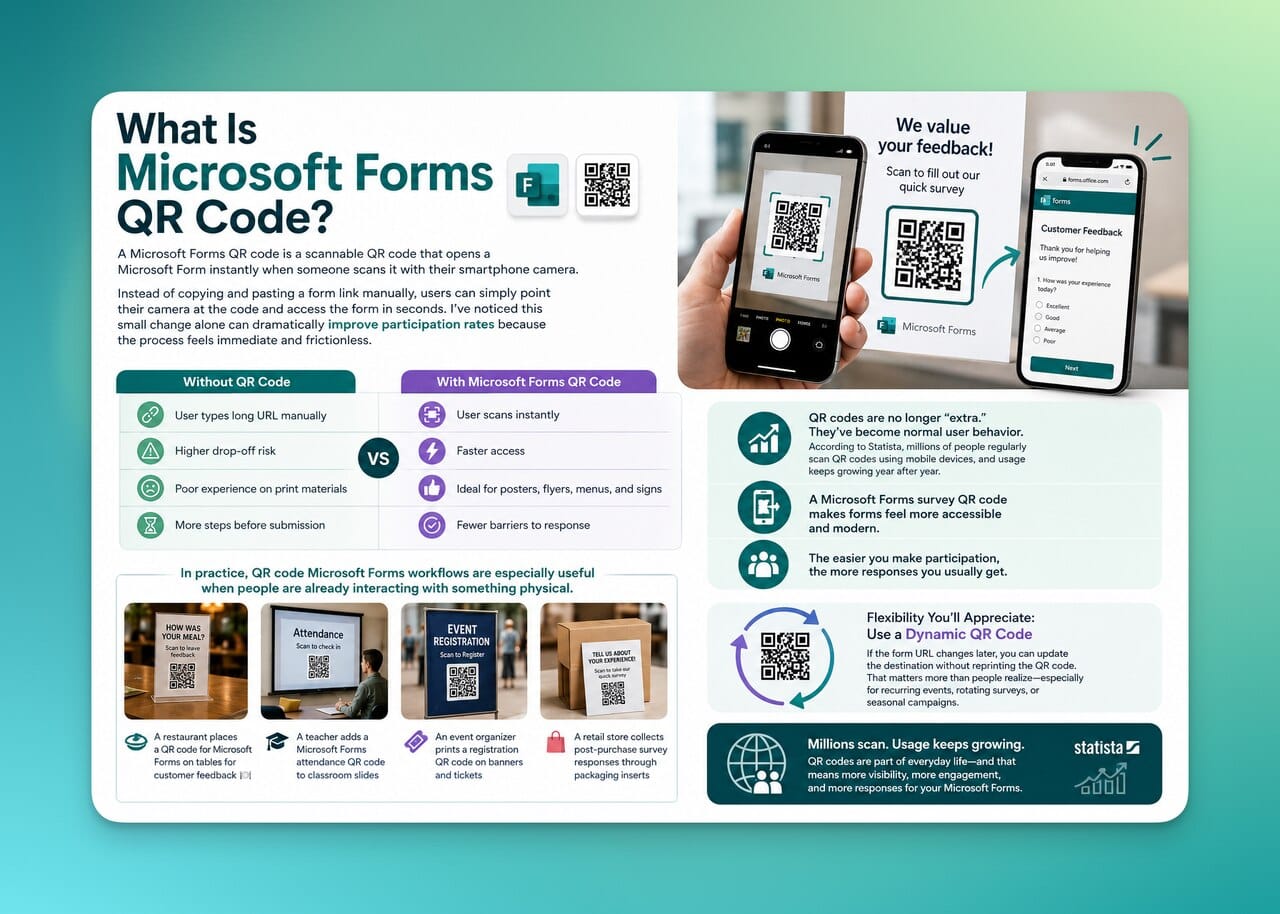
A Microsoft Forms QR code is a scannable QR code that opens a Microsoft Form instantly when someone scans it with their smartphone camera.
Instead of copying and pasting a form link manually, users can simply point their camera at the code and access the form in seconds. I’ve noticed this small change alone can dramatically improve participation rates because the process feels immediate and frictionless.
Here’s the simplest way to think about it:
Without QR Code | With Microsoft Forms QR Code |
User types long URL manually | User scans instantly |
Higher drop-off risk | Faster access |
Poor experience on print materials | Ideal for posters, flyers, menus, and signs |
More steps before submission | Fewer barriers to response |
In practice, QR code Microsoft Forms workflows are especially useful when people are already interacting with something physical.
For example:
- A restaurant places a QR code for Microsoft Forms on tables for customer feedback
- A teacher adds a Microsoft Forms attendance QR code to classroom slides
- An event organizer prints a registration QR code on banners and tickets
- A retail store collects post-purchase survey responses through packaging inserts
What I personally like about using a dynamic QR code for Microsoft Forms is flexibility. If the form URL changes later, you can update the destination without reprinting the QR code. That matters more than people realize, especially for recurring events, rotating surveys, or seasonal campaigns.
A Microsoft Forms survey QR code can also help make forms feel more accessible and modern. Instead of asking users to “visit this link,” you’re inviting them into an instant interaction.
And in my experience, the easier you make participation, the more responses you usually get.
Why Use a QR Code for Microsoft Forms?
I think the biggest advantage of using a Microsoft Forms QR code is not “technology.” It’s convenience.
People are far more likely to complete a form when accessing it feels effortless. The moment users have to type a long URL manually, switch devices, or search for a form link inside their email inbox, response rates start dropping. I’ve seen this happen constantly with surveys, registrations, and feedback forms.
A QR code for Microsoft Forms removes that friction almost instantly.
Instead of this:
“Please type this 67-character link into your browser…”
You give users this:
“Scan here.” 📲
That single difference changes user behavior more than most people expect.
Here’s why QR code Microsoft Forms setups work so well:
Benefit | Why It Matters |
Faster access | Users open forms in seconds |
Better mobile experience | Most scans happen on smartphones |
Higher response rates | Fewer steps usually means more submissions |
Better for print materials | Perfect for posters, menus, brochures, and signs |
Easier sharing | One QR code works across both digital and offline channels |
Cleaner design | Looks more professional than long URLs |
In my experience, the biggest improvement usually comes from mobile usability.
According to DataReportal, mobile devices dominate global internet usage. That means if your form experience is not optimized for mobile-first behavior, you’re already creating unnecessary barriers.
And QR codes are naturally mobile-first.
That’s why businesses increasingly use Microsoft Forms survey QR codes in physical spaces where immediate action matters:
- Restaurants collecting customer feedback
- Conferences handling event registrations
- Schools tracking attendance
- Retail stores running satisfaction surveys
- HR teams managing internal employee forms
- Clinics sharing patient intake questionnaires
QR codes also improve offline-to-online conversion
This is something I think many people underestimate.
Printed materials usually have a conversion problem. Flyers, brochures, banners, packaging inserts; they all rely on users taking an extra step later. Most people simply forget.
But adding a QR code for Microsoft Forms transforms passive materials into interactive touchpoints.
For example:
- A flyer becomes an instant registration page
- A presentation slide becomes a live feedback form
- Product packaging becomes a customer survey
- A business card becomes a lead capture tool
That transition from seeing to acting becomes almost immediate.
Static vs dynamic QR codes matters more than people think
A lot of people create a Microsoft Forms QR code once and never think about it again. But I usually recommend using dynamic QR codes whenever possible.
Why?
Because dynamic QR codes give you flexibility later.
Here’s the difference:
Static QR Code | Dynamic QR Code |
Destination cannot be changed | URL can be updated anytime |
Permanent once created | Editable after printing |
Limited flexibility | Better for long-term campaigns |
No advanced management | Easier maintenance |
Let’s say you printed 500 event flyers with a Microsoft Forms registration QR code, but later you need to replace the form link.
With a static QR code, you’re stuck.
With a dynamic QR code generator like QR Code Dynamic, you can simply update the destination without changing the printed code itself.
That flexibility becomes incredibly valuable for:
- Ongoing campaigns
- Recurring events
- Classroom materials
- Restaurant menus
- Internal company forms
- Seasonal promotions
And honestly, once you start using editable QR codes, it’s difficult to go back to static ones.
How to Create a QR Code for Microsoft Forms
Creating a Microsoft Forms QR code is actually much easier than most people expect. You do not need coding skills, advanced software, or even technical experience.
If you already have your Microsoft Form ready, the entire process usually takes less than five minutes ⏱️
Here’s the workflow I personally recommend.
Step 1: Create Your Form in Microsoft Forms
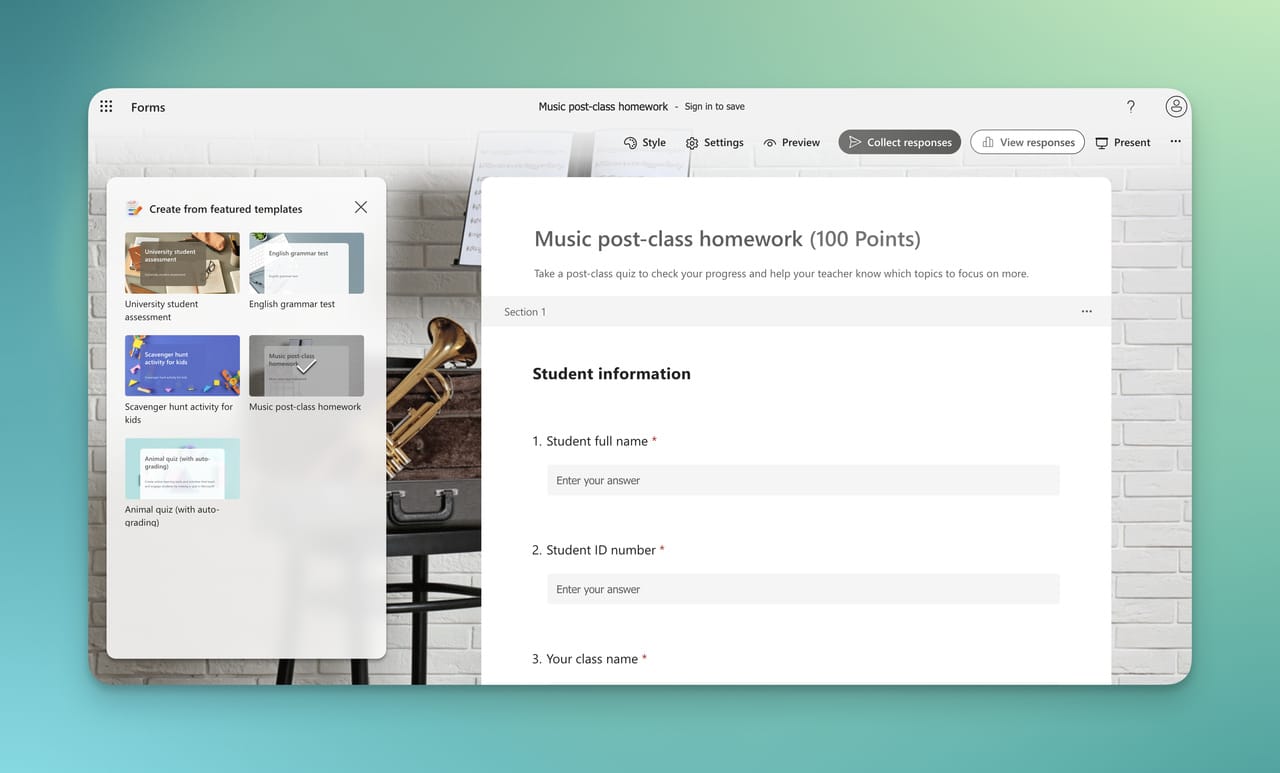
First, open Microsoft Forms and create your form.
This can be:
- A customer survey
- An event registration form
- A classroom quiz
- An attendance sheet
- An employee feedback form
- A contact form
At this stage, I always recommend checking two things before generating the QR code:
- The form is accepting responses
- Mobile responsiveness looks clean
Most users will open your QR code for Microsoft Forms on their phones, so mobile readability matters a lot.
Step 2: Copy the Microsoft Forms Share Link
Once your form is ready, click the Share button inside Microsoft Forms.
Microsoft will generate a public shareable URL for your form.
Copy that link carefully because this is the destination your QR code will open.
Step 3: Open a QR Code Generator
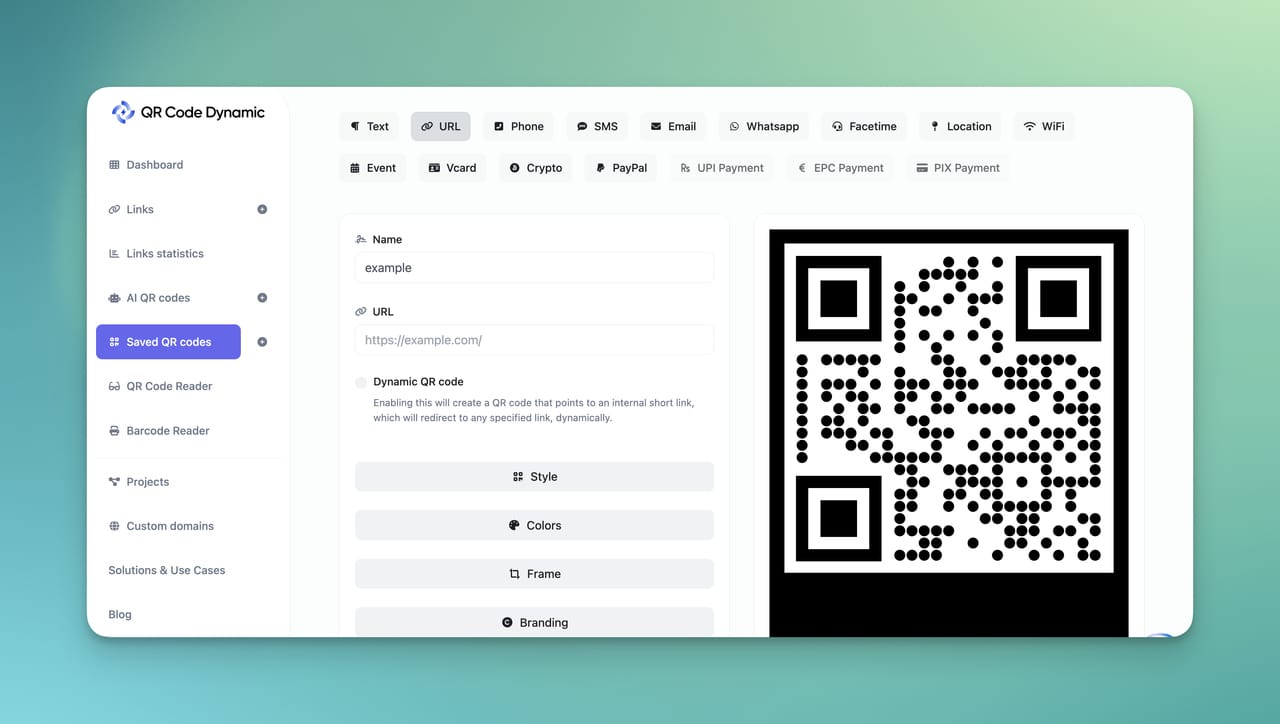
Now go to a QR code generator like QR Code Dynamic.
Choose the URL QR Code option since your Microsoft Form already exists as a web link.
At this point, many people ask:
“Can Microsoft Forms create QR codes itself?”
Technically yes, Microsoft Forms has a built-in QR sharing option. But in my experience, dedicated QR code generators offer far more flexibility, customization, and long-term usability.
We’ll get into that more later in the guide.
Step 4: Paste Your Microsoft Forms URL
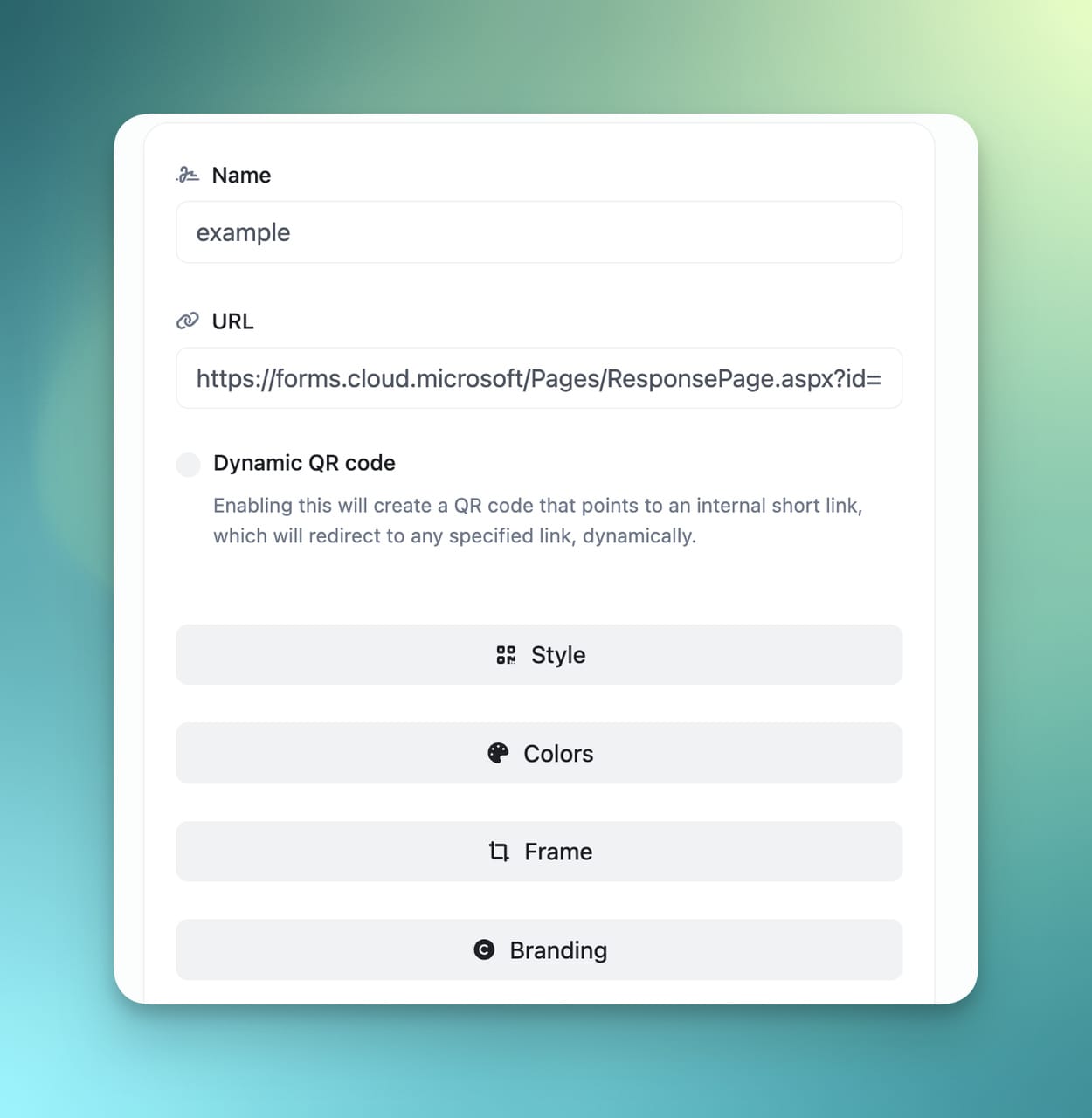
Paste the copied Microsoft Forms link into the QR code generator field.
The platform will instantly create your QR code.
This QR code now acts as a shortcut between the user and your form.
Instead of:
- Typing URLs
- Searching emails
- Opening browsers manually
Users simply scan and access the form immediately 📲
Step 5: Customize the QR Code Design
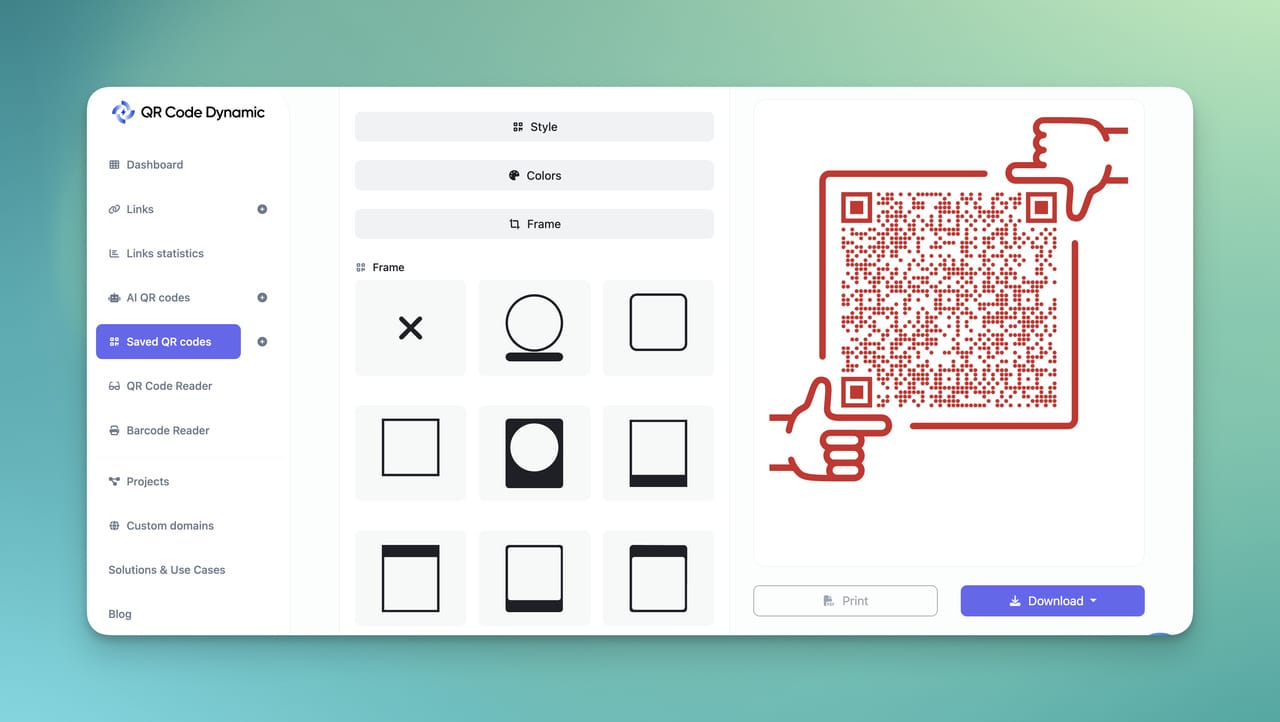
This is the step many people skip, and honestly, I think that’s a mistake.
A customized Microsoft Forms QR code usually performs better because it looks intentional and trustworthy.
You can often customize:
- Colors
- Shapes
- Frames
- CTA text
- Logos
- Corners
- Background styles
For example, adding a frame that says:
- “Scan to Register”
- “Scan for Feedback”
- “Take the Survey”
- “Check In Here”
…can make a noticeable difference in scan behavior.
According to QR Code Generator research, clear calls-to-action significantly improve QR code engagement rates.
Step 6: Download Your QR Code
Once the design looks good, download your QR code.
I usually recommend:
- PNG for digital use
- SVG for professional printing
- PDF for large-format materials
Then you can place the QR code for Microsoft Forms almost anywhere:
- Posters
- Menus
- Product packaging
- Business cards
- Presentation slides
- Email campaigns
- Event signage
- Flyers
- Classroom materials
Before You Publish: Test Everything
This part matters more than people think.
Before printing or publishing your Microsoft Forms survey QR code:
- Scan it with multiple phones
- Test different lighting conditions
- Verify the form opens correctly
- Confirm mobile readability
- Check loading speed
I’ve seen beautifully designed QR campaigns fail simply because the QR code was too small or linked to a broken form.
A quick test can save a lot of frustration later.
Static vs Dynamic QR Codes for Microsoft Forms
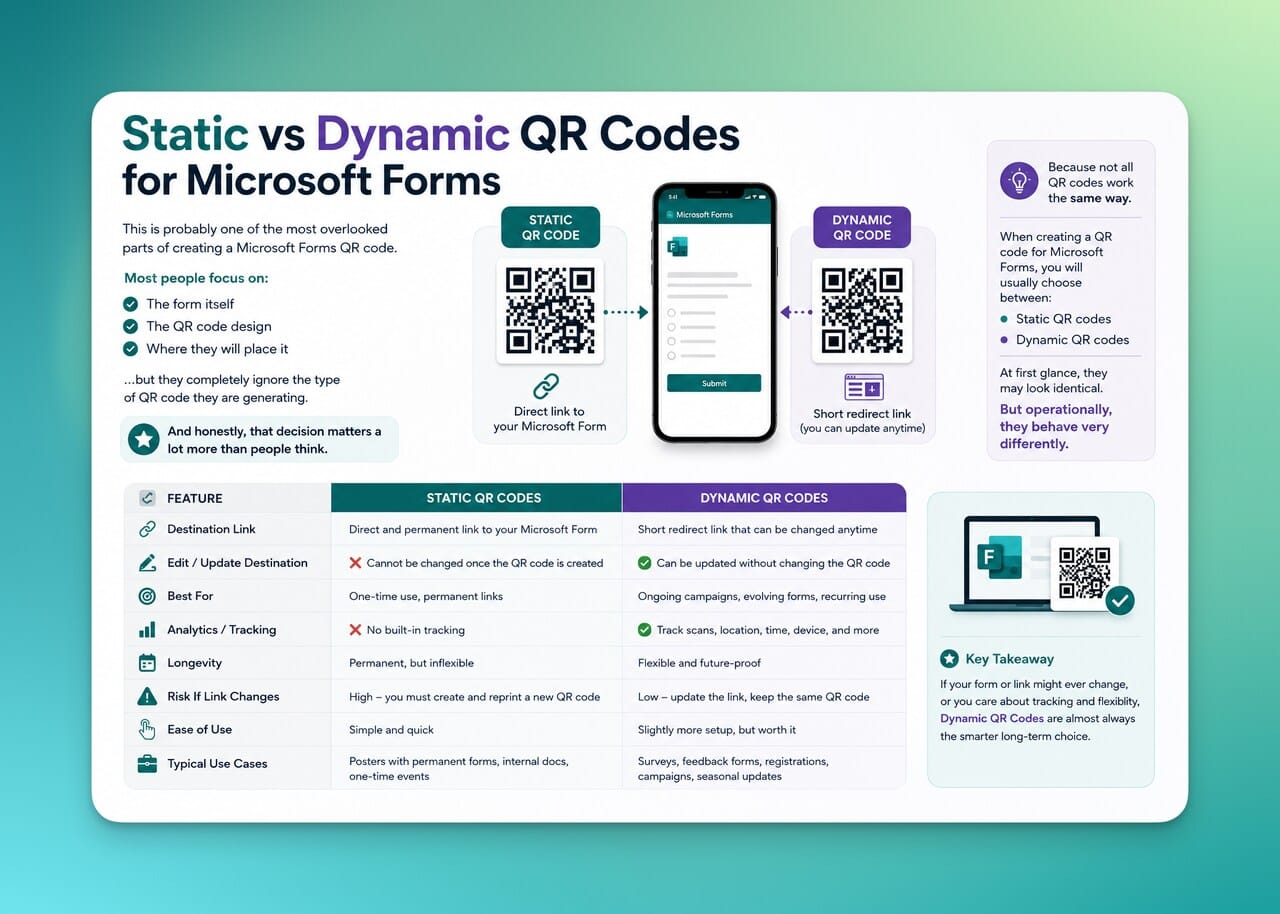
This is probably one of the most overlooked parts of creating a Microsoft Forms QR code.
Most people focus on:
- The form itself
- The QR code design
- Where they will place it
…but they completely ignore the type of QR code they are generating. And honestly, that decision matters a lot more than people think. Because not all QR codes work the same way.
When creating a QR code for Microsoft Forms, you will usually choose between:
- Static QR codes
- Dynamic QR codes
At first glance, they may look identical. But operationally, they behave very differently.
What Is a Static QR Code?
A static QR code permanently stores the destination URL inside the code itself.
That means:
- The form link cannot be changed later
- The QR code becomes permanent once generated
- If the Microsoft Forms URL changes, the QR code breaks
Static QR codes are simple and completely fine for certain short-term situations.
For example:
- One-time classroom activities
- Temporary internal forms
- Short-lived campaigns
- Quick personal projects
If the form will never change, static QR codes can work perfectly well.
Advantages of Static QR Codes
Pros | Explanation |
Simple setup | Fast and beginner-friendly |
Usually free | Available in most generators |
No ongoing management | Create once and use |
Limitations of Static QR Codes
Cons | Why It Matters |
Cannot edit destination | Broken links require new QR codes |
Poor long-term flexibility | Difficult for ongoing campaigns |
Risky for printed materials | Reprinting becomes expensive |
And this is usually where problems start.
I’ve personally seen businesses print:
- Restaurant menus
- Event banners
- Product packaging
- Trade show materials
…only to realize later that the Microsoft Forms link changed. At that point, the original QR code becomes useless.
What Is a Dynamic QR Code?
A dynamic QR code works differently.
Instead of permanently embedding the final URL inside the QR code, it uses a redirect system. That means you can change the destination later without changing the QR code itself. This is why I usually recommend dynamic QR codes for Microsoft Forms whenever the QR code will be used publicly or long-term.
Advantages of Dynamic QR Codes
Pros | Why It Helps |
Editable destination URL | Update forms anytime |
Better long-term flexibility | Ideal for ongoing campaigns |
Easier campaign management | No need to reprint materials |
Better scalability | Useful across multiple projects |
For example, imagine this situation:
You create:
- 1,000 flyers
- 500 product inserts
- Event signage
- Classroom materials
All using the same Microsoft Forms survey QR code.
Later, you:
- Duplicate the form
- Replace the survey
- Change departments
- Update campaign links
With a static QR code, you would need to recreate and reprint everything.
With a dynamic QR code generator like QR Code Dynamic, you simply update the destination behind the scenes. The printed QR code stays exactly the same.
And honestly, this flexibility saves an incredible amount of time over the long run.
Which One Should You Use?
Here’s the simplified version I usually give people:
Use Case | Best Option |
Temporary internal form | Static QR code |
Professional marketing materials | Dynamic QR code |
Restaurant feedback forms | Dynamic QR code |
Event registration campaigns | Dynamic QR code |
Classroom one-time activity | Static QR code |
Long-term business usage | Dynamic QR code |
In my experience, most real-world business use cases benefit more from dynamic QR codes because campaigns evolve constantly. Forms change.Departments change.Events change.URLs change. Static QR codes assume permanence.
But real workflows are rarely permanent.
Best Use Cases for Microsoft Forms QR Codes
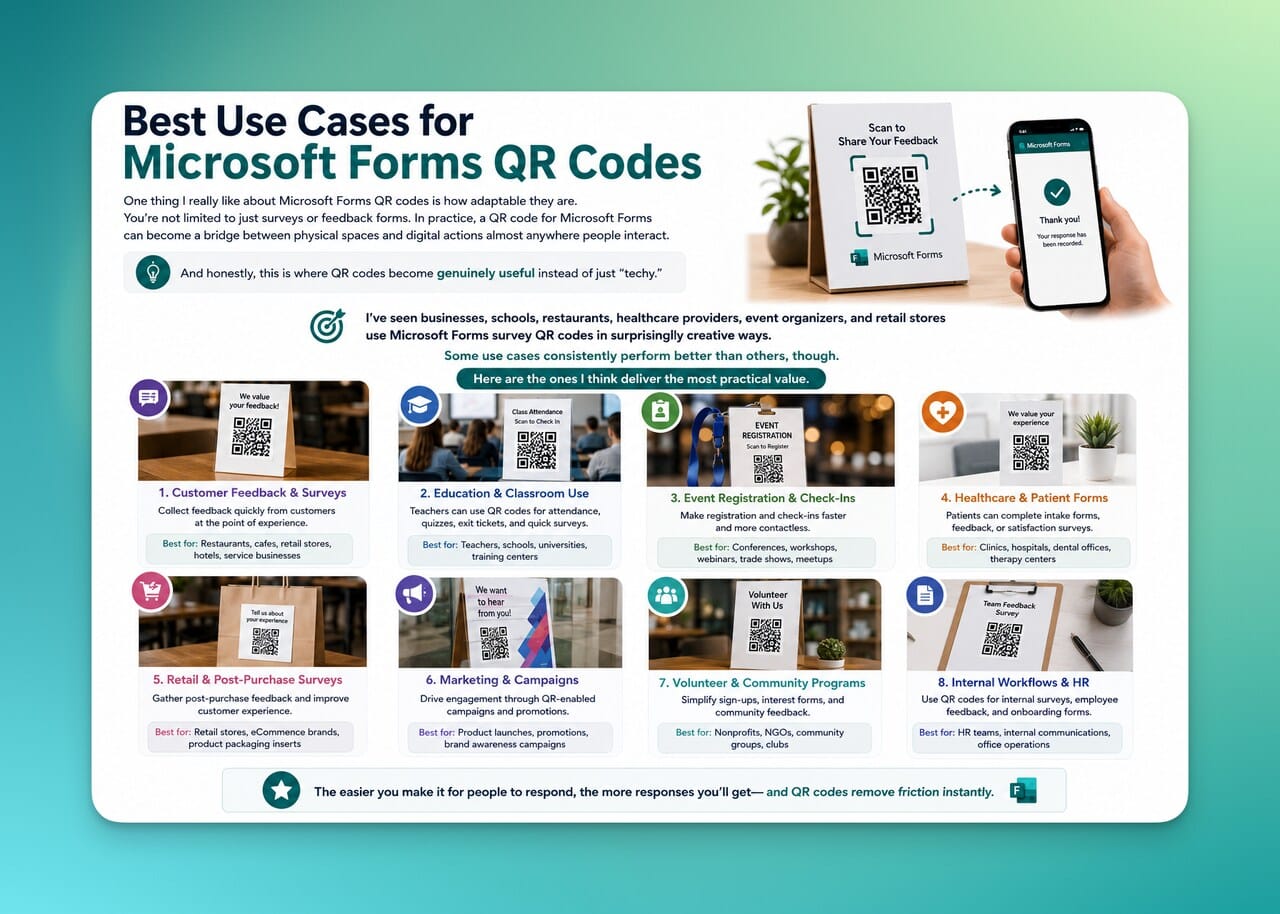
One thing I really like about Microsoft Forms QR codes is how adaptable they are.
You’re not limited to just surveys or feedback forms. In practice, a QR code for Microsoft Forms can become a bridge between physical spaces and digital actions almost anywhere people interact.
And honestly, this is where QR codes become genuinely useful instead of just “techy.”
I’ve seen businesses, schools, restaurants, healthcare providers, event organizers, and retail stores use Microsoft Forms survey QR codes in surprisingly creative ways.
Some use cases consistently perform better than others, though. Here are the ones I think deliver the most practical value.
Event Registrations
This is probably one of the most common use cases.
Instead of directing attendees to:
- Long registration links
- Event landing pages
- Email signup flows
…you can simply place a Microsoft Forms QR code on:
- Posters
- Tickets
- Conference signage
- Presentation slides
- Social media graphics
Users scan and register instantly.
I think this works especially well at:
- Conferences
- Networking events
- Workshops
- University fairs
- Community gatherings
- Internal company events
The immediate access removes hesitation.
And in event environments, reducing friction matters a lot because people are already overloaded with information.
Customer Feedback Forms
This is one of my personal favorites because it’s incredibly practical.
Businesses constantly ask customers for feedback — but most make the process unnecessarily difficult.
A Microsoft Forms feedback QR code solves that problem beautifully.
You can place QR codes on:
- Restaurant tables
- Receipts
- Packaging
- Store counters
- Hotel rooms
- Product inserts
Instead of saying:
“Please visit our website and find the survey page…”
You simply say:
“Scan to leave feedback.”
That tiny change dramatically improves participation.
In fact, according to SurveyMonkey research, reducing friction is one of the most important factors affecting survey completion rates.
And honestly, QR codes are friction reduction tools at their core.
Classroom Quizzes and Attendance 📚
Educators have adopted QR code Microsoft Forms workflows surprisingly fast over the last few years.
And I completely understand why.
A teacher can display a Microsoft Forms attendance QR code directly on:
- Classroom projectors
- Whiteboards
- Digital slides
- Printed handouts
Students scan and submit attendance instantly.
The same logic applies to:
- Pop quizzes
- Homework forms
- Exit tickets
- Classroom feedback
- Group activities
I especially like this use case because it reduces administrative overhead.
Instead of collecting paper forms or manually tracking attendance, everything becomes centralized digitally.
Common education use cases
Use Case | Example |
Attendance tracking | Daily class check-ins |
Quiz distribution | Instant quiz access |
Assignment submissions | Homework forms |
Student feedback | Course evaluations |
Employee Surveys and Internal Forms
Internal company processes are another strong use case for Microsoft Forms QR codes.
HR teams often use them for:
- Employee satisfaction surveys
- Internal requests
- Workshop registrations
- Training feedback
- Office event signups
What makes QR codes especially effective here is accessibility.
Employees can scan forms directly from:
- Office posters
- Break room signage
- Internal presentations
- Printed documents
No login confusion.No searching through inboxes.No forgotten links.
Just scan and respond.
Contactless Check-Ins and Registrations
This use case became especially popular during the rise of contactless interactions, but honestly, it remained useful because it’s simply efficient.
Businesses now use Microsoft Forms QR codes for:
- Visitor check-ins
- Appointment forms
- Waiting lists
- Guest registrations
- Health declarations
- Service requests
The experience feels cleaner and faster for users.
And from an operational perspective, digital submissions are usually easier to organize than paper-based workflows.
Product Packaging and Retail Experiences
This is a use case I think still has a lot of untapped potential.
Brands increasingly place QR codes on packaging to collect:
- Product feedback
- Warranty registrations
- Customer reviews
- User-generated content submissions
- Support requests
A QR code for Microsoft Forms works surprisingly well here because Microsoft Forms is simple, lightweight, and mobile-friendly.
The transition from:
…feels natural when done correctly.
And honestly, the easier brands make post-purchase engagement, the more likely customers are to participate.
Common Problems and Troubleshooting Tips
Even a well-designed Microsoft Forms QR code can run into problems if small details are overlooked.
And honestly, most QR code issues are surprisingly predictable.
I’ve worked on campaigns where the QR code looked perfect visually, but scan performance was terrible because of one tiny technical mistake:
- The form permissions were wrong
- The QR code was too small
- The contrast was weak
- The Microsoft Forms link changed later
The good news is that most of these issues are easy to fix once you know what to look for.
Here are the most common Microsoft Forms QR code problems I see and how to solve them.
Problem 1: The QR Code Does Not Scan
This is the most obvious issue, and usually the most frustrating.
In my experience, scan failures almost always come down to design or printing problems.
Common causes:
- QR code is too small
- Low contrast colors
- Blurry printing
- Over-customization
- Poor lighting conditions
- Damaged surfaces
How to fix it:
✅ Increase the QR code size
✅ Use stronger contrast
✅ Export higher-resolution files
✅ Avoid excessive visual effects
✅ Test before publishing
I usually recommend SVG format for printed Microsoft Forms survey QR codes because it keeps edges sharp even at larger sizes.
Problem 2: The Microsoft Form Does Not Open
Sometimes the QR code scans correctly, but the form itself fails to load.
This problem is usually caused by incorrect Microsoft Forms sharing settings.
Common causes:
- Form permissions are restricted
- Public access is disabled
- Users need organizational login access
- Incorrect form URL copied
How to fix it:
- Open Microsoft Forms
- Check sharing permissions
- Enable public response access if needed
- Test in incognito mode
- Scan with another device
Problem 3: The QR Code Opens the Wrong Form
This happens more often than people expect, especially during campaign updates.
I’ve seen teams:
- Duplicate forms
- Replace surveys
- Rename projects
- Move workflows internally
…and forget that the old QR code still points to the original form.
This is where static QR codes become risky
With static QR codes:
- The original destination cannot be edited
- Old QR codes become outdated permanently
With dynamic QR codes:
- You can update the destination anytime
This is one of the biggest reasons I prefer dynamic QR code generators like QR Code Dynamic for long-term Microsoft Forms QR code campaigns.
Especially if printed materials are involved.
Problem 4: Users Ignore the QR Code
Sometimes the QR code technically works perfectly… but nobody scans it.
This is not a technical problem.It’s usually a communication problem.
Common causes:
- No call-to-action
- Poor placement
- Users do not understand the purpose
- QR code blends into the background
- Weak visual hierarchy
How to improve scan rates:
✅ Add CTA text
✅ Increase visibility
✅ Improve placement
✅ Use better framing
✅ Explain the value of scanning
For example:
Weak Version | Better Version |
Plain QR code | ⭐ Scan to Leave Feedback |
Small footer placement | Center placement with CTA |
No context | “Scan to Register for the Event” |
I think users scan more confidently when they immediately understand the outcome.
Problem 5: The QR Code Works Digitally but Fails in Print
This is a surprisingly common issue.
A QR code may scan perfectly on-screen but fail after printing because:
- Resolution dropped
- Colors changed
- Surface reflections interfere
- Print scaling distorted the code
My printing checklist:
Before printing large quantities, I always test:
- Final printed version
- Actual material surface
- Real lighting conditions
- Real scanning distance
- Multiple phone cameras
Because honestly, digital previews can be misleading.
Final Thoughts
I think the biggest advantage of using a Microsoft Forms QR code is simplicity. Instead of asking users to type long URLs, you let them access forms instantly with a quick scan.
Whether you’re using a QR code for Microsoft Forms for surveys, registrations, attendance tracking, or customer feedback, the goal is always the same: reduce friction and make participation easier.
And honestly, small details make a big difference. Clear CTAs, proper sizing, mobile-friendly forms, and dynamic QR codes can significantly improve scan rates and overall user experience.
If you want more flexibility and customization, you can create editable Microsoft Forms QR codes with QR Code Dynamic and update your form destination anytime without changing the QR code itself 📱
Frequently Asked Questions
How do I create a QR code for Microsoft Forms?
You can create one by copying your Microsoft Forms link, pasting it into a QR code generator like QR Code Dynamic, and downloading the generated QR code for use in print or digital materials.
Do I need a QR code generator for Microsoft Forms?
No, Microsoft Forms already provides a basic QR code option. However, third-party tools can offer more customization and flexibility if needed.
Can I use a Microsoft Forms QR code for printed materials?
Yes, Microsoft Forms QR codes work well on posters, flyers, packaging, and event materials as long as they are clearly visible and properly sized.
Why is my Microsoft Forms QR code not scanning?
This usually happens due to low contrast, small size, poor print quality, or camera issues. Testing the QR code on multiple devices before publishing helps avoid these problems.

I work as a Growth Marketer at Popupsmart, using my 3+ years of SaaS experience to create clear, useful marketing content that helps brands grow, reach the right audiences, and improve their results.