How to Create a QR Code for Google Photos to Share Photos

On this page
- Why Use QR Codes to Share Google Photos?
- Create a QR Code for Google Photos to Share Photos: 6 Steps
- Step 1: Copy Your Google Photos Share Link
- Step 2: Sign Up for QR Code Dynamic
- Step 3: Paste the URL into the Generator
- Step 4: Customize the Design
- Step 5: Generate and Test the Code
- Step 6: Download and Place the QR Code
- How to Collect Guest Photos with a Google Photos QR Code
- QR Codes for Weddings, Parties, and Events
- Comparison: Google Photos vs. Other Image Hosting Platforms
- Best Practices for Creating a QR Code for Sharing Pictures
- How to Create a QR Code for Image Sharing on Image Hosting Services
- Pick a Hosting Platform and Grab the Link
- Google Photos Sharing Changes You Should Know (2024-2025 Update)
- Final Viewpoint
- Frequently Asked Questions
- Can you get a QR code for Google Photos?
- How to create a QR code for Google Photos on Android?
- Can QR codes update automatically for Google Photos albums?
- If Google Photos changes, will my QR code stop working?
- Explore our other blog posts:
To create a QR code for Google Photos, open the album in the Google Photos app, tap Share → Get link, copy the URL, paste it into a dynamic QR code generator like QR Code Dynamic, customize colors and logo, then download. The flow takes under five minutes and works for single photos, full albums, and movies.
What you'll need:
- A Google account with an album uploaded
- Google Photos app (iOS/Android) or photos.google.com
- A QR generator account (free tier is fine)
- Time: 3-5 minutes basic, 10-15 minutes with custom branding
- Skill level: Beginner
Quick overview:
- Grab your share link — copy the sharing URL from Google Photos.
- Sign up for the generator — free QR Code Dynamic account.
- Paste the URL — drop the link into the URL QR code builder.
- Customize the design — colors, logo, frame CTA.
- Generate and test — scan with two phones before printing.
- Download and place — PNG for screens, SVG/PDF for print.
Why Use QR Codes to Share Google Photos?
Sending photos through email or DMs falls apart fast. Large albums break inbox limits, group chats scroll past the link, and nobody wants to download forty attachments one at a time. A QR code collapses that into one scannable square.
Adoption is hard to ignore. The global QR code market sat at $13.04 billion in 2025 and is on track to hit $33.14 billion by 2030 (QRTRAC, 2026). People already scan at restaurants and events without thinking — so when a guest sees "Scan for the wedding album," they know what to do.
What QR codes give you over plain sharing links:
- Direct album access. The scan opens the exact album, no searching.
- Content control. Share one album, not your library. Revoke the link anytime and the QR stops working.
- Updates without reprinting. Dynamic codes let you swap the URL later. Add 200 photos after the event and the same code keeps working.
- Print integration. Invitations, table cards, posters, business cards. You can drop a QR code on a transparent background cleanly over a branded design.
- Scan analytics. You can track QR code scans by time, device, and rough location — useful for figuring out which sign placement worked.
Create a QR Code for Google Photos to Share Photos: 6 Steps
This walkthrough uses QR Code Dynamic because the free tier includes a real dynamic link. The steps translate to any URL-based generator.
Step 1: Copy Your Google Photos Share Link
Open the album or photo you want to share. In the Google Photos app, tap the album, tap Share (top right), then Create link. On desktop at photos.google.com, open the album and click Share → Get link. You get a URL like photos.app.goo.gl/<id> — copy it.
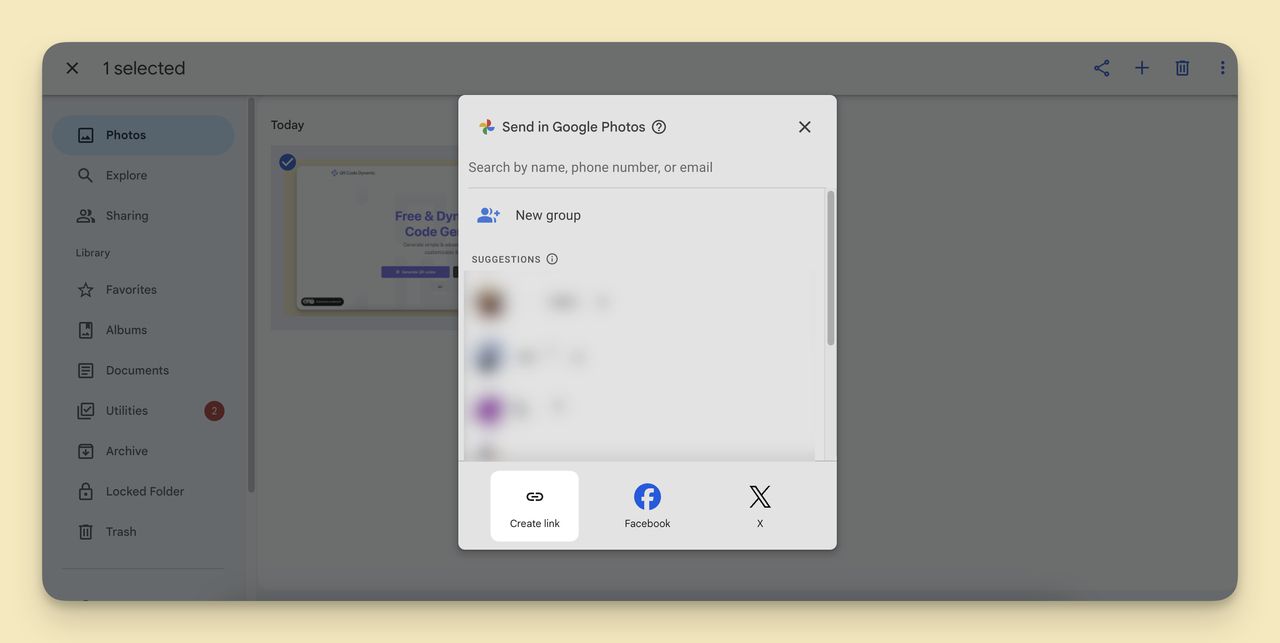
You'll know it's working when: Pasting the link into a private browser window opens the album without a sign-in prompt. If it asks for a login, the album is still restricted — toggle link sharing on.
Watch out for: copying the browser address bar URL (that one's tied to your account — always use the Share menu), and sharing an empty album (Google generates a link even for empty ones, so scans land on a blank page).
Step 2: Sign Up for QR Code Dynamic
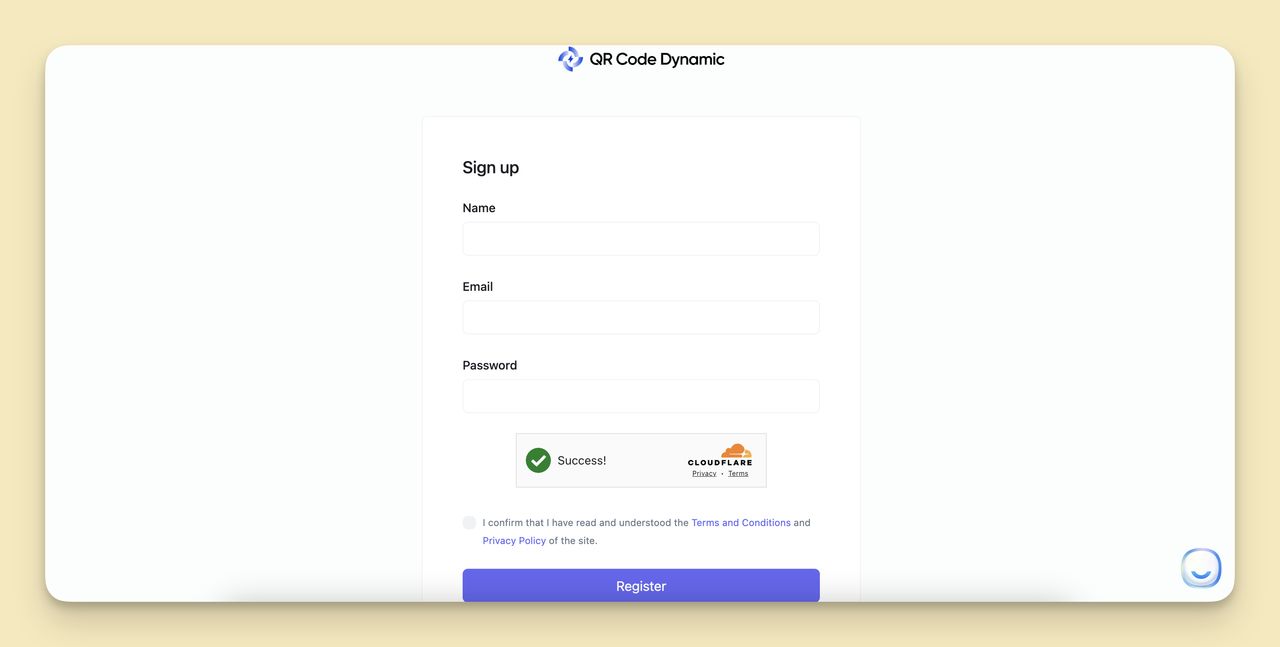
Head to QR Code Dynamic and register for free. The free tier covers unlimited static codes plus a few dynamic codes — enough for most personal events. For anything printed, pick dynamic over static.
Step 3: Paste the URL into the Generator
From the dashboard, pick URL QR Code. Paste the Google Photos link from Step 1 into the URL field. The generator renders a live preview so you can check the scan before customizing.
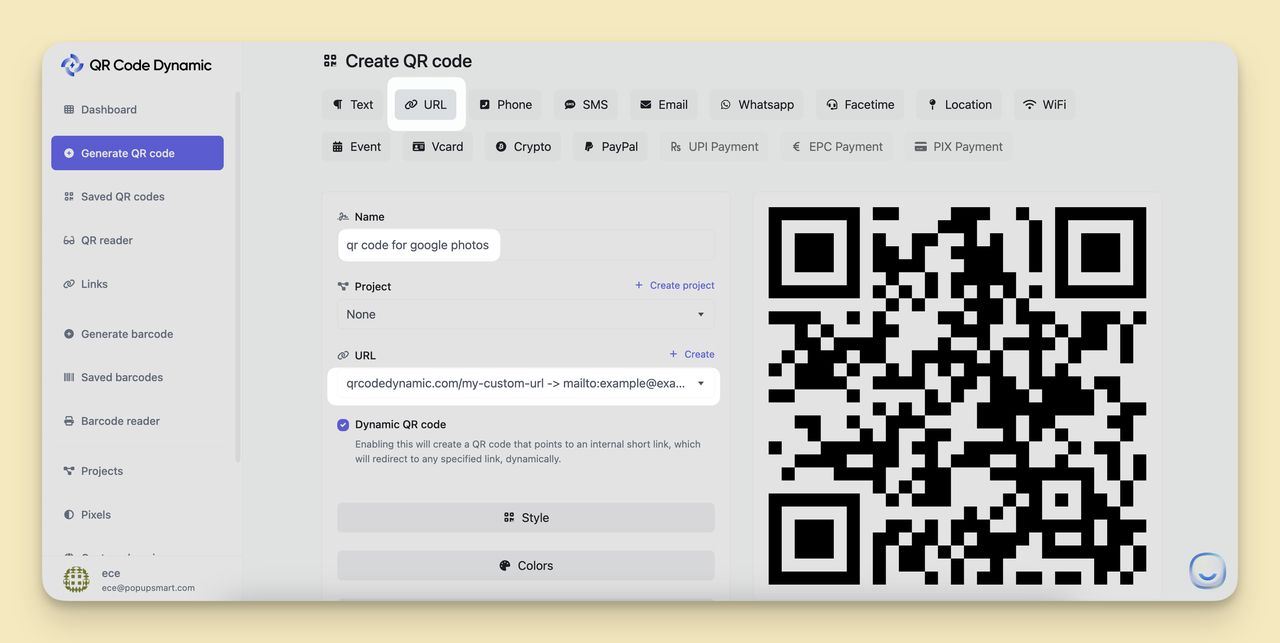
You'll know it's working when: the preview shows a clean QR pattern and the test scan resolves to your album. If the preview is greyed out, retype the URL instead of pasting.
Step 4: Customize the Design
Default black-on-white codes scan fine but blend into nothing. A few small choices lift scan rates without hurting readability:
- Dynamic mode: Toggle Dynamic QR Code on. Scans route through a redirect, so you can edit the destination URL later.
- Colors: Strong contrast — dark foreground on light background. Pastel-on-pastel fails scanners about half the time in my testing.
- Logo: Drop a small icon in the center. Only 17.5% of creators add a logo, and that choice correlates with roughly 25% more scans on average (QRLynx, 2026).
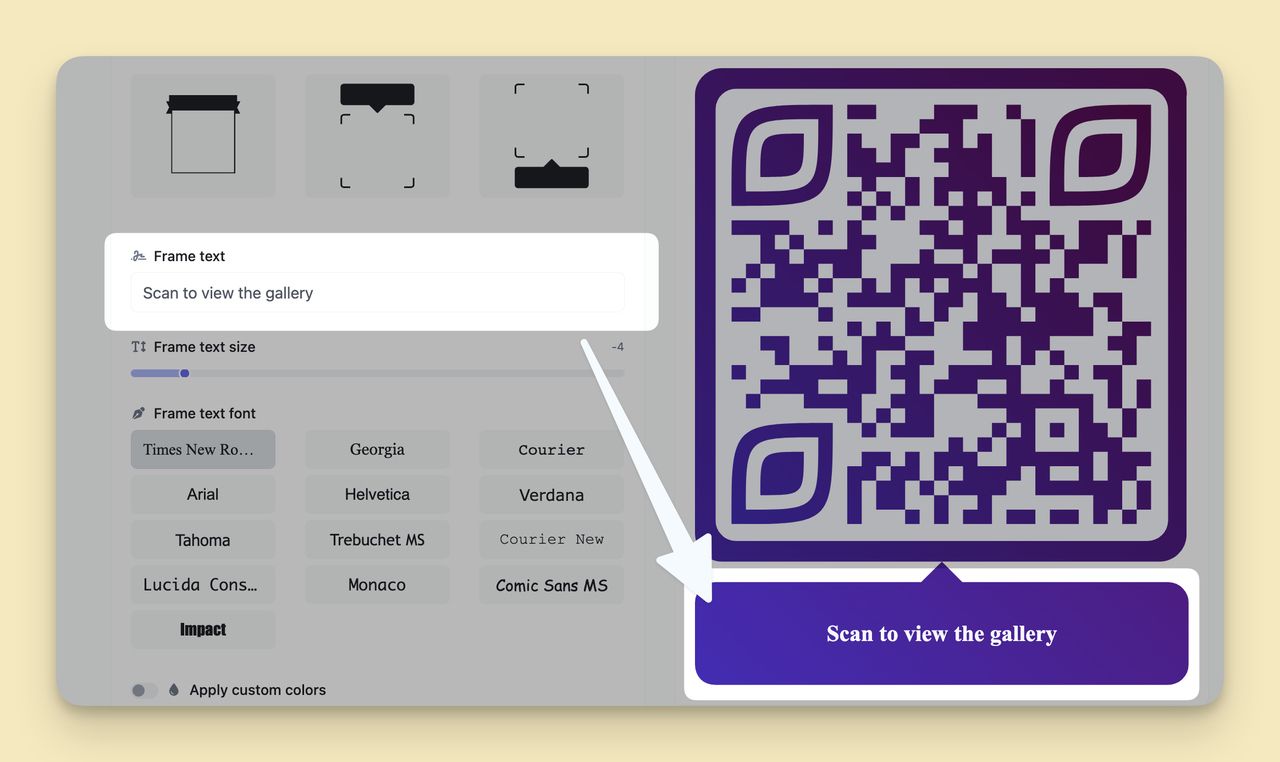
- Frame and CTA: Add a frame with short copy like "Scan for photos." Without a CTA, guests look and move on.
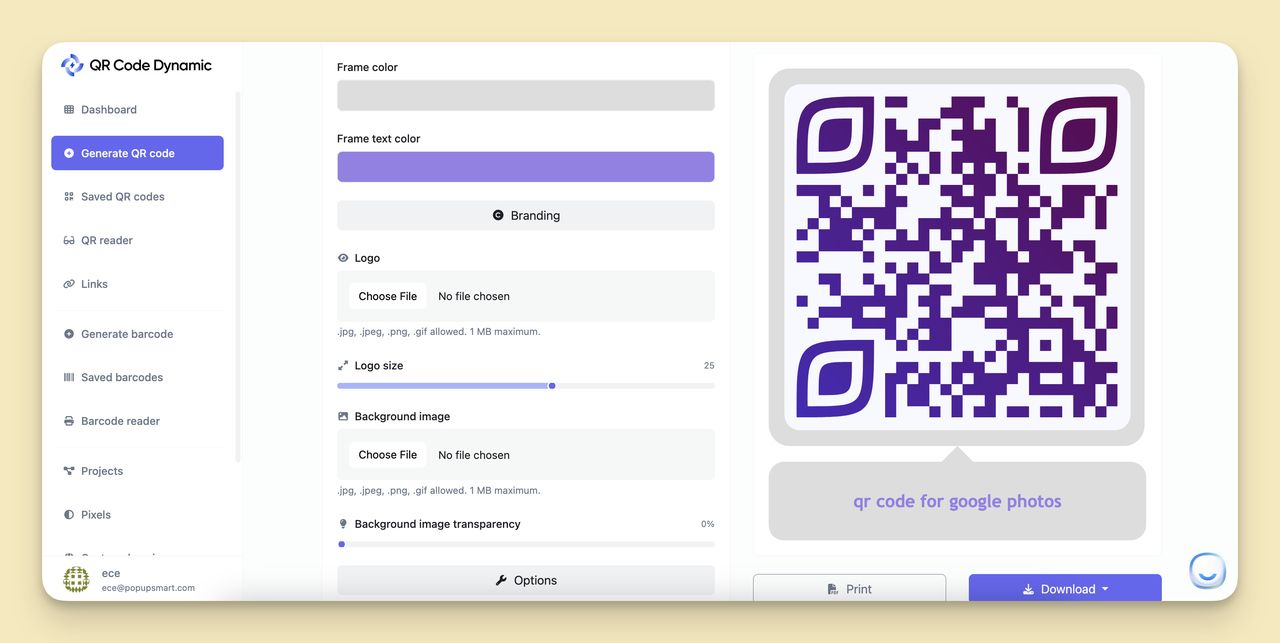
Pro tip: Every time I design a code, I export a test and scan it under three lighting conditions — daylight, dim indoor, phone flashlight. A code that scans in daylight can silently fail in a reception hall at 7pm.
Step 5: Generate and Test the Code
Hit Create. Before you do anything else, scan it — not with the phone that pasted the link, but with a second device on a different network. This catches cached logins and sign-in prompts that only show up for strangers.
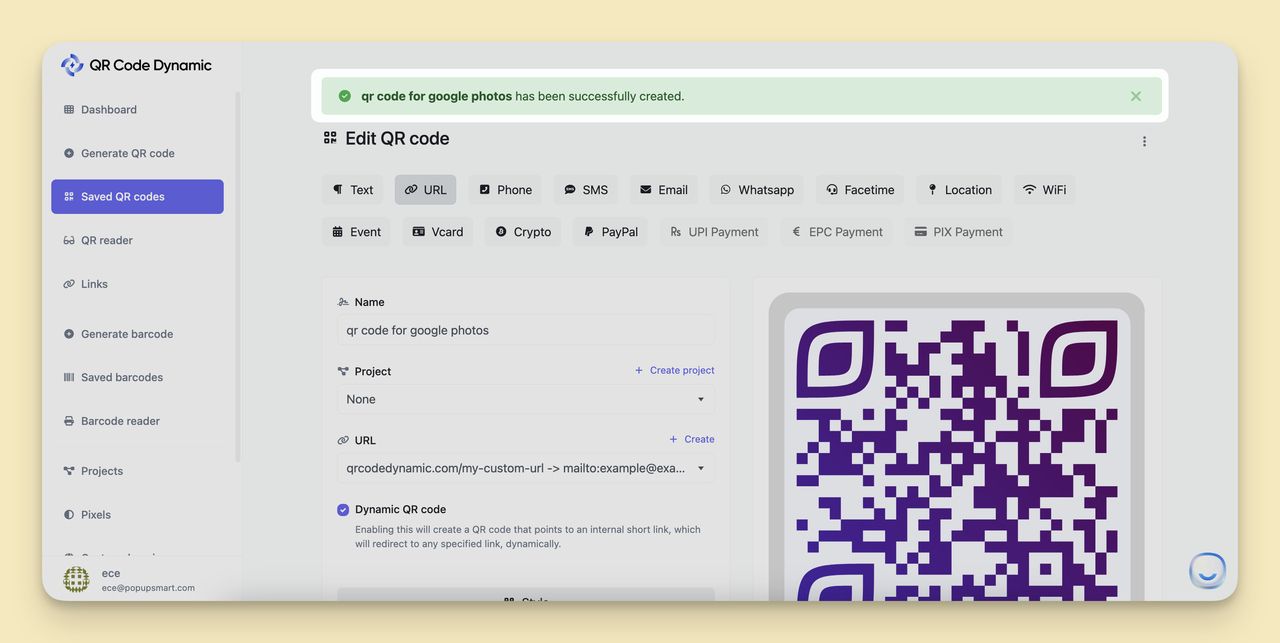
Watch out for: testing only on the creator's phone (you're signed in with the owner account, so it always works) and scanning from an angled monitor (scanners sometimes struggle). Print a small test copy before committing.
Step 6: Download and Place the QR Code
Export in the format that fits the destination. PNG for screens and social posts. SVG or PDF for print. For small uses like business cards, stay at or above 1 inch (2.54 cm) square — any smaller and scanner cameras struggle to lock on.
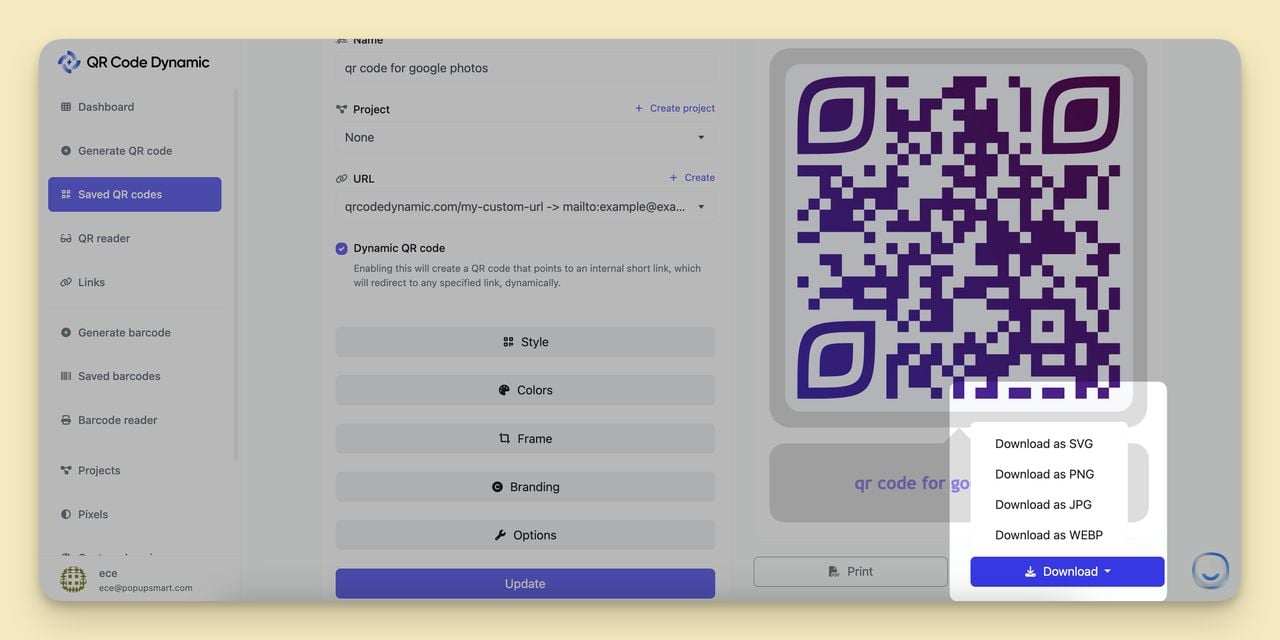
Once you've done it once, the rest is muscle memory — I can spin up a new album code in under 90 seconds.
How to Collect Guest Photos with a Google Photos QR Code
Sharing a view-only album is one direction. Flipping that around — letting guests upload into your shared album by scanning a code — is where Google Photos beats every competing platform for events. This is the piece most tutorials skip, and it's why wedding planners keep reaching for it.
The numbers back this up. No-app upload flows pull in 3 to 5 times more guest photos than apps that require a download first (Guestlense, 2026). Friction kills participation.
The setup:
- Create a new shared album. In Google Photos, tap + → Album → Shared album. Name it clearly ("Wedding — Upload your photos here").
- Turn on collaboration. Inside the album, tap the three-dot menu, then Options. Toggle Collaborate on. This switch turns a view-only album into an upload-enabled one.
- Get the collaborator link. Still in Options, tap Share → Create link. You get a URL that lets anyone both view and upload. Not the same link as a view-only share — Collaborate must be on before you copy.
- Seed the album. Add 3-5 of your own photos before the event. An empty album feels broken; a seeded one says "yes, drop yours here."
- Generate the QR code. Follow the 6 steps above with the collaborator link. Frame it with "Scan to upload your photos" — the verb matters.
- Print and place. Entrance poster, table cards, small sign near the guestbook. Put the code where guests already have their phones out.
A Yahoo Lifestyle write-up on a wedding planner's QR hack captures the payoff: "This is how we got more than 500 of our guests' photos immediately after the wedding." Five hundred photos you'd otherwise chase over text threads for weeks.
Watch out for: Testing with the owner account always works (your phone owns the album). Ask someone outside the household to test-upload a week before. And skip vague CTAs — "Scan here" gets ignored. "Scan to upload your photos" works.
QR Codes for Weddings, Parties, and Events
The upload flow works. The poster you print it on is what drives scan rates. Event codes live or die on placement, sign copy, and size — not on the QR itself.
Sign copy, from weakest to strongest:
- Weak: "Scan here." No context, no verb.
- Better: "Scan to view our wedding album."
- Best for guest uploads: "Share your photos with us — scan to upload yours to our album." Clear verb, clear outcome.
Placement tips from events I've designed codes for:
- Entrance poster: One large code (at least 6 inches / 15 cm square) with short copy. Guests scan on arrival and the album stays open all evening.
- Table cards: Smaller version (2-3 inches / 5-7.5 cm) at each table. Redundancy catches anyone who missed the entrance sign.
- Photo booth or dessert table: High-traffic zones where phones are out. A QR code seating chart pairs well — one code for seating, one next to it for photo upload.
- Thank-you cards: A follow-up code reminds guests to add late photos post-event.
Building the full wedding stack? A QR code for RSVPs pairs well with the photo upload code — same visual language, two destinations. For a walkthrough focused on the wedding use case, the QR code for wedding pictures guide covers the full pre- and post-event flow.
What to avoid: hiding the code (1-inch code on a dark card under dim lighting is decorative, not functional), skipping CTA text (a naked code is a dead code), and static codes for live events (if the album URL changes, you're reprinting).
Comparison: Google Photos vs. Other Image Hosting Platforms
Google Photos is the default pick, but not always the right one. Here's how it stacks up against the alternatives when you plan to share via QR code:
| Platform | Free Storage | Share Link Type | Dynamic-Update Friendly | Mobile App | Best For |
|---|---|---|---|---|---|
| Google Photos | 15 GB (shared across Google account) | Public link, optional contribution | Yes — add photos anytime, link stays live | iOS, Android | Events, weddings, guest uploads |
| Google Drive | 15 GB (shared with Google Photos) | Folder link, view or edit permissions | Yes | iOS, Android | Mixed files (photos + documents) |
| iCloud | 5 GB | Shared album link (web viewer) | Yes, some features need Apple ID | iOS native, limited Android web | All-Apple households |
| Dropbox | 2 GB | Folder or file share link | Yes | iOS, Android | Professional delivery, client files |
| Flickr | 1,000 photos | Album URL (public or private) | Limited — better for archival | iOS, Android | Photographers, portfolio archives |
| Imgur | Unlimited (with account) | Public album URL | Yes, but community-facing | iOS, Android | Quick public sharing |
Google Photos wins on two things: the collaborative album feature (no other mainstream option makes guest uploads this easy) and the fact that most people already have it installed. Guests don't need to create anything — that's the real lock-in. For file type flexibility (PDFs, large videos, mixed media), a QR code for a Google Drive folder fits better.
Best Practices for Creating a QR Code for Sharing Pictures
A few habits separate codes that get scanned from ones that sit untouched.
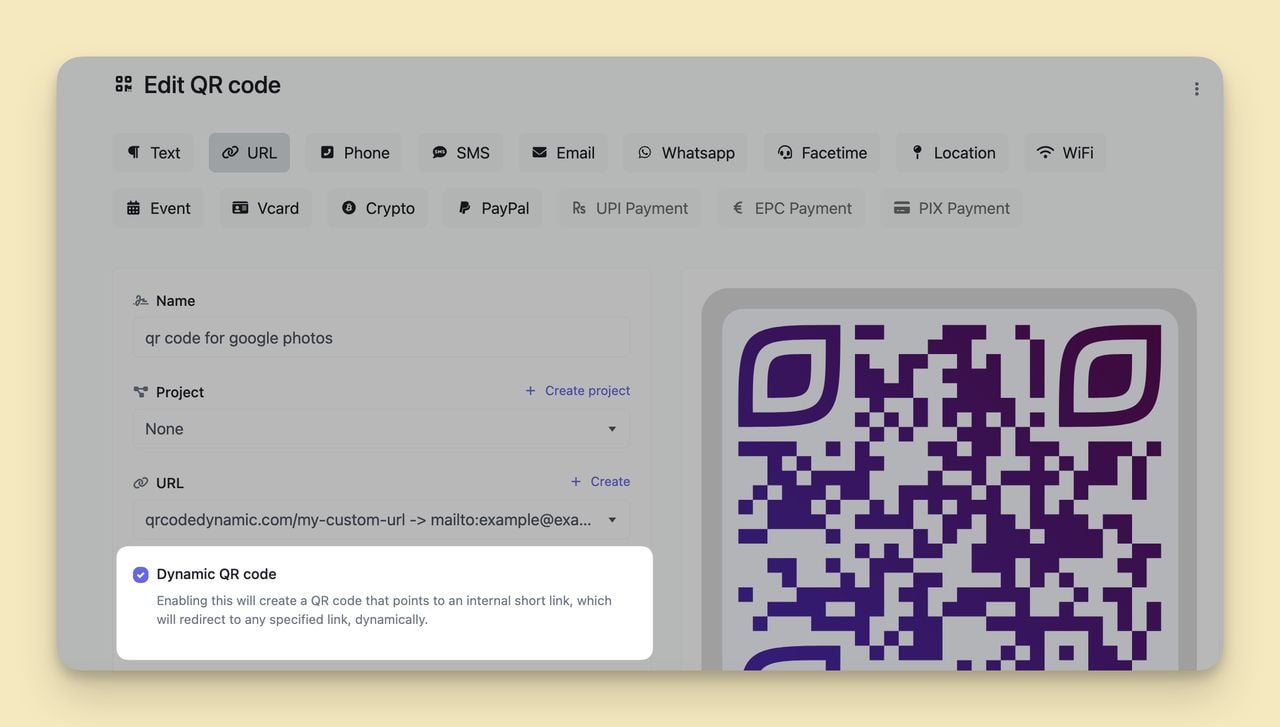
Default to dynamic codes. Static codes bake the URL into the pattern — change your mind and you reprint. Dynamic codes redirect through a short URL, so the same physical code can point anywhere later.
Design for contrast. Dark foreground on light background. Inverted codes (light on dark) fail on roughly a third of scanner apps.
Add a logo — the biggest single lift. Only 17.5% of QR creators include a logo, even though logo-marked codes correlate with about 25% more scans (QRLynx, 2026).
Write a specific call-to-action. "Scan to see our wedding photos" beats "Scan me." Name the content, use a verb, include the payoff.
Size for scan distance. Rough rule: QR code size should be about one tenth of the scan distance. One foot needs 1.2 inches (3 cm). Across a room needs 6 inches (15 cm) or more.
Test on two phones. Different camera apps, different scanners, different cached logins. Ask someone else to scan it before print.
Protect the private stuff. Anyone who scans gets the album. For sensitive photos, keep scope tight, rotate the link post-event, or use dynamic code access controls to expire the destination.
How to Create a QR Code for Image Sharing on Image Hosting Services

The 6-step flow works for any image host with a public share link, not just Google Photos. Same pattern: upload, grab link, paste into generator, design, test, download.
Pick a Hosting Platform and Grab the Link
- iCloud for all-Apple households.
- OneDrive for Microsoft 365 users who want password protection.
- Amazon Photos for Prime members who want unlimited full-res storage.
- Imgur for fast public sharing.
- Flickr for photographers who want tagging and licensing.
- Dropbox for client deliverables and folder workflows.
Every platform has a "Share" or "Copy link" button. Set permissions to Anyone with the link for public QR use, and test the link in an incognito window before you QR-ify it. From there, paste into QR Code Dynamic and follow the customize-test-download flow from Step 3 above.
Google Photos Sharing Changes You Should Know (2024-2025 Update)
Google ships updates to Photos sharing quietly. A few affect how album QR codes behave — all confirmed in Google's support docs.
Shared album size limits. Shared albums cap at a fixed number of items and collaborators. Hitting the cap silently stops new uploads — guests see a vague error. For large events, split into two albums ("Reception" and "Ceremony") instead of pushing one past its limit.
Link revocation. The owner can revoke a share link anytime from Options → Share. A dynamic QR paired with a revoked link still scans but lands on a "link no longer available" page. If you revoke, swap the destination in your QR dashboard or generate a new link and update the dynamic code.
Collaborator controls. The Collaborate toggle in album Options decides whether scanners upload or only view. Turning it off mid-event locks the album to read-only without changing the share URL — handy once photo collection closes but guests still want to browse.
Comments and likes. A separate toggle controls whether guests can comment or like photos. Off by default in some newer app versions.
None break the core QR-to-album flow, but all four affect what guests see after scanning. Check Options the day before an event — five seconds of toggling beats explaining errors over text during the reception.
Final Viewpoint
QR codes turn Google Photos from a shared-folder tool into something that works for real-world events. The 6-step flow takes under five minutes, the collaborative-album setup turns one-way sharing into two-way collection, and dynamic codes mean you're never reprinting a poster because an album name changed.
One pattern from the broader QR market worth noting: a 2026 QRLynx creator behavior report found that 65.8% of QR creators build exactly one code and never make another. Most people hit their use case and leave. Fair enough — but if you're making codes for a wedding, a launch event, or a photography client, the marginal cost of the second and tenth code is almost nothing once you know the flow. The first takes five minutes; the tenth takes ninety seconds.
Start with an album you already have. Make the code today, test it on a friend's phone, and have it ready before the event instead of scrambling the morning of.
Frequently Asked Questions
Can you get a QR code for Google Photos?
Yes. Google Photos doesn't generate QR codes natively, but any URL-based QR generator accepts the share link from an album or photo. Open the album, tap Share → Create link, paste into a generator like QR Code Dynamic, customize, and download. The code points straight to your album when scanned.
How to create a QR code for Google Photos on Android?
Open the Google Photos app, tap the album, tap the Share icon, then Create link. Copy it. In your mobile browser, go to qrcodedynamic.com, sign in, choose URL QR Code, paste the link, and download the finished code to your phone's gallery. No desktop needed.
Can QR codes update automatically for Google Photos albums?
Yes, with a dynamic QR code. A dynamic code stores a short redirect URL that you control, with the album link behind the redirect. Add or remove photos and the code keeps working. To point the code at a different album entirely, log into your dashboard and change the destination URL. The printed code stays the same.
If Google Photos changes, will my QR code stop working?
Dynamic QR codes keep working as long as the underlying album share link is live. If Google changes the share URL format, you update the destination URL in your dashboard once — the printed code is fine. Static codes are less forgiving: if the encoded URL changes, you need a new code.
Explore our other blog posts:

I work as a Growth Marketer at Popupsmart, using my 3+ years of SaaS experience to create clear, useful marketing content that helps brands grow, reach the right audiences, and improve their results.