How to Create a QR Code for Zoom Meeting

On this page
- What Is a QR Code for Zoom Meeting?
- Why Use a QR Code for a Zoom Meeting?
- How to Create a QR Code for a Zoom Meeting with QR Code Dynamic
- Step 1: Schedule or Open Your Zoom Meeting
- Step 2: Copy Your Zoom Meeting Link
- Step 3: Open QR Code Dynamic
- Step 4: Paste Your Zoom Meeting URL
- Step 5: Customize Your Zoom QR Code
- Step 6: Test, Download, and Share Your Zoom Meeting QR Code
- Static vs. Dynamic QR Code for Zoom Meeting: Which One Should You Use?
- Where Can You Use a Zoom Meeting QR Code?
- Conclusion
- Frequently Asked Questions
A QR code for Zoom meeting lets people scan a code and join your Zoom call without manually typing or copying a long invite link. In my experience as an SEO content writer, this is one of those small details that makes online meetings feel smoother, especially when the invite is shared on flyer QR codes, posters, slides, classrooms, event pages, or printed materials. So, if you want to learn how to create a QR code for a Zoom meeting without making the process feel technical, keep reading. I’ll walk you through it step by step. 🙂
What Is a QR Code for Zoom Meeting?
A QR code for Zoom meeting is a scannable code that opens your Zoom meeting link when someone scans it with their phone camera. Instead of asking people to copy a long URL, search through their inbox, or type a meeting ID by hand, you give them one simple action: scan and join.
Technically, the QR code stores your Zoom invite URL. When someone scans it, their phone reads the link and opens the meeting page, where Zoom may launch the app or let them join from a browser. Zoom also explains that an invite link can include the meeting ID and sometimes an embedded passcode, which helps participants join more quickly.
Here is the simplest way to think about it:
Regular Zoom Invite | Zoom Meeting QR Code |
People click or copy a long link | People scan a code |
Works well in emails and chats | Works well online and offline |
Easy to lose in a message thread | Easy to place on posters, slides, flyers, and handouts |
Requires more manual action | Feels faster and cleaner |
I like using a Zoom meeting QR code when the meeting invite needs to live somewhere visual: a classroom wall, an event badge, a printed agenda, a workshop slide, or even a reception desk sign. It turns the Zoom link into something people can access in the real world.
In short, when you create QR code for Zoom meeting access, you are not changing how Zoom works. You are simply making the meeting link easier to reach. And sometimes, that tiny bit of convenience is what saves people from the classic “Can you send the link again?” message. 🙂
Why Use a QR Code for a Zoom Meeting?
A Zoom link is useful, of course. But a Zoom link is not always convenient. It gets buried in inboxes. It breaks awkwardly in printed materials. It looks messy on posters. And when someone is trying to join from their phone, the last thing they want is to type a long meeting URL with tiny characters and random symbols.
A Zoom meeting QR code turns that long link into one clean scan.
Zoom’s own support documentation explains that an invite link can include the meeting ID and often an embedded passcode, which helps participants join more quickly through the link. That is exactly why turning the invite link into a QR code can make the joining experience smoother, especially for people joining from mobile.
Here is where a QR code for Zoom link feels especially useful:
Situation | Why a Zoom QR Code Helps |
Printed event flyer | People can scan instead of typing the meeting URL |
Classroom or training session | Students can join quickly from their phones |
Business card or brochure | The meeting link becomes easy to access offline |
Webinar promotion | Registration or meeting access feels more direct |
Presentation slide | Attendees can scan while watching the screen |
Reception desk sign | Visitors can join a virtual consultation or meeting fast |
From an SEO and user-experience perspective, this is the kind of small improvement I like: it does not ask people to work harder. It meets them where they already are.
And that matters because video meetings are no longer a “special” thing. They are part of daily work, education, events, sales calls, and customer support. Zoom’s 2025 video conferencing statistics also show how central video meetings have become for businesses and teams.
So when you create QR code for Zoom meeting sharing, you are really doing two things at once:
- You make your Zoom invite easier to access.
- You make the meeting experience feel more organized from the first touchpoint.
That is a tiny detail, yes. But tiny details often decide whether people actually show up on time. 🙂
How to Create a QR Code for a Zoom Meeting with QR Code Dynamic
Creating a QR code for Zoom meeting access with QR Code Dynamic is pretty simple. You do not need to touch code, use the Zoom API, or do anything overly technical.
All you need is your Zoom meeting link and QR Code Dynamic’s URL QR Code generator.
Before we get into the steps, here is the whole process in one glance:
Step | What You Do | Why It Matters |
1 | Schedule or open your Zoom meeting | You need the correct Zoom invite link first |
2 | Copy your Zoom meeting link | This is the URL your QR code will open |
3 | Open QR Code Dynamic | You will use it to generate your Zoom QR code |
4 | Paste the Zoom URL | The QR code needs a destination |
5 | Customize your QR code | Branding makes the code clearer and more trustworthy |
6 | Test, download, and share | A working QR code saves everyone from confusion |
Now let’s walk through it properly. 👇
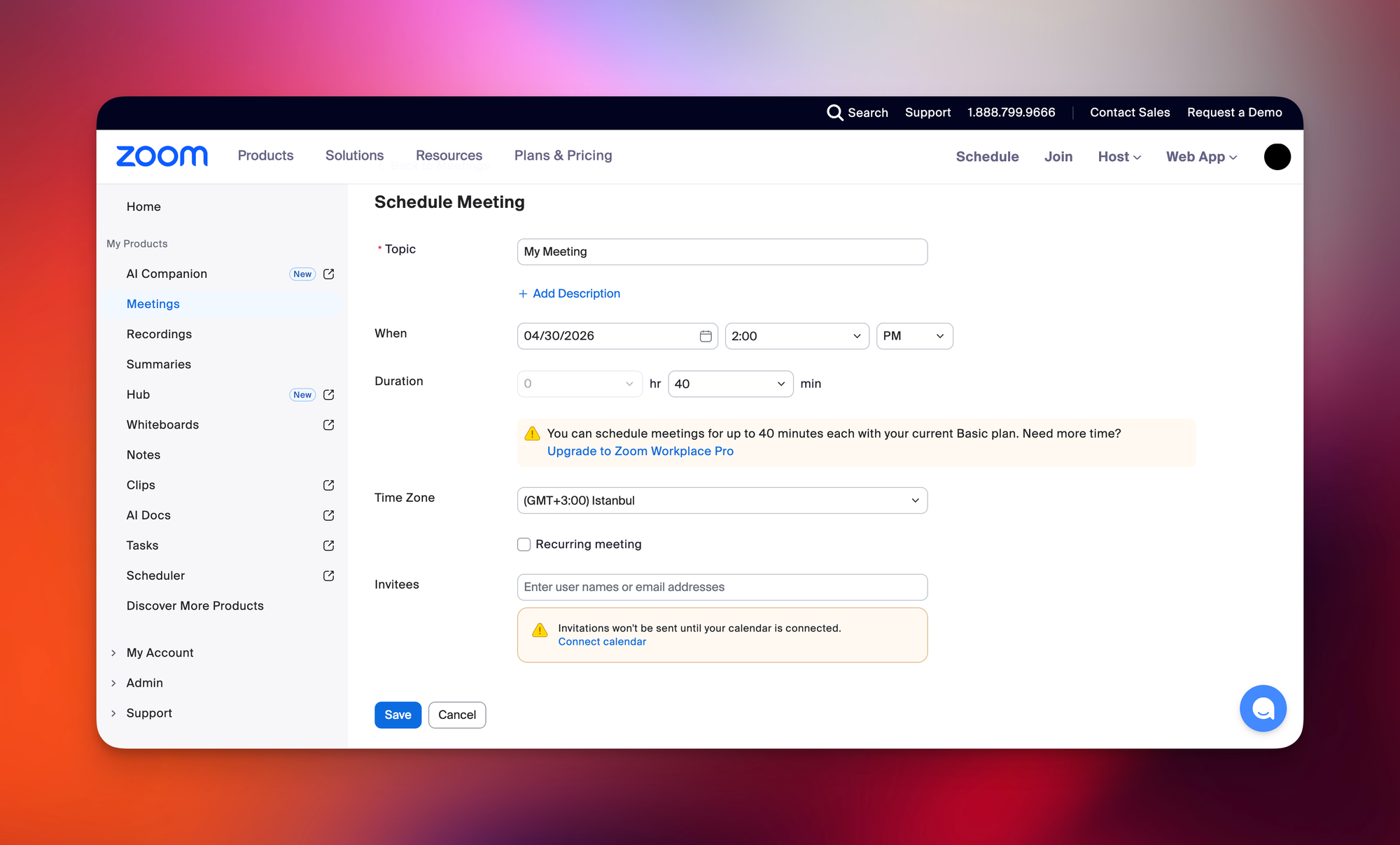
Step 1: Schedule or Open Your Zoom Meeting
First, create your meeting in Zoom as you normally would. You can schedule a new meeting or use an existing one.
Once the meeting is ready, go to the meeting details and copy the invitation link. This is the link people will use to join your meeting.
I recommend checking your meeting settings here too, especially if your meeting uses a passcode or waiting room. Since the QR code will send people to your Zoom invite link, you want that link and the joining settings to be correct before you create the code.
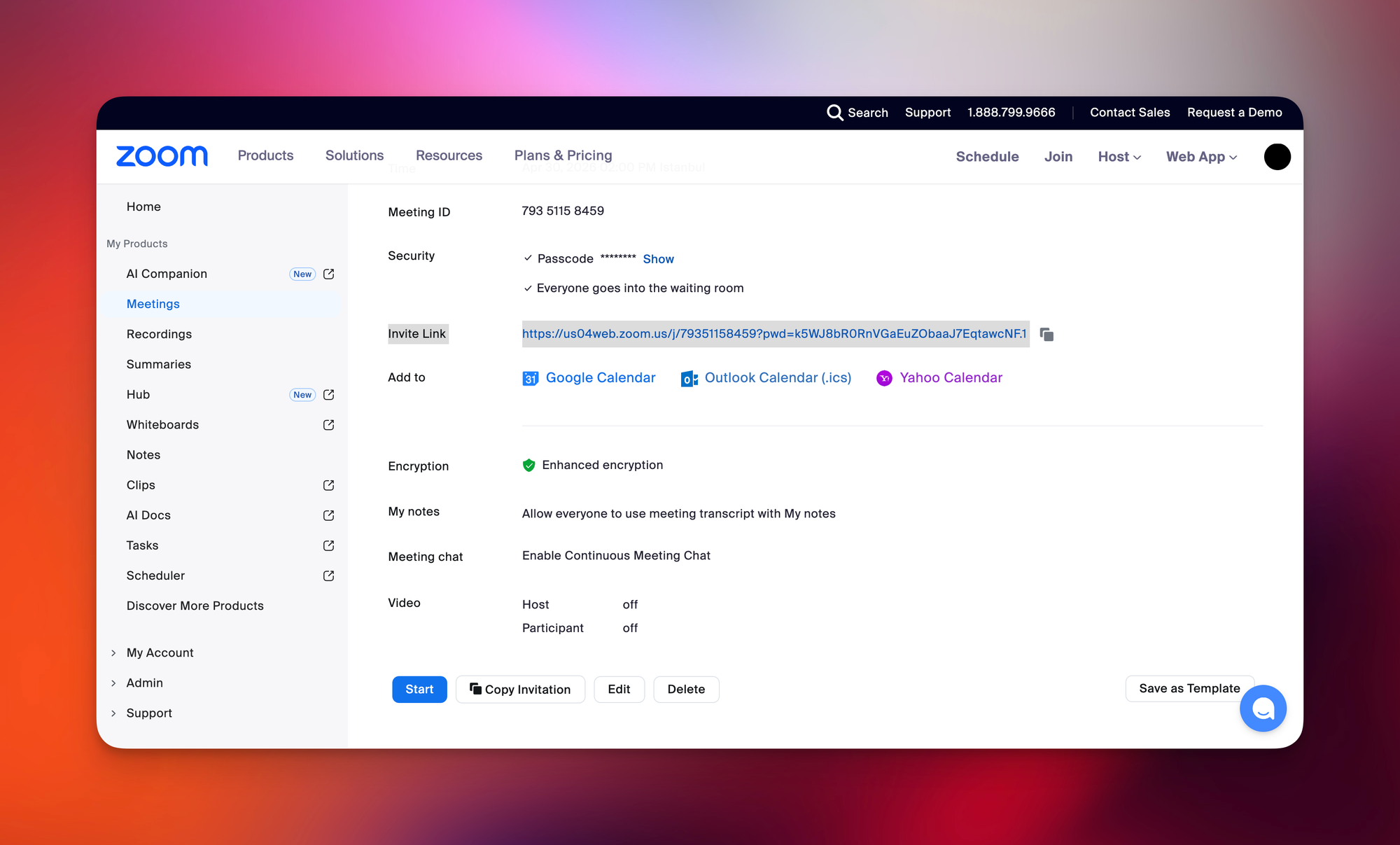
Step 2: Copy Your Zoom Meeting Link
Next, copy the full Zoom invite link.
This is the link you will turn into a Zoom meeting QR code with QR Code Dynamic. In most cases, it is better to use the full invite URL instead of only the meeting ID.
That way, when someone scans your QR code for Zoom link, they land directly on the right Zoom joining page.
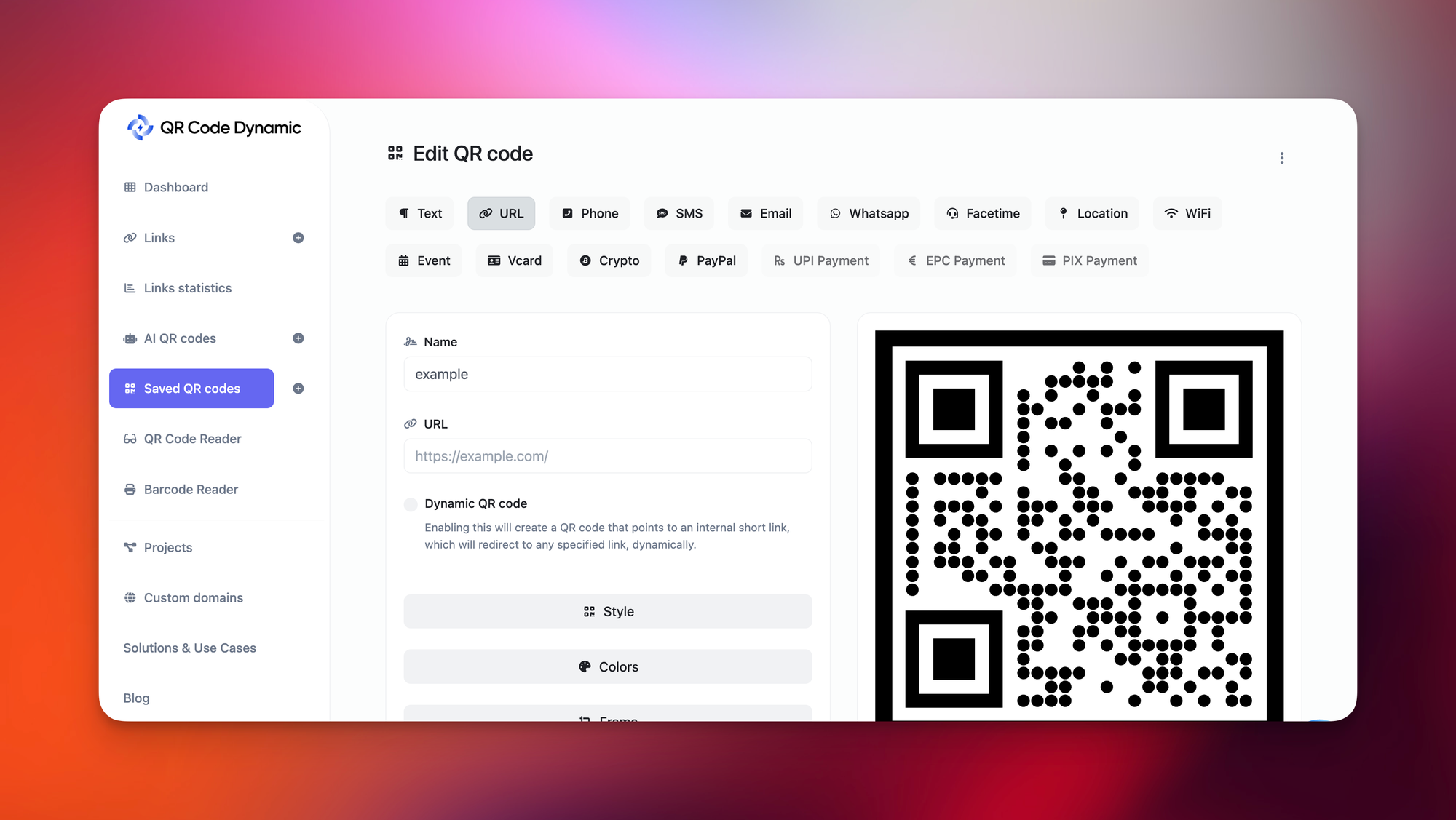
Step 3: Open QR Code Dynamic
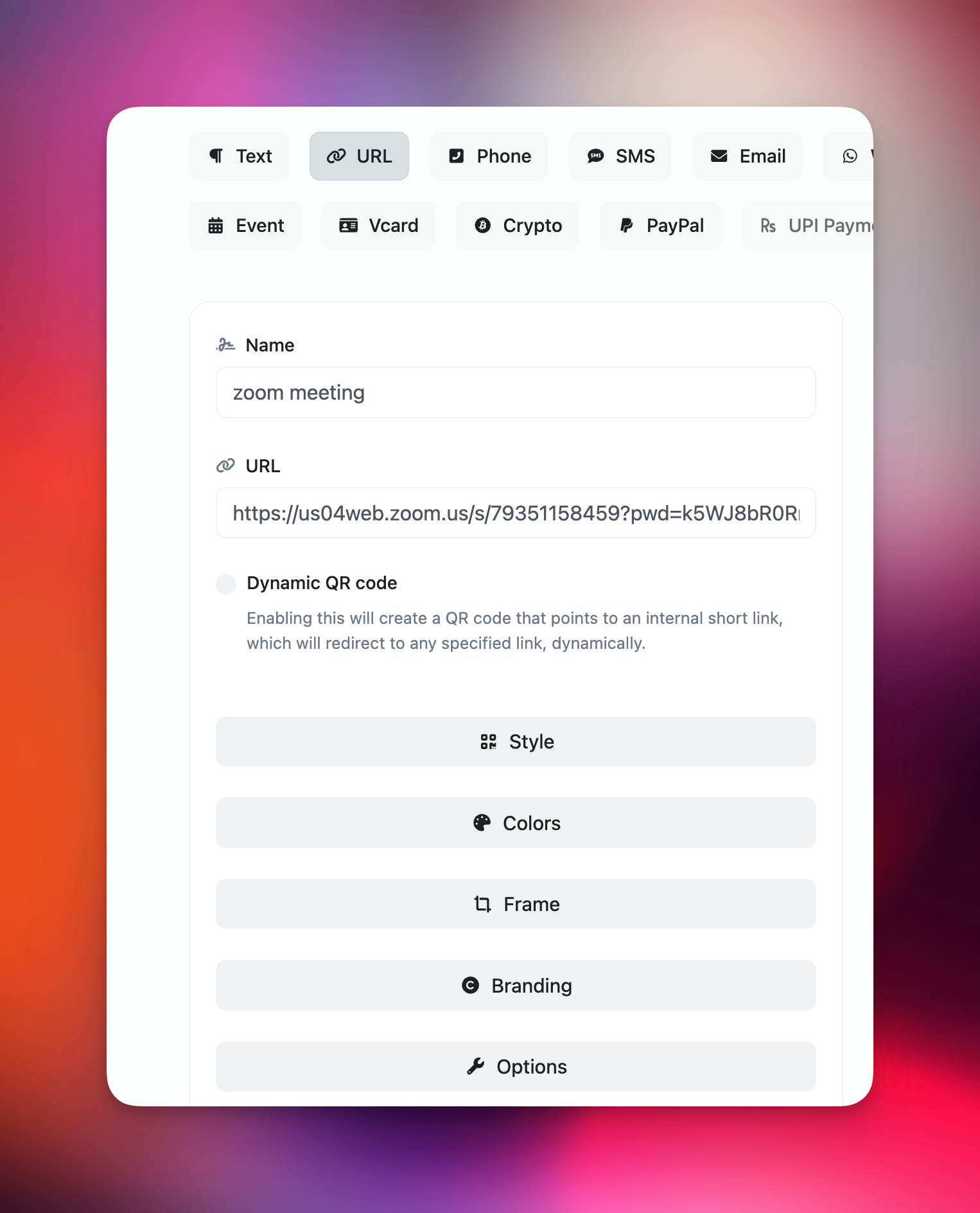
Now go to QR Code Dynamic and choose the URL QR Code option.
Since a Zoom meeting invite is a URL, this is the simplest way to create a scannable Zoom meeting code. You do not need a special Zoom integration for this. The QR code simply opens the meeting link when someone scans it.
This makes QR Code Dynamic a practical QR code generator for Zoom meeting sharing, especially if you want to use the QR code on flyers, posters, slides, classroom materials, or event pages.
Step 4: Paste Your Zoom Meeting URL
Paste your Zoom meeting link into the URL field.
At this point, QR Code Dynamic will use your Zoom URL as the scan destination. So when someone scans the code, their phone reads the URL and opens the Zoom meeting page.
This is the heart of the process. When people ask how to create QR code for Zoom meeting access, this is really what they need to do: place the Zoom invite link inside a scannable QR code.
Step 5: Customize Your Zoom QR Code
This step is optional, but I almost always recommend it.
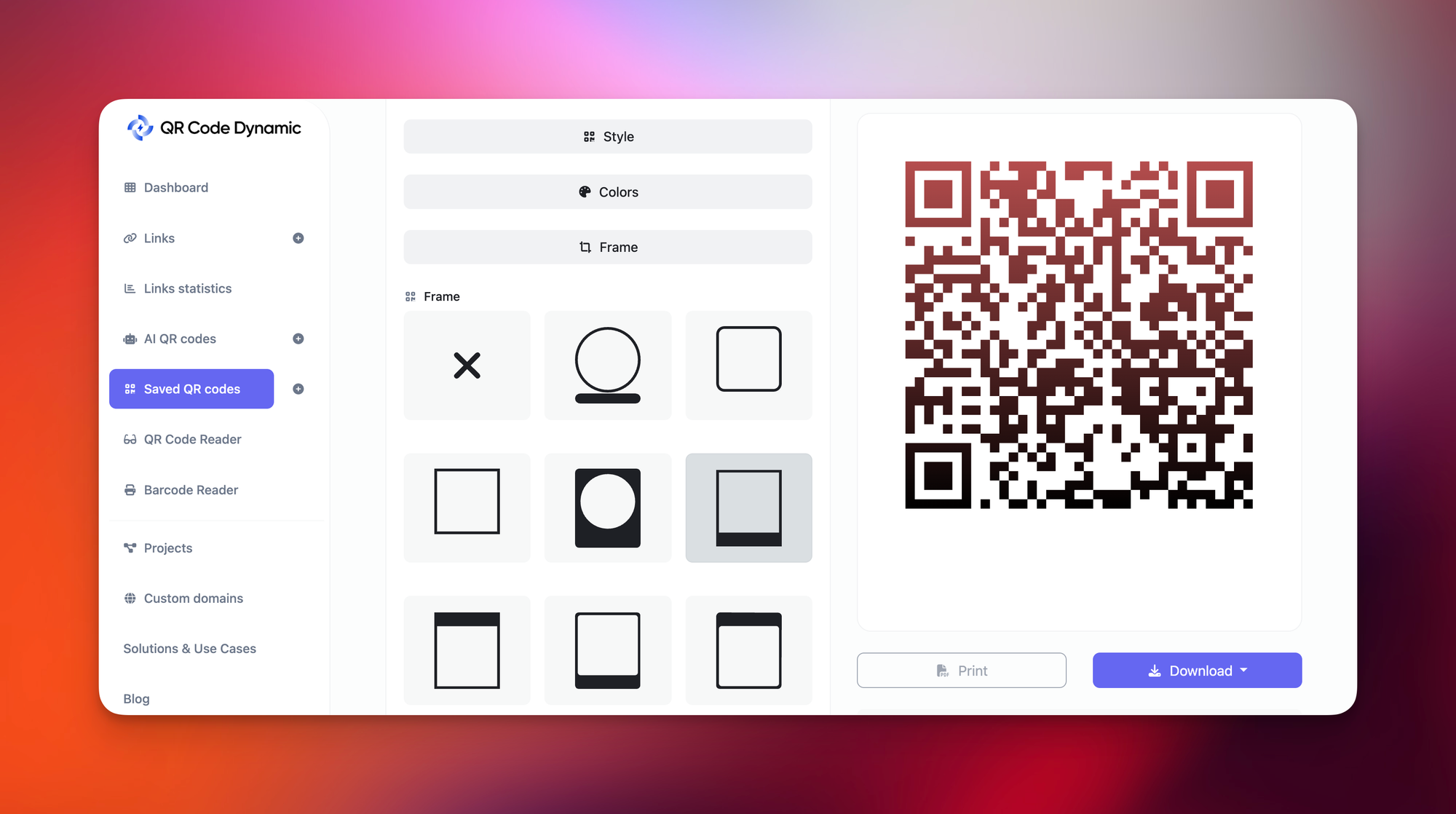
With QR Code Dynamic, you can customize your QR code so it looks more intentional and easier to understand. A plain black-and-white QR code works, but a branded one can feel more polished, especially for events, webinars, classes, or business meetings.
You can customize elements like:
- Colors
- Shape
- Frame
- Logo
- Background
- Call-to-action text
For example, you can add a simple frame or CTA such as “Scan to Join the Zoom Meeting”. That small line of text helps people know exactly what will happen when they scan the code.
Here is a simple customization guide:
QR Code Element | Best Practice |
Color | Keep strong contrast between the code and background |
Logo | Add a small logo if it does not affect scannability |
CTA | Use a clear line like “Scan to Join Zoom Meeting” |
Size | Make it large enough for where it will be used |
Format | Use a high-quality format for print or digital sharing |
My rule is simple: make it look good, but keep it easy to scan. A QR code can be stylish, but it still has one main job.
Step 6: Test, Download, and Share Your Zoom Meeting QR Code
Before you share your QR code, test it.
Scan it with your phone and check:
- Does it open the correct Zoom meeting?
- Does the link work on mobile?
- Does it ask for a passcode?
- Is the QR code easy to scan from a normal distance?
- Does it still work after you place it in your design?
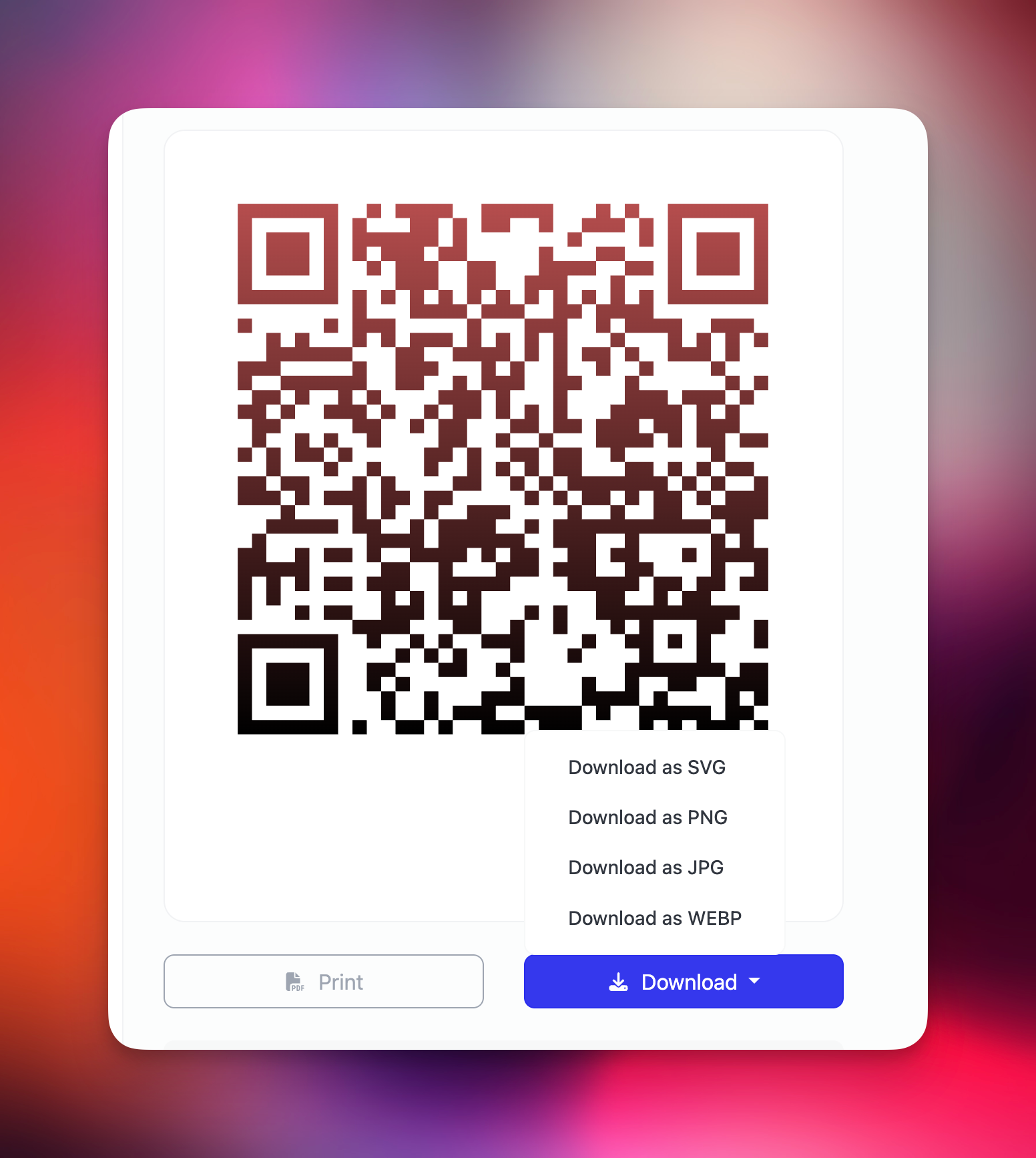
Once everything looks good, download your Zoom meeting QR code from QR Code Dynamic and add it wherever people need it.
You can place it on:
- Event flyers
- Webinar slides
- Email graphics
- Posters
- Printed agendas
- Classroom materials
- Business cards
- Landing pages
And that is it. You have created a QR code for Zoom meeting access with QR Code Dynamic. Copy the Zoom link, generate the QR code, customize it, test it, and share it where your audience will actually see it.
Static vs. Dynamic QR Code for Zoom Meeting: Which One Should You Use?
When you create a QR code for Zoom meeting access, you will usually see two options: static and dynamic QR codes.
They may look almost the same after download, but they behave very differently. And this part matters more than many people think.
A static QR code stores your Zoom meeting URL directly inside the code. Once you create and download it, you cannot edit the destination later. So if your Zoom meeting link changes, the old QR code will keep sending people to the old link.
A dynamic QR code, on the other hand, lets you update the destination URL after the QR code has already been created. That means you can change the Zoom link without reprinting the QR code.
Here is the easiest way to compare them:
QR Code Type | Best For | Can You Edit the Link Later? | Good for Printed Materials? |
Static QR code | One-time Zoom meetings | No | Risky if details change |
Dynamic QR code | Recurring meetings, webinars, events, trainings | Yes | Yes |
Static QR code | Quick internal calls | No | Only if you are 100% sure |
Dynamic QR code | Posters, brochures, classroom signs, event flyers | Yes | Strong choice |
In my experience, static QR codes are fine when the meeting is simple, temporary, and low-risk.
For example, if you are creating a QR code for a one-time internal Zoom call and you will only share it in a small group chat, static can work.
But if the QR code is going on anything printed, public, or long-term, I would choose a dynamic QR code. No drama. No reprinting. No “Oops, wrong link” moment.
A dynamic QR code is especially useful when:
- The Zoom meeting link may change later
- You are creating a QR code for a recurring Zoom meeting
- The code will be used on printed materials
- You want to update the destination without redesigning everything
- You want a cleaner workflow for events, classes, or webinars
I usually think of it like this: static is simpler, dynamic is safer.
So, when someone asks me whether they should use a static or dynamic QR code for Zoom link sharing, my answer depends on the use case. For a quick one-time meeting, static is enough. For anything important, public, recurring, or printed, dynamic is the better choice.
Where Can You Use a Zoom Meeting QR Code?
You can use a Zoom meeting QR code almost anywhere people need quick access to your online meeting. That is what makes it useful: it connects offline attention with an online meeting room.
In my experience, this works best when the QR code is placed somewhere people already pause, read, or wait. A random QR code in a crowded design can be ignored. A clear QR code with a simple CTA can do the opposite.
Here are a few practical places to use a QR code for Zoom meeting access:
Placement | How to Use It |
Event flyers | Add a “Scan to Join the Zoom Meeting” code for virtual attendees |
Posters | Place the code near the date, time, and meeting title |
Presentation slides | Let viewers scan the Zoom link during a live or hybrid session |
Classroom materials | Help students join online lessons without searching for links |
Training handouts | Make remote workshop access easier for participants |
Business cards | Let prospects scan to join a scheduled consultation or demo |
Email graphics | Add a QR code for mobile users who prefer scanning |
Office signs | Direct visitors to virtual appointments, interviews, or support calls |
Webinar landing pages | Give people another fast way to open the meeting link |
I would especially recommend a QR code for Zoom link sharing when the meeting is connected to a real-world action. Think: someone sees a poster, attends a workshop, picks up a handout, or watches a slide on a screen. In those moments, scanning feels more natural than typing.
A simple CTA helps a lot here too:
- Scan to join the Zoom meeting
- Scan for the live session
- Join the webinar here
- Scan to enter the online class
- Open the virtual meeting
One small design note from me: do not hide the QR code in the corner like a shy footnote. Give it breathing room, enough contrast, and a short line of context. The code should feel like a door, not a decoration.
Conclusion
A QR code for Zoom meeting is a small detail that can make the whole joining process feel easier. Instead of asking people to copy a long link, search their inbox, or type meeting details by hand, you simply give them a code they can scan.
If you want to create QR code for Zoom meeting sharing, the process is simple: copy your Zoom invite link, paste it into a reliable QR code generator for Zoom meeting, customize it if needed, and test it before sharing.
I like this because it is practical, not flashy. It helps people get where they need to go with less friction. And honestly, that is what a good meeting invite should do. 🙂
Frequently Asked Questions
Can I use the same QR code if my Zoom meeting time changes?
Yes, if the Zoom meeting link stays the same. The QR code points to the meeting URL, not the meeting time itself. But if you create a new Zoom meeting with a new link, you’ll need to update the QR code or use a dynamic QR code.
Is it safe to share a Zoom meeting QR code publicly?
It depends on the meeting. If the QR code is on a public flyer, poster, or social media post, anyone who scans it may be able to access the meeting link. I’d recommend using Zoom security settings like a waiting room, passcode, or authenticated participants for more controlled access.
Can I add a Zoom QR code to printed materials?
Yes, and that is actually one of the best use cases. You can add a QR code for Zoom meeting access to flyers, classroom handouts, event posters, brochures, and printed agendas. Just test the code before printing and make sure it is large enough to scan easily.
What should the CTA near my Zoom QR code say?
Keep it simple and clear. Something like “Scan to Join the Zoom Meeting”, “Scan for the Live Session”, or “Join the Zoom Meeting Here” works well. A QR code without context can feel vague, so a short CTA helps people know exactly what will happen when they scan it.

I work as a Growth Marketer at Popupsmart, using my 3+ years of SaaS experience to create clear, useful marketing content that helps brands grow, reach the right audiences, and improve their results.