How to Make a QR Code for Google Docs in 2026 (3 Methods)

On this page
- What Is a Google Docs QR Code?
- Why Use a QR Code for Google Docs in 2026?
- Before You Start: Share the Doc Properly
- Method 1: Use a Dynamic QR Generator (Recommended)
- Step 1: Open the Doc and Copy the Share Link
- Step 2: Open a Dynamic QR Generator
- Step 3: Paste the URL and Pick the QR Code Type
- Step 4: Customize Colors, Add a Logo, Generate
- Step 5: Download and Place Where Readers Will Scan
- Method 2: Use Chrome's Built-In QR Generator
- Step 1: Open the Doc in Chrome
- Step 2: Click the Share Icon or Right-Click the Page
- Step 3: Download the PNG
- Method 3: Make a QR Code on a Chromebook
- Best Practices for Google Docs QR Codes
- Common Use Cases for Google Docs QR Codes
- Classroom Worksheets and Handouts
- Team Handbooks and Onboarding Docs
- Event Briefs and Agendas
- Restaurant SOPs and Training Docs
- Real Estate Disclosure Docs
- Conference Papers and Reference Docs
- Mistakes to Avoid While Creating a QR Code for Google Docs
- FAQs About QR Codes for Google Docs
- How do you share Google Docs via QR code?
- How do you get a QR code for a Google Doc form?
- How do you make a QR code for a Google Doc on a Chromebook?
- Is there a free QR code for Google Docs?
- What is a Google Docs QR code and how does it work?
- Pick the Method That Matches Your Sharing Workflow
To make a QR code for Google Docs, set sharing to "Anyone with the link can view," copy the URL, then paste it into a dynamic QR generator like QR Code Dynamic or use Chrome's built-in QR tool. Dynamic codes let you edit the destination and track scans; Chrome's static code is free and instant.
What Is a Google Docs QR Code?
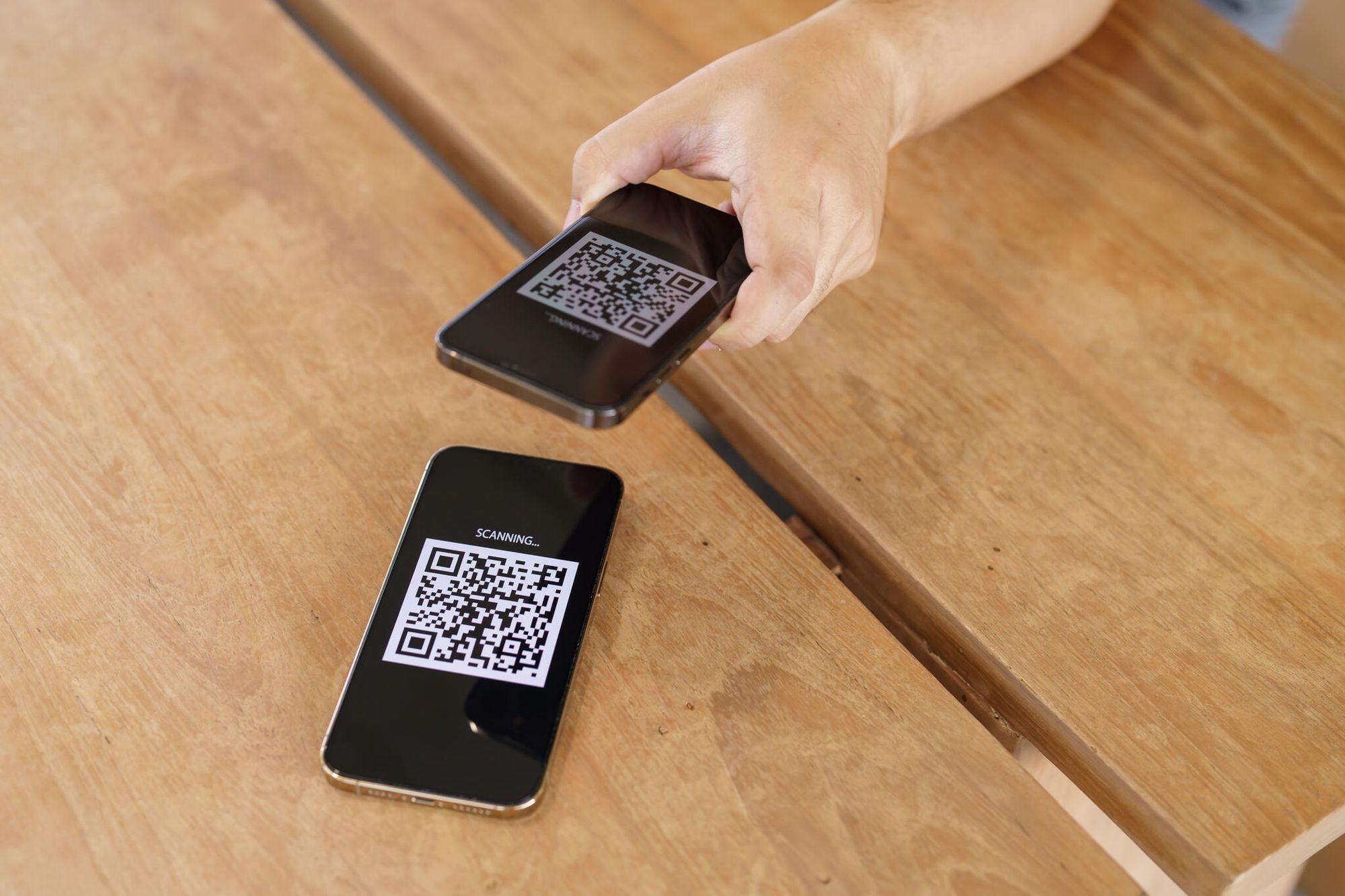
A Google Docs QR code is a scannable square that decodes into your document's share URL. Point a phone camera at it, and the doc opens in a browser or the Docs app — no typing, no copy-paste, no "what's the link again?" exchange in a group chat.
The QR itself doesn't store the document. It stores the URL. That distinction matters because the way you generate the code decides whether you can change the destination later.
Two flavors exist. A static QR code bakes the URL into the pattern, so the pixels themselves point straight at one Google Doc URL forever. A dynamic QR code points at a short redirect URL that you control — change the redirect target in your QR dashboard, and every printed code instantly resolves to the new doc.
Why Use a QR Code for Google Docs in 2026?
Google Docs has become the default writing surface for hybrid teams, classrooms, and client work. When the doc is the deliverable, the share link becomes the bottleneck — and that's where a QR code earns its keep.
The platform's footprint is large enough that almost any audience you print for has a Google account. According to Landbase, 213,349 verified companies use Google Docs as of 2026, spanning company sizes, industries, and geographies. If you ship a worksheet or onboarding sheet, your readers almost certainly know how to open it.
Inside the document collaboration market, Docs has pulled ahead. According to SQ Magazine, Google Docs holds 58.9% of total active document collaboration usage. That majority is what makes Docs an actual standard, not a niche tool.
Frequency is the bigger signal for QR sharing, though. According to ElectroIQ, 87% of Google's productivity users work on at least one shared document every week. Weekly sharing means weekly opportunities for friction: forgotten links, mistyped URLs, broken email forwards. A QR sidesteps all of it.
And the habit is sticky for new hires. A study cited by ResearchGate shows the share of new employees collaborating on Google Docs each month climbed from 70% to 90%. New hires are exactly the audience that benefits from a QR on a printed onboarding packet.
Before You Start: Share the Doc Properly
This is the step almost everyone skips, and it's the one that produces the dreaded "You need access" wall when someone scans your beautifully designed QR.
Open the doc, click Share in the top right, and under "General access" switch the setting from "Restricted" to Anyone with the link. Then pick the role that matches how you want scanners to interact:
- Viewer — read-only. The right choice for handbooks, briefs, agendas, syllabi, public-facing documents.
- Commenter — can add comments and suggestions but can't edit the doc itself. Useful for feedback rounds.
- Editor — anyone who scans can rewrite your doc. Almost never the right answer for a QR, because the QR could end up on a wall, in a deck, or screenshotted by a stranger.
For 95% of QR distributions, Anyone with the link → Viewer is the safe default. Copy the link from the same dialog. That URL is what goes into the QR generator.
Method 1: Use a Dynamic QR Generator (Recommended)
This is the path I recommend whenever the QR will live longer than a single day or touch any printed material. A dynamic generator gives you an editable destination and scan analytics — two features Chrome's built-in tool can't match.
Step 1: Open the Doc and Copy the Share Link
From inside the document, click Share → confirm the access setting (Anyone with the link, Viewer) → click Copy link. The link looks like https://docs.google.com/document/d/[long-id]/edit?usp=sharing. Leave the ?usp=sharing tail attached. Don't strip it.
You'll know it's working when: opening that URL in an incognito tab loads the doc without an access prompt.
Step 2: Open a Dynamic QR Generator
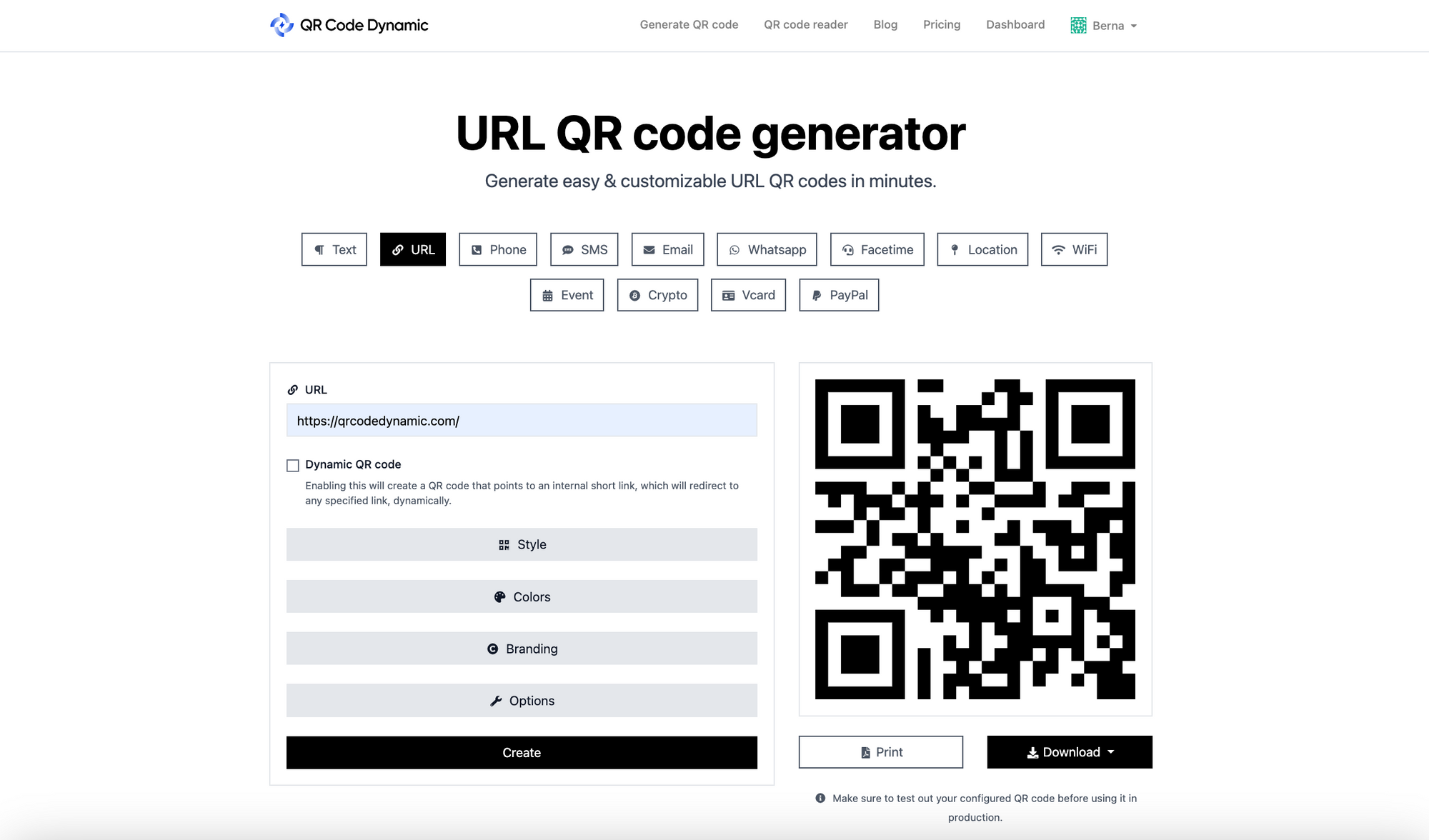
Head to QR Code Dynamic and sign in. The free tier is enough to create your first code, customize it, and see scan counts. The platform handles both static and dynamic QRs, but for a Google Doc the dynamic option is the one you want.
Step 3: Paste the URL and Pick the QR Code Type
Select the URL QR code type from the type list. Paste the Google Doc share link into the destination URL field. Give the code an internal name like "Q2 Handbook — print poster" so you can find it later when you have 30 codes in your dashboard. Set the QR type to Dynamic.
Watch out for:
- Pasting an "Edit" link instead of "Share" link: if you copied the URL from the browser bar, it may end in
/editwithout the share token. Always use Share → Copy link. - Choosing static when you'll reuse the design: static codes can't be repointed. If you're not sure, pick dynamic.
Step 4: Customize Colors, Add a Logo, Generate
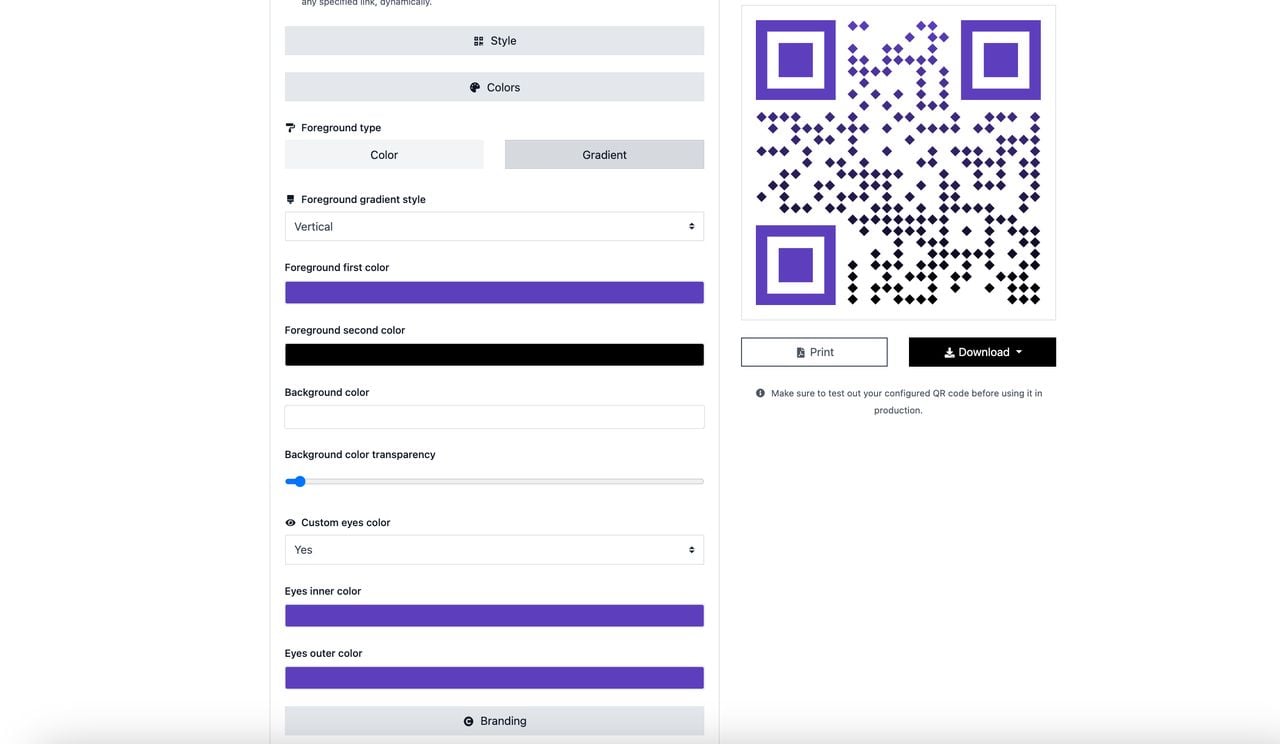
Use the design panel to set foreground/background colors, drop in your logo, and pick an eye/dot style that matches your brand. Keep contrast high — dark code on a light background scans far more reliably than a low-contrast pastel combination.
Three rules I stick to:
- Keep at least a 4:1 contrast ratio between code and background.
- Logo overlay no larger than 30% of the QR area, centered.
- Leave the four corner finder patterns (the big squares) intact and unrecolored.
Hit Generate when you're done.
Step 5: Download and Place Where Readers Will Scan
Download as PNG for digital placements (Slack, email signatures, slide decks) and SVG for anything that gets printed at size — posters, packaging, classroom handouts. SVG stays sharp at any scale.
Place the code where the scan is the obvious next action: bottom-right of a printed handout, the last slide of a deck, the inside cover of an onboarding folder. Pair it with a short label — "Scan for the syllabus" beats a naked QR every time.
Method 2: Use Chrome's Built-In QR Generator
If the doc is one-and-done — a single meeting agenda, a temporary worksheet, a shared playlist — Chrome's native QR tool is the fastest path. No account, no signup, no third-party site. The trade-off is the code is static and untrackable.
Step 1: Open the Doc in Chrome
Use desktop Chrome (the omnibar QR feature lives in the browser, not in the Docs app). Open your Google Doc as you normally would.
Step 2: Click the Share Icon or Right-Click the Page
You have two ways to trigger it:
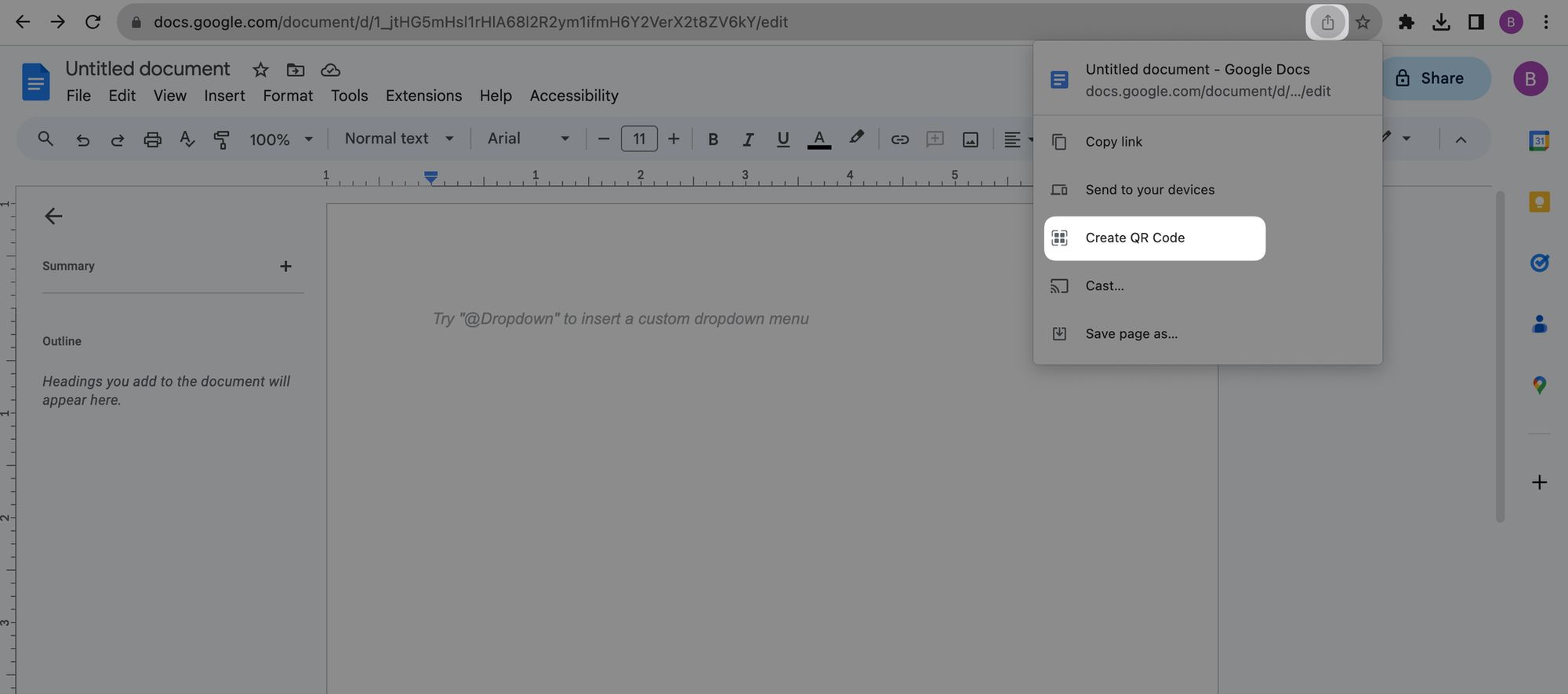
- Address bar method: click the share icon at the right end of the URL bar (it looks like an arrow leaving a box) → select Create QR code.
- Right-click method: right-click anywhere on the page → choose Create QR code for this page from the context menu.
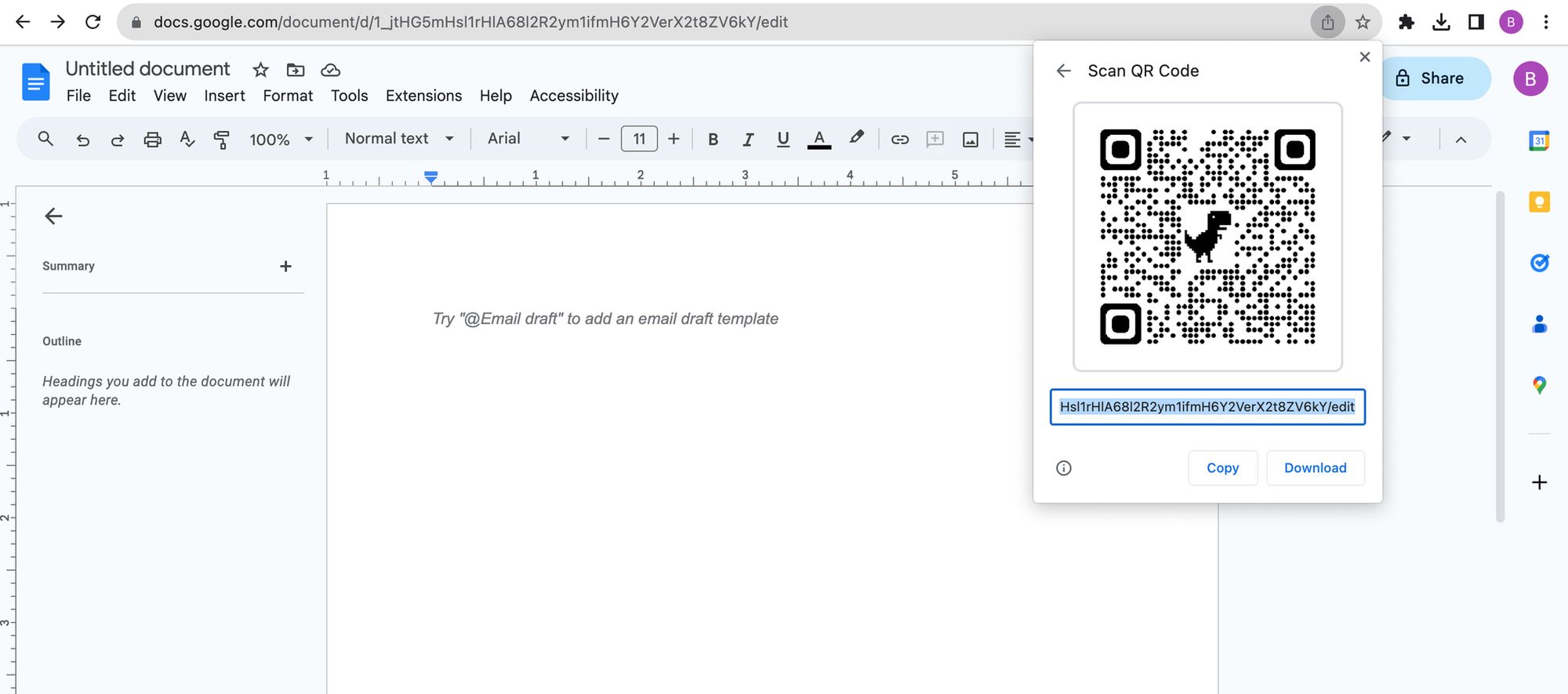
Either path opens a small panel showing the QR with the page's URL underneath.
Step 3: Download the PNG
Click Download. Chrome saves a PNG with a small dinosaur icon in the center (Chrome's mascot). The file is a few hundred kilobytes at most.
Watch out for:
- Scanning before checking permissions: Chrome generates a code for whatever URL is in the bar — including the
/editURL that requires sign-in. Switch to the share link first, or readers will hit the access prompt. - Trying to redirect later: you can't. The code is static. If the doc moves, every printed copy is dead.
This method is free and immediate, and that's the whole pitch. For everything else — multi-stop campaigns, classroom rosters that rotate weekly, anything with a budget attached — Method 1 wins.
Method 3: Make a QR Code on a Chromebook
Chromebooks run full desktop Chrome, so Method 2 works exactly the same way: address bar share icon → Create QR code → Download. There's no extra ceremony required.
One small add-on for Chromebook users in education: Google's Phone Hub (when paired with an Android phone) lets you push the QR straight to the phone for printing or scanning by another device. Open Settings → Connected devices → Phone Hub, pair once, then send the downloaded PNG via the Files-shared shelf.
For a more durable solution on classroom-managed Chromebooks, generate the QR with QR Code Dynamic instead — that way the QR survives next semester's curriculum update without a reprint.
Best Practices for Google Docs QR Codes
Most QR failures aren't generator problems. They're placement, sizing, or permissions problems. A short discipline checklist:
- Size matters more than design. Print QRs at minimum 2 x 2 cm (0.8 x 0.8 in) for hand-held scans and 10 x 10 cm for codes scanned from across a room. Bigger isn't worse; too-small is always worse.
- Keep the quiet zone. The blank margin around the code is part of the code. Leave at least four module widths of white space on every side. Don't crop in close.
- Contrast over creativity. Dark code on a light background. Inverted codes (light pattern on dark) work on some scanners and fail on others — not worth the gamble.
- Match share permissions to audience scope. Public flyer? "Anyone with the link." Internal SOP? "Anyone in your organization with the link." The QR only does what your sharing setting allows.
- Dynamic for long-lived assets, static for ephemeral ones. If the QR outlives the next quarterly review, it should be dynamic.
- Label the action. "Scan for menu," "Scan for the agenda." A naked QR sits there. A labeled QR gets scanned.
- Test on two phones before printing. iPhone Camera and Android default camera both, in normal indoor lighting. Catches 80% of issues at zero cost.
For tighter coverage on the embed side, our notes on clickable QR codes walk through keeping the QR live when it sits inside a doc or PDF instead of on a printed surface.
Common Use Cases for Google Docs QR Codes

Classroom Worksheets and Handouts
Print one master handout with a QR pointing to the Google Doc version. Students who lose the paper, type slowly, or want to read on a tablet scan instead of typing a URL. Teachers who use this pattern get a second benefit: when they update the doc — fixing a typo, adjusting a deadline, swapping in a new reading — every student who scans gets the current version, no reprint required. Our roundup of classroom QR ideas covers gallery walks, station rotations, and parent-night handoffs.
Team Handbooks and Onboarding Docs
A QR on the inside cover of a printed onboarding packet points at the living Google Doc handbook. The packet becomes a permanent reference object on the new hire's desk, and the QR keeps it tied to the current policies — not the version printed eight months ago. For onboarding docs that rotate quarterly, dynamic codes save the entire reprint cost.
Event Briefs and Agendas
Conference badges, table tents, and event programs are perfect QR real estate. A code on the agenda card points at the live Google Doc agenda — when a session swaps rooms or a speaker cancels, the doc updates and the printed cards stay valid. Attendees stop asking "where's the schedule?" because the schedule is in their camera.
Restaurant SOPs and Training Docs
Back-of-house operations run on documents nobody reads twice. Tape a QR to the prep station, the walk-in door, the bar tools shelf — each one pointing at the relevant Google Doc SOP. Staff scan to refresh a recipe or a closing checklist without flipping through a binder. When the SOP changes, the QR doesn't.
Real Estate Disclosure Docs
For-sale signs, open-house flyers, and printed brochures benefit from a QR linked to the disclosure packet or property history Google Doc. Buyers can pull the documents on-site without waiting for an email, and the agent doesn't need to forward the same PDF 40 times in a weekend. For broader document trust patterns, our piece on document verification covers the deeper compliance angle.
Conference Papers and Reference Docs
Academic posters, conference handouts, and printed reference cards often try to cram too much into too little space. A QR pointing at the full Google Doc — with footnotes, bibliography, and appendices intact — lets the printed surface stay scannable while the depth lives online. Researchers preserve the citation trail; readers get the full text on demand.
Mistakes to Avoid While Creating a QR Code for Google Docs

Five failure modes show up over and over in support threads and post-mortems:
- Wrong sharing permission. The most common one. "Restricted" sharing kills any QR distribution outside your invited list. Always switch to "Anyone with the link" before generating.
- Using static codes for docs that move. Static codes are fine for one-off briefs. They're not fine for handbooks, syllabi, menus, or anything where the URL might change. Pick dynamic from the start; you can't convert later.
- No scan tracking. If you're putting a QR in a paid campaign, on packaging, or in a print run that costs real money, you need to know whether anyone scans. Chrome's static code gives you zero data. A dynamic QR dashboard tells you scans, time of day, country, device.
- Printing too small. A 1 x 1 cm QR on a poster scanned from three meters away is unreadable. Match physical code size to scan distance — 10x rule: code width should be roughly 1/10th the scan distance.
- Confusing View with Edit. If your QR points at an "Edit" URL and shares "Editor" permission, every scanner can rewrite your doc. Lock the permission down before printing, and re-test in incognito.
FAQs About QR Codes for Google Docs
How do you share Google Docs via QR code?
Open the doc, click Share, set access to "Anyone with the link can view," and copy the share URL. Paste that URL into a dynamic generator like QR Code Dynamic or use Chrome's address-bar share icon → Create QR code. Download the file and place it anywhere your audience will scan from.
How do you get a QR code for a Google Doc form?
Google Forms (the survey tool) has its own share workflow, but the QR process is identical. In Forms, click Send → the link icon (chain) → Copy. Paste that link into your QR generator. The form opens directly in any scanner's browser. If you expect respondents from multiple campaigns, generate one dynamic QR per campaign so you can track which channel drives responses.
How do you make a QR code for a Google Doc on a Chromebook?
Chromebooks run full desktop Chrome, so the address-bar QR feature works the same as on Mac or Windows. Open the doc, click the share icon at the right end of the URL bar, choose Create QR code, then Download. For codes that need to outlast the school term, generate a dynamic QR through a web-based generator instead — the Chromebook handles it through the browser without any installation.
Is there a free QR code for Google Docs?
Yes. Chrome's built-in tool is completely free and generates an unlimited number of static codes. Dynamic QR generators usually offer a free tier covering basic features — enough to generate a code, customize it, and see scan totals. Paid plans unlock advanced analytics, more codes, and team accounts. For one-off personal use, free is enough. For a print run with budget behind it, the paid features pay for themselves on the first redirect.
What is a Google Docs QR code and how does it work?
A Google Docs QR code is a 2D barcode that encodes your document's share URL. When a phone camera scans it, the device decodes the URL and opens the doc in the default browser or Google Docs app. The QR itself is just the URL in pattern form — the document lives on Google's servers, and the QR is the shortcut to it. Whether the code is static or dynamic decides whether you can change that shortcut later.
Pick the Method That Matches Your Sharing Workflow
The decision between Chrome's native tool and a dynamic generator isn't really about features — it's about how long the QR has to live and how much you need to learn from it. One-off agenda for a 45-minute meeting? Chrome wins. Handbook QR on every new hire's onboarding folder for the next twelve months? Dynamic wins, every time.
Start with the share permission. That single setting decides whether your QR works at all. Then pick the method that matches the asset's lifespan. The rest — design, color, logo placement — is polish on top of a code that already works.
Related reading

I work as a Growth Marketer at Popupsmart, using my 3+ years of SaaS experience to create clear, useful marketing content that helps brands grow, reach the right audiences, and improve their results.