Printing QR Codes: The Complete Guide


On this page
- Why Printed QR Codes Still Drive Marketing Results in 2026
- Understanding Printing QR Codes
- How to Create a Print-Ready QR Code
- Step 1: Pick a Generator That Supports Dynamic Codes
- Step 2: Choose Your QR Type
- Step 3: Export at Print Resolution (SVG or PDF)
- Designing QR Codes for Print
- Keep Contrast High
- Respect the Quiet Zone
- Embed Logos Carefully
- Use Color With Intent, Not Decoration
- Test at Actual Print Size
- Best Printing Methods and Materials
- Digital Inkjet and Laser
- Offset Lithography
- Thermal Label Printers
- Industrial Label and Sticker Printers
- 3D-Printed QR Codes
- Substrate Matters as Much as Method
- Placement and Visibility
- Testing and Troubleshooting Your Printed QR Code
- Measuring QR Code Performance and ROI
- Dynamic URLs Are the Foundation
- UTM Parameters Connect Scans to Conversions
- Separate Codes Per Print Batch
- Retargeting and CRM Pipes
- Editable Destinations Save Reprints
- Common Mistakes to Avoid When Printing QR Codes
- Make Printed QR Codes Work for Your Next Campaign
- Frequently Asked Questions
- How do I print a QR code at home?
- What is the best paper for printing QR codes?
- How do I make sure QR codes scan after printing?
- Can I print QR codes in color?
- Can Walgreens print QR codes?
- What is the minimum size for a printed QR code?
Printing QR codes well comes down to four things: pick a dynamic QR generator, export at high resolution (SVG or PDF), design for contrast with a clean quiet zone, and test the printed sample at actual size before the full run. Get those right and a printed code scans on the first try, every time.
Why Printed QR Codes Still Drive Marketing Results in 2026
Printed QR codes are not a pandemic relic. They are a reliable, low-cost bridge between offline media and digital tracking, and the data backs that up.
According to AOL, 102.6 million Americans are expected to scan a QR code in 2026 — roughly one in three people — and QR payments alone are projected to hit $22.12 billion by 2034. Adoption keeps climbing too. Per Air Apps, QR scans surged 57% year over year across 50 countries in 2025, with more than a trillion total scans expected worldwide that year.
Hardware is following the demand. Estimates of the QR code printers market vary by scope — Yahoo Finance pegs it at $446.4 million in 2024 growing to $817.1 million by 2032, while LinkedIn analyst reports project a broader $1.2 billion to $2.5 billion trajectory by 2033 at an 8.8% CAGR. Different scopes, same direction: more brands buying machines built to print scannable codes at scale.
I've watched a beautiful flyer go to print only to find the QR code came out blurry and unreadable at arm's length. The fix wasn't a new printer — it was a print-ready export at 600 dpi and a five-minute scan test. That's the gap this guide closes.
Understanding Printing QR Codes
Printing QR codes means rendering a digital QR pattern onto a physical surface — paper, sticker, label, packaging, fabric, signage, or even a 3D object — so a smartphone camera can read it and route the user to a destination. The destination can be a URL, a Wi-Fi credential, a vCard, a PDF, a video, an app deep link, or a payment page.
The single biggest mindset shift: a printed QR code is not a static image. If you use a dynamic QR code, the picture on paper stays the same forever, but the destination you control is editable. Print once, update the link as often as you want. That's the difference between a flyer that goes stale in a month and an evergreen asset.
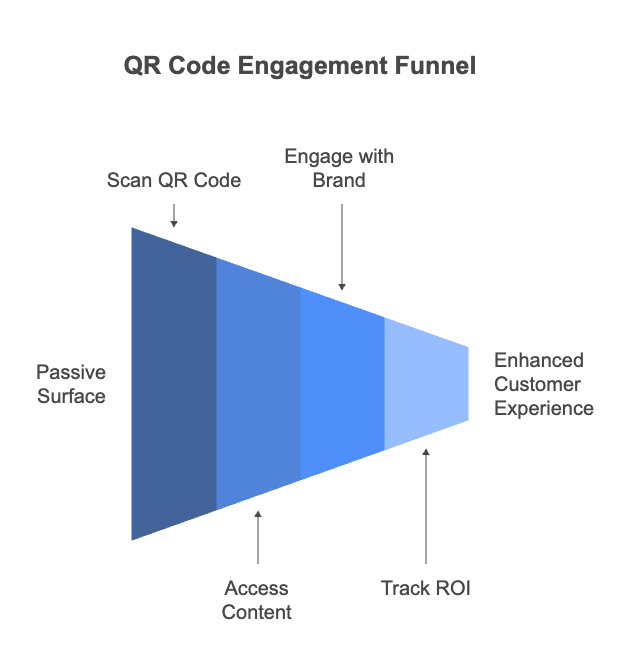
In marketing, a printed code turns a passive surface into an interactive entry point. A coffee sleeve becomes a loyalty enrollment. A trade show banner becomes a lead form. A wine label becomes a tasting-notes video. The mechanics are the same — print plus scan — but the use cases scale from solo creator to enterprise packaging line.
Three reasons growth marketers still pour budget into printed codes in 2026:
- Trackable offline ROI. Pair the code with UTM parameters and you can finally answer "did the postcard convert?" with a number, not a guess.
- Faster funnels. A scan skips the "search the brand name on Google" step. The customer lands exactly where you want them, in under three seconds.
- Editable after print. Reprints are expensive. Dynamic codes let you swap the destination after the brochure ships, the menu prints, or the billboard goes up.
If you want to see the format in action across channels, our piece on QR code advertising walks through campaign-level examples with real scan-rate numbers.
How to Create a Print-Ready QR Code
The print-ready workflow has three real steps. Pick the right generator, choose the right QR type for your use case, and export in a format your printer won't degrade. Skip any of them and you'll find out at the press, not before.
Step 1: Pick a Generator That Supports Dynamic Codes
A generator is not a "make a square" button. It dictates whether your code is editable, whether you get scan analytics, and whether the export holds up under high-volume printing.
What to actually check before you commit:
- Dynamic URL editing. Can you change the destination after the code is printed? If not, walk away. Static codes are fine for a one-off Wi-Fi sticker, not a print campaign.
- Scan analytics. Look for time, location, device type, and unique-vs-total scan breakdowns at minimum. Bonus points for UTM passthrough and CSV export.
- Print-grade exports. SVG and PDF are non-negotiable. PNG at 600 dpi or higher is the bare minimum if vector isn't an option.
- Error correction settings. Level H (30% damage tolerance) is the safe default for print — it survives scratches, ink bleed, and partial coverage by a logo.
- Pricing fit. Free tiers cover a one-off flyer. Ongoing campaigns with batch generation and API access need a paid tier — budget for it.
Watch out for: "Free forever" generators that quietly expire your code or inject their own redirect domain. The first time the redirect goes down, every printed asset stops working. Use a platform with a stable host and documented uptime — QR Code Dynamic is the one I rely on for client campaigns, but the rule applies whichever vendor you pick.
Step 2: Choose Your QR Type
"QR code" is a container, not a destination. The data you encode changes the user experience and, often, the size the code needs to be.
- URL. The default. Sends the scanner to a webpage. Use a dynamic URL for any print run you'd ever want to update.
- Wi-Fi. Encodes SSID + password. Perfect for coffee shops, hotels, and Airbnb welcome cards. Print once, never type a password aloud again.
- vCard. Saves contact details directly to the phone. Pairs well with a business card — a small footprint code on the back side beats a third-party "card scanner" app every time.
- App store deep link. Routes iOS users to the App Store and Android users to Play, automatically. Great for product packaging that points to a companion app.
- PDF or video. Useful on instruction manuals, warranty cards, and event programs. Host the file behind a dynamic URL so you can replace the asset later.
- Payment. UPI, PIX, or Venmo handles for point-of-sale signage. Different countries, different defaults — confirm the format your audience scans natively.
Encoding more data makes the code denser (more tiny modules), which forces a larger printed size to stay scannable. Keep URLs short — use a dynamic generator's short host or your own branded short domain.
Step 3: Export at Print Resolution (SVG or PDF)
This is where most "the printer ruined it" stories actually start. A 200-pixel PNG is fine on a website and a disaster at billboard scale.
- Generate the code in your platform.
- Pick SVG as the primary format. SVG is vector — it scales from a business card to a building wall with zero pixelation.
- If SVG isn't supported by the print shop, request PDF/X-1a. Embed fonts, flatten transparency, set color mode to CMYK.
- If PNG is your only option, export at 600 dpi or higher at the final print size — not at "default" 72 dpi.
- Send the printer a separate file, not a screenshot pasted into a layout. Screenshots compress and round pixels.
You'll know it worked when: the print shop's proof shows crisp 90-degree module corners and consistent black saturation, with no gray fringe at the edges.
Designing QR Codes for Print
A scannable QR code follows a small set of rules. Break them and the prettiest brand-matched code in the world won't open the link. Here's the short list I check before any file goes to print.
Keep Contrast High
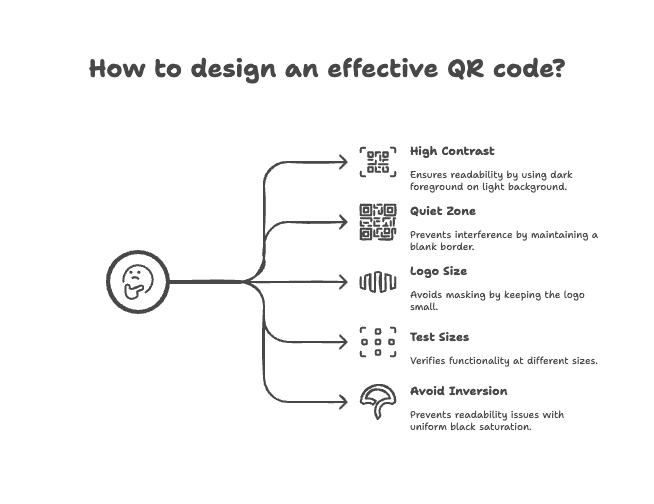
Camera scanners look for sharp light/dark transitions. The safe rule is dark foreground on a light background, with a contrast ratio of at least 4:1 between the modules and the quiet zone. Black on white is the gold standard. Navy on cream still works. Pastel teal on dusty pink does not, even if it matches your brand palette.
If you must use color, make the dark modules a single deep color (forest green, oxblood, navy) and keep the background near-white. Never invert (light modules on dark) unless your printer can guarantee perfectly even ink coverage — laser toner gaps are the silent killer of "creative" inverted codes.
Respect the Quiet Zone
The quiet zone is the blank margin around the code. Scanners use it to find the code in the first place. The spec calls for a margin equal to four modules on every side. If your code has modules roughly 2 mm wide, the quiet zone needs to be at least 8 mm of empty space. No text, no background pattern, no decorative border crowding the edges.
Embed Logos Carefully
Yes, you can put a logo in the middle. Level H error correction tolerates up to 30% module obstruction, but practice is stricter than spec. Keep the logo under 25% of the code's total area, center it cleanly, and never let it touch the three corner finder patterns — those large square markers are how the camera locks on.
Use Color With Intent, Not Decoration
Yes, colored QR codes scan reliably when designed correctly — see our deep dive on QR code design ideas for examples that work. The constraint isn't "no color." It's contrast plus consistency. One foreground color, one background color, no gradients across the modules themselves.
Test at Actual Print Size
The most common print failure: the designer scans a 5-inch on-screen code, ships the file, and finds out the printed version is 0.6 inches and unreadable. Always print a draft at the exact final size on the exact final material and scan it from the distance your end user will. If you want the full sizing chart, our QR code size guide covers minimums by use case, and the minimum QR code size article walks through the math.
Best Printing Methods and Materials
The "right" printing method depends on volume, substrate, and how long the asset needs to last. Here's how I match the method to the campaign.
Digital Inkjet and Laser
Best for runs under 1,000 units and any job with variable data — for example, 200 unique QR codes on 200 personalized postcards. Typical output is 600 to 1,200 dpi, which handles codes 10 mm and larger with no trouble. Inkjet gives you saturated black if you tune the printer to "photo" or "high quality" mode. Avoid draft mode for QR codes — the dithering pattern destroys module edges.
Offset Lithography
The right pick for runs over 1,000 units when you need Pantone-level color accuracy on brochures, magazines, or premium packaging. Offset needs vector files (PDF or EPS) and a press operator who watches dot gain on uncoated stock. Dot gain is the press's tendency to spread ink slightly into the paper — it can fill quiet zones between modules and turn a clean code into a smudge.
Thermal Label Printers
Niimbot, Brother, and Zebra-class portable thermal printers have made on-demand label printing trivially cheap. Load a roll of adhesive labels, hit print, and you have a fresh scannable sticker in three seconds. Two flavors to know:
- Direct thermal. Cheapest. The label darkens when heated. Fine for indoor, short-life labels (shipping, event badges, expiry stickers). Fades fast in sunlight.
- Thermal transfer. Uses a wax or resin ribbon. Permanent, sunlight-resistant, the right call for product labels that live on a shelf or in a warehouse for years.
Industrial Label and Sticker Printers
For packaging lines doing tens of thousands of labels a day, dedicated industrial label printers from Epson, Zebra, or Toshiba print QR codes directly from CSV files or label software. This is the workflow behind those serialized QR codes you see on pharma packaging, electronics boxes, and warehouse pallets.
3D-Printed QR Codes
Yes, you can 3D print a working QR code. Tools like QRCode2STL convert any URL, Wi-Fi config, or vCard into an STL file with the modules raised or recessed against a contrasting base. The trick is contrast: print the base layer in a light filament and the modules in a dark filament (or vice versa), keep layer heights at 0.2 mm or finer, and test scannability before scaling production. Tangible, tactile, and a strong fit for promotional swag, art installations, and product prototypes.
Substrate Matters as Much as Method
Material choices that won't sink the project:
- Paper weight. 200–300 gsm for postcards and business cards. Lighter stock curls, distorts modules, and lowers scan reliability.
- Matte vs gloss. Matte reduces glare under store lighting. Gloss UV pops on a shelf but reflects ceiling lights — test both before a long run.
- Vinyl stickers. Outdoor and waterproof. Pair with a UV-resistant laminate for parking-lot signage and exterior packaging.
- Fabric. Dye-sublimation onto polyester works for event banners. Cotton T-shirts are harder — the weave breaks up small modules, so go large (4+ inches) and use high error correction.
- Plastic and acrylic. UV-curable inkjet handles rigid substrates. Pre-test ink adhesion before laminating.
If sticker labels are your main use case, our QR codes for print media guide breaks down which materials hold up where.
The wider label and sticker market is growing too. The global QR Code Labels market was valued at $2.59 billion in 2026 and is projected to reach $3.66 billion by 2035 at a 3.93% CAGR, per Business Research Insights. The takeaway for marketers: label-based QR codes are no longer a niche format — they're a category.
Placement and Visibility
A perfectly designed, perfectly printed code still fails if nobody sees it. Placement is half the battle.
Field-tested rules I apply on every campaign:
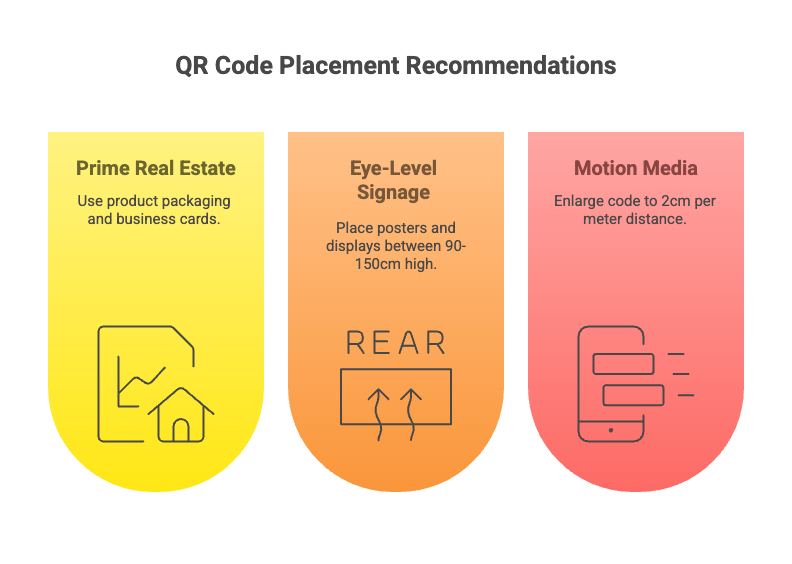
- Front-and-center on packaging. Retail shelf products: front label, not the back. Consumables: under the cap seal or on the neck wrap.
- Eye-level signage. Posters, point-of-sale displays, and shelf-talkers belong 90 to 150 cm from the ground. That's the sweet spot where a phone naturally aligns without crouching or reaching.
- Scan-distance sizing for big surfaces. The 10:1 rule: every inch of code supports 10 inches of scan distance. Translated: 2 cm of code per meter of viewing distance for buses, billboards, and event banners. If you're scaling up QR codes on posters, lean larger than the math suggests — viewers won't measure, they'll glance.
- Business cards. Back side, minimum 15 mm square. Leave a clean quiet zone. Avoid placing it across a paper fold or perforation.
- Sticker drops. Laptop stickers, packaging inserts, and "bonus" peelable codes get scanned out of curiosity. Treat the sticker as a standalone asset, not a footer to something else.
- Avoid curves and folds. If the code has to sit on a curved bottle or a tri-fold brochure crease, oversize it by 20% and use flexible vinyl. Hard creases through finder patterns kill scannability.
One placement rule I learned the hard way: never put a printed QR code somewhere the scanner can't physically stand. A code on a museum wall behind a velvet rope, a code on a bus that's actively moving, a code at the bottom of an escalator. If the scanner can't hold still for two seconds, the camera can't lock on.
Testing and Troubleshooting Your Printed QR Code
The cheapest insurance against a failed campaign is a 15-minute test before the full run. Skip it once, you'll never skip it again.
The checklist I run on every printed proof:
- Scan from 1 m, 3 m, and 5 m. Or whatever range your placement actually covers. If the code is going on a wall, walk away from it and try.
- Test on iOS and Android. The native camera apps handle codes differently. iOS is generally faster on low-contrast codes; Android needs cleaner edges.
- Test in low light. Coffee-shop lighting, museum gallery lighting, evening event lighting. If the code works only under studio lights, it'll fail in the wild.
- Test after laminating. Glossy lamination adds reflection. Hold the laminated proof under a ceiling light and confirm it still scans without rotating.
- Test the scanned image at actual print size. Open the export at the final dimensions on a high-density screen and scan that. Catch low-res or misaligned exports before the printer does.
- Test on the actual material. A code that scans on coated paper may struggle on uncoated kraft. Always proof on the final substrate.
If a code fails, the failure is almost always one of five things:
- Code too small. Re-check against the 10:1 scan-distance rule.
- Low contrast. Re-darken the modules or lighten the background.
- Quiet zone violated. Move adjacent text or graphics back.
- Ink bleed or smudge. Reduce dot gain (talk to the print operator) or switch to a coated stock.
- URL too long. Shorten via a dynamic redirect — denser codes need bigger prints.
Measuring QR Code Performance and ROI
Without measurement, a printed QR code is decoration. Here's the analytics stack I set up for every campaign.
Dynamic URLs Are the Foundation
Use a dynamic QR code for any printed asset you care about. The destination is editable after print, and every scan flows through your platform's tracking layer first. That gives you scan count, time, location (city-level), device type, and unique-vs-repeat scans automatically.
UTM Parameters Connect Scans to Conversions
Append UTM parameters to the destination URL before you generate the code. A pattern that works:
- utm_source: the physical channel (postcard, flyer, billboard, packaging)
- utm_medium:
print - utm_campaign: the specific campaign name (spring-2026-launch, store-grand-opening)
- utm_content: the asset variant if you're A/B testing (front-cover vs back-cover)
The scans now show up in Google Analytics as a distinct traffic source, and you can tie them to conversions, revenue, and downstream events — not just "someone scanned."
Separate Codes Per Print Batch
Generate a different dynamic QR code (or at minimum a different UTM tag) for each batch: spring catalog vs summer catalog, retail store A vs retail store B, trade show booth vs swag bag. When one batch underperforms, you'll know which one and why before the next run hits the press.
Retargeting and CRM Pipes
Every scanner lands on a page you control. Drop a pixel, fire a Meta or Google retargeting event, and you can re-engage them digitally for weeks after the physical scan. Pipe high-intent scan events into HubSpot or Salesforce as new lead records — trade show booth scans, for example, become CRM contacts the moment they tap.
Editable Destinations Save Reprints
If a destination page changes — new offer, new product, expired coupon — edit the dynamic QR's target in your dashboard. The printed code stays the same; the user lands somewhere new. That single feature has saved more than one campaign I've worked on from full-batch reprints.
Common Mistakes to Avoid When Printing QR Codes
The same handful of errors sink most printed-QR campaigns. Catch them before the press starts:
- Printing too small. The most common failure. If the final print is below 2 x 2 cm and the scan distance is over 25 cm, the code will struggle. Always size against the 10:1 rule.
- Low contrast modules. Brand colors look great on screen and fail at the till. Use a contrast checker, or stick to a dark color on near-white.
- Missing or violated quiet zone. Graphics, text, or a colored background touching the code edge — the scanner can't find the boundary.
- Linking to a non-mobile page. Every scanner is on a phone. If the destination isn't mobile-optimized, you've created a bounce machine.
- No call to action. "Scan me" sitting alone is not a CTA. Tell the reader what they get: "Scan for 10% off," "Scan to claim your sample," "Scan to register your warranty."
- Static code on a long campaign. If you can't edit the destination and the offer changes, the code is dead weight after week one. Always use a dynamic code for anything multi-week.
- Skipping the scan test. Never approve a print proof you haven't physically scanned with two phones, two operating systems, two distances, two lighting conditions.
- Vague generic landing page. Match the landing experience to the physical context. A flyer code should land on a flyer-specific page, not the homepage.
Make Printed QR Codes Work for Your Next Campaign
Printing QR codes well is a discipline, not a tool. The right generator, a print-ready export, a designed-for-scan layout, and a 15-minute test cycle turn every brochure, label, and trade show banner into a measurable conversion point. Pair that with dynamic destinations and UTM tracking, and you've got an offline channel you can actually report on.
Three concrete moves for your next print run: switch any remaining static codes to dynamic ones so you can edit destinations after print, set up one shared UTM convention across all print batches so your analytics stack stays clean, and add a 15-minute scan test as a mandatory step in your print sign-off process. Do those three and you'll print fewer reprints and convert more scans.
Frequently Asked Questions
How do I print a QR code at home?
Generate the code in a dynamic QR platform, export it as an SVG or a 600-dpi PNG, paste it into a layout (Canva, Word, Pages, or a PDF editor) sized at least 2 x 2 cm, and print on standard 200 gsm paper using your printer's "high quality" or "photo" mode. Scan the print with two phones before you call it done.
What is the best paper for printing QR codes?
For most marketing print runs, 200–300 gsm matte-coated paper is the sweet spot — heavy enough not to curl, matte enough to reduce glare, coated enough to keep ink sharp. For outdoor use or anything that gets wet, switch to vinyl sticker stock with a UV-resistant laminate. For premium packaging, uncoated stocks work if your print shop controls dot gain — confirm during proofing.
How do I make sure QR codes scan after printing?
Test the printed proof before the full run. Scan it with both iOS and Android phones, from at least three distances, in two lighting conditions, on the final substrate. Check the five common failure modes: code too small, low contrast, quiet zone violated, ink bleed, or URL too long. Fix any failure before approving the press run.
Can I print QR codes in color?
Yes, as long as you keep contrast high — at least a 4:1 ratio between modules and background — and use a single dark foreground color on a near-white background. Avoid inverted codes (light modules on dark) unless your printer guarantees uniform ink saturation, avoid gradients across the modules, and always scan-test the final color combination on the final material.
Can Walgreens print QR codes?
Walgreens Photo can print QR codes on standard photo prints, posters, and custom photo products — anything you can upload as an image file. Generate your QR code, export it as a high-resolution PNG, drop it into a photo or poster template, and submit the order. For dedicated QR code stickers or labels, a thermal label printer (Niimbot, Brother, Zebra) or an online sticker print service is usually cheaper and faster.
What is the minimum size for a printed QR code?
The practical minimum is 2 x 2 cm (about 0.8 x 0.8 inches, or 118 pixels at 300 dpi) for a typical URL scanned from 20–25 cm away. Beyond that, apply the 10:1 rule: every inch of code width supports 10 inches of scan distance. For a billboard scanned from 5 meters, that's a code at least 20 inches wide. Always test at the final size before printing.
Discover our other blog posts before you go:
- QR Code Size Guide 2026: Optimal Scanning Tips
- Minimum QR Code Size: Best Practices & Examples
- How to Use QR Codes for Print Media to Maximize Engagement
- QR Codes on Posters: 14 Creative Use Cases & Benefits
- 30 Creative QR Code Design Ideas
- QR Code Advertising: Benefits, Use Cases & Real-World Examples

I work as a Growth Marketer at Popupsmart, using my 3+ years of SaaS experience to create clear, useful marketing content that helps brands grow, reach the right audiences, and improve their results.