QR Code for Boarding Pass: 2026 Complete Guide

On this page
- What is a QR Code Boarding Pass?
- How Does QR Code for Airport Check-In Work?
- Steps to Use QR Code for Airport Check-In
- Things to Pay Attention to in QR Codes for Boarding Pass
- Understanding Mobile Boarding Passes & QR Codes
- Why Go Digital?
- Tips for a Smooth Experience
- How to Protect Your Digital Boarding Pass
- Airline-Specific QR Code Boarding Pass Flows
- Delta Air Lines
- American Airlines
- United Airlines
- Southwest Airlines
- Lufthansa
- Apple Wallet and Google Wallet Boarding Passes
- Advantages of Using QR Codes for Boarding Passes
- Sustainable Travel — Reduces Paper Consumption
- Streamlined Processes and Convenience
- Ease of Use for Passengers
- Additional Use-Cases in Airports
- Creating a QR Code for Boarding Pass
- Steps to Generate Your QR Code
- Ensuring Optimal Readability
- Customizing QR Code — Best Practices and Tips
- Boarding Pass QR Code Security: The Krebs Exploit and How to Stay Safe
- TSA Real ID, PreCheck, and Biometric Boarding
- Other Use Cases of QR Codes for the Airline Industry
- QR Code Enabled Services in Airports
- Contactless Transactions with QR Code Payments
- Digital Travel Guides and In-Flight Entertainment
- Enhancing Baggage Handling with QR Codes
- Boarding and Access Control
- Pain Points and Solutions
- The Bottom Line on QR Code Boarding Passes
- FAQ
- Is my QR code my boarding pass?
- How do I get a QR code for my boarding pass?
- Can I use a QR code for international flights?
- What if my QR code doesn't scan at the airport?
- Can I use a screenshot of my QR code boarding pass?
- Are QR code boarding passes secure?
A boarding pass QR code is a 2D barcode encoding flight, passenger, and seat data that gate scanners read instead of a paper stub. Most airlines actually use a PDF417 barcode (long rectangle), not a square QR — both work the same way. Modern boarding passes live in Apple Wallet, Google Wallet, or your airline app.
What is a QR Code Boarding Pass?
A QR code boarding pass is a digital version of a paper pass — a 2D barcode storing your flight number, departure time, gate, seat, and a unique passenger record locator (PNR). Scanners at check-in, TSA, and the gate read it in under a second.
Here is what most travel blogs skip: the barcode on your phone is usually not a square QR code. The aviation industry runs on the IATA Bar Coded Boarding Pass (BCBP) standard, which specifies PDF417 — the long rectangle of vertical lines on most passes. Some airlines use Aztec codes; a smaller group use true QR codes. All three encode the same flight data.
Why does the distinction matter? Only the airline's check-in system can issue a barcode that gate readers accept — the data is signed and tied to a live passenger record. A generic "QR code" you create with a third-party tool will never work as a real boarding pass. People still call them "QR code boarding passes" because the term has stuck.
How Does QR Code for Airport Check-In Work?
The barcode on your phone connects to a live database. When the gate scanner reads it, the airline's departure control system (DCS) confirms three things in real time: the booking is valid, the passenger has cleared security, and the flight has not boarded. If any check fails, the scanner beeps red and an agent steps in.
The data inside the barcode is short — usually under 200 characters — and follows the IATA Resolution 792 format: airline code, flight number, date, origin, destination, seat, sequence number, and a checksum. No payment info, no passport number, no home address.
Steps to Use QR Code for Airport Check-In
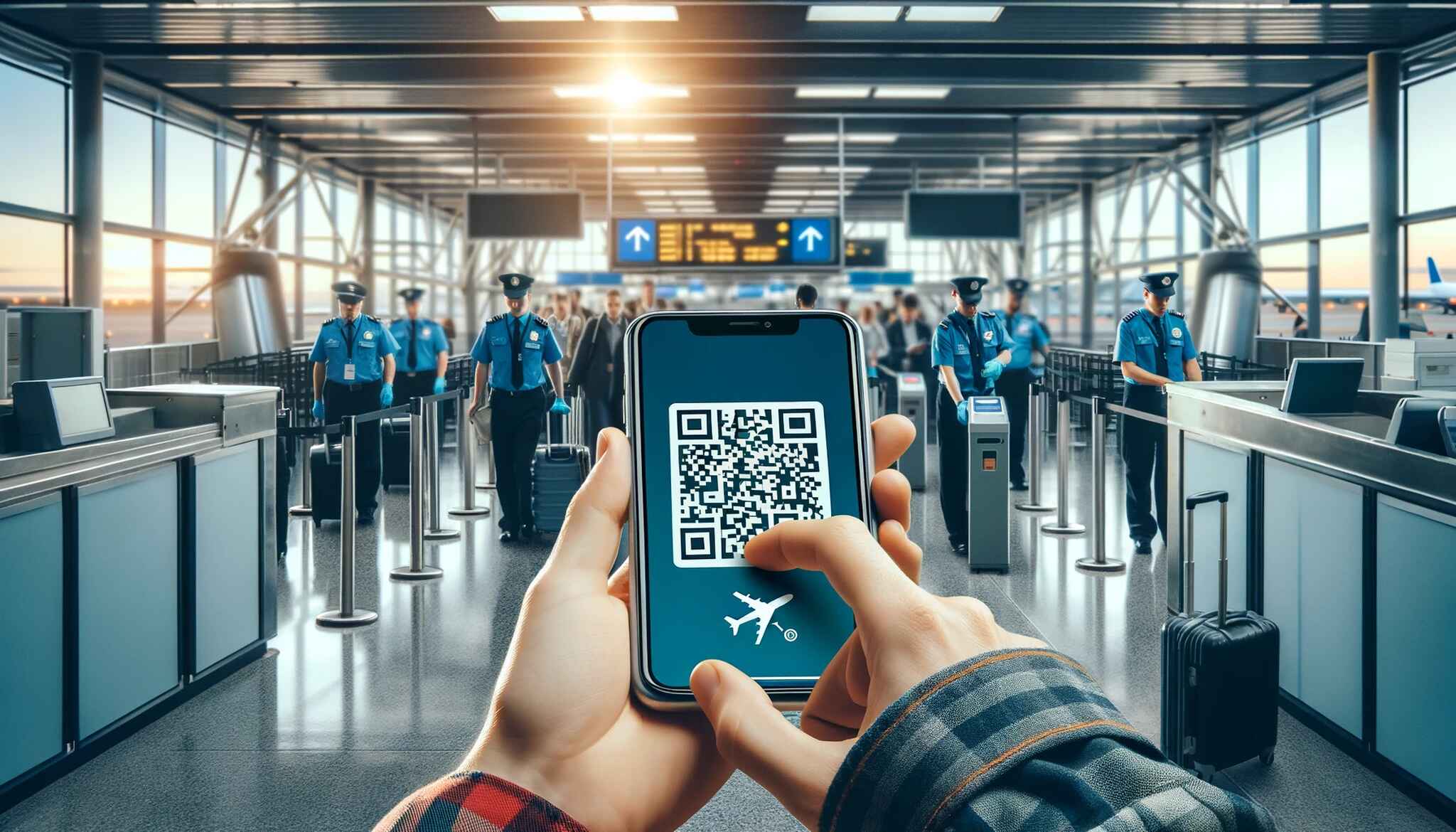
The flow is the same on most airlines, with small differences in app naming:
- Online check-in: open the airline's app 24-48 hours before departure. Confirm seat, add bags, accept terms. Choose "mobile boarding pass" instead of "print at airport."
- Receive your barcode: the pass arrives by email, SMS, or push notification inside the app. You can save it to Apple Wallet or Google Wallet with one tap from most major carriers.
- Prepare your phone: charge above 30%, take a screenshot as backup, turn brightness up before you reach the scanner. A printed copy still works if your phone dies.
- Security checkpoint: hold the screen flat against the TSA scanner. The agent matches your barcode to your government ID. PreCheck and Real ID lanes use the same barcode but different ID requirements.
- Boarding: at the gate, present the barcode again. The scanner confirms the passenger is on the manifest and opens the jet bridge.
The whole exchange takes about three seconds per passenger.
Things to Pay Attention to in QR Codes for Boarding Pass
Mobile passes are reliable, but a few avoidable problems still send travelers to the agent counter:
- Screen brightness: dim screens are the top scan failure cause. Bump brightness to 100% before you walk up. iPhone users can set a Wallet-specific brightness boost in Settings > Wallet & Apple Pay.
- Cracked or filthy screens: a hairline crack across the barcode breaks the scan. Wipe smudges. If the screen is shattered, print at the kiosk.
- Battery: a dead phone means no boarding pass. Carry a 5,000 mAh power bank — TSA-approved in carry-on, under 4 oz.
- Stale screenshots: a screenshot taken 12 hours early will not update if the gate or time changes. Refresh the live pass right before scanning.
- Photo from someone else's phone: BCBP data has a sequence number that can only scan once. Always pull the pass from your own account.
Understanding Mobile Boarding Passes & QR Codes
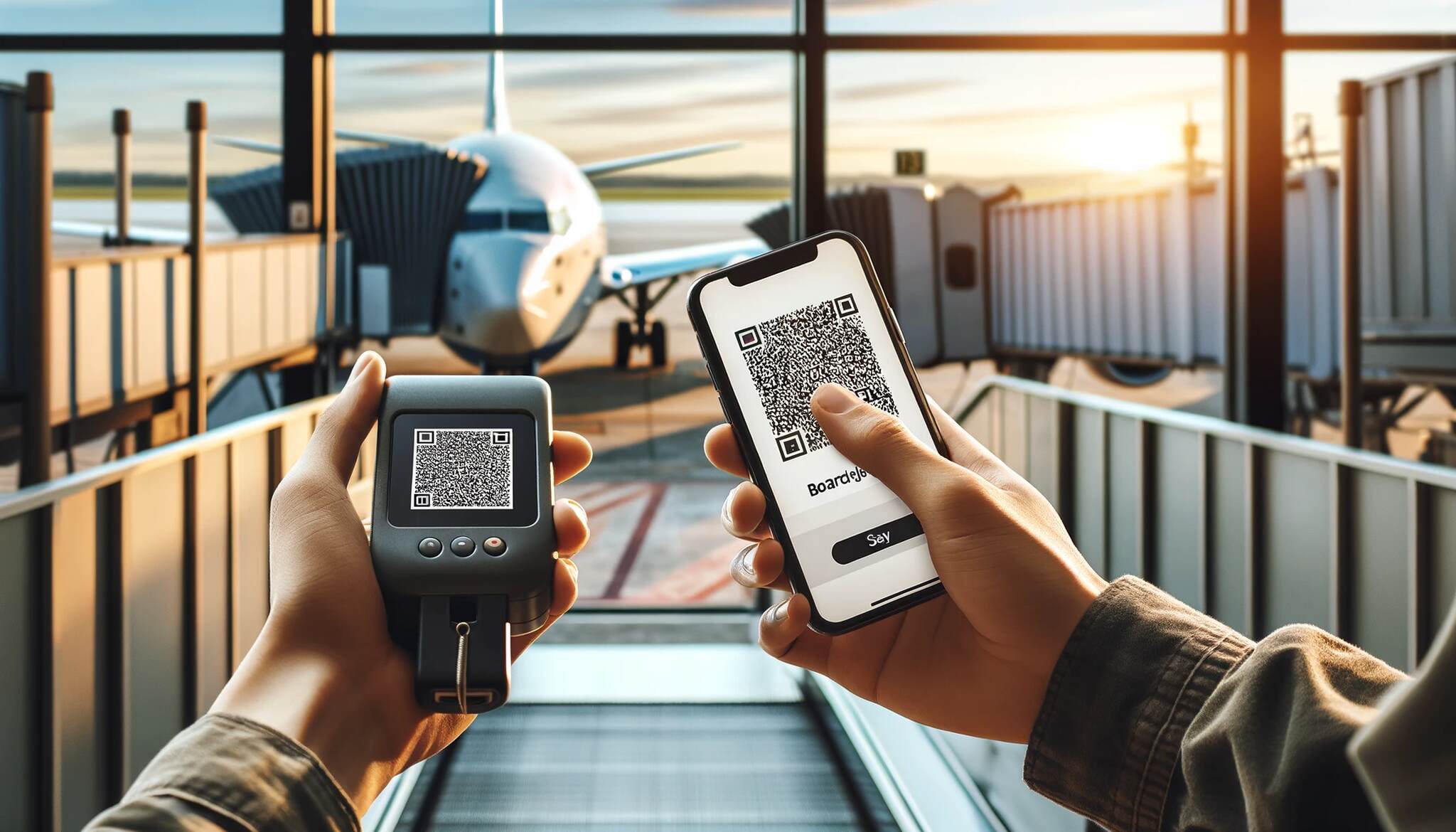
A mobile boarding pass is the digital file your airline sends after check-in. It contains the same BCBP data as a paper pass, plus dynamic links to the airline's system for live updates — gate changes, delay times, and bag tracking. Most carriers offer three formats: in-app pass, Apple Wallet or Google Wallet pass, and email PDF.
Why Go Digital?
- Live updates: a paper pass freezes at print. A digital pass refreshes gate, time, and seat changes automatically. iOS Live Activities pin updates to your lock screen.
- One less thing to lose: the pass cannot fall out of a pocket. Even if you delete it, the app re-issues it instantly.
- Faster lanes: TSA lanes optimized for mobile passes process about 20% more passengers per hour than mixed paper/mobile lanes.
- Lower paper waste: airlines printed roughly 1.5 billion paper passes in 2024. Digital removes that entirely.
Tips for a Smooth Experience
- Add to Wallet before you leave home: Apple Wallet and Google Wallet load offline. Email and app passes need data.
- Know the airport's Wi-Fi situation: some require a captive portal login. Open your pass on cellular before security.
- Take a screenshot: cheap insurance. The airline can usually still scan it if your account locks out.
- Print a backup for international: some destinations (parts of Asia and South America) still require a paper pass at customs exit.
How to Protect Your Digital Boarding Pass
- Use a passcode and biometric lock: a stranger with your unlocked phone has access to your pass and your account.
- Avoid public Wi-Fi for check-in: use cellular or a trusted VPN. Hotel and airport networks are common attack surfaces.
- Stick to the official airline app: third-party "boarding pass managers" often scrape credentials. Apple Wallet and Google Wallet are first-party.
- Never post the barcode: the image alone is enough to hijack your booking.
Airline-Specific QR Code Boarding Pass Flows
Every major airline has its own quirks. Here is how five major US and European carriers handle digital boarding passes.
Delta Air Lines
Delta calls it the Fly Delta app, which generates a PDF417 and pushes it to Apple Wallet or Google Wallet on tap. SkyMiles members get lock-screen updates 24 hours before departure. Delta was the first US carrier to roll out facial recognition boarding at scale — at LAX, ATL, JFK, and DTW you can often skip the barcode entirely at the gate.
American Airlines
The American app issues passes 24 hours pre-flight, stored in "My Trips." American leans on Aztec codes more than PDF417 at some hubs, but the user experience is identical. The app has a useful TSA wait-time widget updated every five minutes.
United Airlines
United was the first US airline to support fully contactless touch-free boarding via mobile pass. The app integrates with PreCheck, CLEAR, and Global Entry, surfacing your Known Traveler Number on the same screen as the barcode. United's Wallet pass includes a "track bag" link.
Southwest Airlines
Southwest has no assigned seats, so the barcode encodes a boarding group (A, B, C) and a position number (1-60) instead of a seat. Check in exactly 24 hours before your flight to get the lowest position number — the system stamps the barcode at that moment.
Lufthansa
Lufthansa supports Apple Wallet and Google Wallet plus its own app. The carrier was at the center of one of the most-cited boarding pass security stories in the industry (covered in the security section below). It now uses a hardened BCBP format that no longer leaks frequent flyer credentials in the barcode payload. According to Simple Flying's IATA report, 78% of passengers prefer a smartphone that combines digital wallets, passports, and loyalty cards in a single app — the direction Lufthansa and Star Alliance are moving.
Apple Wallet and Google Wallet Boarding Passes
Wallet passes are the most polished way to carry a boarding pass. The file is a signed bundle (.pkpass on iOS, similar on Android) issued by the airline. Once added, it updates automatically when the airline changes the gate or time — no app open required.
On iPhone, Wallet passes appear on the lock screen 30 minutes before departure. On Apple Watch, the pass surfaces with a wrist tap. iOS Live Activities pin the pass to the Dynamic Island for the walk to the gate.
Per the Heise iOS 26 report, Apple shipped expanded boarding pass features in iOS 26 — including AirTag integration that surfaces a "find my bag" button right on the pass, and tighter loyalty program ties. Airlines are joining one at a time as they update their pass-generation systems.
Google Wallet behaves similarly on Android. Adding a pass is a one-tap flow from the airline app or email. Live updates push as silent notifications, and the pass shows on the lock screen via location and time triggers.
If you have not used a Wallet pass before, see our walkthrough on how to add a QR code to Apple Wallet.
Advantages of Using QR Codes for Boarding Passes
The shift from paper to digital passes has hit a tipping point. Passenger preference and airline operating economics now point the same direction.
Sustainable Travel — Reduces Paper Consumption
- Less paper: every digital pass is one less stub. Thermal paper is also non-recyclable in most regions because of its BPA coating.
- Less energy: kiosks, printers, and printer maintenance contracts all carry power and supply-chain costs that disappear with mobile.
Streamlined Processes and Convenience
- Faster check-in and boarding: a barcode scan is faster than a stub hand-off; the live database link resolves seat changes in seconds.
- No lost tickets: even if you delete the email, the airline re-issues instantly. Paper has no backup.
- Offline access: most airline apps and Wallet passes work without a data connection once loaded. You can scan in airplane mode.
Ease of Use for Passengers
- One-tap to Wallet: "Add to Apple Wallet" and "Add to Google Wallet" buttons surface in the email and app — no PDF wrangling.
- Format flexibility: app, Wallet, screenshot, or printed. The same booking covers all four.
- Integrated services: airline apps surface gate info, bag tracking, entertainment links, and arrival ground transport on the same screen.
Additional Use-Cases in Airports
- Lounge access: many airline lounges and Priority Pass partners scan the boarding pass barcode for entry.
- Duty-free shopping: some airports scan the pass at duty-free to apply tax-free pricing by destination.
- Information kiosks: terminal kiosks scan your pass for gate directions, walk time, and bag carousel info.
Creating a QR Code for Boarding Pass
This section is about sample or mock boarding pass QR codes — for design portfolios, training materials, or demo videos. Only your airline can issue a real boarding pass. Any code you generate yourself will not scan at a TSA podium.
Steps to Generate Your QR Code
How a real airline-issued QR code (or PDF417, technically) gets created end-to-end:
- Online check-in: you submit booking reference, name, and seat preferences via the app.
- Data encoding: the DCS converts flight data into IATA Resolution 792 string format and adds a cryptographic checksum.
- Barcode delivery: the string is rendered as PDF417, Aztec, or QR. The image arrives via app, email, or Wallet pass.
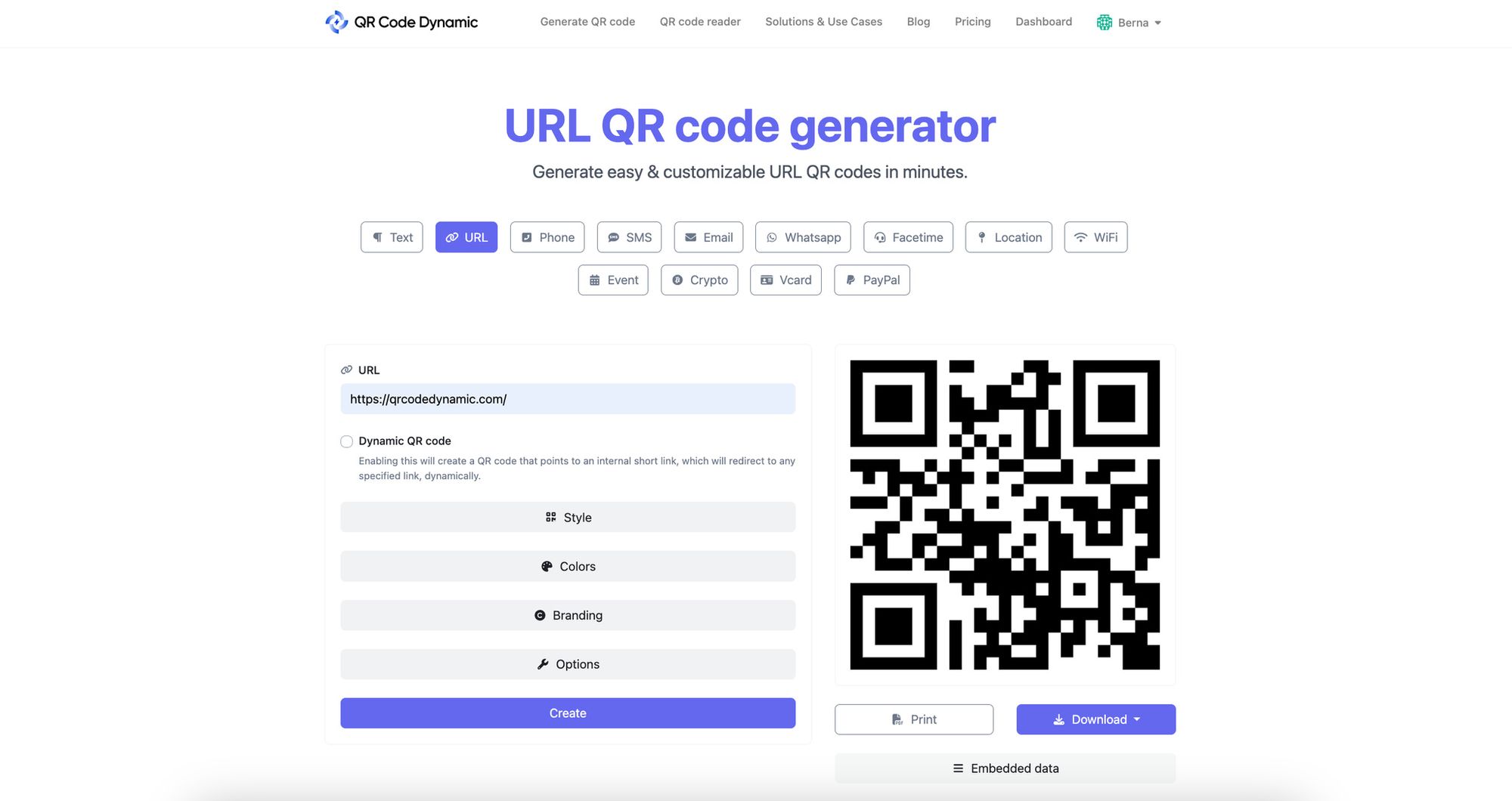
For non-flight use cases — design portfolios, training materials, prop passes for video — you can create dynamic codes for boarding-pass-styled designs using QR Code Dynamic. Sign up, pick a code type, enter the data, customize colors, and click "Create."
Ensuring Optimal Readability
For sample passes that must scan reliably (training, demos, conference badges):
- Minimum print size: 1 inch x 1 inch for QR, 2 inches wide for PDF417.
- Quiet zone: leave a clear margin (4 modules wide) around the barcode.
- Contrast: dark code on light background. Inverted codes fail on many older scanners.
- Error correction: set QR to "H" level (30% damage tolerance) for printed passes that may get folded or wet.
Customizing QR Code — Best Practices and Tips
- Match airline style: real passes use a color band, flight number, and a barcode strip on the right. Reproducing the look is fine for fictional carriers; do not use a real airline's branding.
- Encode something useful: a mock pass that links to a campaign URL or vCard beats random characters.
- Use dynamic codes for testing: dynamic codes let you change the destination after printing. Helpful for demos and trade-show booths.
Boarding Pass QR Code Security: The Krebs Exploit and How to Stay Safe
The most-cited boarding pass security story in the industry is also the simplest. In 2015, security journalist Brian Krebs explained how a friend's casually-shared boarding pass photo turned into a full account hijack.
According to KrebsOnSecurity's Lufthansa investigation, the friend posted a photo of a Lufthansa pass online. Krebs decoded the barcode with a free app, extracted the booking reference (PNR) and last name, and used those two values to log into the airline's "Manage My Booking" portal. Once in, he could view the address, change seats, cancel future flights, and see the full upcoming itinerary.
The exploit works because most airline self-service portals use only PNR + last name as the login key. Both are encoded in the barcode in plain text. A photo of the pass — even low-resolution — is functionally equivalent to handing over your account.
How to stay safe:
- Never post the pass online: not Instagram, not WhatsApp status, not LinkedIn. The barcode is the credential.
- Do not share via unencrypted email: forwarded emails get scraped.
- If you must share for a graphic: redact both the barcode and the booking reference text. Partial scans can still leak data.
- Change the PNR if exposed: airlines will issue a new booking reference on request.
- Enable two-factor authentication: most major airline portals support it. PNR-only login is being phased out, slowly.
TSA Real ID, PreCheck, and Biometric Boarding
The 2025-2026 window is the most disruptive period for US air travel ID since 9/11. Three threads converge: the TSA Real ID deadline, the maturing PreCheck program, and the rollout of biometric boarding gates.
TSA Real ID took full effect on May 7, 2025. Domestic flyers must present a Real ID-compliant driver's license, passport, or DHS trusted-traveler card to clear security. Mobile boarding passes are unaffected — the change is at the ID podium, not the gate. About 81% of US travelers have a compliant ID, and TSA continues to phase in enforcement at lower-volume airports.
PreCheck works smoothly with mobile passes. The PreCheck indicator is encoded into the BCBP barcode at check-in (you will see "TSA PRE" on the pass). Scanners route you to the PreCheck lane automatically. CLEAR is a separate biometric service that stacks on top — face or fingerprint at a kiosk, then walk to the front of the PreCheck lane.
Biometric boarding is the bigger structural shift. Per Oxmaint airport data, more than 250 US airports have deployed digital ID programs, and roughly half plan to implement biometric systems by the end of 2026. At participating gates: walk up, look at the camera, walk through. The mobile pass becomes a fallback.
Intel Market Research data values the global pre-security self-boarding gates market at USD 1.42 billion in 2025, projected to reach USD 2.85 billion by 2034 at a CAGR of 7.8%. The investment goes mostly to hardware that makes barcodes optional — face match, fingerprint, and Digital ID stored in Apple Wallet or Google Wallet.
For now, mobile passes remain the universal fallback at every airport, biometric or not.
Other Use Cases of QR Codes for the Airline Industry
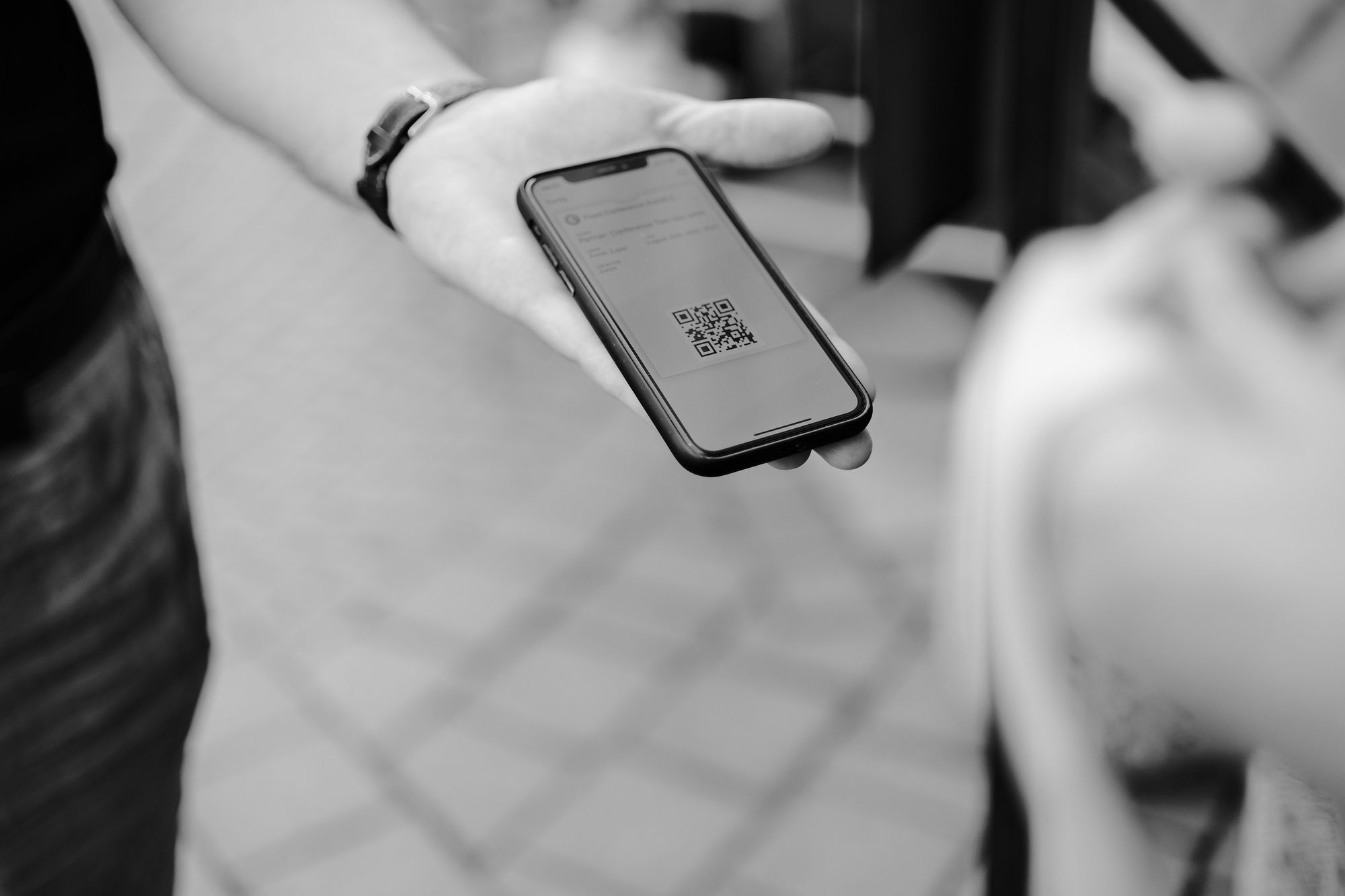
The barcode that gets you on the plane is just the most visible QR use in aviation. The same approach extends across the terminal and the cabin.
QR Code Enabled Services in Airports
- Interactive maps: scan a code on the wayfinding sign, get turn-by-turn directions to your gate — no app download.
- Feedback systems: post-security restrooms, lounges, and dining outlets use scan-to-rate codes feeding ops teams.
- Health and safety info: localized health guidance, evacuation maps, and accessibility services are commonly QR-served.
Contactless Transactions with QR Code Payments
- In-flight purchases: more carriers ship paper menus with a QR for ordering and payment, especially on mid- and long-haul.
- Airport vendors: large hubs accept Apple Pay and Google Pay tap, plus QR-based options like WeChat Pay at Asian hubs.
Digital Travel Guides and In-Flight Entertainment
- Destination guides: KLM and Singapore Airlines push pre-arrival guides via QR codes on seat pockets or pre-flight emails.
- In-flight entertainment: scan a seatback code to launch entertainment on your own device — no seatback screen needed.
Enhancing Baggage Handling with QR Codes
- Smart baggage tags: some airlines pair a permanent QR-tagged bag with a real-time tracker. See our piece on QR code luggage tags.
- Self-service bag drops: scan the boarding pass barcode at a self-bag-drop kiosk, kiosk prints the tag, drop the bag. Two minutes, no agent needed.
Boarding and Access Control
- Automated boarding gates: gate readers double as access control. Scan, light turns green, walk through.
- Restricted-area access: airline crew use a different QR/PDF417 scheme on staff IDs for ramps, lounges, and crew rooms.
Pain Points and Solutions
The mobile-pass experience is mostly smooth, but the failure modes are predictable:
- Scanning failures: older or dirty scanners struggle, especially at smaller airports. Solution: open the airline app before flying so the scanner can re-read from the live feed; carry a printed backup.
- Battery drain: a dead phone locks you out. Solution: a 5,000 mAh power bank, a screenshot, and a printed backup.
- Account lockouts: airlines occasionally lock accounts during fraud reviews. Solution: keep your booking confirmation email separate; agents can re-issue with the confirmation number.
- International compatibility: a few foreign airports still expect printed passes at customs exit. Solution: print a backup if your itinerary touches Brazil, parts of Africa, or smaller airports in Asia.
- QR code phishing: scammers send fake "check-in" emails with malicious QR codes leading to credential-harvest sites. Solution: open the airline app directly to check in. Do not scan codes from unsolicited emails.
Warning: never post a photo of your boarding pass online. The barcode plus your last name is enough to take over your booking.
The Bottom Line on QR Code Boarding Passes
The barcode on your phone is the connective tissue between your booking and the people scanning you onto the plane. Whether it is a true QR, a PDF417, or an Aztec, the user experience is the same: pull it up, point it at the scanner, walk through.
The next decade is moving toward biometric-first boarding, with the barcode as a universal fallback. For now, mobile passes win on speed, paper waste, and live updates. Charge your phone, brighten your screen, keep your barcode private, and you will move through the airport faster than you ever did with paper.
If you are curious about the underlying barcode formats, our breakdown of different types of QR codes covers PDF417, Aztec, and the rest. And if you have wondered why some airport scanners use a tap and some use a scan, the answer is in our QR code vs NFC comparison.
FAQ
Is my QR code my boarding pass?
Yes — for the gate scanner, the barcode is your boarding pass. Everything else on the pass (name, flight number, seat) is human-readable text the agent uses to confirm the scan. Without the barcode, the rest is decoration. Most airlines issue a PDF417 (long rectangle) rather than a square QR, but both are functionally equivalent.
How do I get a QR code for my boarding pass?
Check in 24-48 hours before departure on the airline's website or app. Choose "mobile boarding pass" instead of "print at airport." The barcode arrives by email, SMS, or directly in the app, with a one-tap option to add it to Apple Wallet or Google Wallet.
Can I use a QR code for international flights?
Yes, with one caveat. Mobile passes work on nearly all international routes from major airports. Some destinations (parts of Brazil, smaller hubs in Asia and Africa) still expect a printed pass at customs exit. Print a backup when in doubt.
What if my QR code doesn't scan at the airport?
Increase brightness to 100% and try again. If it still fails, refresh the pass inside the airline app — the barcode may be a stale cached version. If neither works, walk to the agent counter or a kiosk; both can re-issue instantly.
Can I use a screenshot of my QR code boarding pass?
Usually yes. A screenshot works for boarding most of the time, especially if taken 30 minutes before departure. The risk: screenshots do not refresh. If the gate or time changes, your screenshot is outdated. Treat screenshots as backup, not primary.
Are QR code boarding passes secure?
The barcode is reasonably secure — signed by the airline and tied to a live database. The risk is the data inside the barcode (booking reference and last name). Anyone with a clear photo can decode it and access your "Manage My Booking" portal. Never post online, never share via unencrypted channels.
Visit our other blog posts before you go:

I work as a Growth Marketer at Popupsmart, using my 3+ years of SaaS experience to create clear, useful marketing content that helps brands grow, reach the right audiences, and improve their results.