How to Use the Steam QR Code for Safe and Easy Logins


On this page
- What is a Steam QR Code?
- How Does the Steam QR Code Work?
- Why Did Steam Introduce QR Code Login?
- How to Set Up Steam QR Code Login with Steam Guard Mobile Authenticator
- Activate Steam Guard for QR Code Logins
- How to Sign in to Steam with a QR Code
- Troubleshooting Steam QR Code Issues
- Steam QR Login on Steam Deck
- Additional Ways to Use Steam QR Codes
- How to Generate Custom QR Codes for Steam Content
- Steam Families (2024) and QR Code Sharing
- Steam QR Scams to Watch For
- The Bottom Line on Steam QR Code Login
- Frequently Asked Questions
- What happens after scanning a Steam QR code?
- Why is my Steam QR code camera not working?
- Can you scan a Steam QR code on the Steam Deck?
- Is Steam QR code login safe?
- Why is my Steam QR code not working?
- How can I scan a Steam QR code without a smartphone?
Steam's QR code login lets you sign into Steam on any PC by scanning a code with the Steam Mobile App on your phone — no password needed. Open the Steam app, tap the scan icon, point at the QR on your PC's Steam login page, and approve. Set up Steam Guard mobile authenticator first to enable this flow.
What is a Steam QR Code?
Steam is huge in 2026, which is why a fast, phishing-resistant sign-in matters. Backlinko reports 69 million people use Steam daily, and DemandSage tracks 132 million monthly active users. Peak concurrent users hit 42.04 million in January 2026, per SQ Magazine — beating the 36.7M record from January 2025. ScanQueue reports 89 million Americans scanned a QR code in 2025, on track to pass 100M in 2026.
The Steam QR code is a short-lived sign-in token rendered as a square barcode on Steam's PC login screen. You scan it with the official Steam Mobile App to authorise the login — no username typed, no password sent over the keyboard. Each code is bound to one PC login attempt and expires every 30 seconds, which blocks credential reuse: a screenshot is useless 30 seconds later, and approval still has to come from the device holding your Steam Guard authenticator.
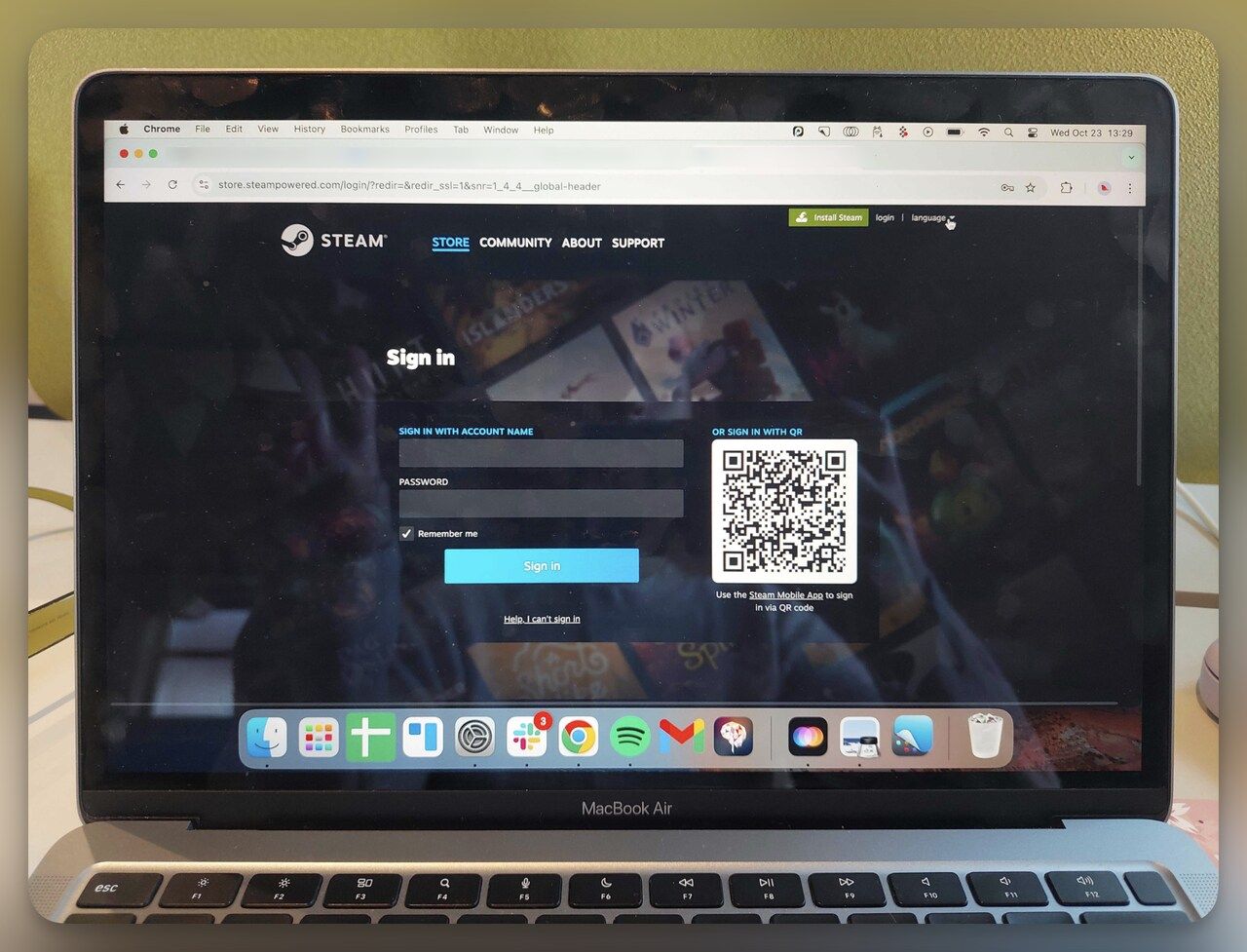
The official Steam QR appears in two places only: the desktop Steam client login screen, and store.steampowered.com/login. If you see a "Steam QR" anywhere else, it is not a Steam login QR.
How Does the Steam QR Code Work?
Instead of typing login details, Steam shows a QR on the PC login screen. Here's the flow:
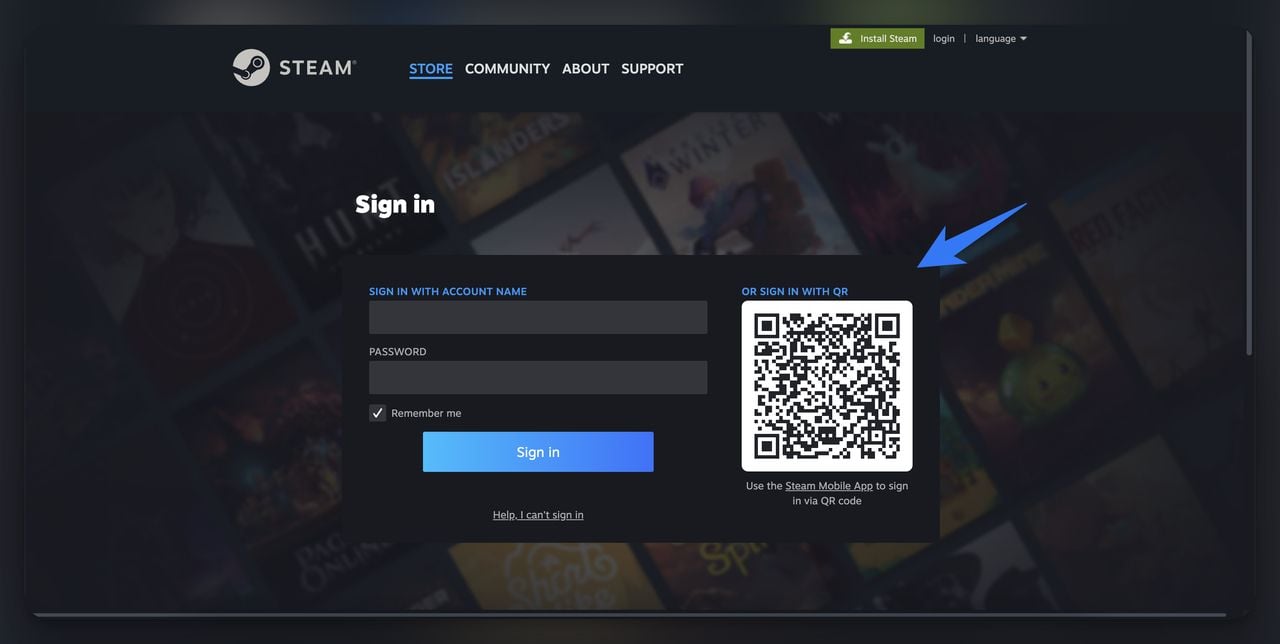
- Open the Steam app on your phone.
- Go to the Steam Guard section.
- Tap Scan QR Code and point your camera at the QR on your computer screen.
- Steam logs you into your PC account automatically.
Behind the scenes, the QR holds a one-time challenge token. The Steam app reads it, sends a signed approval (using your Steam Guard secret) back to Valve, and Valve matches the token to the waiting PC session. Your password never travels.
Why Did Steam Introduce QR Code Login?
Steam introduced QR code login to make signing in simpler and safer. With Steam hitting $10.8 billion in revenue in 2024 (a 24.14% jump year-over-year), account theft became a high-value target. QR-based sign-in cuts the attack surface because the password never gets typed.
- Faster logins: no typing — just scan and you're in.
- More security: only someone holding your phone can approve.
- Less phishing risk: fake login pages can't harvest credentials you never enter.
- Confirmation Code system: the current Steam Mobile App also surfaces a rolling Confirmation Code for trades and market sales — the same Steam Guard machinery that powers QR sign-in.
At a gaming cafe, the QR lets you log in quickly without worrying about a keylogger on the shared PC capturing what you type.
How to Set Up Steam QR Code Login with Steam Guard Mobile Authenticator
To use the Steam QR code for login, you must first set up the Steam Guard Mobile Authenticator on your phone. The authenticator is the trusted device that signs the approval when you scan a code on your PC.
What you'll need:
- An iPhone (iOS 15+) or Android phone (Android 8.0+) with a working camera
- An active Steam account with a verified email address
- A phone number that can receive SMS
- About 10 minutes for the full setup
- Skill level: beginner-friendly
Activate Steam Guard for QR Code Logins
The flow is identical on iOS and Android with two small platform differences flagged below.
1. Download the Steam Mobile App: on iOS, install from the App Store (publisher: Valve Corporation). On Android, install from Google Play — avoid sideloaded APKs, which are a known phishing vector.
2. Log in: open the app, enter your Steam username and password, then the verification code from your email.
3. Open the Steam Guard Section: tap the shield icon at the bottom right of the app.
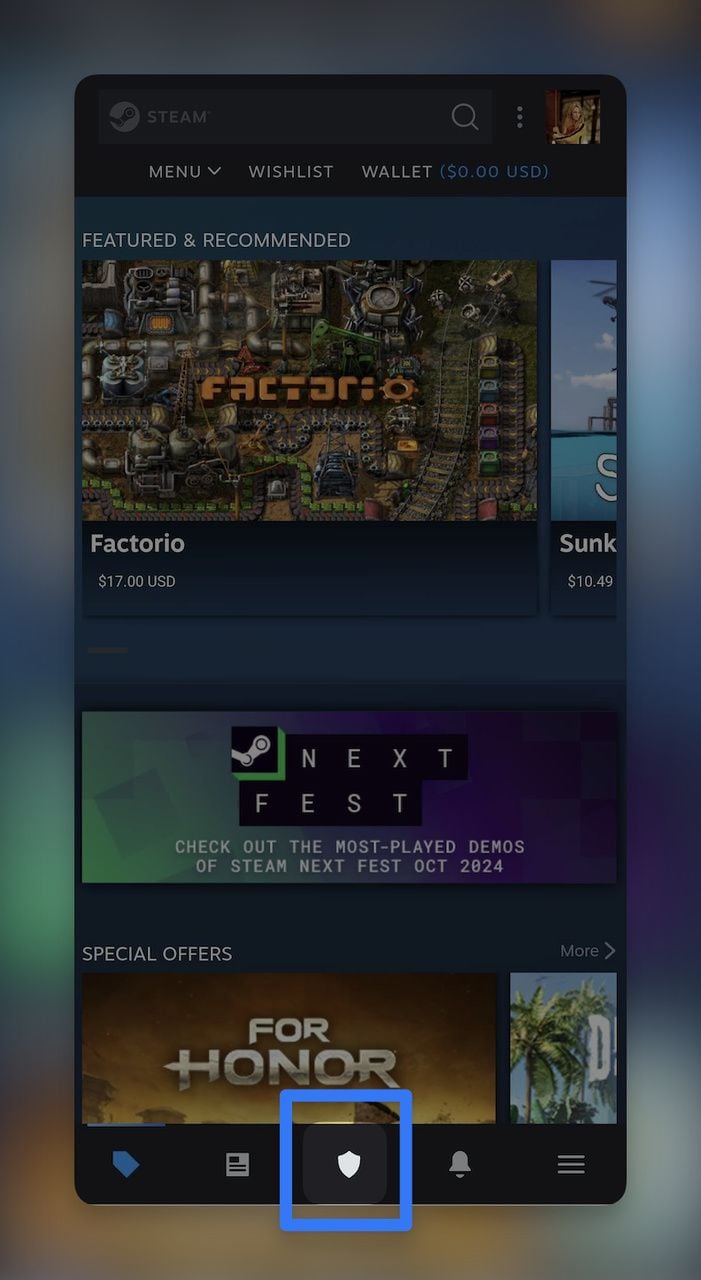
4. Add the Mobile Authenticator: Tap Add Authenticator to enable two-factor authentication. This unlocks QR code login on every PC you sign into afterwards.
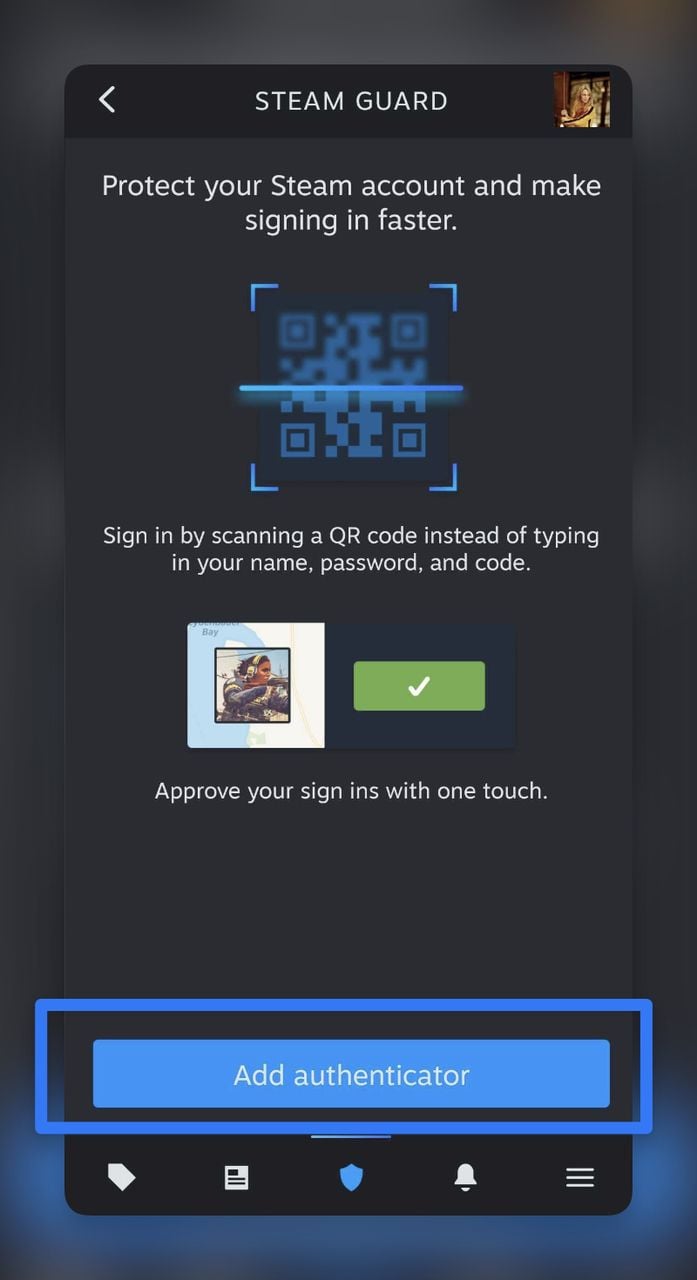
5. Verify Your Phone Number:
- iOS specifics: if SMS auto-fill is on, the code lands in the keyboard suggestion bar — tap to enter.
- Android specifics: Steam may auto-detect the SMS via the SMS Retriever API and skip manual entry entirely.
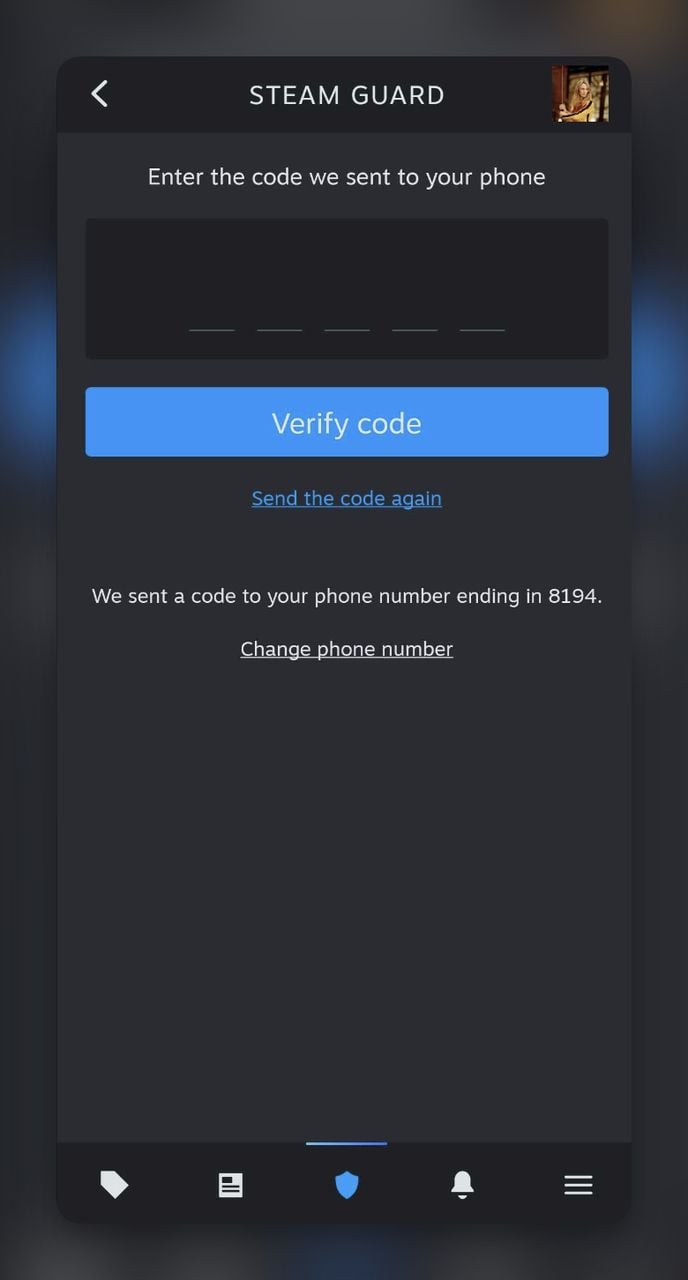
6. Save Your Recovery Code: You'll get a recovery code that acts as a backup if you lose your phone. Write it on paper or store it in a password manager. Do not screenshot it to the same phone.
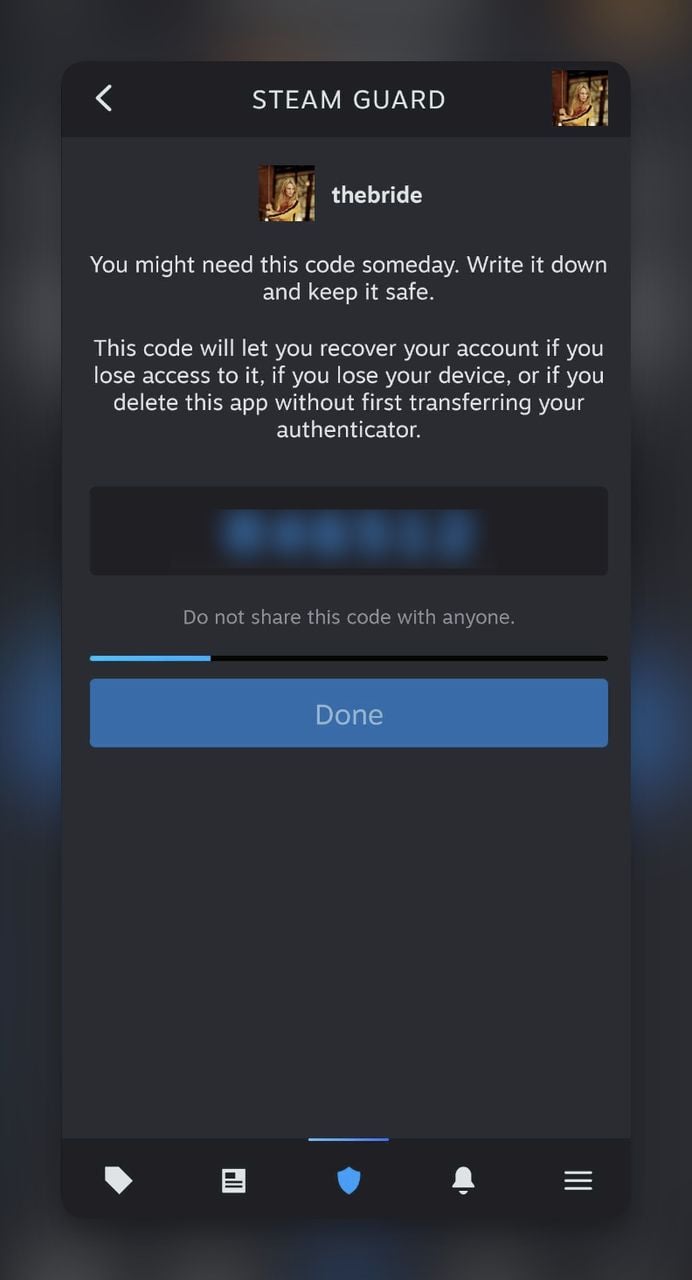
7. Enable QR Code Login: With Steam Guard active, the Steam Guard menu now shows a Scan QR Code option. Any Steam PC login screen can be cleared by scanning instead of typing.
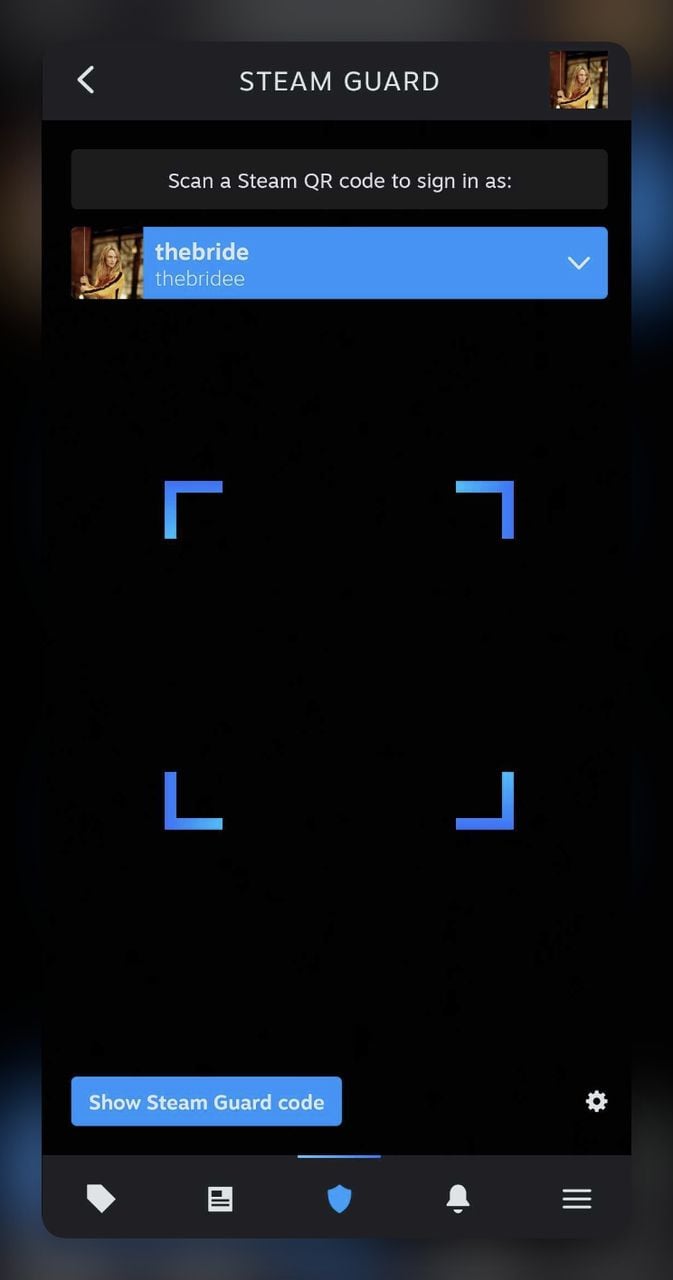
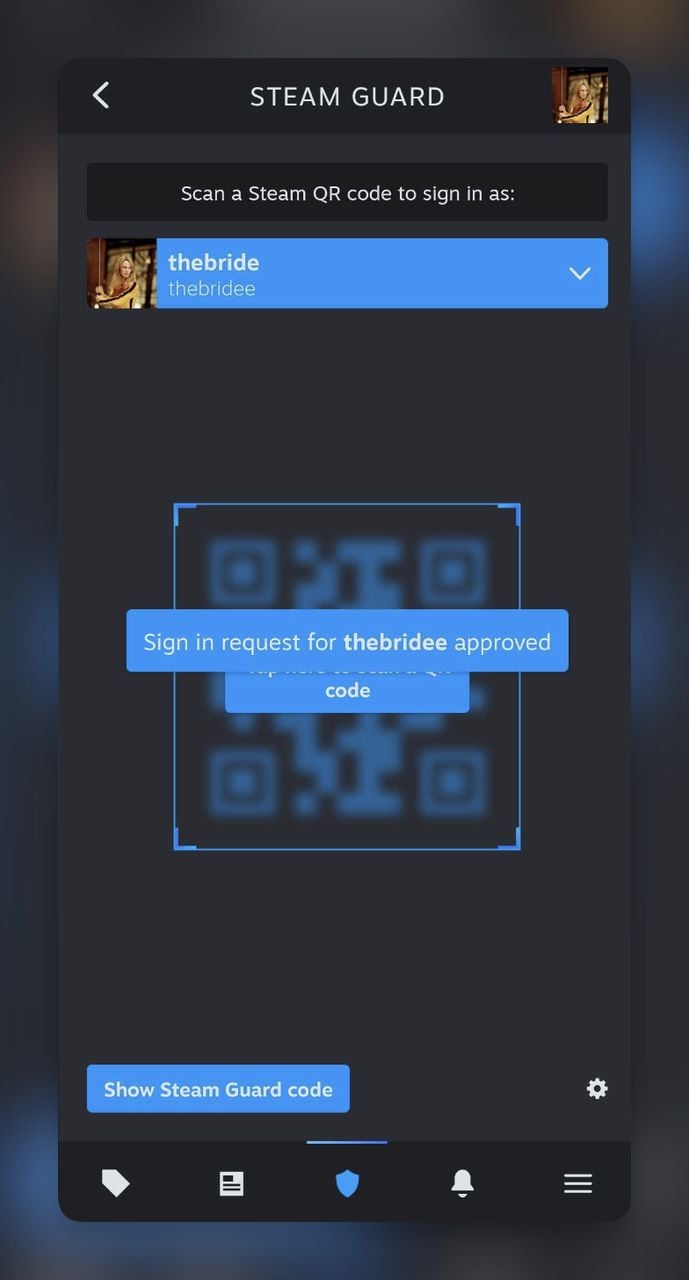
Watch out for: skipping the recovery code (Steam Support recovery takes 7-15 days because Valve verifies purchase history manually), and "Steam Authenticator" lookalikes in app store searches (always check the publisher is Valve Corporation).
Pro tip: From three-plus years testing QR sign-ins across iOS and Android, the biggest setup mistake I see is people verifying with a number they later port to a new carrier without telling Steam. Update your phone number inside Steam before switching carriers — otherwise the SMS recovery loop locks you out.
How to Sign in to Steam with a QR Code
With Steam Guard set up, here's how to log in using the QR code on a fresh PC:
1. Open Steam on Your PC: go to the Steam login page — desktop client or store.steampowered.com. The QR appears on the login screen.
2. Scan the QR Code from Your Phone: open the Steam app, tap the shield, tap Scan QR Code, aim at your monitor. The app shows: "You scanned a QR code to sign in to Steam as [your username]." My test username is thebridee — Kill Bill fans will recognise the reference.
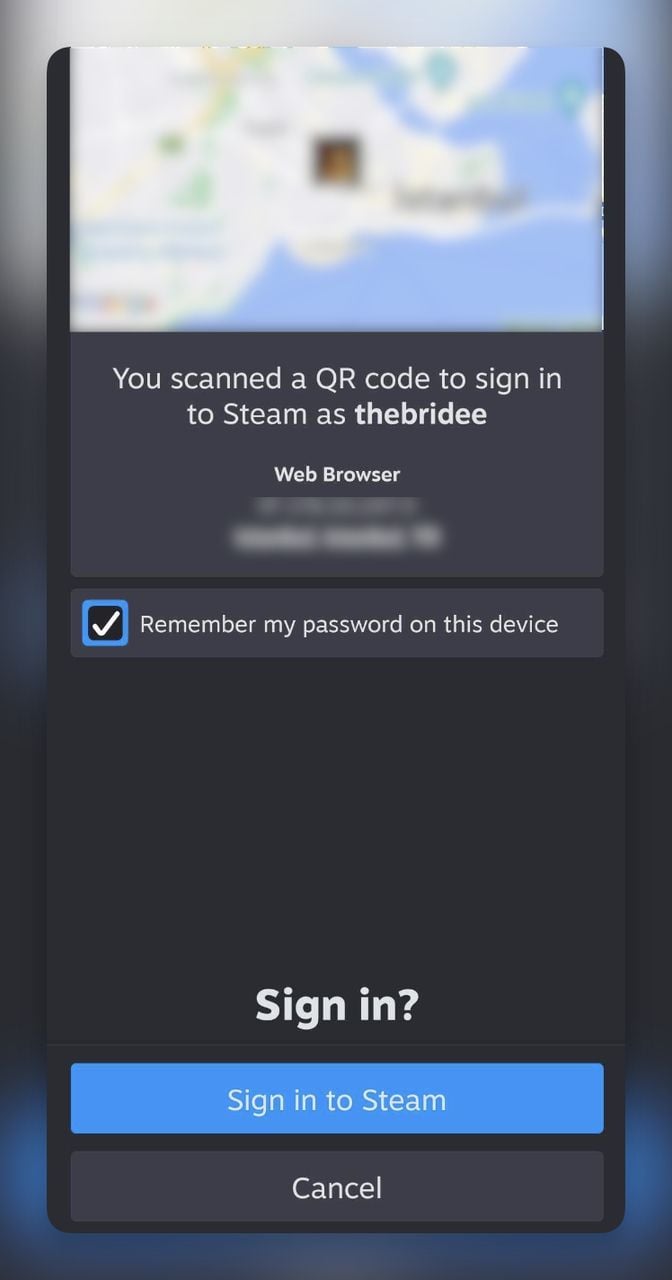
3. Tap "Sign in to Steam": confirm the location — if it looks off, tap Cancel. Otherwise the PC client authenticates immediately. That's it.
If you scan and nothing happens, the troubleshooting section below covers the four issues that catch people most often. For background on phone-to-screen scanning, see our guide on scanning QR codes on a computer.
Troubleshooting Steam QR Code Issues
Most "Steam QR not working" reports trace to four root causes.
1. Camera permissions on iOS or Android: on iOS, Settings > Steam > Camera > On (if missing, reinstall). On Android, Settings > Apps > Steam > Permissions > Camera > Allow. On Android 13+, also turn off "Pause app activity if unused" or permissions auto-revoke.
2. "Where is the QR code on my PC?" It appears at store.steampowered.com/login and on the desktop client. If your client only shows username/password fields, click the small QR icon to the right of the form, or update Steam: Steam menu > Check for Steam Client Updates. If you reached a "Steam login" from a Discord link, close it — the real QR only loads from the official URL.
3. The code expires before you scan: Steam refreshes the QR every 30 seconds. Wipe the lens, hold the phone 8-12 inches from the screen, let auto-focus settle for 1-2 seconds. If it expires again, click the refresh arrow.
4. The "Approve" button never appears: almost always a network split — phone on cellular, PC on VPN, or one device on a captive Wi-Fi portal. Put both on the same Wi-Fi briefly, force-close the Steam app, re-scan. Behind a corporate firewall, Steam needs ports 27015-27050 open.
Steam QR Login on Steam Deck
Steam Deck ships pre-signed-in to one account, but you can use QR sign-in when you swap accounts or set up a fresh device.
Gaming Mode (default SteamOS): Hold the power button, choose Switch User > Add Account. The login overlay shows the same QR panel as desktop. Scan with the Steam Mobile App — the Deck has no front-facing camera, so phone scan is the only QR path.
Desktop Mode (Linux KDE Plasma): Launch Steam from the desktop, click Add Account, and the standard QR panel appears. If the Deck is docked to an external monitor, the QR can render small — pull the window onto the Deck's built-in 7-inch display where the QR is large enough for a phone camera to focus.
Big Picture Mode on a regular PC behaves the same way. Scanning beats navigating the on-screen keyboard with thumbsticks.
Watch out for: a Deck that hasn't pulled an update in months sometimes hides the QR panel — run Settings > System > Check for Updates. On family-shared Decks, only the primary account holder sees the QR panel by default; switch to Desktop Mode for second-account QR sign-in.
Additional Ways to Use Steam QR Codes
Beyond login, Steam has integrated QR-friendly content sharing in several ways. If you're pointing players to time-sensitive pages — event sign-ups, patch notes, beta access — an updatable, dynamic QR lets you change the destination later without replacing the image. The same applies to a clickable QR code embedded inside an in-game banner or community post.
1. Player Invites and Group Invitations
Generate a QR with your Steam profile URL or group invite link. Hosting a multiplayer night? Drop a QR into the event poster — anyone scans and lands on your group page. Bonus: see our guide to WhatsApp group QR codes, or for larger events, try an event QR code generator.
2. Sharing Game Recommendations
Link a QR to a specific game's Steam store page. Found a co-op game your group should try? Drop the QR in Discord and everyone hits the same store page in seconds.
3. Promoting Events and Offers
QR codes promote events like in-game tournaments, seasonal sales, or limited-time discounts. An event QR on social or gaming forums turns "tap to join" into a one-scan workflow.
4. Enhancing Game Previews
Developers can create QR codes pointing to video previews or playable demos — a video QR gives users access to an exclusive trailer before release. Bonus: see our YouTube video QR guide.
5. Quick Access to Game Guides
Compile guides into a landing page and generate a landing page QR code players scan for instant access — especially useful for complex games.
6. Streamlining Game Trades and Gifting
Generate a QR pointing to your trade offer or gift URL. A QR on a screenshot or printable card avoids typing usernames into the trade window.
7. Promoting Artworks and Mods
Link a QR to your artwork gallery or Steam Workshop mod page. Artists and mod developers can drop one into a portfolio or stream overlay so viewers reach the Workshop in one tap.
How to Generate Custom QR Codes for Steam Content
With QR Code Dynamic, you can generate personalised QR codes tailored for your Steam content — the customisation tooling lines up with the patterns we cover in our QR code design ideas roundup.
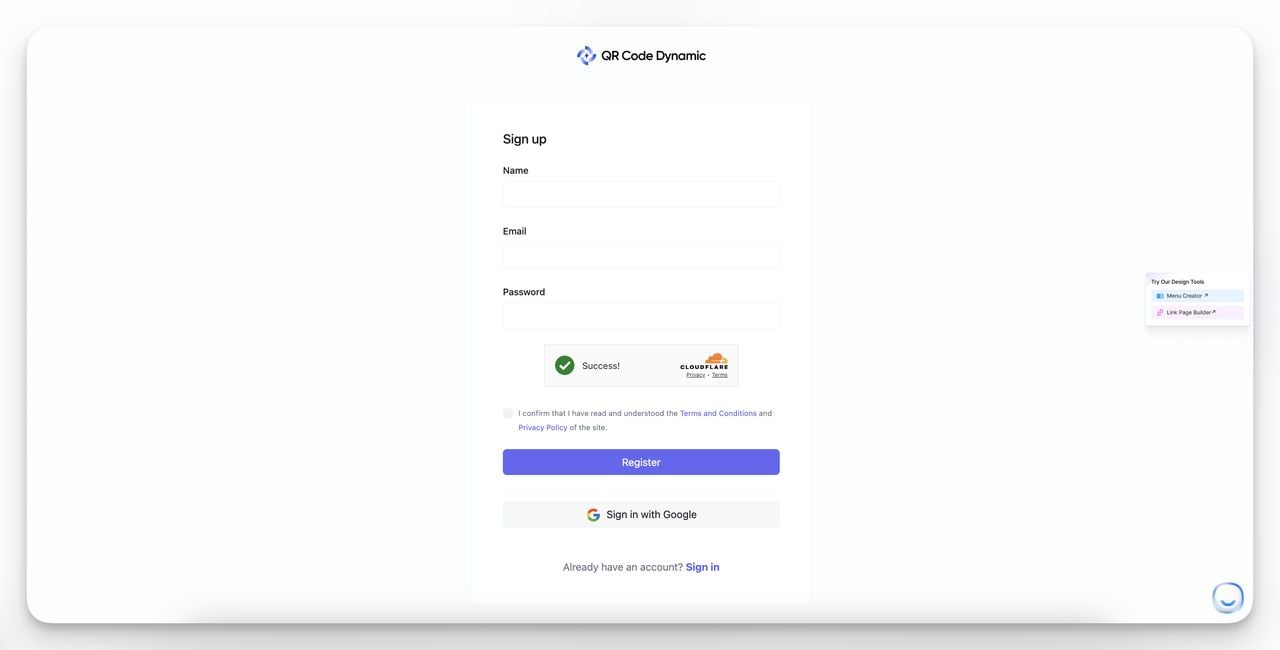
1. Access QR Code Dynamic: Sign up for QR Code Dynamic to access the QR creation tools.
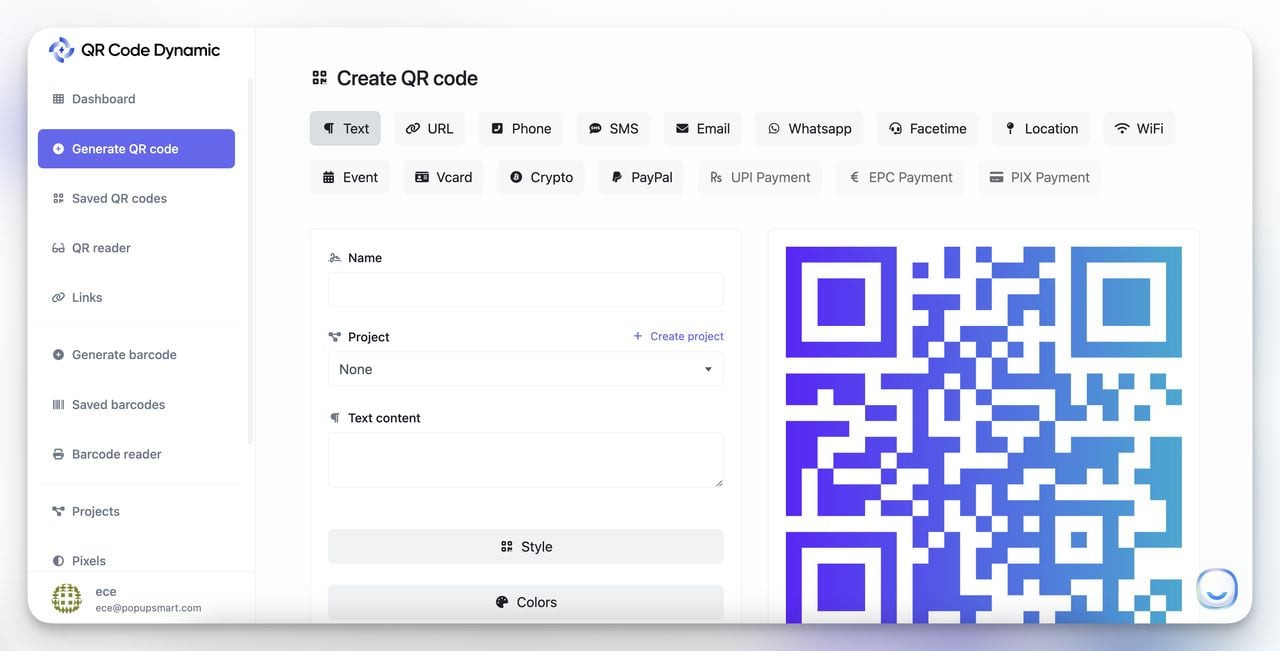
2. Navigate to "Generate QR Code": From the left menu, select Generate QR Code.
3. Select QR Code Type: For Steam links, choose URL — that covers game store pages, group invites, and community links.
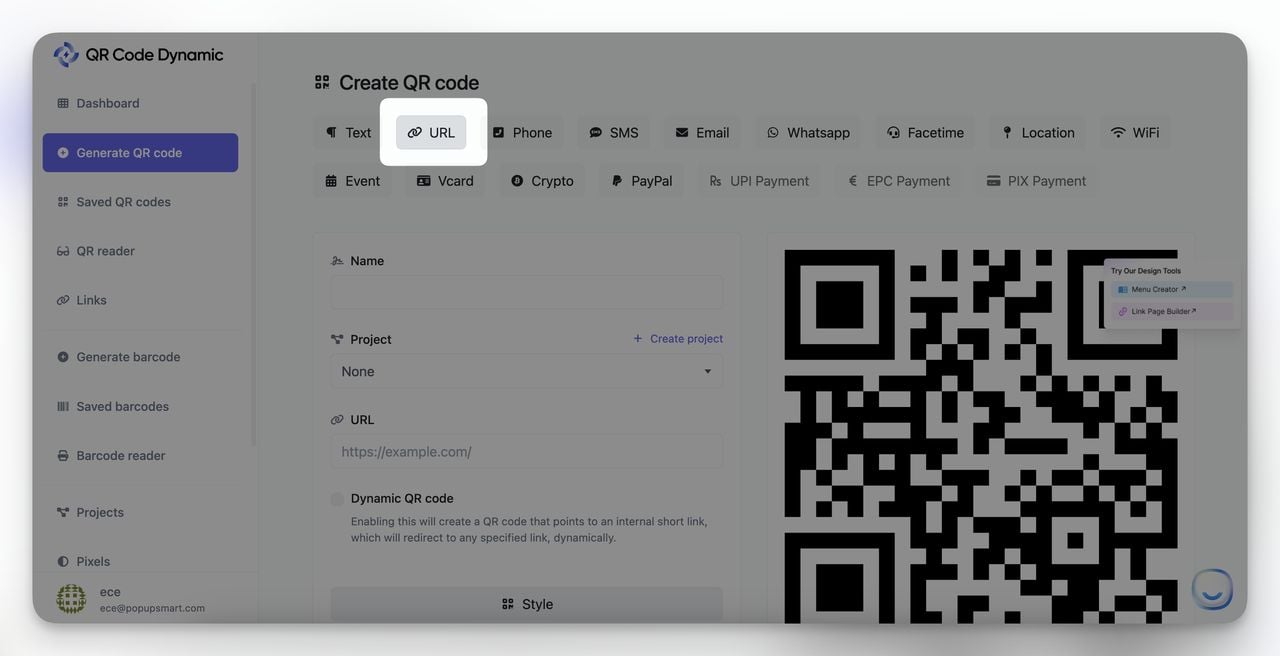
4. Enter the Steam Link: Paste your Steam URL — a game's store page, a community group, or a Workshop item — into the URL field.
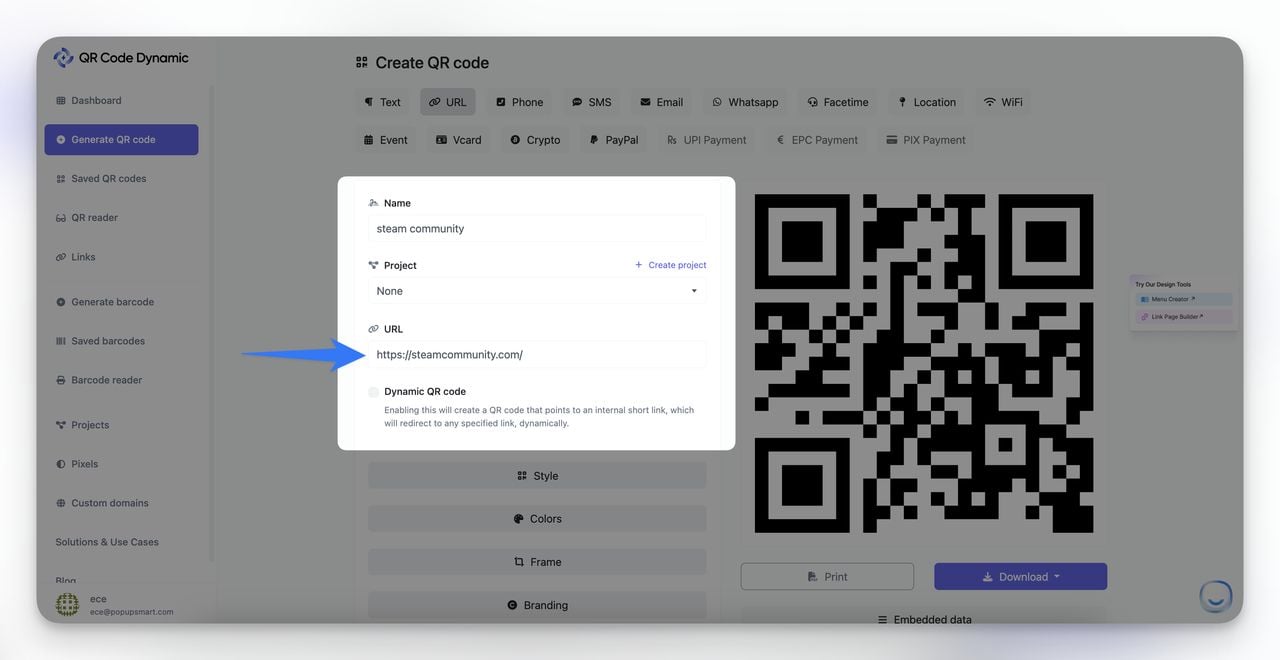
5. Choose Dynamic or Static QR Code: Pick Dynamic if you want to modify the QR code destination later without reprinting. Pick Static if the link will never change. For a deeper breakdown, read Dynamic QR Code vs Static QR Code.
6. Customise the QR Code: Use Style, Colors, and Frame options. Add your branding — logo, accent colour, frame text — so scanners recognise it as legitimate.
7. Create and Download: Click Create, then download as PNG or SVG, or print directly from the dashboard.
Steam Families (2024) and QR Code Sharing
Late 2024 saw Valve launch Steam Families — a replacement for the older Family Sharing system that adds child accounts, parental controls, and shared library access for up to six members. It's the default sharing model in 2026.
Steam Families uses invite links to add members, which makes it a natural fit for QR sharing — in-person family setup (faster than reading a URL), printed cards for less tech-savvy relatives, and school or LAN events where esports clubs put a QR on a poster so members join during the event.
Steam itself does not render Family invites as QRs inside the client — Valve still uses copy-paste invite links. Generate a dynamic QR pointing to your invite URL via QR Code Dynamic, then update the destination if you ever rotate the invite. Single QR, evergreen poster, no reprinting.
Watch out for: Steam Families invites can be revoked from the family settings page. If you printed a QR pointing to a static link that gets revoked, the QR breaks — use a dynamic QR so you can swap the destination. Members must also share the same region for some store features.
Steam QR Scams to Watch For
The same QR convenience that helps you helps attackers. Three Steam QR scam patterns showed up across 2024-2026.
1. Fake Steam login QR phishing pages: attackers clone the Steam login UI on a lookalike domain and render a QR that's actually a session token for their pending login. You scan, you approve, the attacker is now signed in on their PC. Defence: only ever scan QRs from the desktop Steam client or store.steampowered.com/login.
2. CS2 / CS:GO trade-scam QR-login abuse: an attacker contacts you with a "trade verification" or "tournament sign-up" page that displays a QR. Approving transfers control of your account, including trade inventory. Documented across r/SteamScams and Steam Support's Steam Guard Mobile Authenticator page. Defence: Steam never asks you to scan a QR to enter a tournament, claim a skin, or verify a trade. Trade confirmations happen inside the app's Confirmations tab — never via QR.
3. "Approve to view" social engineering: a friend whose account is already compromised messages you a login QR with pressure ("hurry, giveaway closes in 5 min"). Defence: call them on a non-Steam channel before scanning. Ten seconds of paranoia beats a 7-day account recovery.
If you've already scanned a malicious QR: open the Steam Mobile App, go to Steam Guard > Authorised Devices, revoke every device you don't recognise. Change your password from a clean device. Use Deauthorise All Other Devices under Account Details. If trades were initiated, contact Steam Support within the trade-hold window — many fraudulent trades can be reversed if reported quickly enough.
The Bottom Line on Steam QR Code Login
A QR sign-in beats typing a password on every axis — speed, phishing resistance, convenience on shared PCs. Setup takes ten minutes, the recovery code takes thirty seconds to write down, and the daily payoff is a one-tap login that keeps you out of the keylogger blast radius.
- Fast and secure login: removes typed credentials, killing entire classes of credential-theft attack.
- Versatile applications: the same QR primitives work for sign-in, group invites, recommendations, Steam Families onboarding, and Workshop sharing.
- Easy customisation: QR Code Dynamic lets you generate dynamic Steam QRs you can update without reprinting.
If you're not on Steam Guard mobile yet, set it up tonight. The first PC login afterwards is the one where the difference clicks.
Frequently Asked Questions
What happens after scanning a Steam QR code?
The Steam Mobile App shows a confirmation screen with your username and the approximate location of the PC requesting the login. Tap Sign in to Steam to approve, and the PC client logs in within a couple of seconds — no password, no email code. If the location looks wrong, tap Cancel and revoke unrecognised authorised devices in Steam Guard.
Why is my Steam QR code camera not working?
The fix is almost always camera permissions. On iOS: Settings > Steam > Camera. On Android: Settings > Apps > Steam > Permissions > Camera > Allow. If already granted, wipe the lens, hold the phone 8-12 inches from the screen, let auto-focus settle. If it still won't scan, refresh the QR on the PC — Steam rotates it every 30 seconds.
Can you scan a Steam QR code on the Steam Deck?
Yes. The QR appears on the Deck login screen in both Gaming and Desktop Mode whenever you add a new account. The Deck has no front-facing camera, so you scan with the Steam Mobile App on your phone — Deck displays, phone reads. If docked to a TV, render the QR on the Deck's built-in 7-inch screen for easier focus.
Is Steam QR code login safe?
Yes — it runs on two-factor authentication, so even an attacker with your password cannot complete a login without your phone-side approval. The QR refreshes every 30 seconds, so an intercepted code is useless almost immediately. The remaining risk is social engineering — scanning a QR from a fake Steam page — covered in the scams section above.
Why is my Steam QR code not working?
Three usual suspects: the code expired (refresh it), the camera is dirty or out of focus, or the network on either device dropped. Less commonly, the Steam app is out of date — update it from the store. If none of those fix it, sign out of the mobile app, sign back in, and re-scan from a clean session.
How can I scan a Steam QR code without a smartphone?
Fall back to traditional login — username, password, and the Steam Guard email code Valve sends to your verified email. You can also install the Steam Mobile App on a tablet for the full QR experience. Emulator-based options exist but break the trusted-device guarantee that makes QR sign-in secure.
Discover these blog posts before you go:

I work as a Growth Marketer at Popupsmart, using my 3+ years of SaaS experience to create clear, useful marketing content that helps brands grow, reach the right audiences, and improve their results.