How to Scan Snapchat QR Code From Camera Roll (2026)


On this page
- What Is a Snapcode?
- Why You Might Need to Scan a Snapcode From Your Camera Roll
- How to Scan a Snapcode Saved to Your Camera Roll on Android
- 1. Open Snapchat and Tap Your Bitmoji
- 2. Tap the "Add Friends" Button
- 3. Tap the Snapcode Photo Icon
- 4. Select the Snapcode From Your Gallery
- 5. Let Snapchat Decode and Act
- How to Scan a Snapcode Saved to Your Camera Roll on iPhone
- Method A: In-App (Works for Every Snapcode Type)
- Method B: iOS Photos Long-Press Shortcut (Faster, Friend-Only)
- Troubleshooting "Couldn't Find Snapcode" Errors
- Scanning General QR Codes (Not Snapcodes) With Snapchat
- Best Practices for Using Snapcodes in Marketing
- 1. Display Snapcodes Where the Audience Already Is
- 2. Put Exclusive Content Behind the Scan
- 3. Cross-Promote Across Channels
- 4. Measure and Optimize
- 5. Simplify the Post-Scan Experience
- 6. Refresh the Creative Quarterly
- Creating Your Own Snapcode for Marketing
- The Bottom Line on Scanning Snapcodes From Your Camera Roll
- FAQs About Snapcodes
- How Do I Share My Snapcode on Snapchat?
- Can You Scan a Snapcode From a Picture?
- Why Won't Snapchat Scan My Saved Snapcode?
- How Do I Scan a Snapchat QR Code From My Gallery?
- Can I Scan a Snapcode From a Screenshot?
- Visit our related blog posts:
On iPhone, open Photos, long-press the saved Snapcode, and tap "Open in Snapchat". On Android, open the Snapchat app, tap your profile, then Add Friend, then the Photos icon, and select the Snapcode image. Snapchat decodes the proprietary Snapcode format and adds the friend or unlocks the lens automatically.
What Is a Snapcode?
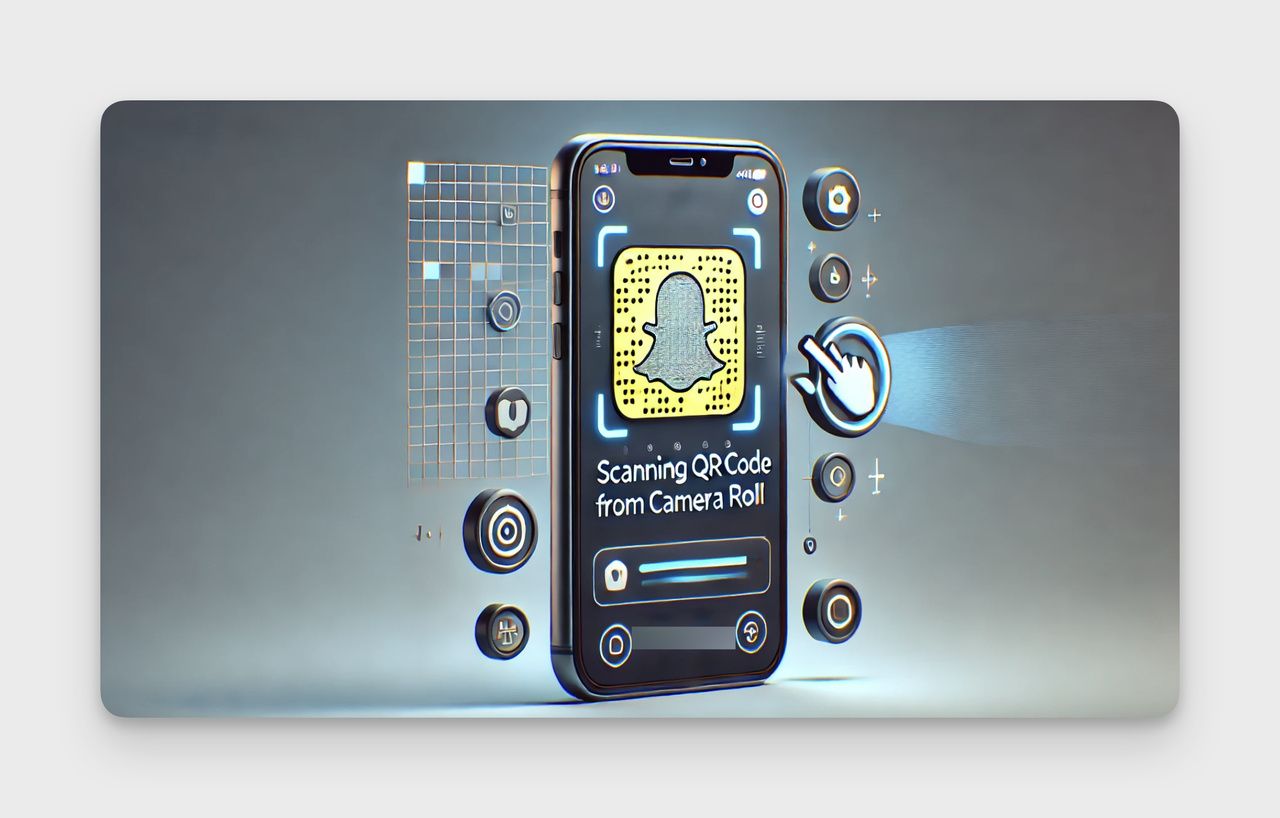
A Snapcode is Snapchat's version of a QR code — the round, dotted yellow pattern with a Bitmoji or logo in the middle that you scan to add a friend, unlock a Lens, follow a brand, or open a website inside the app.
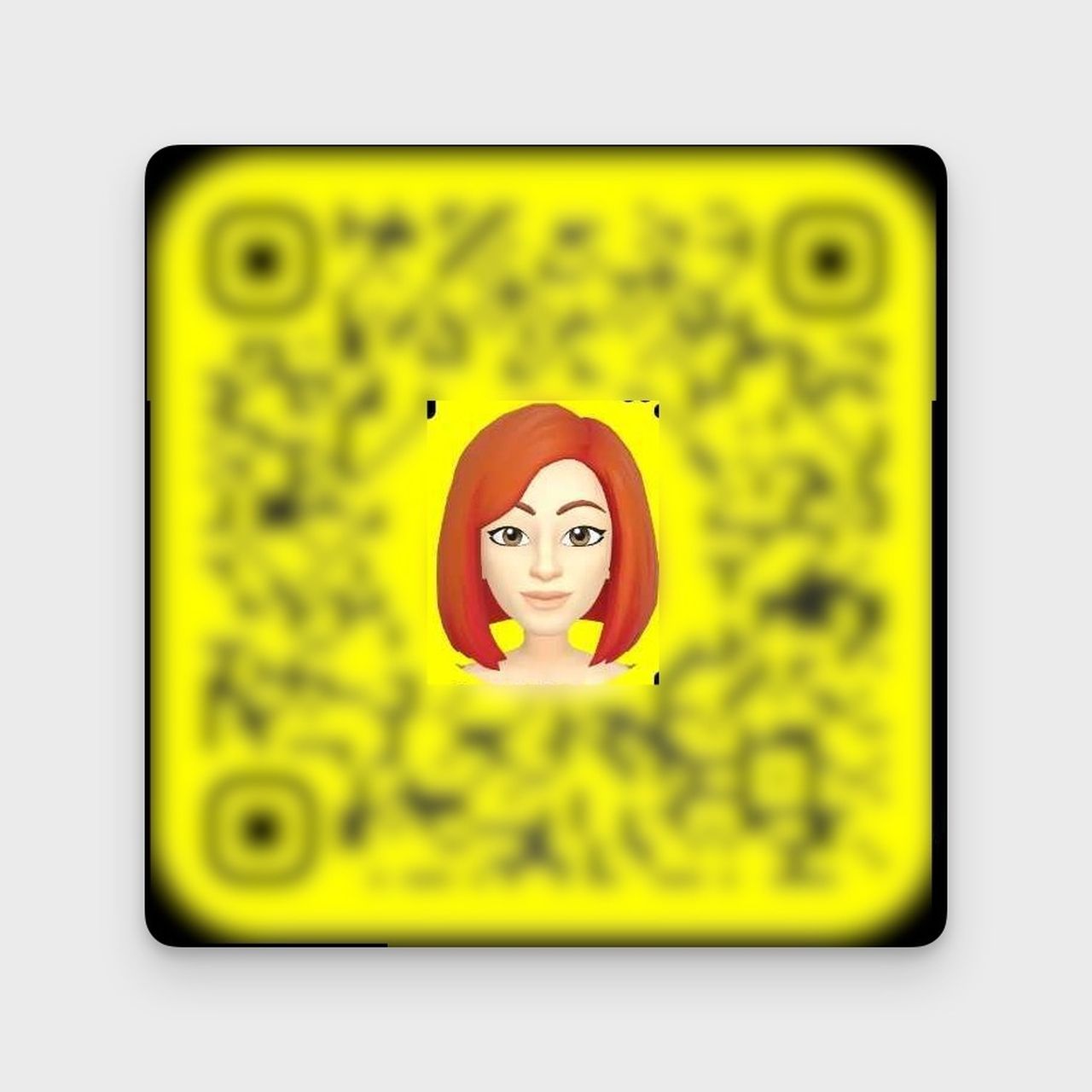
Here's what trips up most people: a Snapcode isn't a regular QR code. Snap built its own encoding format in 2015 — the dot positions, ghost outline, and inner Bitmoji slot are part of a proprietary spec that only the Snapchat app can decode. Open your iPhone's default camera at a Snapcode and nothing happens. Open Snapchat's camera and it scans in under a second.
That's why third-party scanners fail on Snapcodes — they read ISO/IEC 18004 QR codes, not Snap's format. The only reliable path is the Snapchat app itself. Snapcodes do four things: add a friend, unlock a Lens, open a Snap-friendly URL, or trigger a Snap Map place. Snapchat retired several older Snapcode actions in 2018, so a code saved years ago may decode visually but trigger nothing.
Why You Might Need to Scan a Snapcode From Your Camera Roll
Most Snapcode scans happen in person. The camera-roll path matters when the code isn't in front of you anymore. According to DemandSage, Snapchat hit 474 million daily active users in Q4 2025, up about 5% year-over-year — meaning more codes get shared as screenshots and Story replays than ever.
Four scenarios that send people searching for this:
- A friend texted their Snapcode. They sent it through iMessage, WhatsApp, or DMs. No second device to point at, so you save and scan from the gallery.
- You saved a brand's promo Snapcode. A coffee shop posted a Snapcode for an exclusive Lens, or a creator dropped one on Instagram Stories.
- The Snapcode is in an email or PDF. Newsletters and brand decks often embed Snapcodes — saving the image is the only way to scan from one device.
- You manage multiple Snapchat business accounts. Saved-code scanning is faster than logging out, opening the camera, and re-aiming.
If you also work with regular QR codes outside Snapchat, our guide on scanning QR codes from a screenshot covers non-Snap workflows.
How to Scan a Snapcode Saved to Your Camera Roll on Android
The Android flow lives inside the Snapchat app under Add Friends. It works on Snapchat 12.0+ on Android 8.0 (Oreo) and above. Total time: about 15 seconds once the code is saved.
1. Open Snapchat and Tap Your Bitmoji
Launch the app and tap your Bitmoji or profile silhouette in the top-left corner of the camera screen. Snapcodes act on whichever account is currently signed in, so confirm you're on the right one.
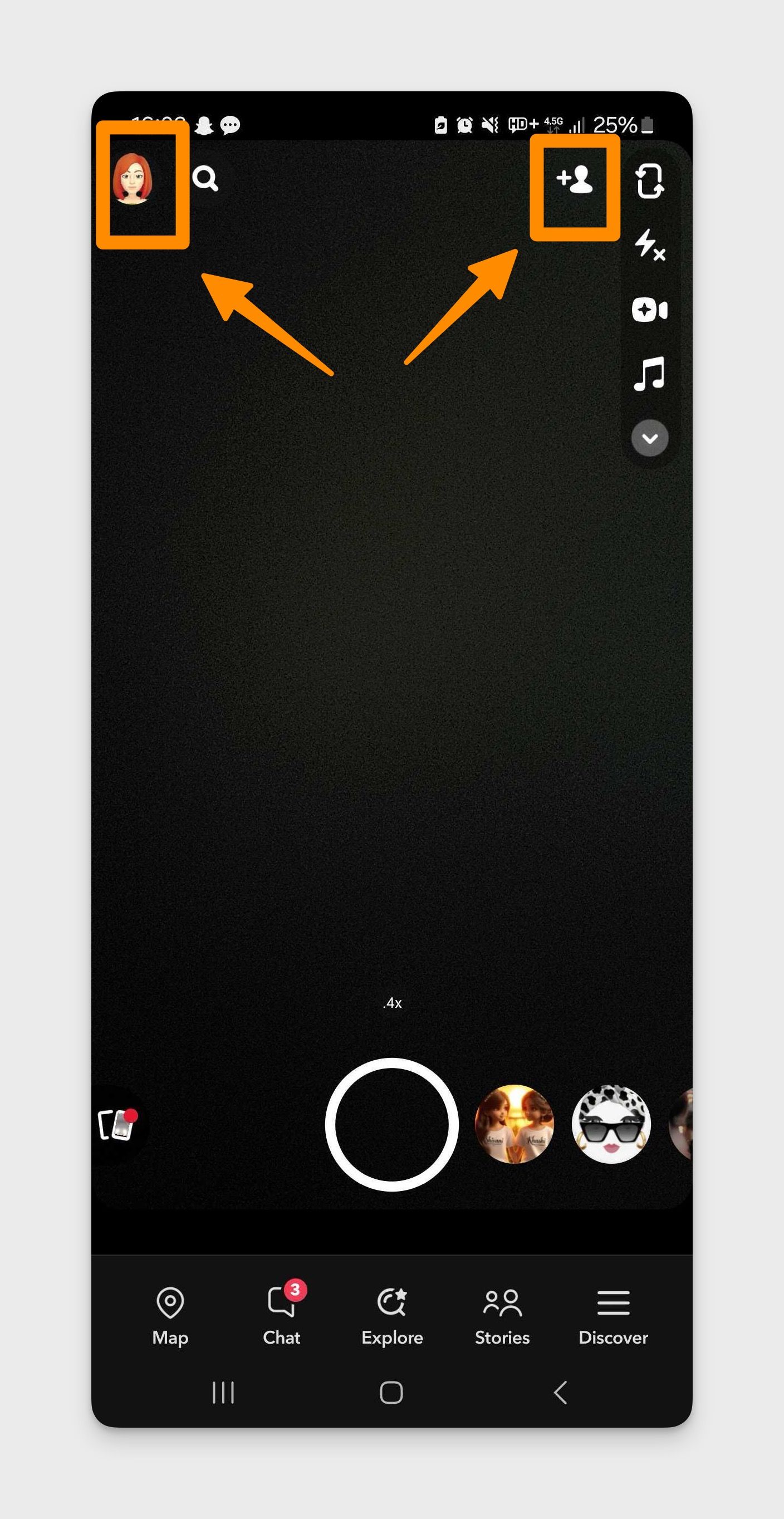
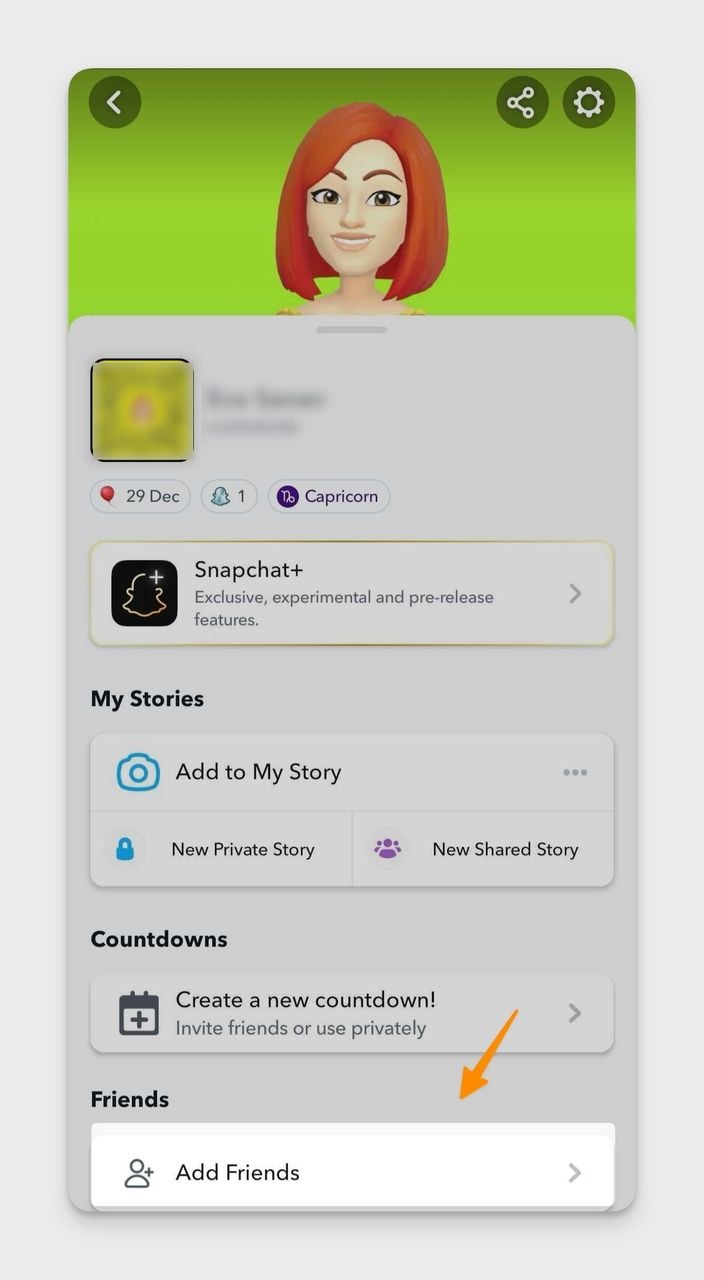
2. Tap the "Add Friends" Button
On your profile, tap the silhouette icon with a "+" sign in the top-right corner — it's labeled "Add Friends."
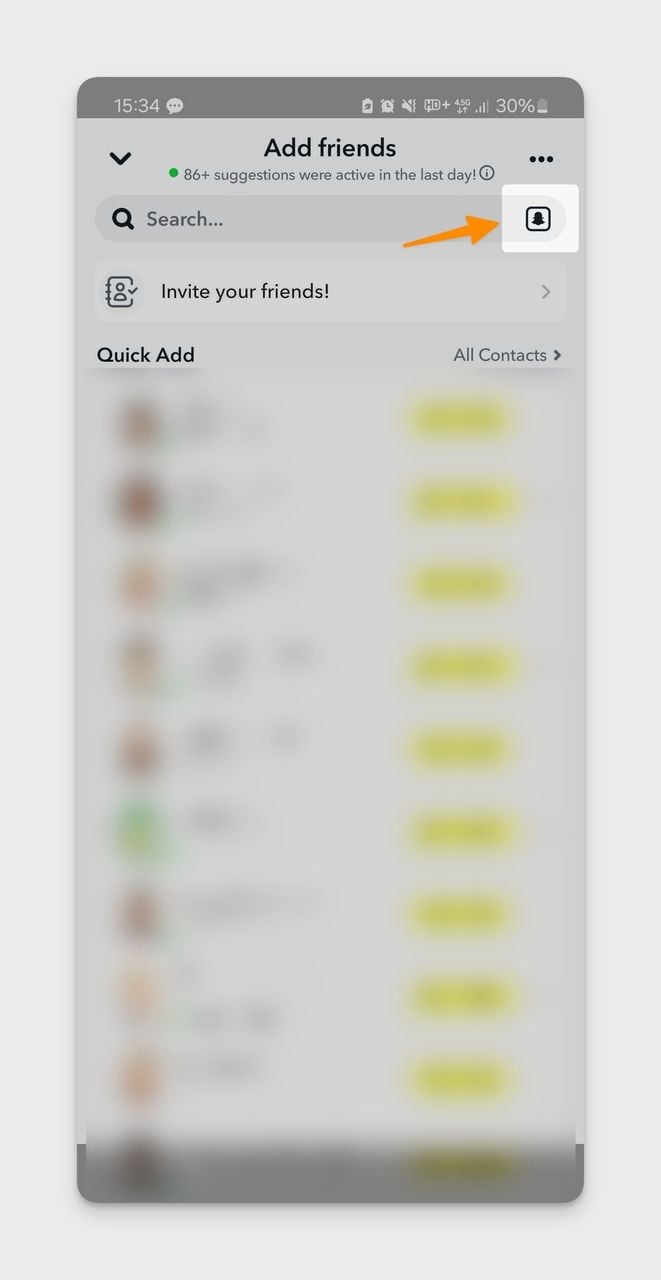
3. Tap the Snapcode Photo Icon
On the Add Friends screen, tap the thin photo-frame icon next to the search bar to open your gallery.
4. Select the Snapcode From Your Gallery
Your gallery picker opens. Browse to the saved image — usually under Camera, Screenshots, or Downloads — and tap the Snapcode.
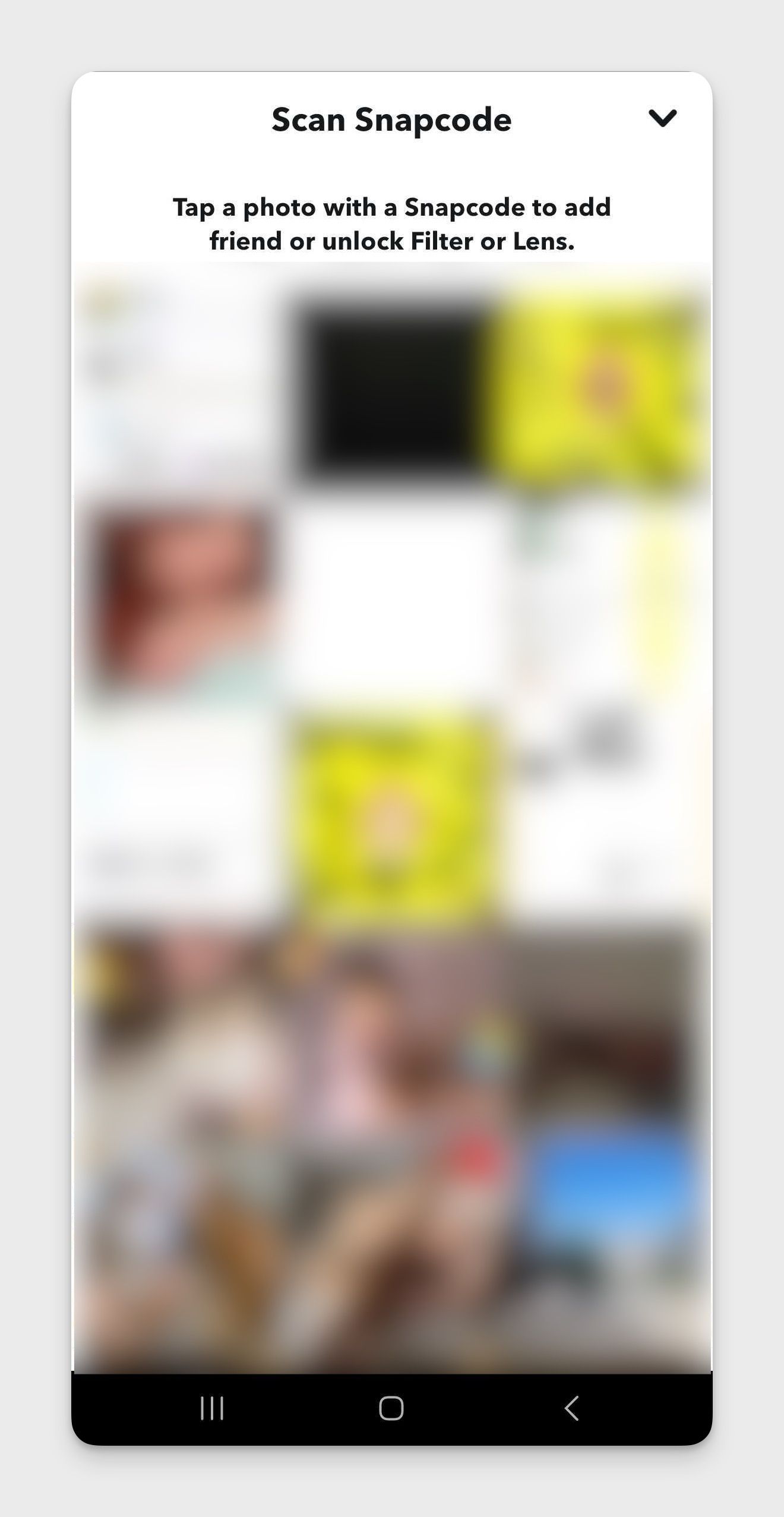
5. Let Snapchat Decode and Act
Snapchat reads the dot pattern in about a second. A friend Snapcode shows the profile preview with an Add button. A Lens Snapcode loads the Lens in the camera. A URL Snapcode opens in Snap's in-app browser.
You'll know it worked when: a preview appears within 2 seconds. If nothing fires after 5 seconds, jump to troubleshooting below.
How to Scan a Snapcode Saved to Your Camera Roll on iPhone
iPhone users have two paths: the in-app Add Friends method (same flow as Android), and an iOS-only Photos shortcut that's faster but works only for friend Snapcodes. I cover both.
Method A: In-App (Works for Every Snapcode Type)
The universal route — scans Lens, URL, and friend Snapcodes equally well.
1. Open Snapchat and Tap Your Bitmoji
Launch the app. Tap your profile icon in the top-left to open the profile page.
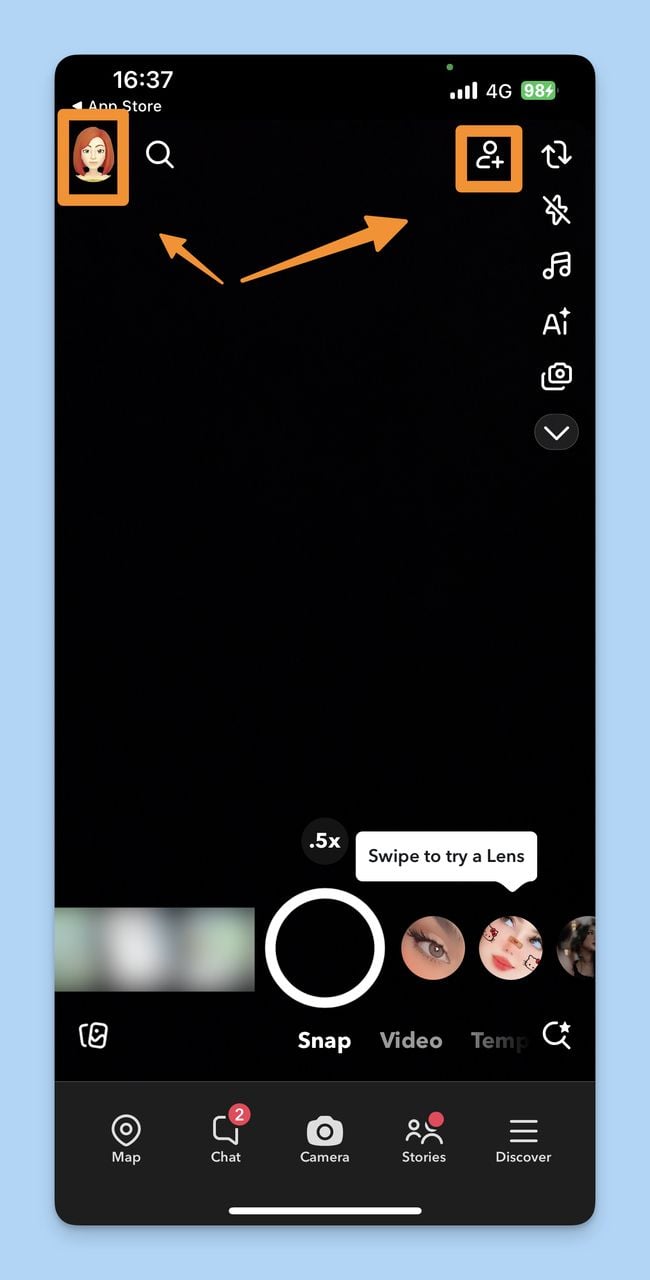
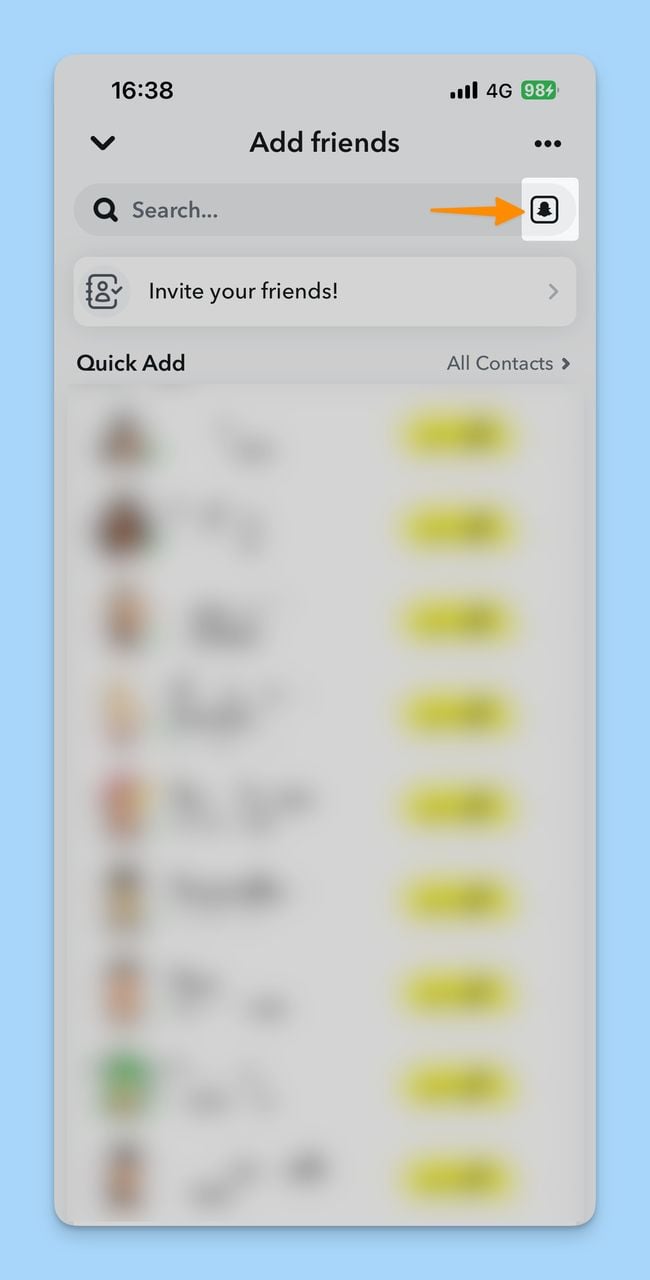
2. Tap "Add Friends," Then the Snapcode Icon
Hit Add Friends in the top-right. On the next screen, tap the small Snapcode photo icon beside the search bar.
3. Pick the Image From Photos
The iOS photo picker slides up. First-timers will get a permissions prompt — pick "Selected Photos" for one-image access, or "Full Access" if you scan often. Tap the Snapcode.
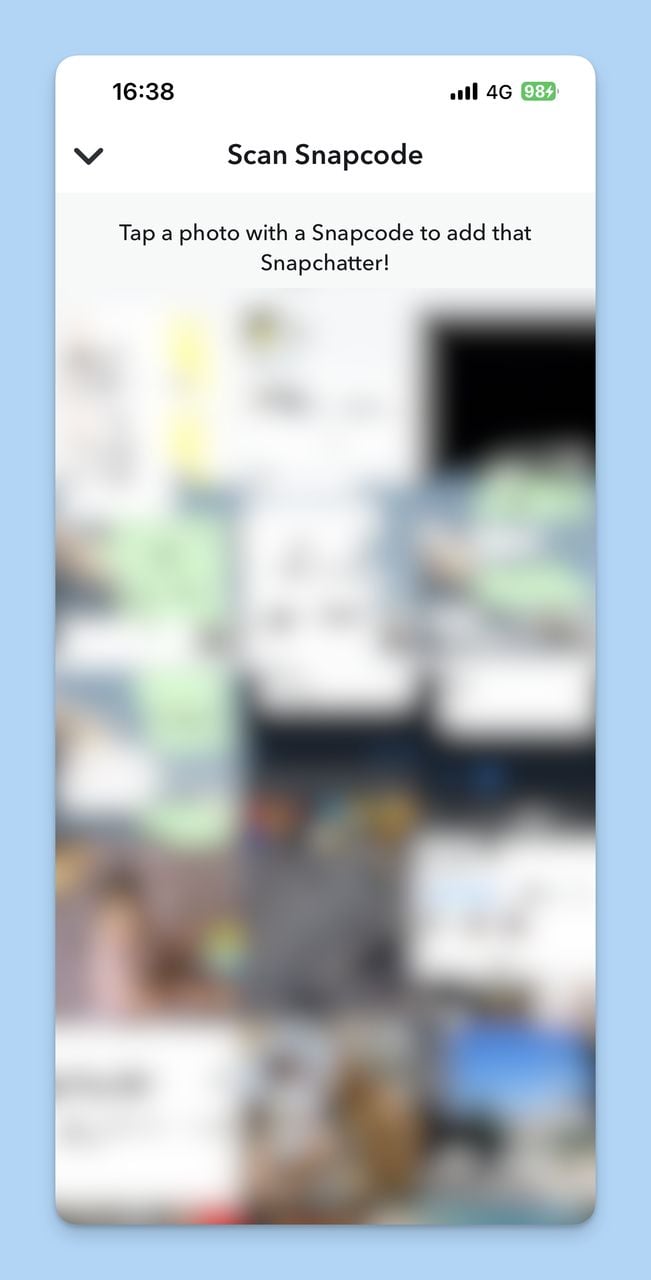
4. Confirm the Action
Snapchat decodes and presents the action: add friend, unlock Lens, or open URL. Confirm and you're done.
Method B: iOS Photos Long-Press Shortcut (Faster, Friend-Only)
iOS 16+ has a feature called Visual Look Up that recognizes QR codes and Snapcodes inside saved images without ever opening the source app. It's the fastest way to add a friend from a Snapcode you already have on your phone.
- Open the Photos app and find the saved Snapcode.
- Long-press (touch and hold) directly on the Snapcode in the image.
- A context menu appears. Tap "Open in Snapchat" — iOS detects the Snap-format dot pattern and routes you straight to the friend-add screen inside the app.
This skips four taps inside the app. According to Apple's support docs, Visual Look Up handles Snapcodes the same way it handles standard QR codes on iOS 16+. If "Open in Snapchat" doesn't appear, the image is too small or partially cropped — fall back to Method A.
Pro tip from Nur: I run two Snapchat business accounts. The Photos long-press is what I use 80% of the time — it doesn't force me to log out and back in, since iOS routes the scan to whichever account is signed in. Saves a few minutes per day across a year of campaign work.
Troubleshooting "Couldn't Find Snapcode" Errors
The most common failure isn't the workflow — it's the image. Snapchat needs roughly 200 visible dots inside the ghost outline to decode a Snapcode. Anything that obscures, blurs, or crops those dots breaks the scan. The failure list, in order of frequency:
- Image is too small. Compressed messaging-app thumbnails sometimes save at 200×200 pixels or smaller. Snap needs about 500×500 pixels minimum. Re-save the original, not the compressed preview.
- Image is blurry or low-contrast. Phone screenshots of laptop screens often introduce moiré patterns. Bump brightness +15-20% and contrast +10% in the Photos editor.
- Snapcode is partially cropped. If the ghost outline isn't fully visible — even one missing edge — Snap's decoder gives up. Re-crop the full code.
- Wrong scanner. Google Lens, the iPhone Camera app, and Android's Circle to Search will read standard QR codes in saved photos but won't decode Snapcodes. Use Snapchat (or the iOS long-press, which routes to Snapchat).
- Snapchat app is outdated. Versions older than 12.0 had a buggy gallery scanner. Update from Google Play or the App Store.
- Retired Snapcode feature. Snapchat killed website-link Snapcodes in 2018 and several publisher-feed Snapcodes in 2020. Older codes may decode but trigger nothing.
- OS minimums. Camera-roll scanning needs iOS 14+ or Android 8.0+. Older devices fall back to live-camera-only scanning.
If you've hit all seven and still can't scan, force-close Snapchat and reopen. Restarting clears stuck gallery permissions about half the time.
Scanning General QR Codes (Not Snapcodes) With Snapchat
One feature most users miss: Snapchat's camera scans regular QR codes too, and the camera-roll path works for both. If you're already in the app, this is the fastest route.
Live: open Snapchat, point at any QR code, and press-and-hold the screen. A yellow ring appears, and within 1-2 seconds you'll see the decoded URL or contact card. From the camera roll: the Add Friends → Snapcode icon path also accepts standard QR images. The result opens in Snap's in-app browser.
Two caveats: Snap's in-app browser strips some session cookies (some logins won't carry over), and Wi-Fi QR codes won't auto-connect from inside Snapchat the way they do from native scanners. For those, fall back to the system camera. If you scan a lot of codes from desktop screens, see our walkthrough on scanning QR codes on a computer.
Best Practices for Using Snapcodes in Marketing
Snapcodes still work as a marketing channel, but the audience is specific. According to DemandSage, 48% of Snapchat's US users are between 15 and 25 years old — a Gen-Z-first channel, not a general consumer play. SearchLab's 2026 report puts global MAU at 850 million and flags Spotlight (Snap's TikTok-style feed) as the fastest-growing surface in the app.
1. Display Snapcodes Where the Audience Already Is
For a 15-25 demographic that means TikTok bios, Instagram Story stickers, in-store displays at concept retail, and event flyers. Print them at minimum 2 cm × 2 cm so the dot pattern stays scannable from the receiving phone. Our guide on QR code design ideas translates well to Snapcode placement too.
2. Put Exclusive Content Behind the Scan
Don't waste a Snapcode on a generic profile follow. Use it to unlock a custom AR Lens, drop a hidden discount, or open a Snap-only landing page. SearchLab's 2026 data shows the platform reaches 75% of all 13-34 year-olds in the US and Western Europe, with the 25-34 segment growing 22% year-over-year — production value has to scale up.
3. Cross-Promote Across Channels
Save the Snapcode as a PNG and post it on Instagram, TikTok, X, and your email list. Frame the post around what the scan unlocks, not the Snapcode itself. Our piece on social media QR codes walks through the cross-platform playbook.
4. Measure and Optimize
Snapchat Ads Manager reports scan counts and Lens engagement for paid campaigns, but organic Snapcodes are harder to track. Tag destinations with UTMs. For non-Snap destinations, dynamic QR alternatives like QR Code Dynamic add scan-by-scan analytics, location heatmaps, and editable destinations — useful for split-testing without reprinting.
5. Simplify the Post-Scan Experience
Every extra tap after the scan is a drop-off. Skip the "Welcome!" page. If the Snapcode unlocks a Lens, that Lens should fire instantly. The URL should be the offer page, not a homepage.
6. Refresh the Creative Quarterly
Snapcodes don't expire, but campaign creative does. Update the Bitmoji slot or central brand mark every 90 days. A 2023 Snapcode in a 2026 launch makes the brand look stale.
Creating Your Own Snapcode for Marketing
Every Snapchat account has a default profile Snapcode auto-generated at sign-up. For marketing, you usually want a second, custom Snapcode pointing to a Lens, a Snap Map place, or a URL.
- Open Snapchat, tap your Bitmoji, then the gear icon (Settings) in the top-right.
- Scroll to Snapcodes and tap Create Snapcode.
- Paste the URL. Snap accepts any HTTPS URL — landing pages, Lens preview links from Lens Studio, Snap Map place URLs, or your own marketing pages.
- Optional: tap Add Image to drop a logo into the center. Use a square PNG with transparent edges.
- Tap Create. Snapchat saves the new code to your camera roll automatically.
Use your default profile Snapcode for friend adds. Use a custom Snapcode for campaigns with a specific landing destination — cleaner analytics, and you can retire the code without affecting your main account.
The Bottom Line on Scanning Snapcodes From Your Camera Roll
Scanning a saved Snapcode comes down to one rule: route it through Snapchat. The in-app Add Friends path works on Android and iPhone. iPhone users get a faster shortcut via the Photos long-press, but only for friend Snapcodes. Standard QR scanners won't decode Snap's proprietary dot format.
For marketing, treat Snapcodes as a channel-specific asset for Gen-Z and younger millennials, pair them with a measurable destination, and refresh the creative every 90 days. For QR campaigns outside Snapchat — print, retail, multi-channel — a dynamic QR platform gives you analytics and editability that Snap's native codes don't.
FAQs About Snapcodes
How Do I Share My Snapcode on Snapchat?
Tap your Bitmoji to open your profile, then tap the share icon on your Snapcode card. Pick a contact, platform, or "Save Image." The saved version goes to your camera roll as a PNG.
Can You Scan a Snapcode From a Picture?
Yes. Save the picture, then open Snapchat → profile → Add Friends → photo icon → pick the saved image. On iOS 16+, long-press the Snapcode in Photos and tap "Open in Snapchat" instead.
Why Won't Snapchat Scan My Saved Snapcode?
Four common causes: image under 500×500 pixels, partial crop or blur, Snapchat older than version 12.0, or a non-Snap scanner like Google Lens. Re-save the full-resolution image, update Snapchat, use the in-app picker. Full list in the troubleshooting section above.
How Do I Scan a Snapchat QR Code From My Gallery?
"Gallery" on Android and "Photos" on iPhone use the same flow: Snapchat → profile → Add Friends → photo icon → pick the image. Snapchat decodes in the background and triggers the action automatically.
Can I Scan a Snapcode From a Screenshot?
Yes, as long as the screenshot captured the full Snapcode including the ghost outline. Modern phone screenshots are 1080×2400+, so resolution is rarely the issue — cropping is.
Visit our related blog posts:

I work as a Growth Marketer at Popupsmart, using my 3+ years of SaaS experience to create clear, useful marketing content that helps brands grow, reach the right audiences, and improve their results.