Instagram QR Code: How to Find and Customize

On this page
- What is an Instagram QR Code?
- How to Get Your Instagram QR Code on Any Device
- How to Get an Instagram QR Code on Android
- How to Get an Instagram QR Code on iPhone
- How to Get an Instagram QR Code on a Computer
- Why Should You Use an Instagram QR Code?
- How to Scan an Instagram QR Code
- How to Scan an Instagram QR Code on Android
- How to Scan an Instagram QR Code on iPhone
- Can You Scan an Instagram QR Code on a Computer?
- How to Use a Custom QR Code for Instagram with QR Code Dynamic
- How to Create a Custom Instagram QR Code with QR Code Dynamic
- Why Use a Custom QR Code Generator?
- Best Practices for Using Instagram QR Codes
- Where to Use Your Instagram QR Code for Maximum Impact
- Instagram QR Code Use Cases for Business and Creators
- Reels and Stories Integration
- Link-in-Bio Pairing
- Lead Magnets and Gated Offers
- In-Store Displays and Business Cards
- Event Swag and Trade Show Booths
- Tracking Limitations of Instagram's Native QR Code
- The Bottom Line on Instagram QR Codes
- FAQs
- Where Can I Get My QR Code on Instagram?
- How to Find an Instagram Account by QR Code?
- Can I Customize My Instagram QR Code?
- Can I Log Into Instagram with a QR Code?
- Can I Track How Many People Scan My Instagram QR Code?
- You can also check out these contents:
To get your Instagram QR code, open the Instagram app, tap your profile picture, then tap the menu (three lines) and choose QR code or Share Profile. Available on iOS, Android, and desktop. The default code links to your @username — for branded analytics-tracked codes, use a third-party generator like QR Code Dynamic.
What is an Instagram QR Code?
An Instagram QR code is a scannable code that links directly to your Instagram profile. When someone scans it, they land on your profile instantly — no username search, no typos.
The feature replaced an older system called Nametag, which Instagram retired in 2021. Nametag only worked inside the Instagram app. The native QR code that replaced it is a real, universal QR — any phone camera or QR scanning app can read it. That's what made Instagram QR codes practical for offline marketing.
I've been generating profile QR codes since the Nametag days, and the difference matters: the modern code is shareable through SMS, email, and print without breaking. See Instagram's official help on customizing your profile QR code.
What you'll need:
• Instagram app (iOS or Android) logged in, or access to instagram.com on desktop.
• 2 minutes per device.
• Beginner-friendly — no design skills required.
Quick overview of the process:
1. Open your profile — tap your avatar (mobile) or click it in the sidebar (desktop).
2. Find the QR code option — Share Profile on mobile, Settings gear on desktop.
3. Customize — tap the screen to swap colors, emoji backgrounds, or selfie stickers.
4. Save or share — tap Download for a PNG, or Share to send through messages and email.
How to Get Your Instagram QR Code on Any Device
The flow is similar across Android, iPhone, and computer, but menu locations differ slightly. The resulting QR is identical wherever you generate it — pick the easiest device and reuse the file.
How to Get an Instagram QR Code on Android
Android exposes the QR code through the Share Profile sheet. The sequence takes about 30 seconds.
1. Open Instagram and log into your account.
2. Tap your profile picture in the bottom right to open your profile.
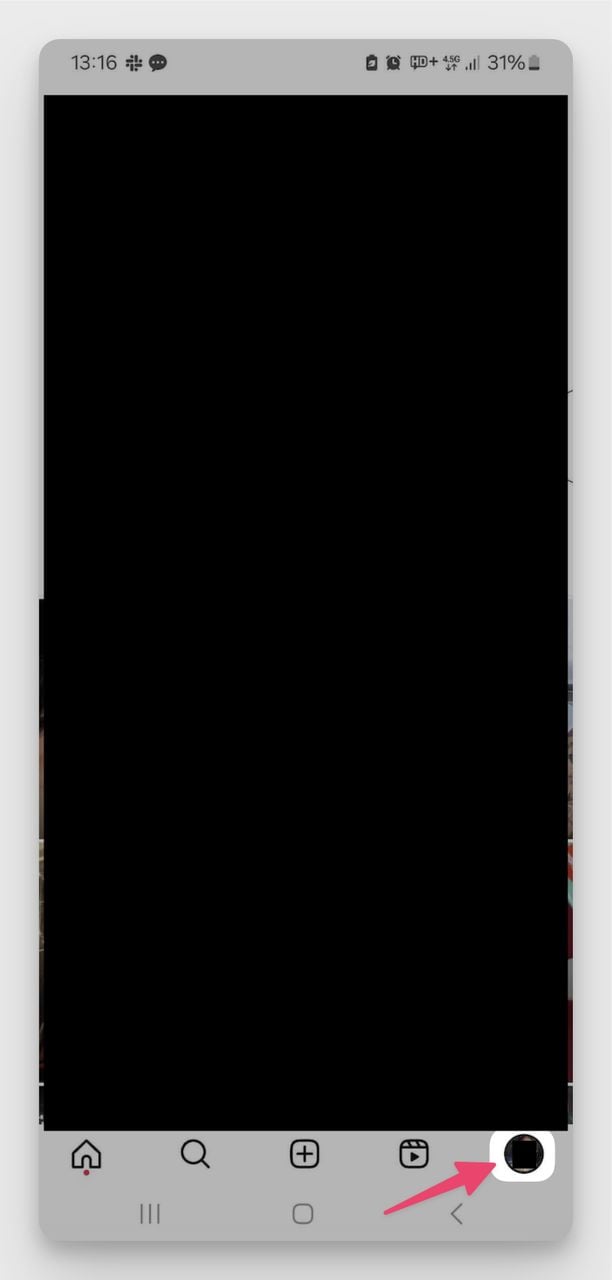
3. Tap Share Profile below your bio.
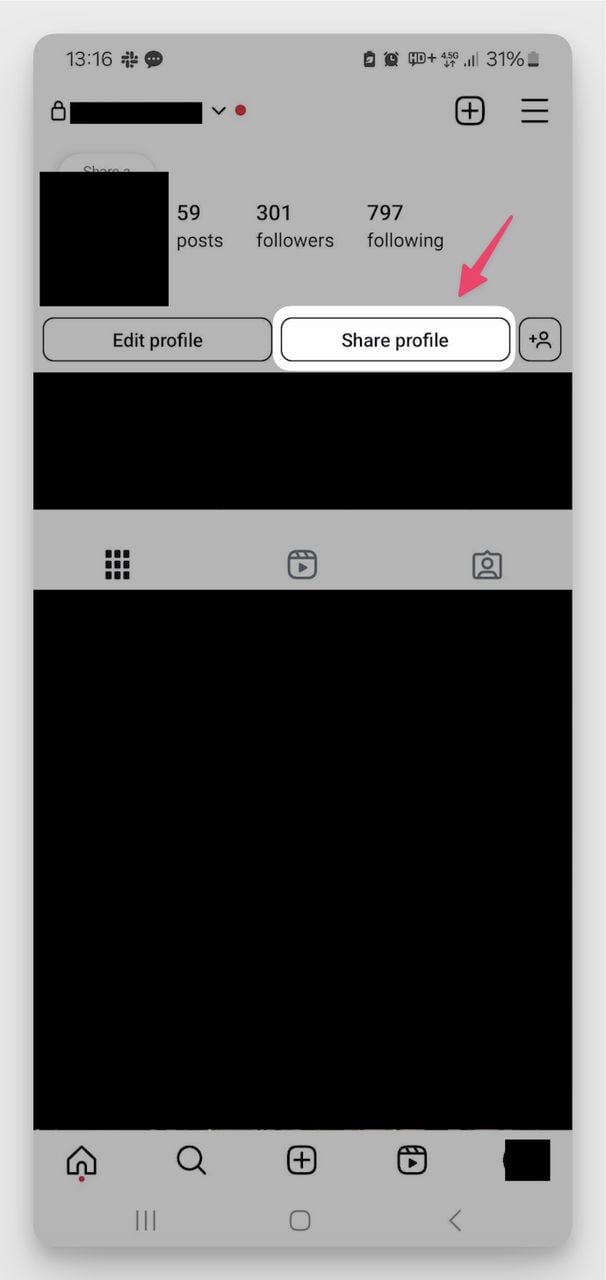
4. Your Instagram QR code will appear.
5. Customize it by tapping anywhere on the screen — choose between solid colors, emoji backgrounds, or a selfie sticker mode.
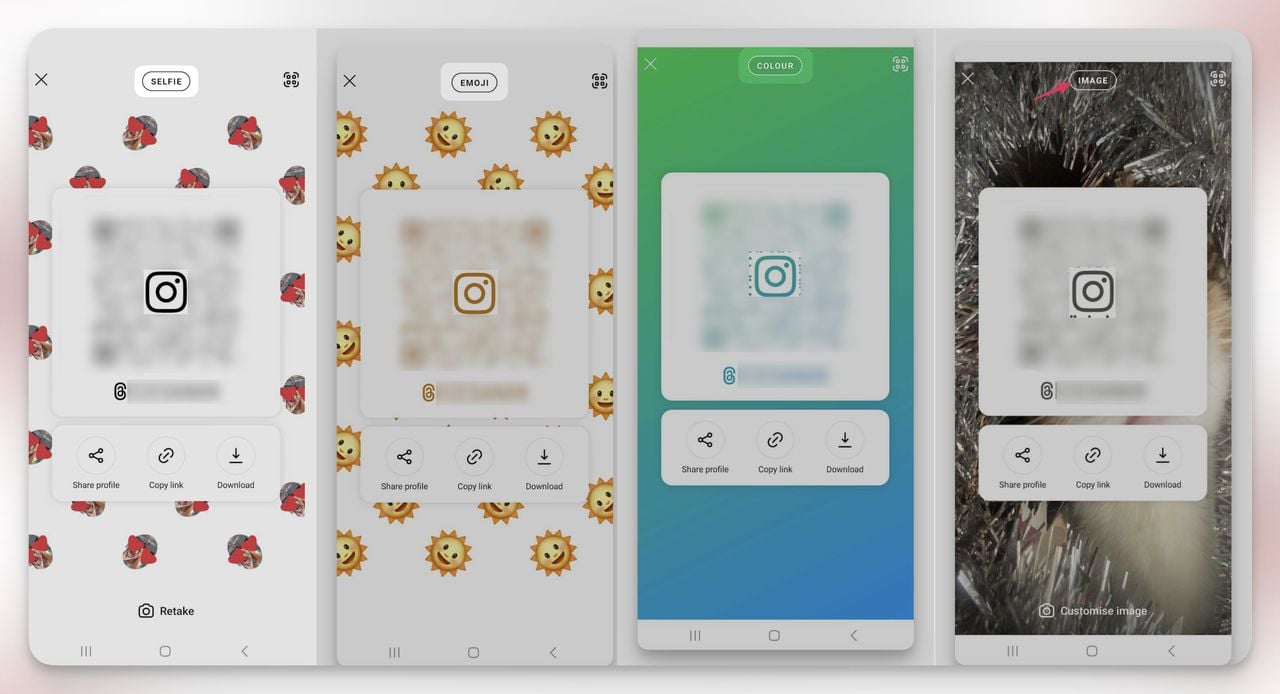
6. Once you're happy with the design, tap the Share button to send it via messages, social media, or email.
7. To save the QR code as an image, tap the Download icon and the file lands in your phone gallery.
You'll know it's working when: the screen shows your username at the top of the code and a small download arrow appears bottom-right. If your handle isn't visible above the code, you're on the scan tab — back out and tap Share Profile again.
Watch out for:
• Saving a low-resolution version: the in-app download is fine for screen sharing, but if you plan to print at A4 or larger, the file looks soft. Print at 5cm x 5cm minimum, or regenerate at higher DPI through a third-party tool.
• Switching account during share: if you have multiple Instagram accounts on the same phone, double-check which is active. I've sent the wrong account's QR to a printer twice — once for 500 business cards.
Pro tip: After three years of testing QR placements for SaaS clients, the selfie-sticker style scans the worst — the selfie image often introduces contrast that confuses budget Android cameras. Stick to high-contrast solid-color backgrounds for reliability.
How to Get an Instagram QR Code on iPhone
The iOS flow is almost identical to Android. Apple's native Camera app reads the resulting code without any extra app.
1. Open the Instagram app and tap your profile picture in the bottom right.
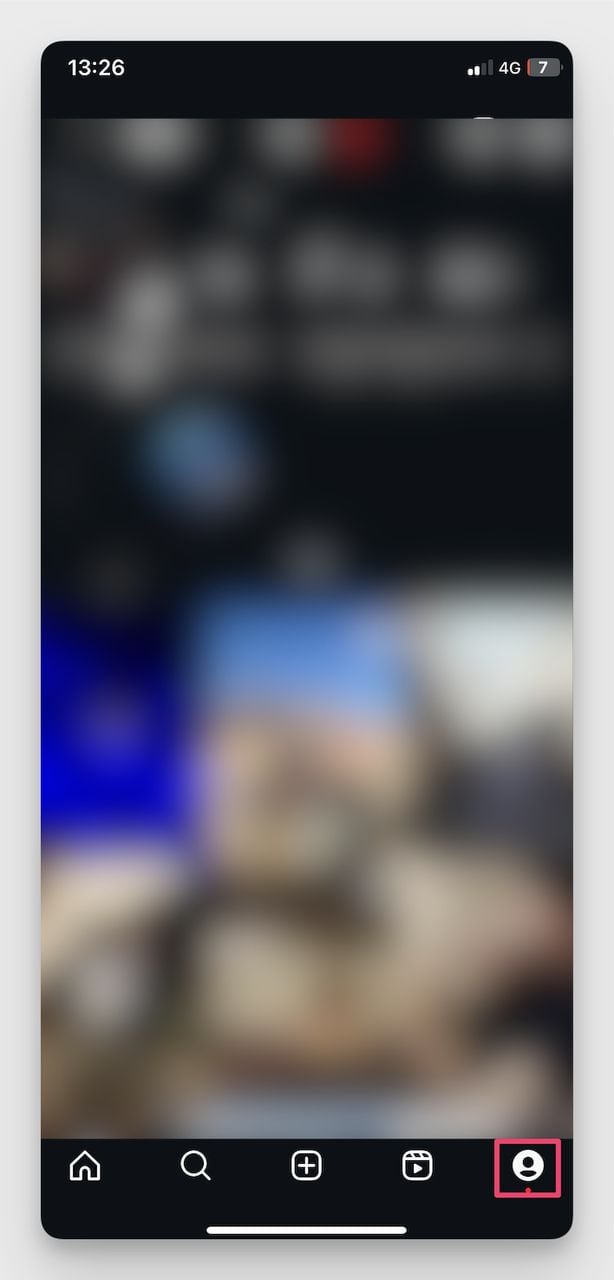
2. Tap Share Profile below your bio.
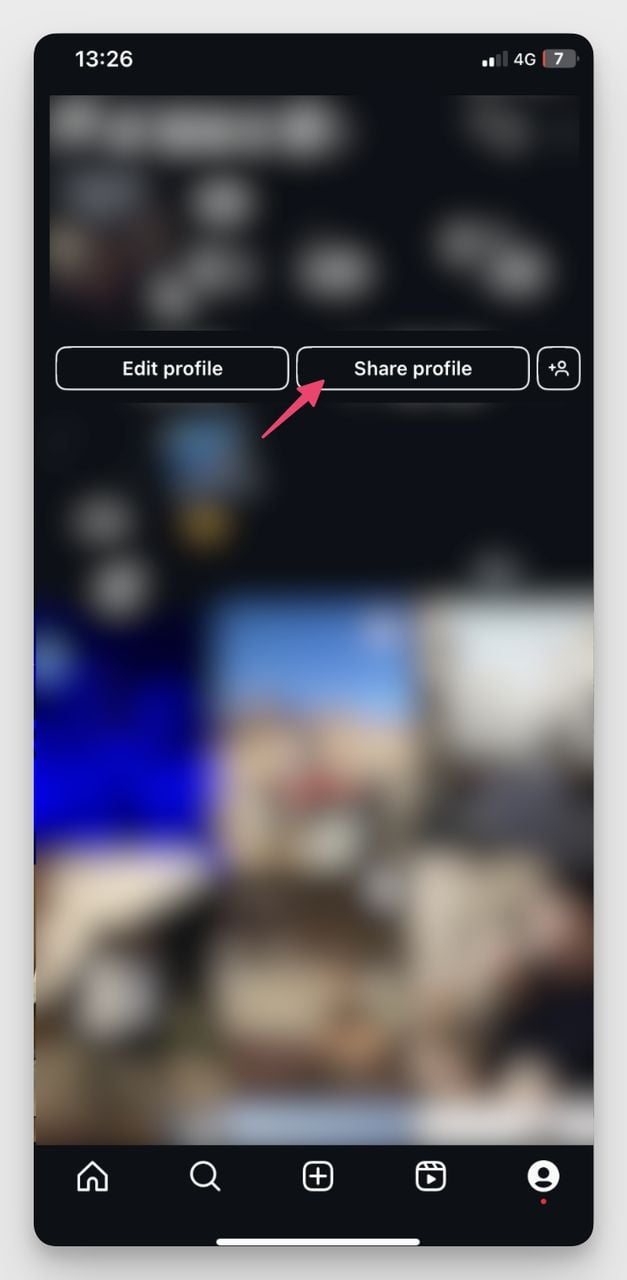
3. Your QR code appears on a full-screen colored background.
4. Customize it by tapping anywhere — switch colors, add emoji backgrounds, or take a selfie with stickers.
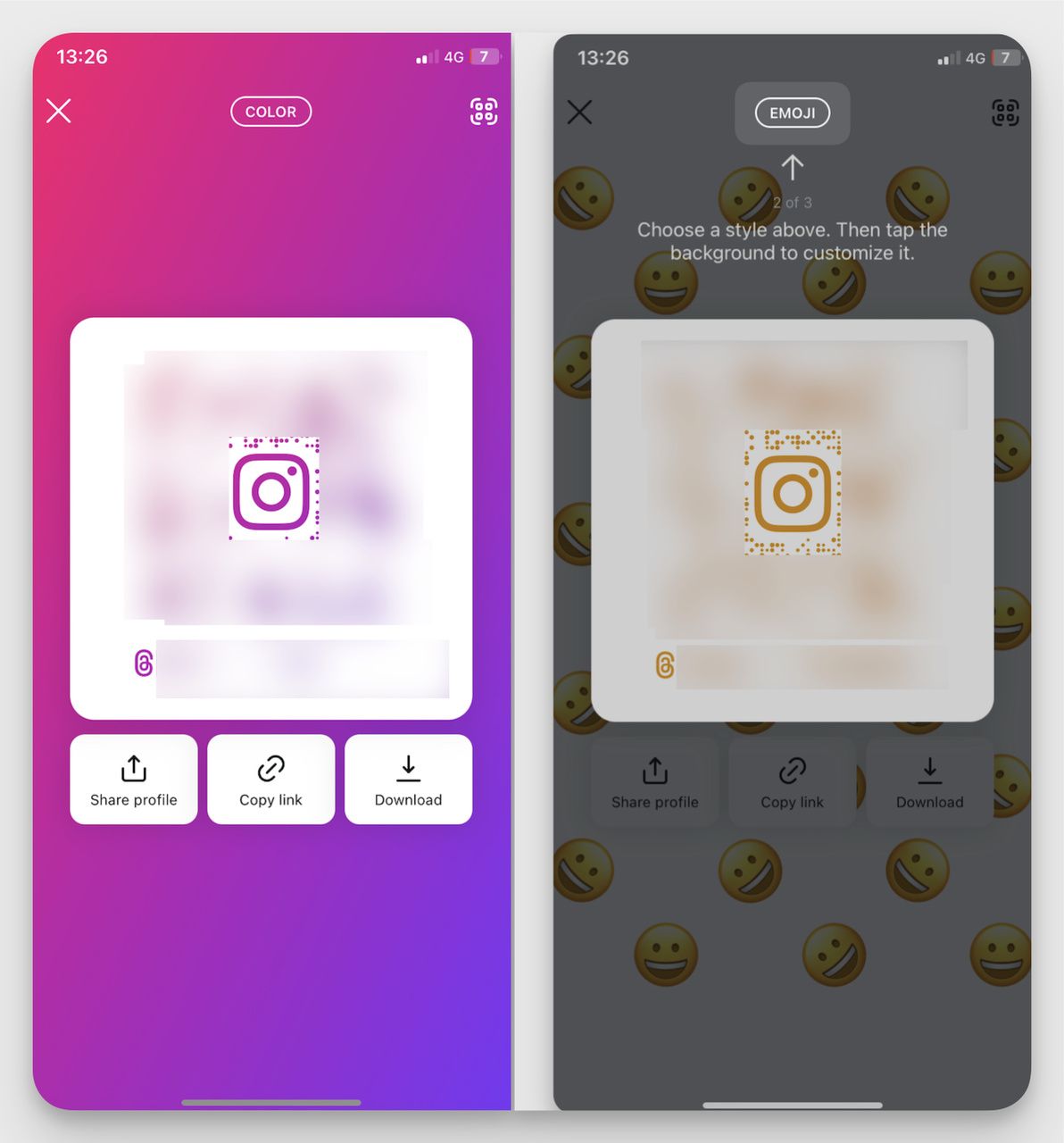
5. Tap Share to send it through messages, social media, or email.
6. Tap Download to save it to your Photos for later use.
If you're running Instagram for business, drop your QR code on print media like flyers, packaging, or business cards to convert offline impressions into followers.
You'll know it's working when: the saved file appears in Photos as a square PNG with your handle baked in. Open it and point a second device's camera at the screen — the Instagram URL preview pops up within two seconds.
Watch out for:
• HEIC export quirks: if your iPhone saves photos as HEIC, some print shops can't process the file. Convert to PNG or JPG before sending — fastest fix is opening it in Preview on a Mac and exporting as PNG.
• Closing Instagram before tapping Save: the QR screen doesn't auto-save. Swipe away while the customizer is open and you'll lose the styled version. Always tap Download first, share second.
Pro tip: I keep a Notes folder with five QR variants — default, black-on-white for grayscale print, branded color, selfie style, and a logo version from QR Code Dynamic. Switching by use case has roughly halved my campaign-prep time.
How to Get an Instagram QR Code on a Computer
Desktop generation is buried two clicks deeper than mobile, but the export quality is the highest of the three platforms.
1. Go to instagram.com and log into your account.
2. Click your profile picture in the top right (or the profile tab in the left sidebar) to open your profile.
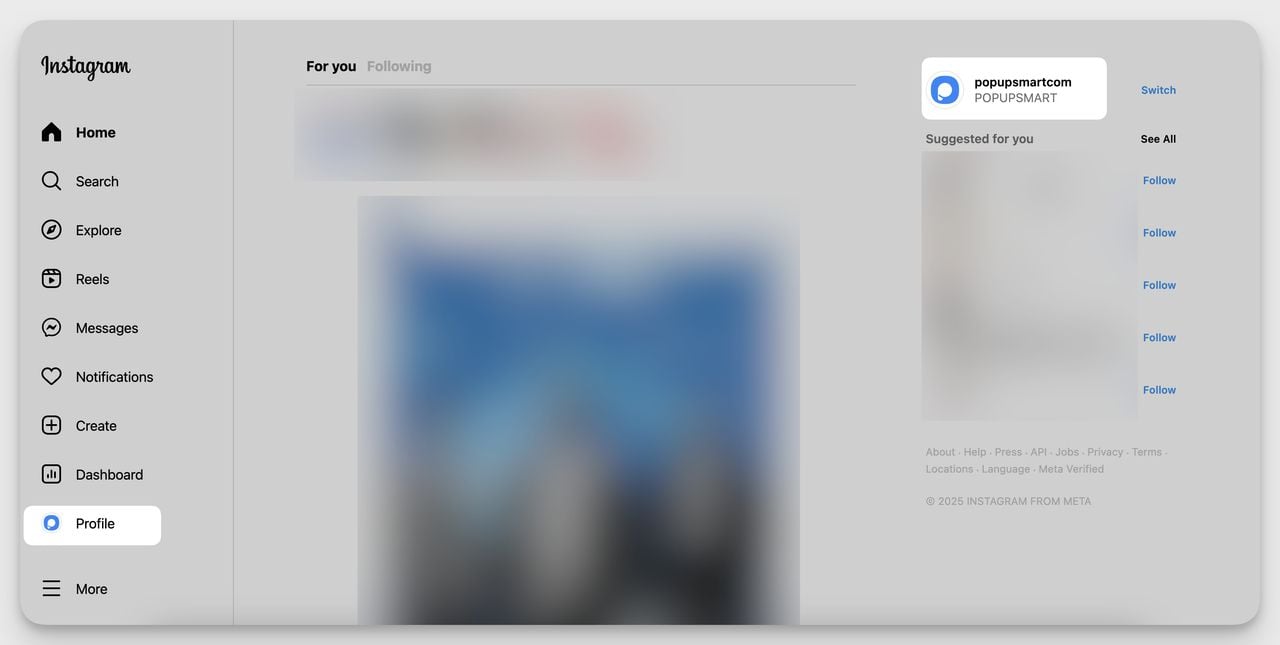
3. Click the Settings (gear) icon next to your bio.
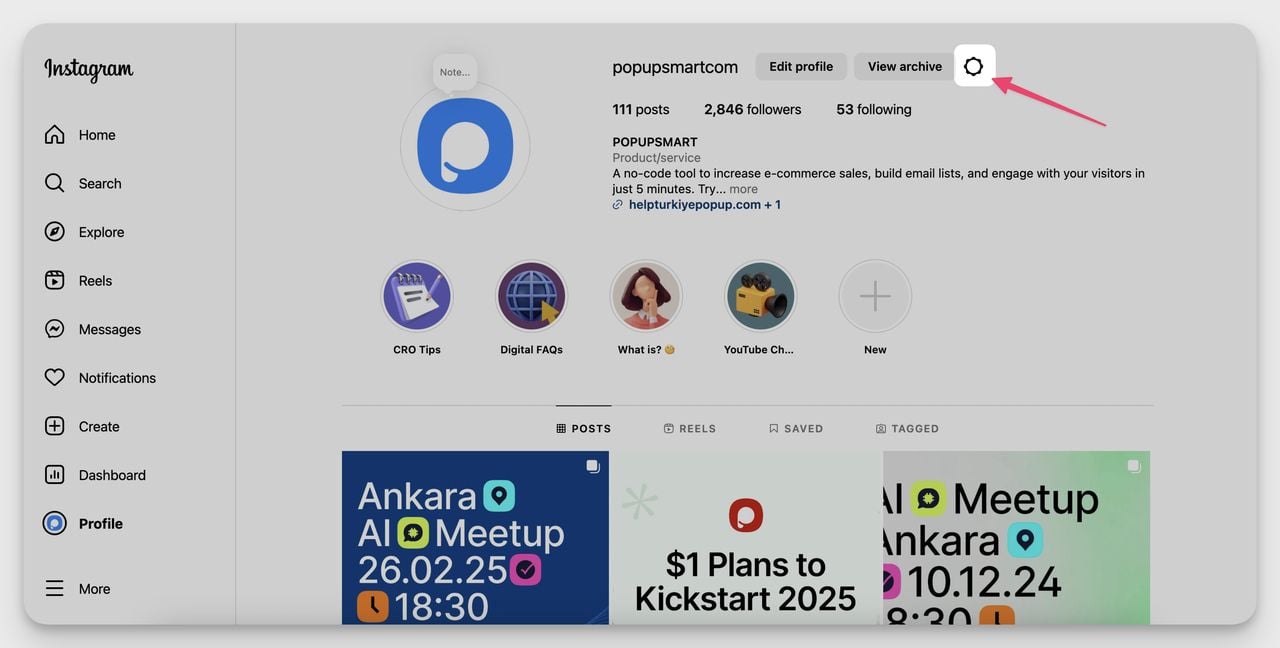
4. Select QR Code from the menu that appears.
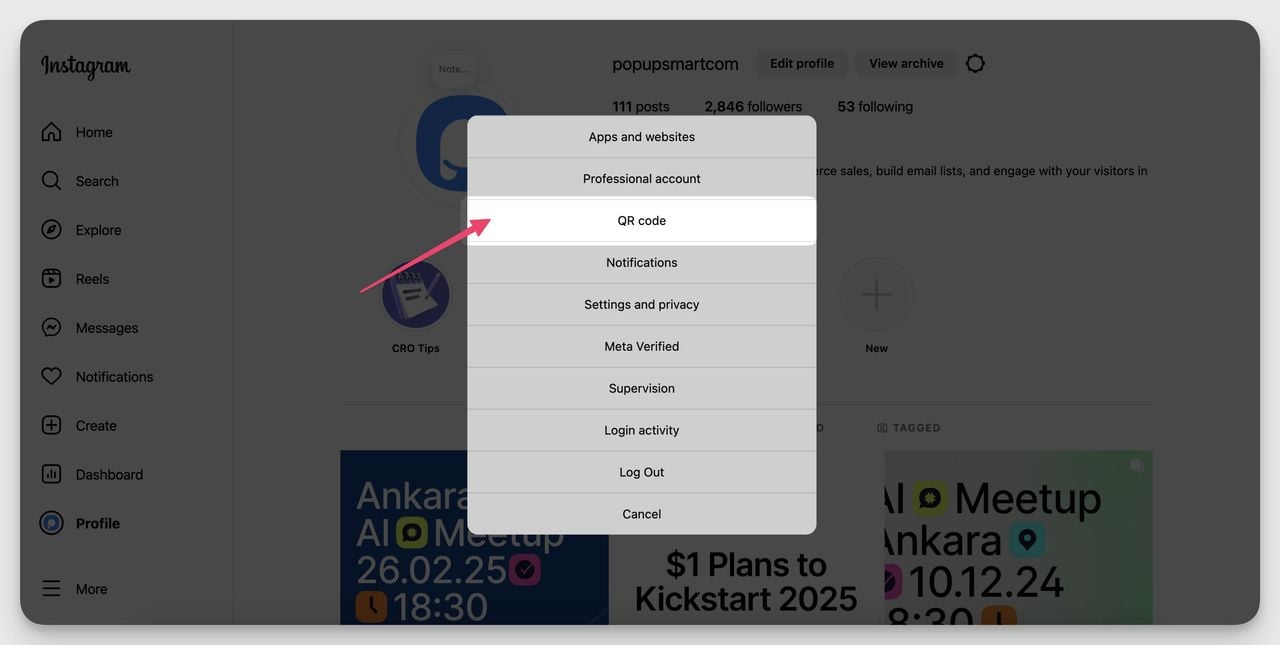
5. Click the color options at the bottom to customize the design.
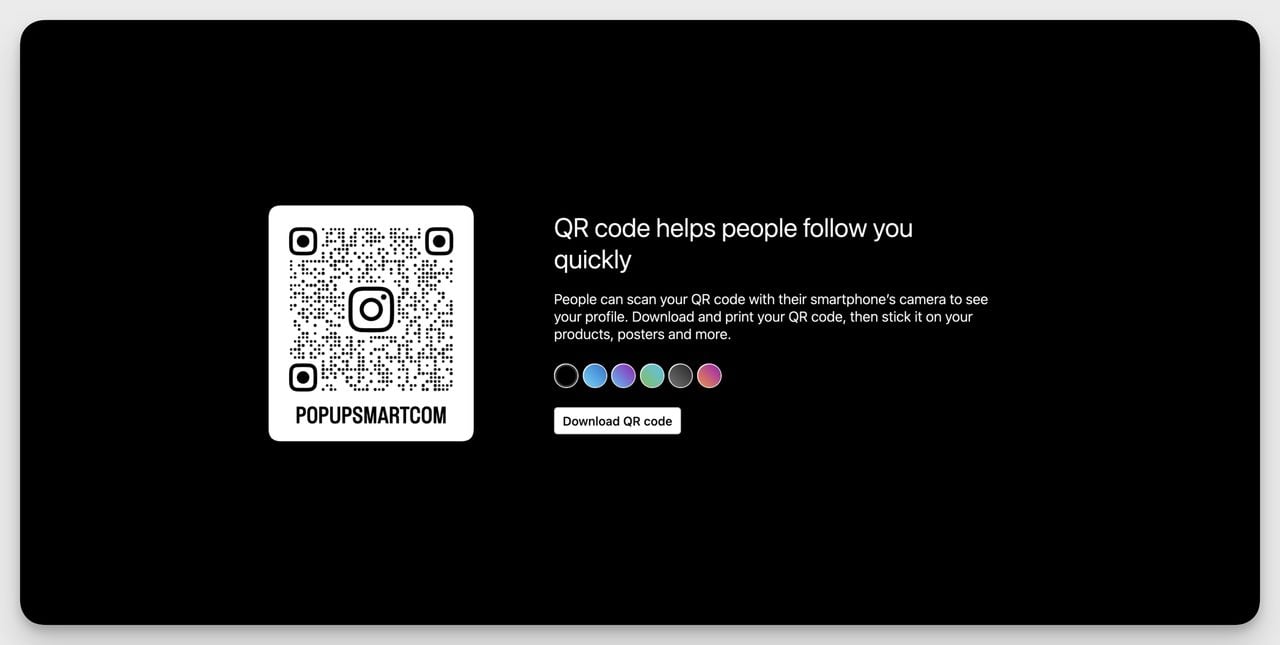
6. Click Download to save it as a PNG file on your computer.
Want to print your QR for store signage or a QR code on product packaging? The desktop export hits roughly 1080 x 1080 pixels — fine for most runs. For billboards or anything wider than 30cm, regenerate at vector resolution (SVG).
You'll know it's working when: the file lands in Downloads named with your handle (e.g., username_qr.png). Confirm the link preview with your phone's camera before printing.
Watch out for:
• Browser blocking the download: Chrome and Safari occasionally flag the export as suspicious. Click Keep — the file is safe.
• Hidden gear icon on mobile-mode browsers: if you're in mobile responsive mode, Settings hides behind the three-dot menu. Switch to desktop view first.
Pro tip: If you're handing the file to a designer, also send a QR code with a transparent background version. Instagram's native export bakes in a colored backdrop that fights with brand templates. Same URL, two formats.
Why Should You Use an Instagram QR Code?
Instagram QR codes remove friction between an offline impression and a profile follow. According to a 2026 QR adoption report citing Uniqode's research, 71 percent of US consumers say QR codes are useful in daily life — your audience is already comfortable scanning.
Whether you're a small business owner, an influencer, or a marketing manager:
• Profile sharing becomes effortless: no spelling out usernames. Scan and connect.
• Business promotions get a measurable lift: add your QR code to business cards, flyers, packaging, or store windows.
• Event networking speeds up: share your profile with one scan at conferences instead of calling out a username.
• Offline-to-online closes the loop: drop your QR code on emails, posters, and merchandise.
For more control — branding, logo embedding, analytics — consider a dynamic QR code generator like QR Code Dynamic.
How to Scan an Instagram QR Code
Once you have your code, the next thing readers ask: how do I scan someone else's? Whether you're following a friend, a brand, or a customer in-store, scanning takes about three seconds.
How to Scan an Instagram QR Code on Android
1. Open Instagram and go to your profile.
2. Tap Share Profile below your bio.
3. Tap the QR Scanner icon in the top-right corner.
4. Point your camera at the QR code.
5. Once detected, Instagram takes you to that profile.
If you have a code saved in your gallery, tap Scan from Gallery to upload and scan it directly.
How to Scan an Instagram QR Code on iPhone
1. Open Instagram and go to your profile.
2. Tap Share Profile below your bio.
3. Tap the QR Scanner icon in the top-right corner.
4. Hold your phone over the QR code to scan.
5. Instagram opens the destination profile automatically.
You can also scan with the iPhone's native Camera app — point it at the code and tap the Instagram link in the yellow banner.
Can You Scan an Instagram QR Code on a Computer?
No — Instagram's built-in scanner is only available on mobile. Desktop browsers don't have access to Instagram's in-app camera capture flow.
Workaround: if you receive a code on your computer, open the image at full size and scan it with your phone. See our guide to scanning QR codes on a computer for more options.
How to Use a Custom QR Code for Instagram with QR Code Dynamic
Instagram's built-in QR codes are useful, but they ship with hard limits. You can't add brand colors beyond the preset palette, you can't embed your logo, and you can't track QR code scans. That's where QR Code Dynamic fills the gap.
How to Create a Custom Instagram QR Code with QR Code Dynamic
1. Sign up — visit qrcodedynamic.com and create a free account.
2. Enter your Instagram URL — paste your profile link (e.g., https://www.instagram.com/yourusername/) into the URL QR code generator.
3. Customize — pick colors, patterns, and frame styles, and drop your logo in the center for instant brand recognition.
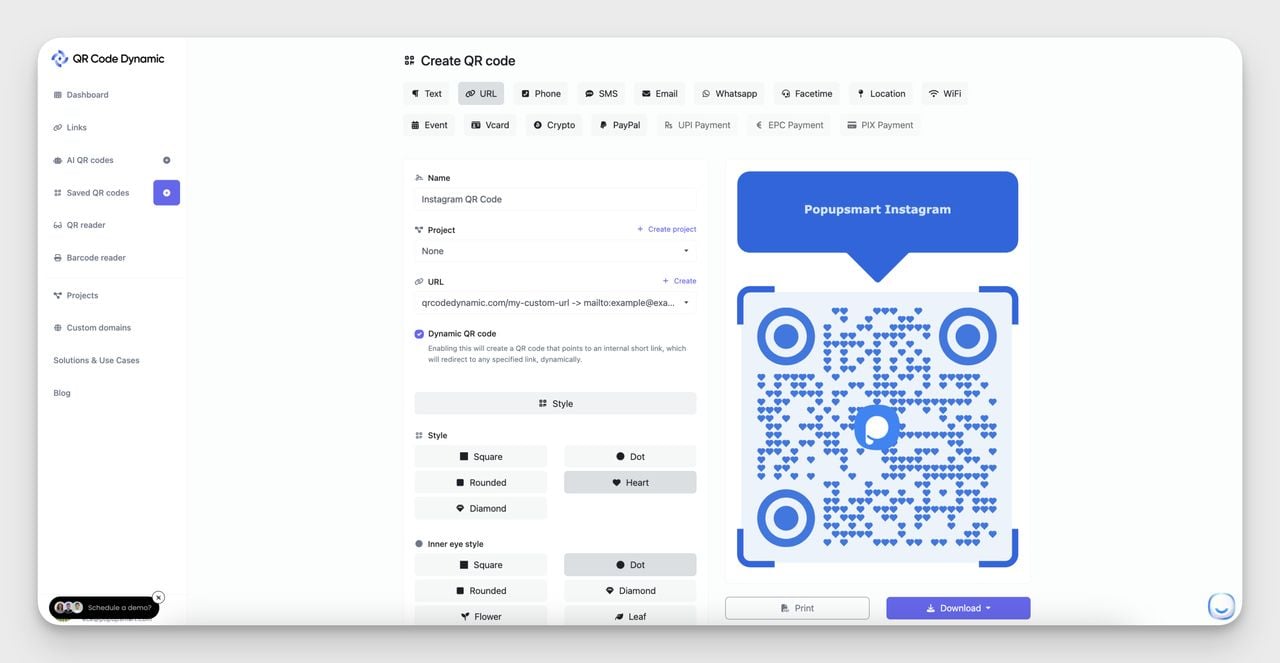
4. Download and share — save as PNG, JPG, or SVG and start using it on QR codes for social media, business cards, and print materials.
If you plan to print, use SVG so the file stays sharp at any size.
Why Use a Custom QR Code Generator?
Unlike Instagram's default QR, QR Code Dynamic gives you four levers Instagram doesn't:
• Logo and brand colors: make the code look like part of your brand instead of an Instagram-stamped graphic.
• Scan tracking: real-time data on scan counts, location, time, and device type.
• Re-route destination: with a dynamic code, you can redirect the QR code after printing — useful when campaign landing pages change.
• Visual standout: apply unique design ideas and frames to lift scan rates over a plain black-and-white square.
Best Practices for Using Instagram QR Codes
Placement is what turns a printed QR into followers.
Where to Use Your Instagram QR Code for Maximum Impact
• Business cards: add the QR so contacts can follow the moment you hand the card over.
• Product packaging: reward buyers with exclusive product guides, giveaways, or behind-the-scenes content gated behind a scan.
• Storefronts and menus: display the QR at the entrance, on tables, or at checkout.
• Event banners and flyers: use a scannable code at trade shows, networking events, and pop-up shops.
• Email signatures and social posts: drop the QR code in your email signature or pin it across your other social channels.
• Website and blog: embed the QR on your homepage or blog footer to push existing site traffic to Instagram.
For more inspiration, our guide to creative QR code design walks through framing and CTA patterns that lift scan rates by 20-40 percent in real campaigns.
Instagram QR Code Use Cases for Business and Creators
Instagram is no longer a "nice to have" channel for B2B and DTC brands. According to Hootsuite's 2026 Instagram report, Instagram is projected to earn $42.52 billion from ads in 2026, and Business of Apps data puts the platform's 2024 revenue at $66.9 billion. A QR code is the cheapest bridge between offline impressions and that audience.
Supply-side volume is climbing too — Quantumrun's Instagram business statistics report 350+ million business accounts as of late 2025, a 17 percent year-over-year jump.
Reels and Stories Integration
Display your QR as a Story sticker or the closing frame of a Reel. Viewers screenshot the frame, then scan from their gallery. Reels with a QR end-card outperform plain "follow us" CTAs because the action is concrete.
Link-in-Bio Pairing
Pair your Instagram QR with your link-in-bio tool. The QR drives the offline visitor to your profile; the bio link routes them to a product page, newsletter, or booking flow — turning a printed flyer into a multi-step funnel.
Lead Magnets and Gated Offers
Print "Scan for a free guide" or "Scan for 10% off" on packaging, receipts, or event swag. The scan lands on Instagram, where you DM the offer or trigger an automation. Conversion rates beat generic URL CTAs because the channel feels personal.
In-Store Displays and Business Cards
Cafés, salons, gyms, and retail stores see follow-rate lifts from a QR sticker at checkout. For B2B, a QR on a business card beats typing a username after 30 cards in a conference morning.
Event Swag and Trade Show Booths
Lanyards, table tents, and giveaway items with a QR turn event attendees into followers without staffing a sign-up sheet. The follow happens during the conversation, not after.
Tracking Limitations of Instagram's Native QR Code
Here's the part most tutorials skip: Instagram's native QR code has zero analytics. You can't see how many people scanned it, when, where from, or whether they followed afterward. The code is also static — it points to your profile URL forever, and you can't redirect it once printed.
For a personal account or low-volume sharing, that's fine. If you're spending real budget on print, packaging, or events, the lack of measurement is a problem. You can't A/B test, attribute follower growth, or pivot a printed asset mid-campaign.
That's the practical case for a dynamic QR code — dynamic codes route through a short URL you control, so the data and the destination both stay editable.
| Feature | Native Instagram QR | Dynamic QR (via QR Code Dynamic) | Best For |
|---|---|---|---|
| Logo and brand colors | Limited preset colors only | Full color, logo, frame, pattern customization | Branded marketing assets |
| Scan analytics | None | Scan count, location, time, device | Paid campaigns and performance tracking |
| Editable destination after print | No — static link to profile | Yes — redirect anytime | Long-lived print runs and packaging |
| Cost | Free | Free tier plus paid plans | Anyone — start free, upgrade for analytics |
If your QR is going on packaging or a billboard with a long shelf life, the dynamic option pays for itself the first time you change a landing page.
The Bottom Line on Instagram QR Codes
Generating an Instagram QR code takes under a minute on any device, and the result is a real QR any phone camera can read. For casual sharing, the native code is enough. For brands running paid offline campaigns, the gap between native and dynamic (analytics, editable destinations, full branding) becomes the deciding factor.
Start with the native code today, test it on real packaging, and upgrade to a dynamic code through QR Code Dynamic the moment you want to know who is actually scanning.
FAQs
Where Can I Get My QR Code on Instagram?
On mobile, tap your profile picture, then tap Share Profile below your bio — your QR code appears on the next screen. On desktop, click your profile icon, click the Settings gear, then select QR Code. Both flows take under 30 seconds.
How to Find an Instagram Account by QR Code?
Open Instagram, tap Share Profile, then tap the QR scanner icon in the top right. Point your camera at the code, or tap Scan from Gallery to scan a saved image. On iPhone, you can also use the native Camera app — point it at the code and tap the Instagram preview banner.
Can I Customize My Instagram QR Code?
Yes. Instagram lets you personalize QR codes with three styles: solid colors, emoji backgrounds, and selfie stickers. Tap anywhere on the QR code screen to cycle through styles. For full control — logo embedding, brand colors, custom patterns — use QR Code Dynamic to build a custom version.
Can I Log Into Instagram with a QR Code?
No. Instagram QR codes are strictly for profile sharing and navigation. Unlike WhatsApp Web, Instagram doesn't support QR-based login. For safer logins, enable two-factor authentication under Settings > Security > Two-Factor Authentication, and store the backup codes Instagram generates somewhere offline.
Can I Track How Many People Scan My Instagram QR Code?
Instagram's native QR codes don't offer tracking. For scan analytics, use a third-party tool like QR Code Dynamic, which surfaces scan frequency, geographic data, and device insights. Tracking matters for paid campaigns because it lets you attribute follower growth and optimize creative based on actual scanning behavior.
You can also check out these contents:
• Instagram 'Follow Us' Templates to Increase Followers (Free)
• QR Code for Spotify Playlists: How to Make & Use
• How to Create a QR Code for WhatsApp Group

I work as a Growth Marketer at Popupsmart, using my 3+ years of SaaS experience to create clear, useful marketing content that helps brands grow, reach the right audiences, and improve their results.